Selling finished goods
From a new enquiry to money in the books — lead, quotation, approval, sales order, delivery, invoice, payment, ledger.
85 étapes
Le parcours complet, sans commentaire audio.
1 · Signing in
Every person has their own login. What you can see depends on your role.
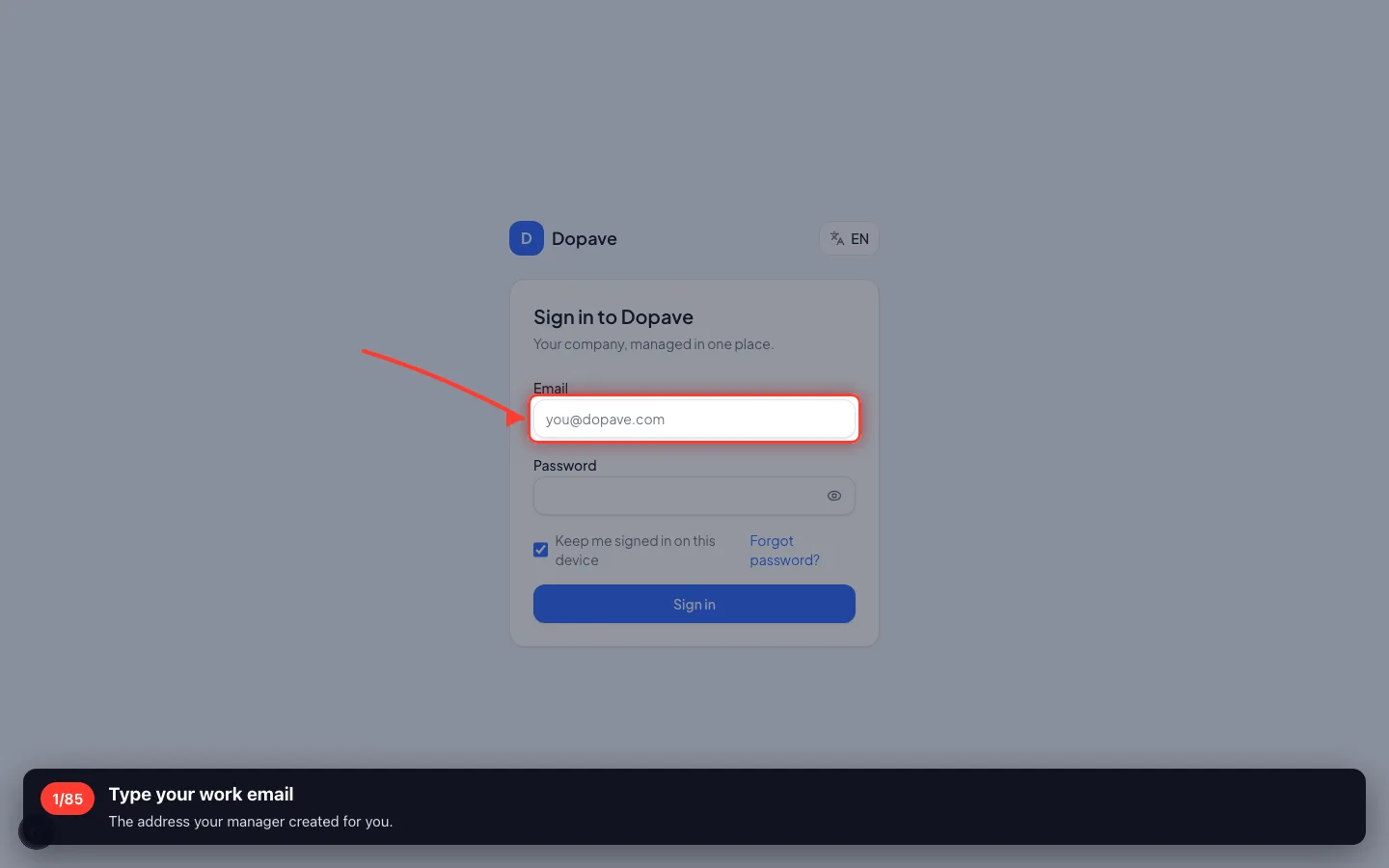
1Type your work email
The address your manager created for you.
- 2
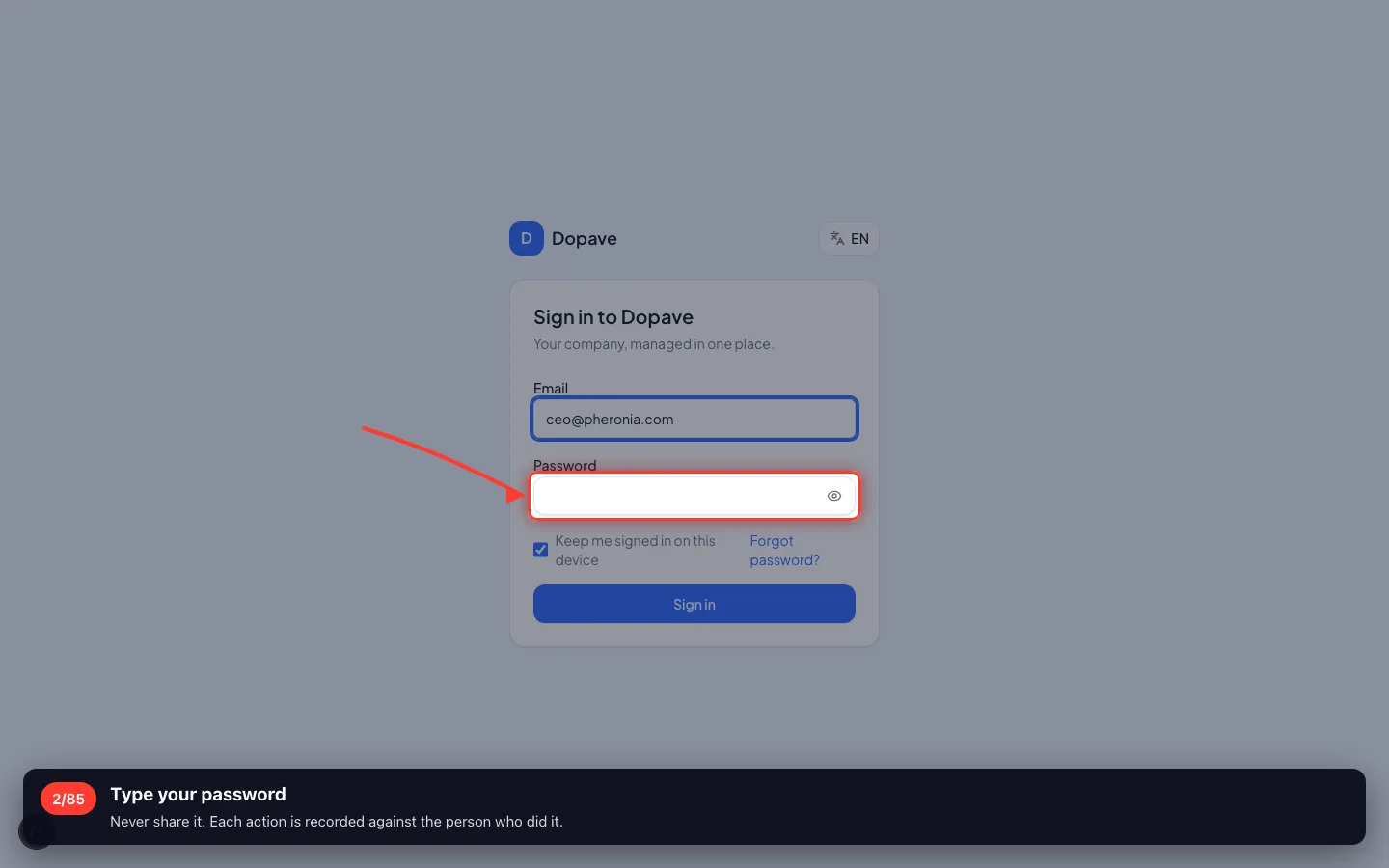
Type your password
Never share it. Each action is recorded against the person who did it.
- 3
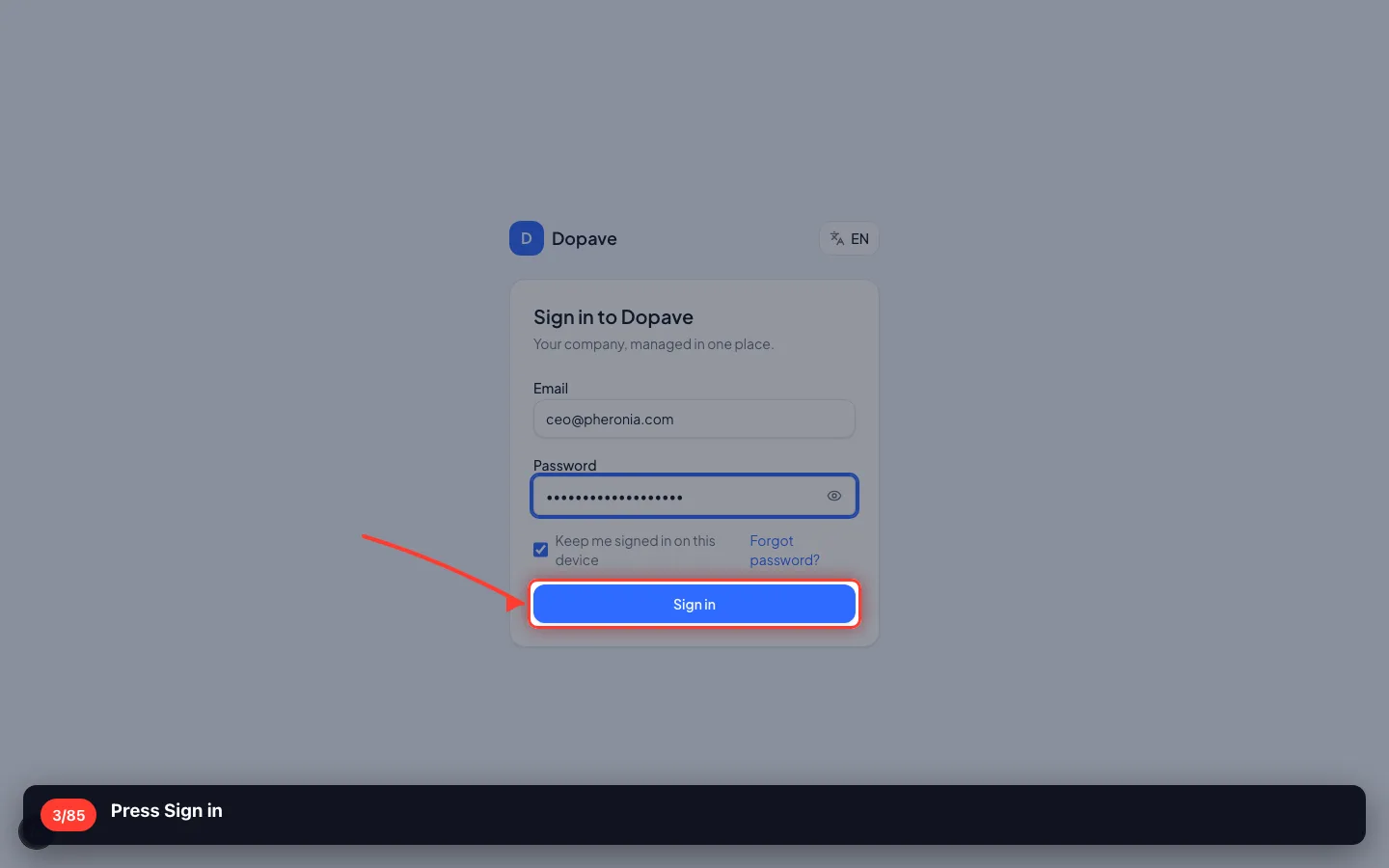
Press Sign in
2 · The enquiry becomes a lead
A phone call is not a record. Write it down here and nothing gets lost.
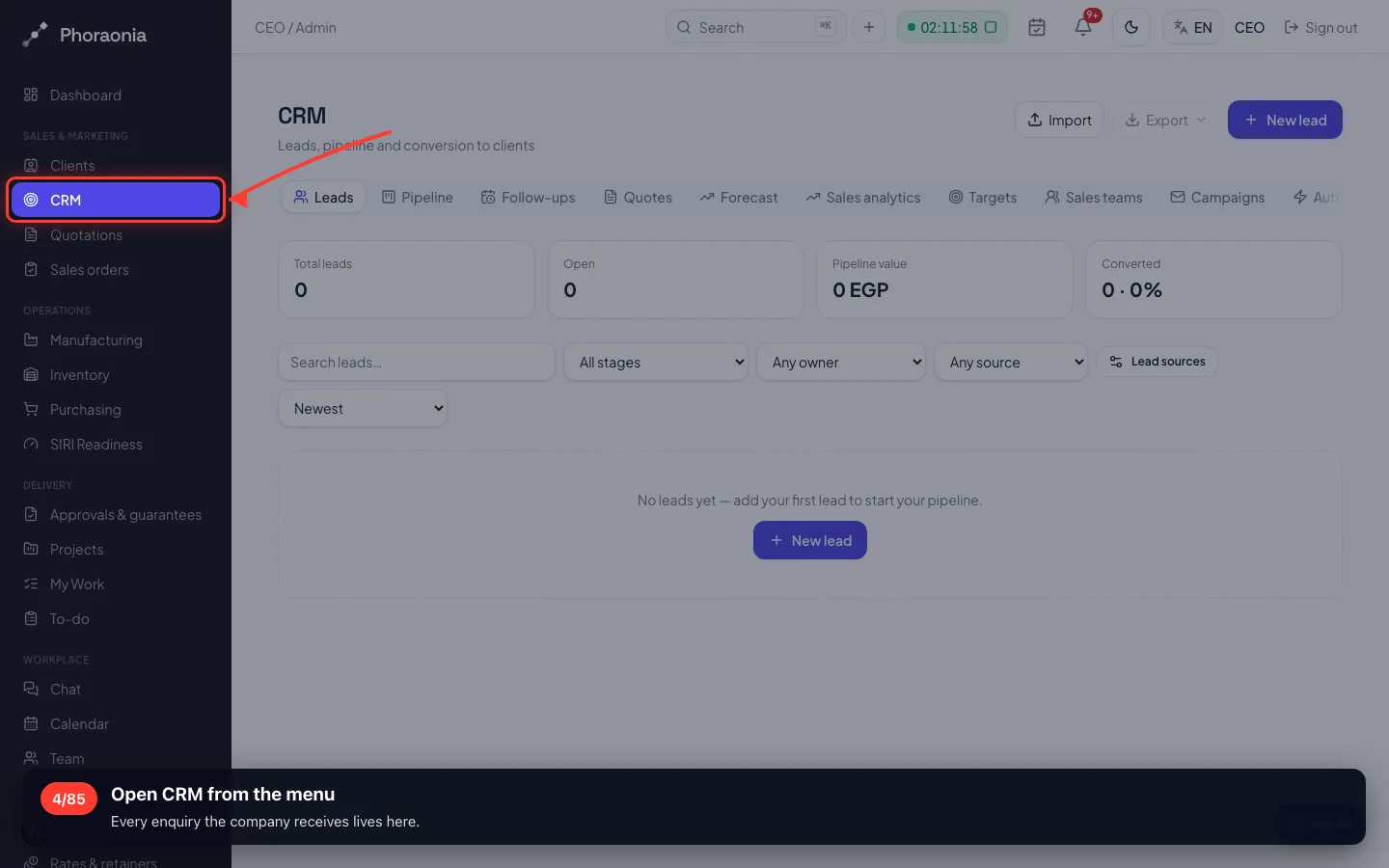
4Open CRM from the menu
Every enquiry the company receives lives here.
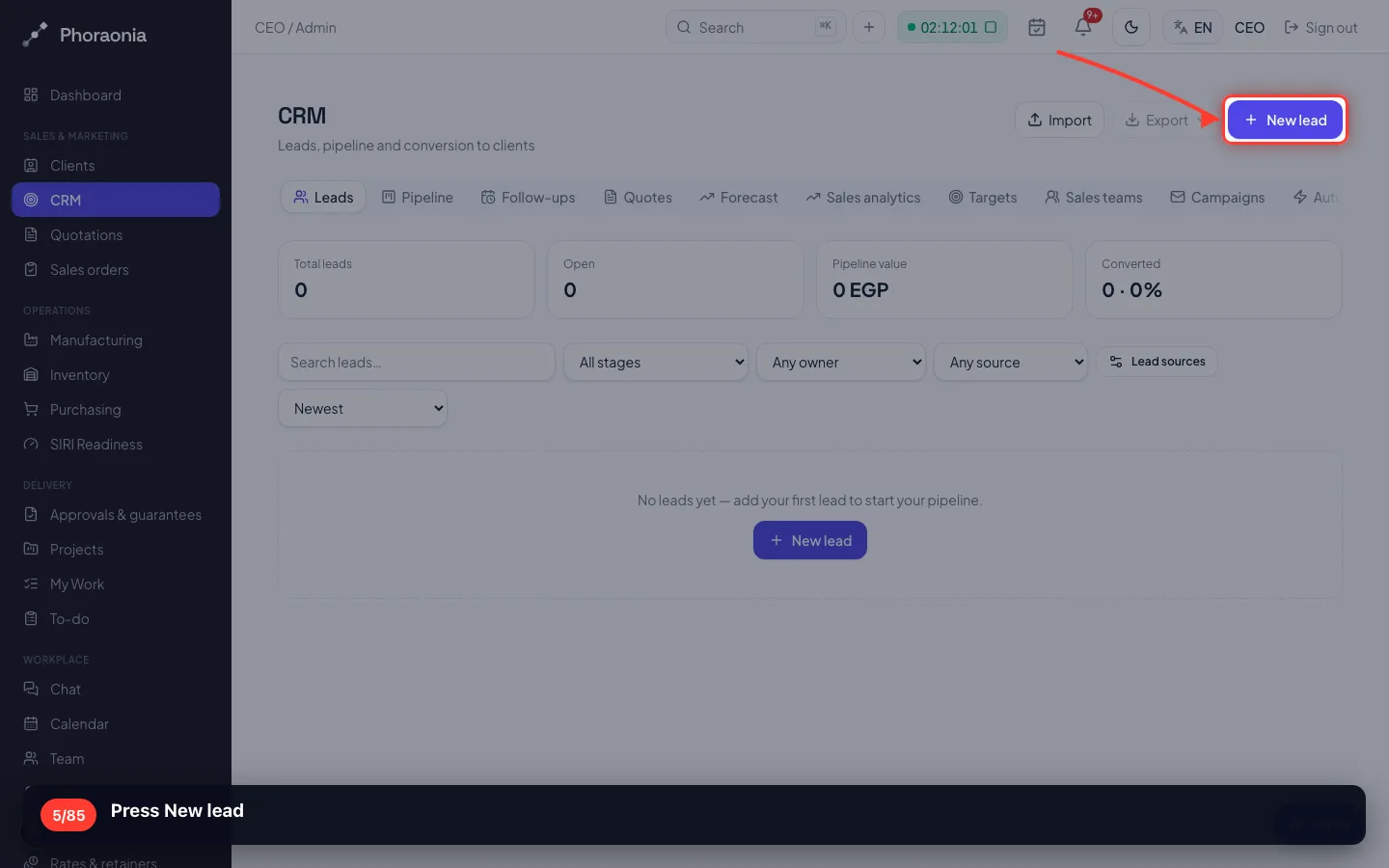
- 5
Press New lead
- 6
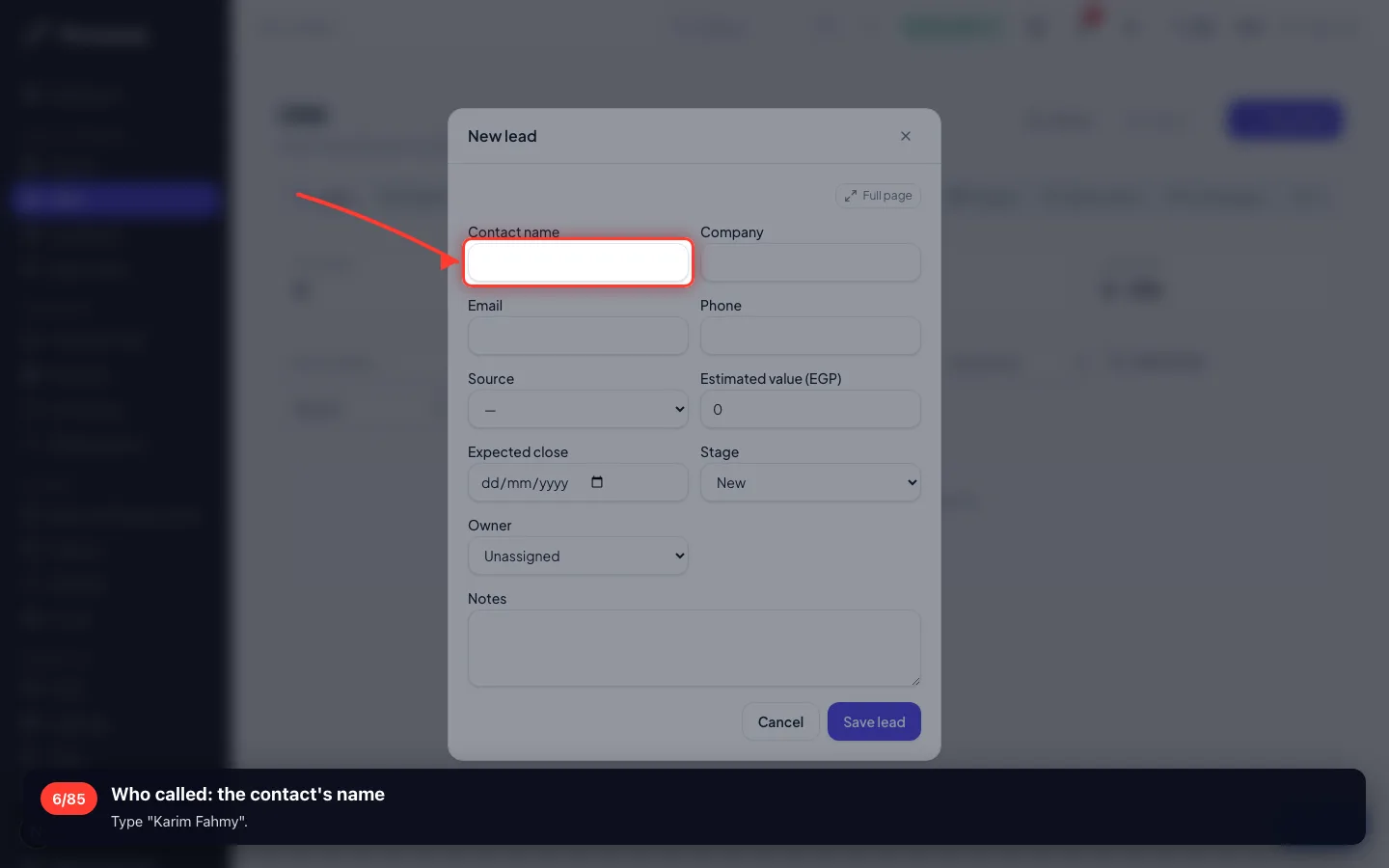
Who called: the contact's name
Type "Karim Fahmy".
- 7
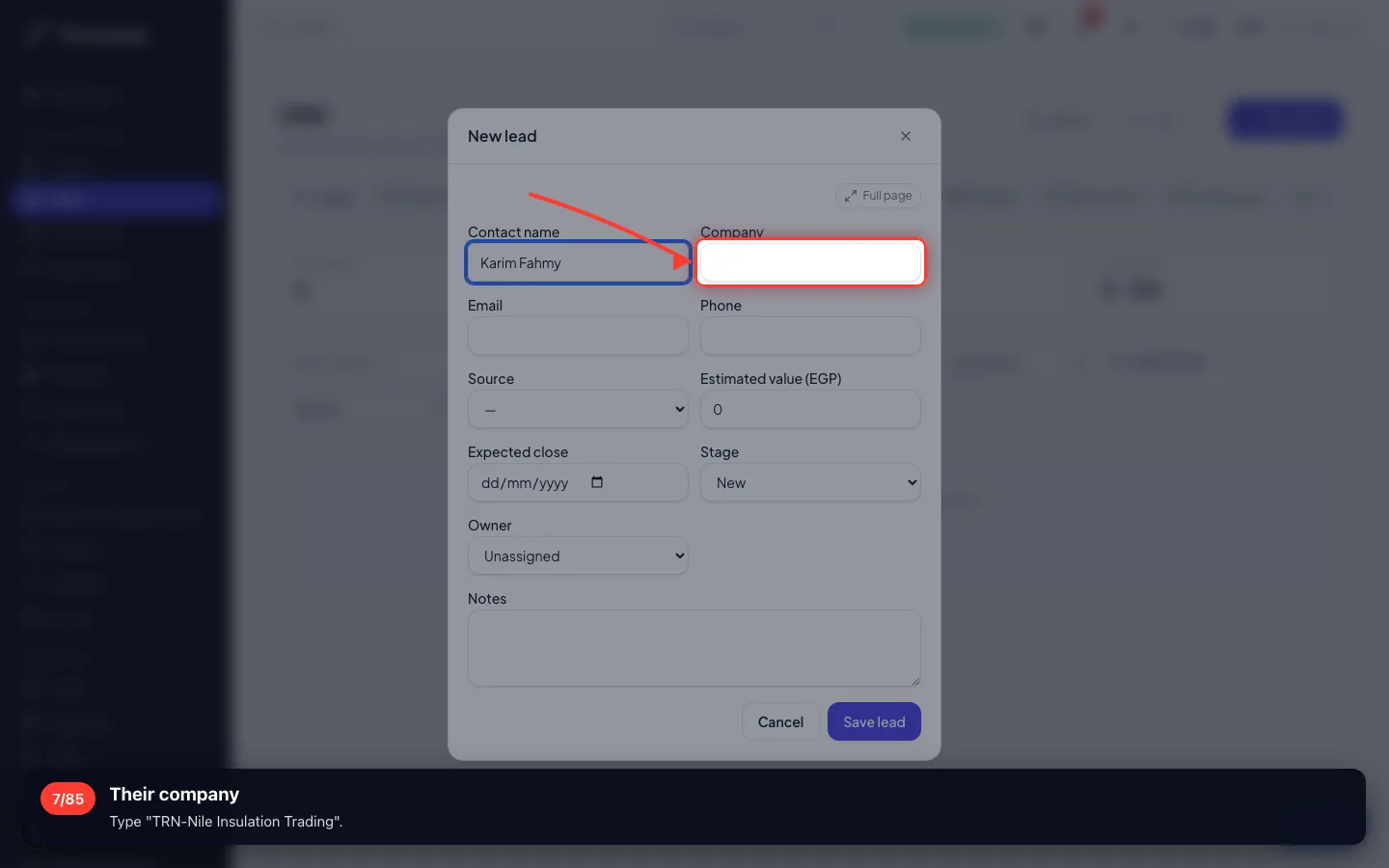
Their company
Type "TRN-Nile Insulation Trading".
- 8
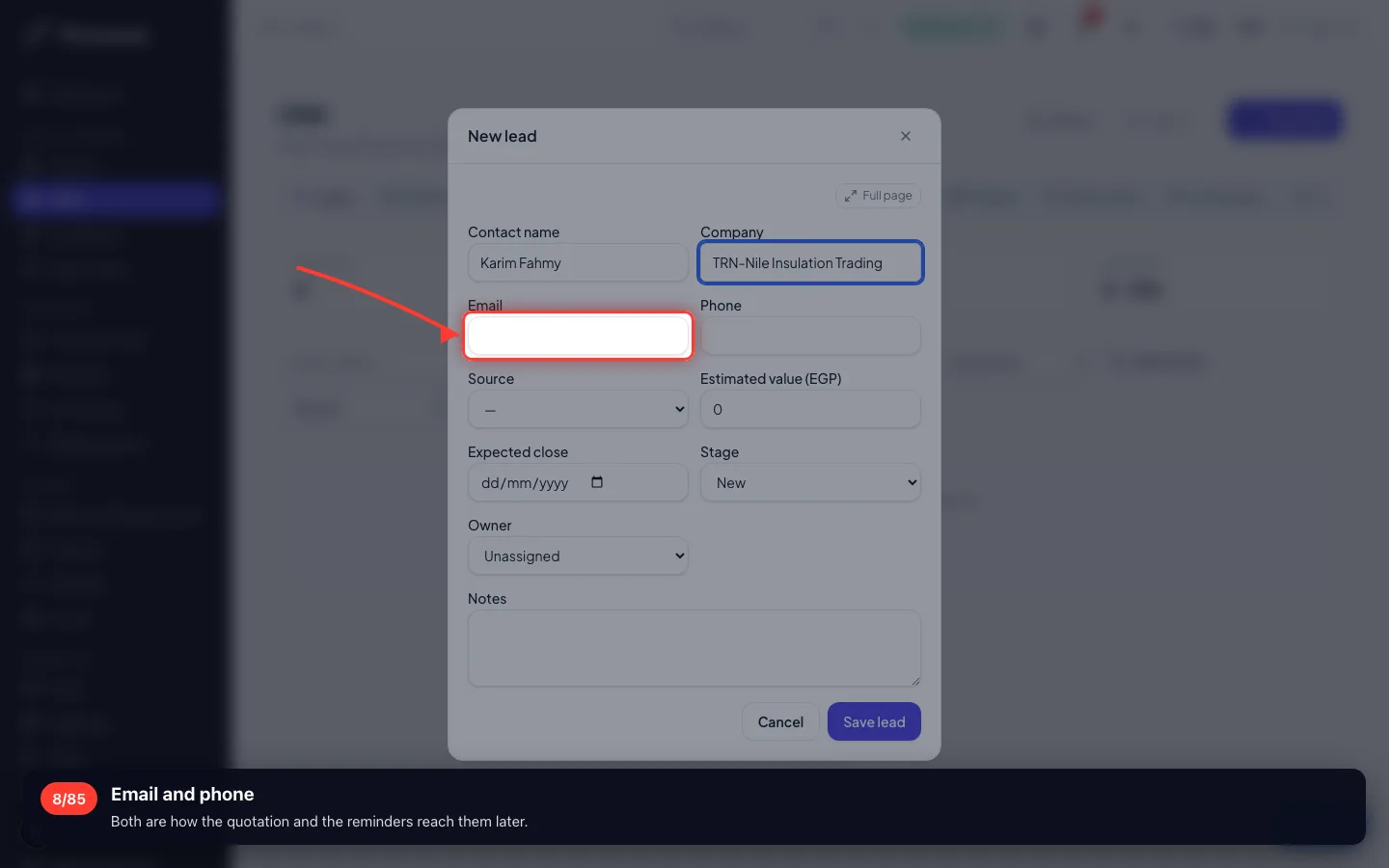
Email and phone
Both are how the quotation and the reminders reach them later.
- 9
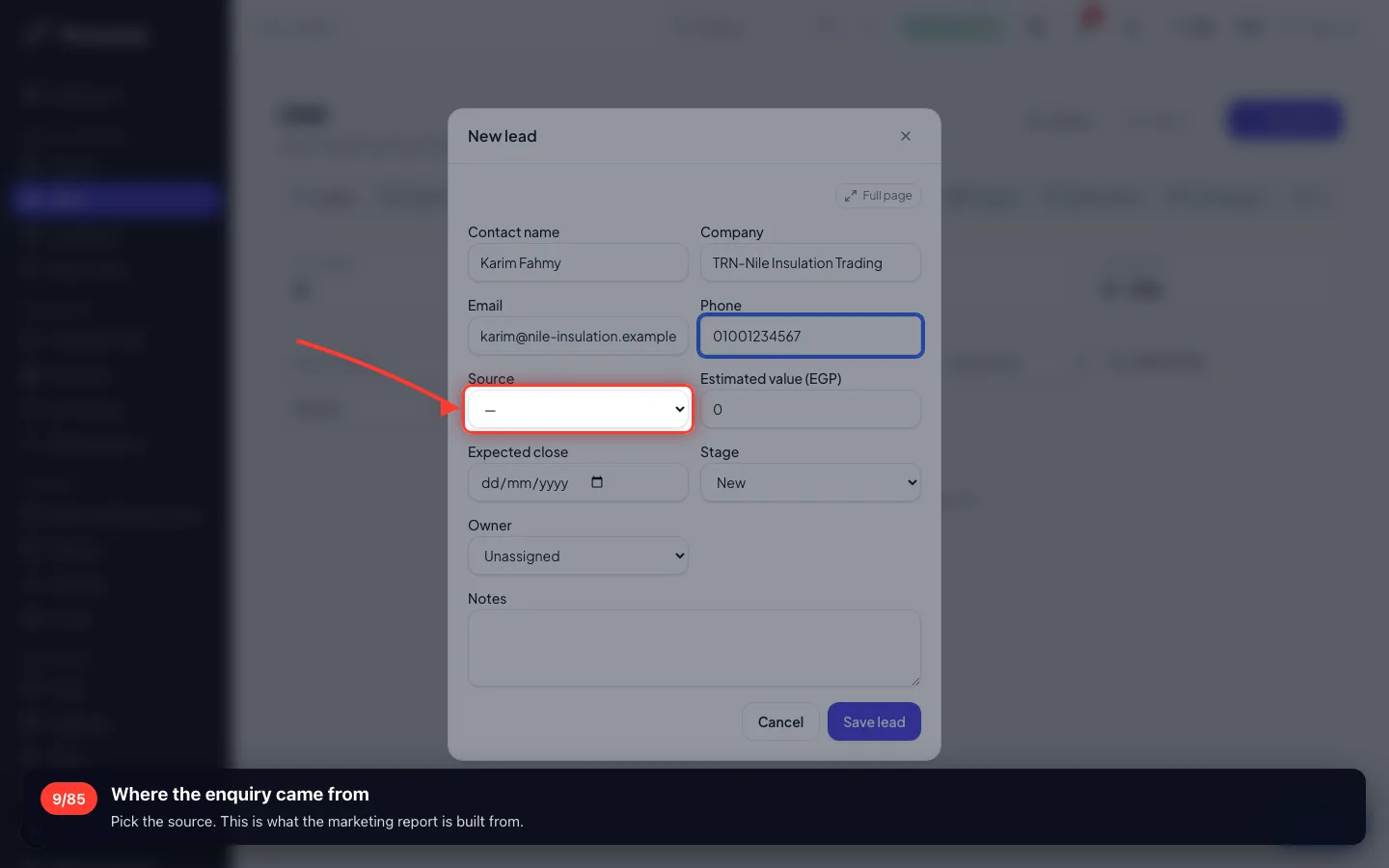
Where the enquiry came from
Pick the source. This is what the marketing report is built from.
- 10
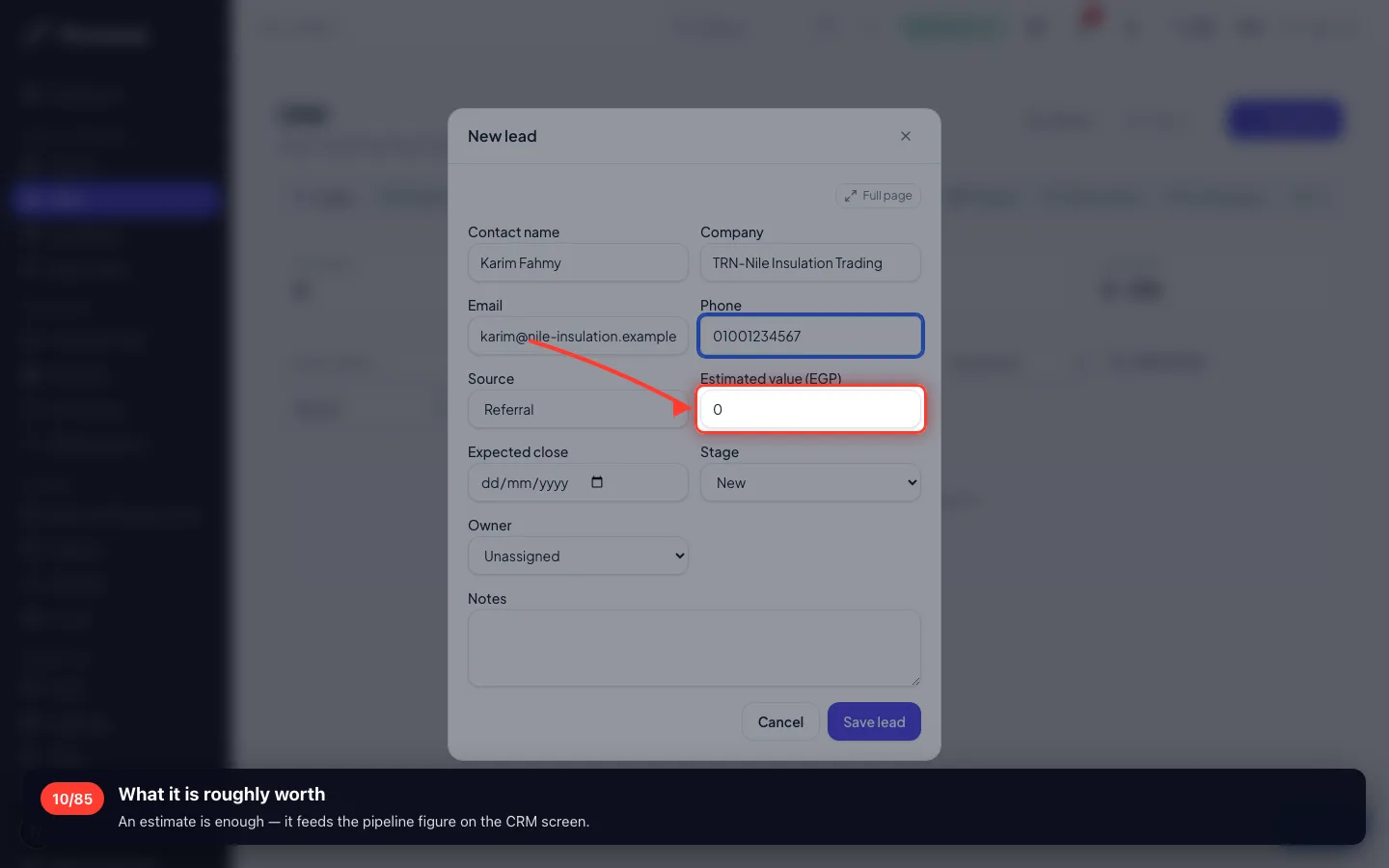
What it is roughly worth
An estimate is enough — it feeds the pipeline figure on the CRM screen.
- 11
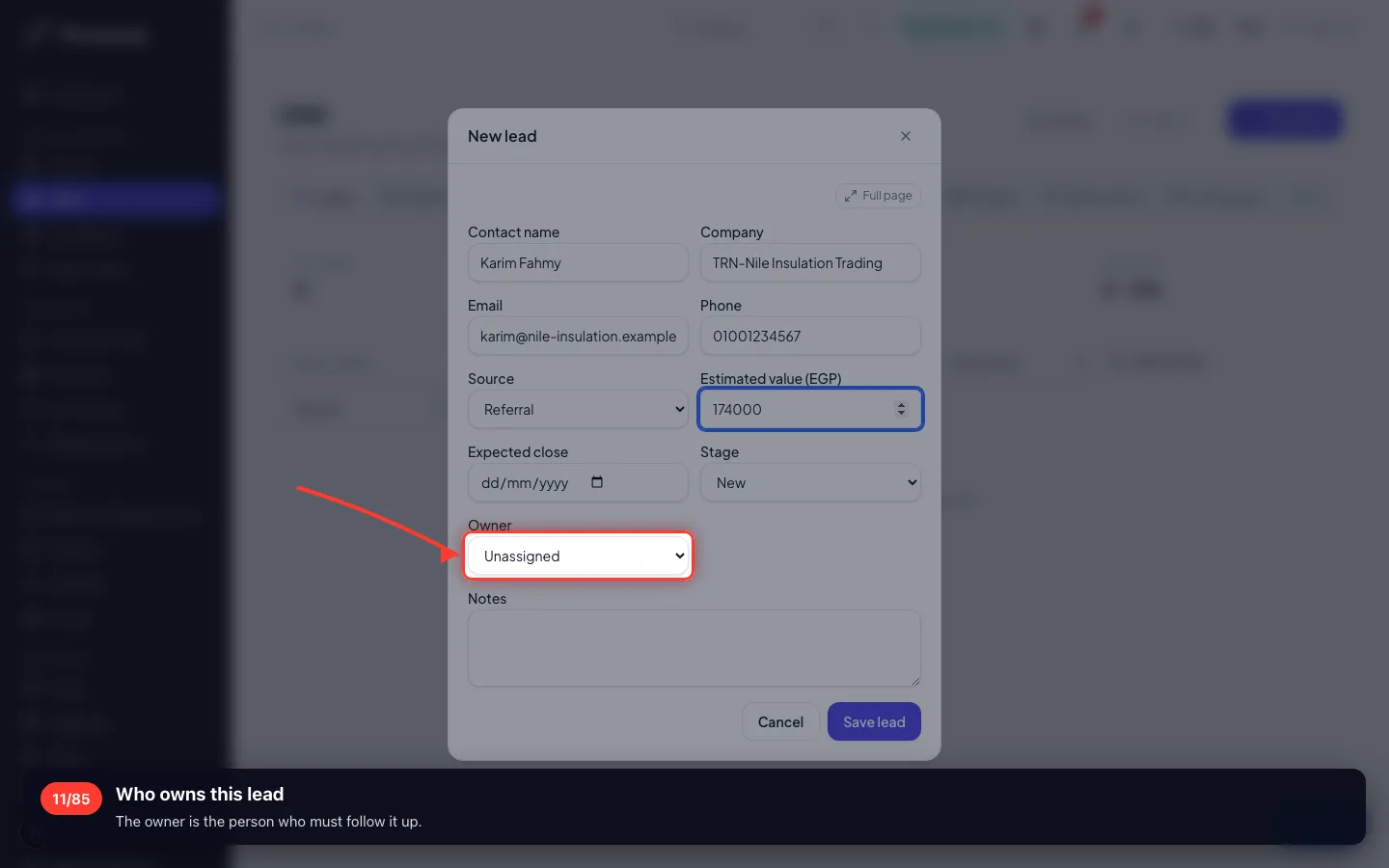
Who owns this lead
The owner is the person who must follow it up.
- 12
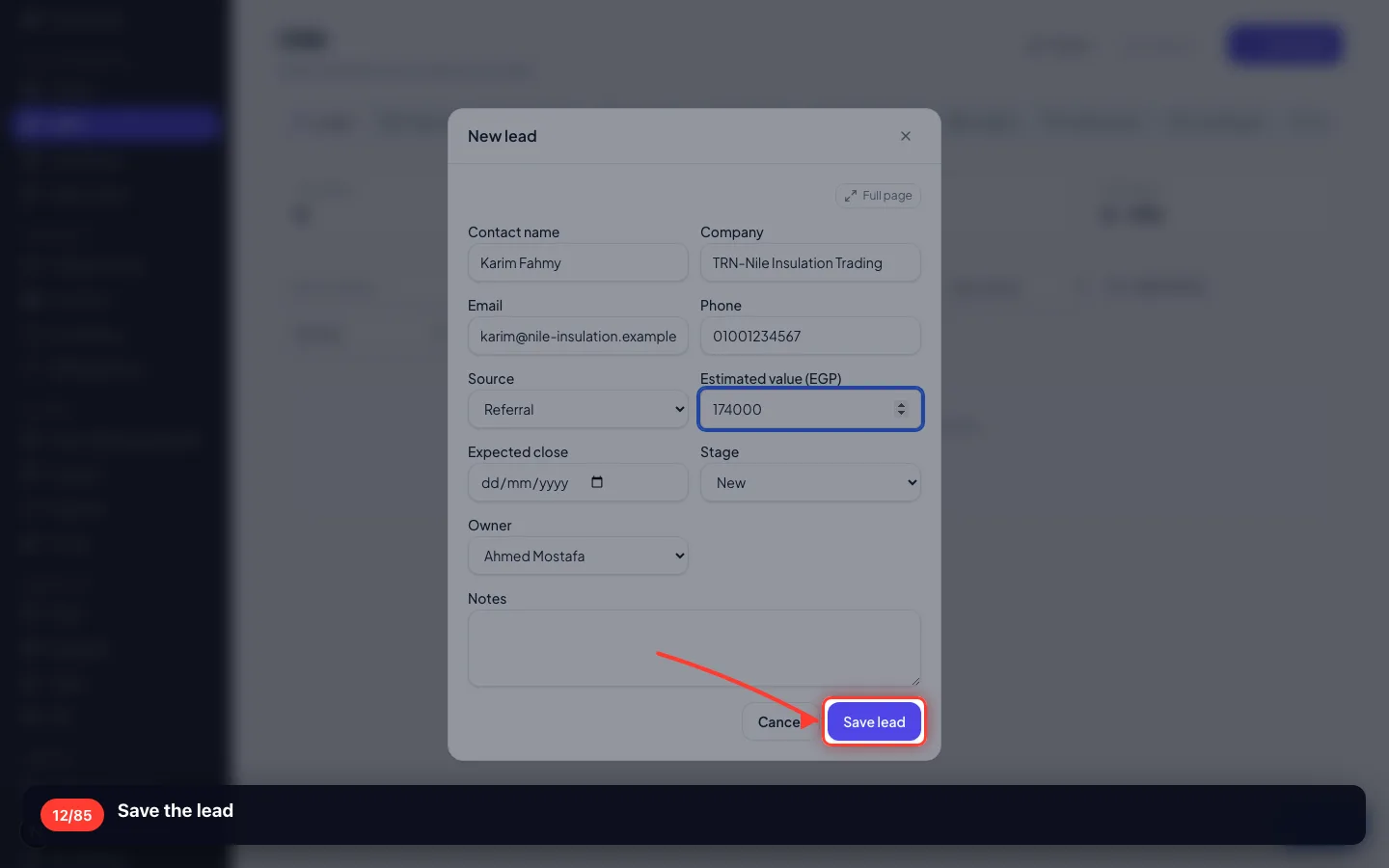
Save the lead
- 13
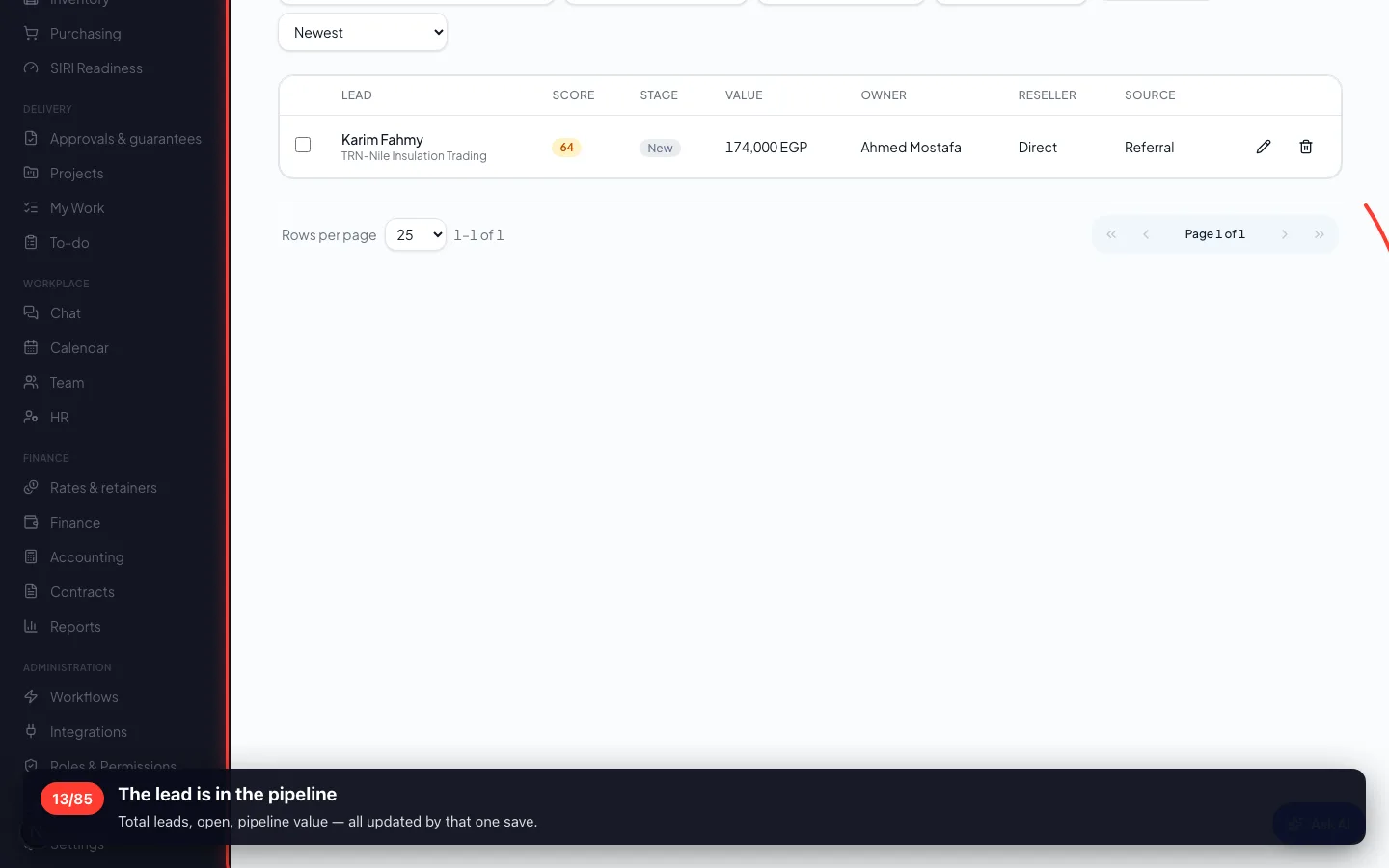
The lead is in the pipeline
Total leads, open, pipeline value — all updated by that one save.
- 14
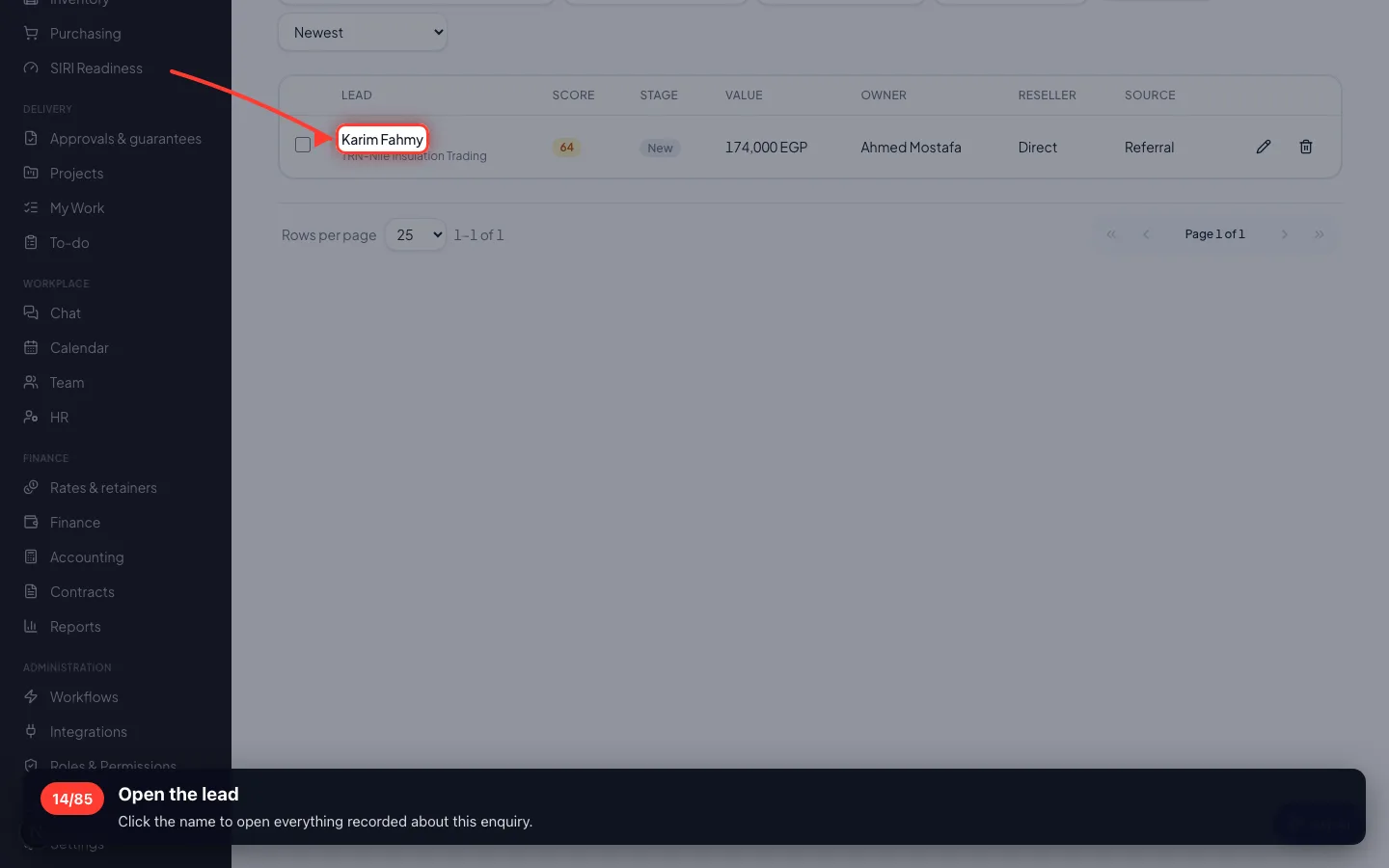
Open the lead
Click the name to open everything recorded about this enquiry.
- 15
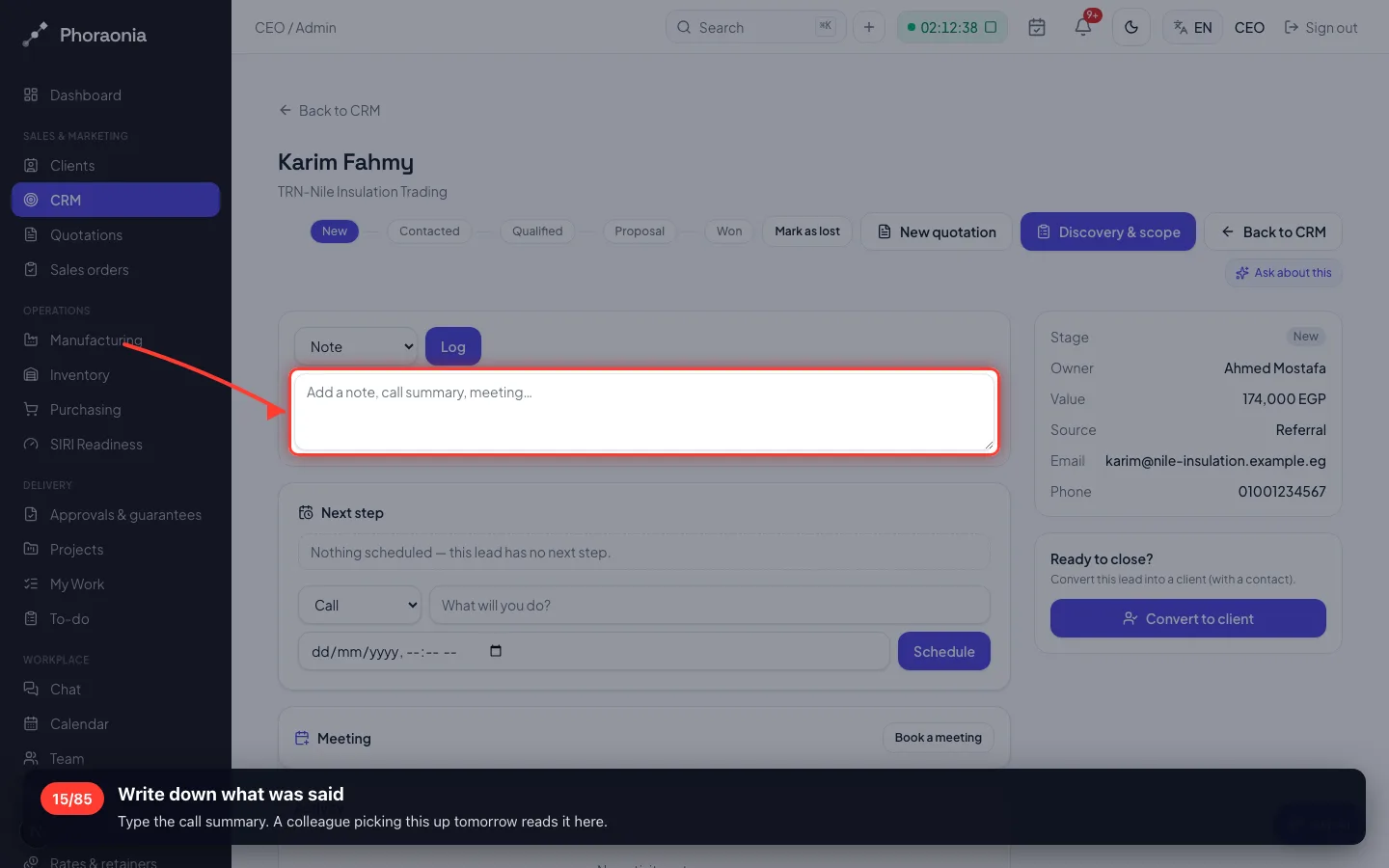
Write down what was said
Type the call summary. A colleague picking this up tomorrow reads it here.
- 16
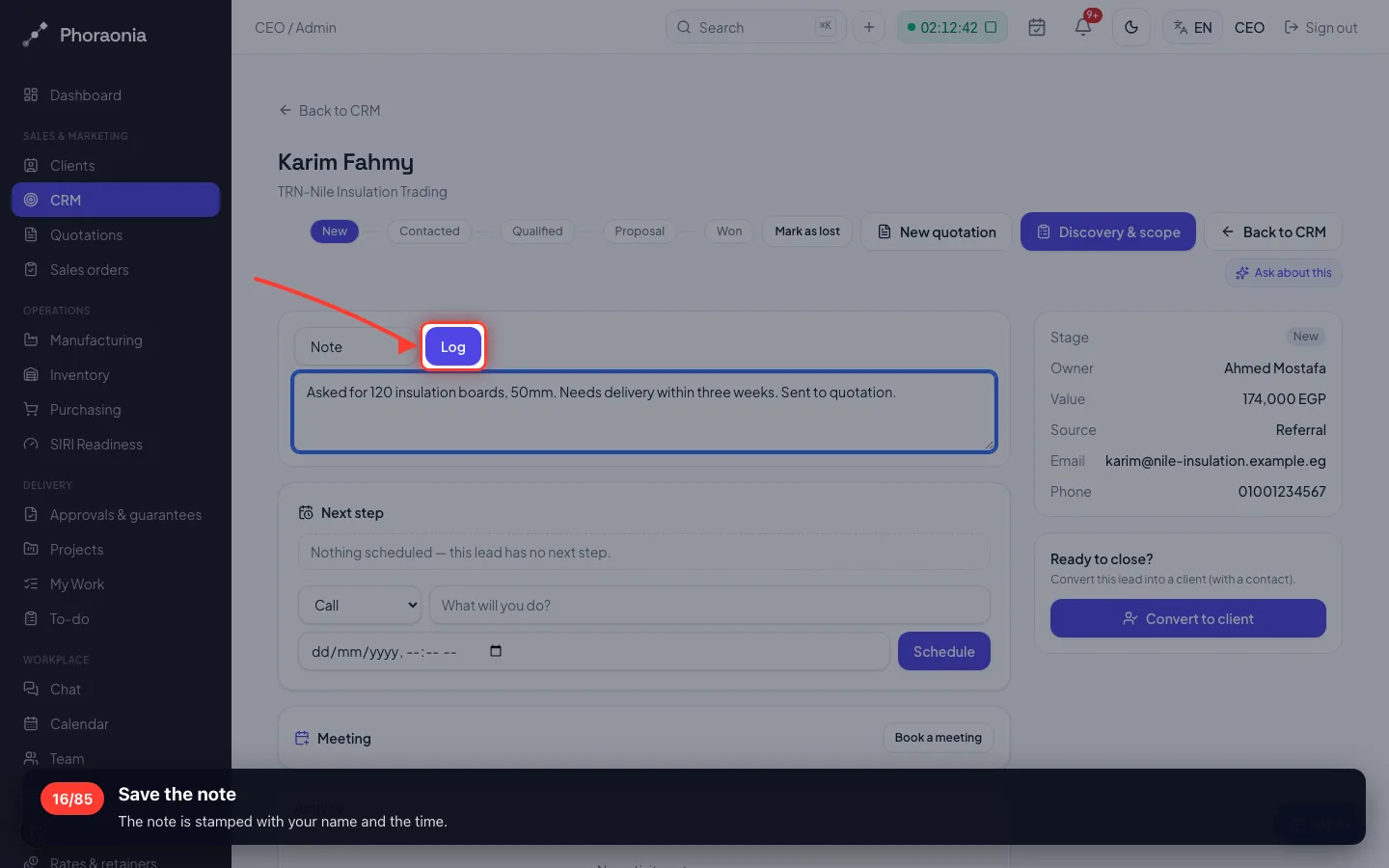
Save the note
The note is stamped with your name and the time.
- 17
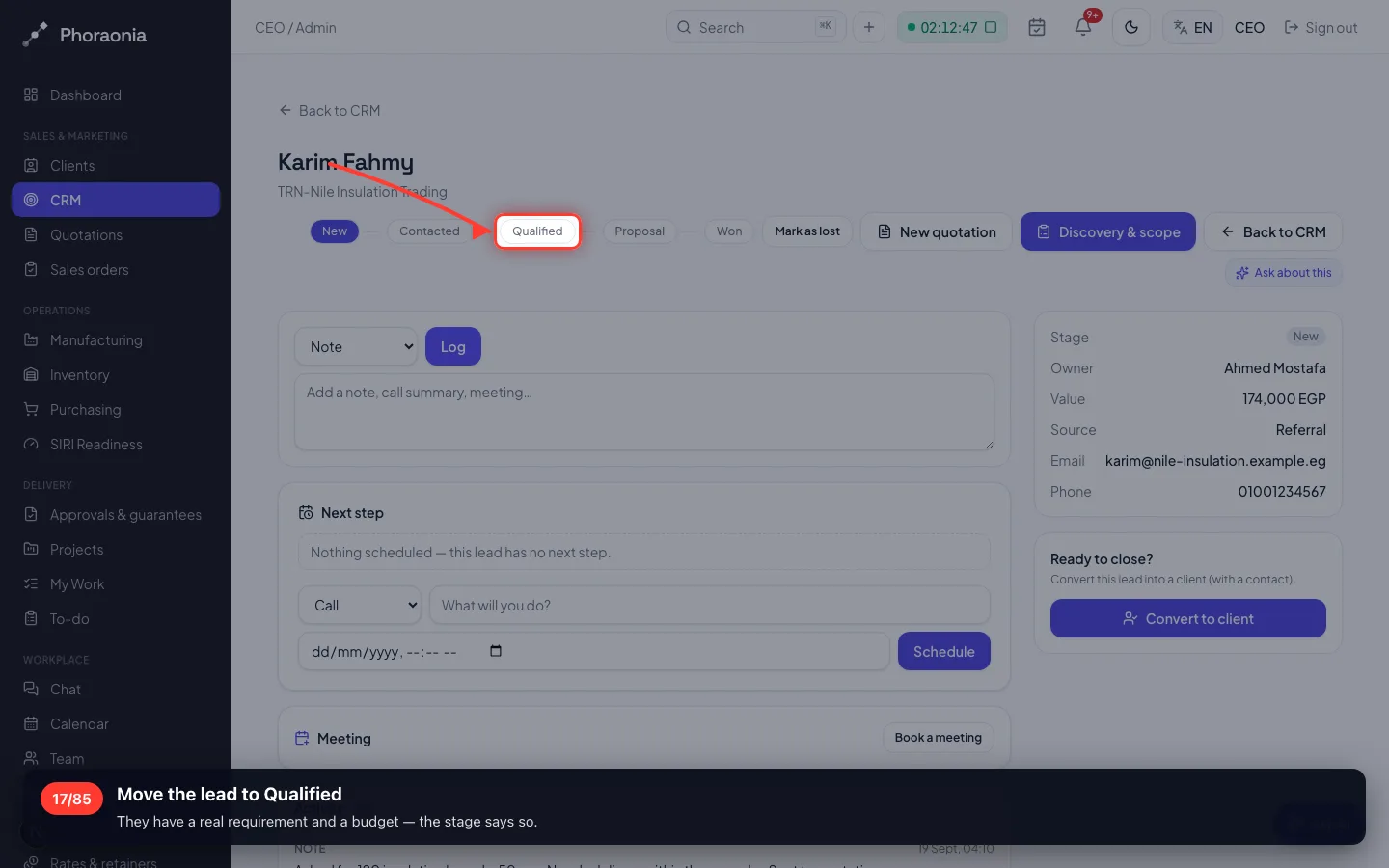
Move the lead to Qualified
They have a real requirement and a budget — the stage says so.
3 · The quotation
Priced from the catalogue, so nobody quotes from memory or a spreadsheet.
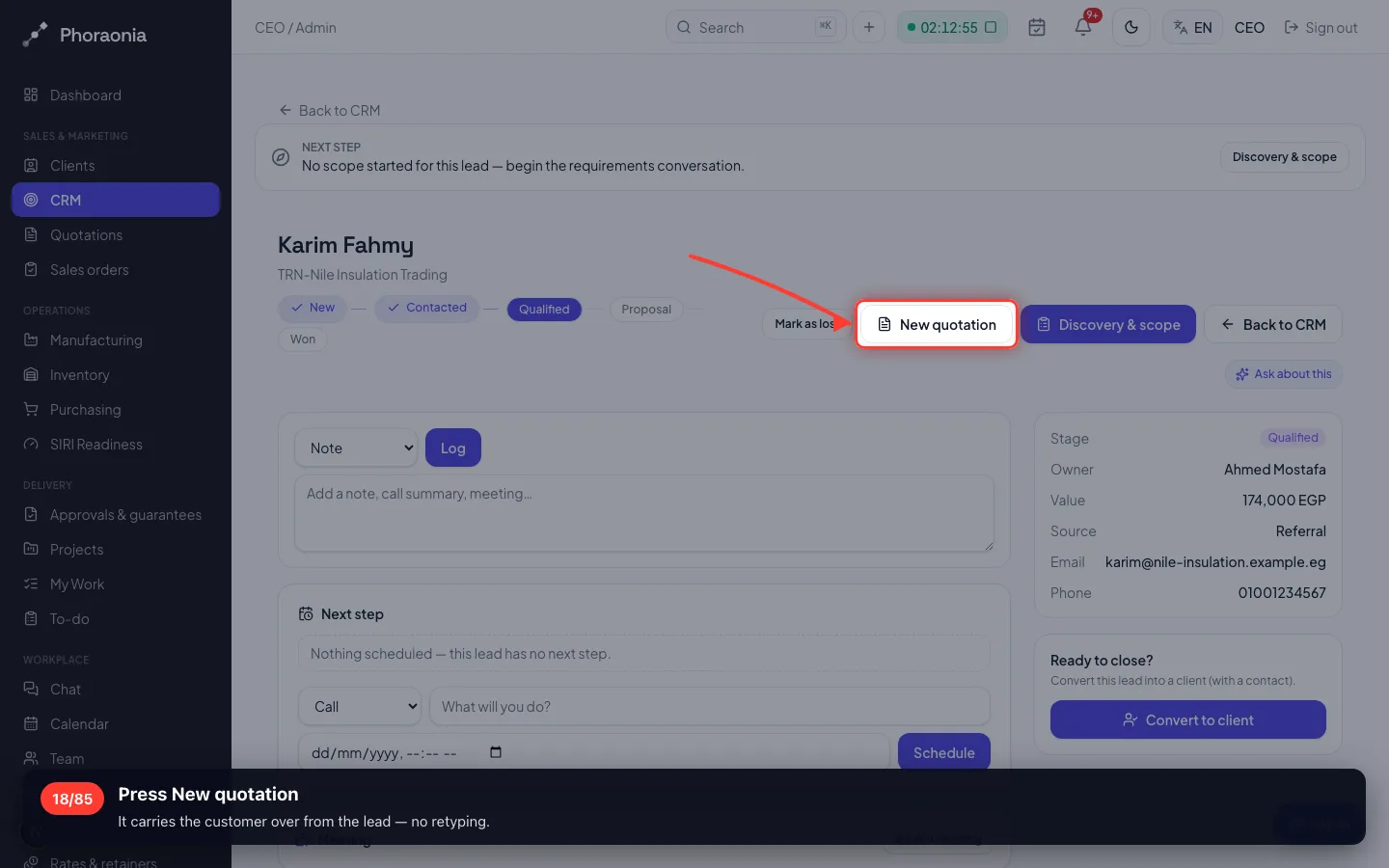
18Press New quotation
It carries the customer over from the lead — no retyping.
- 19
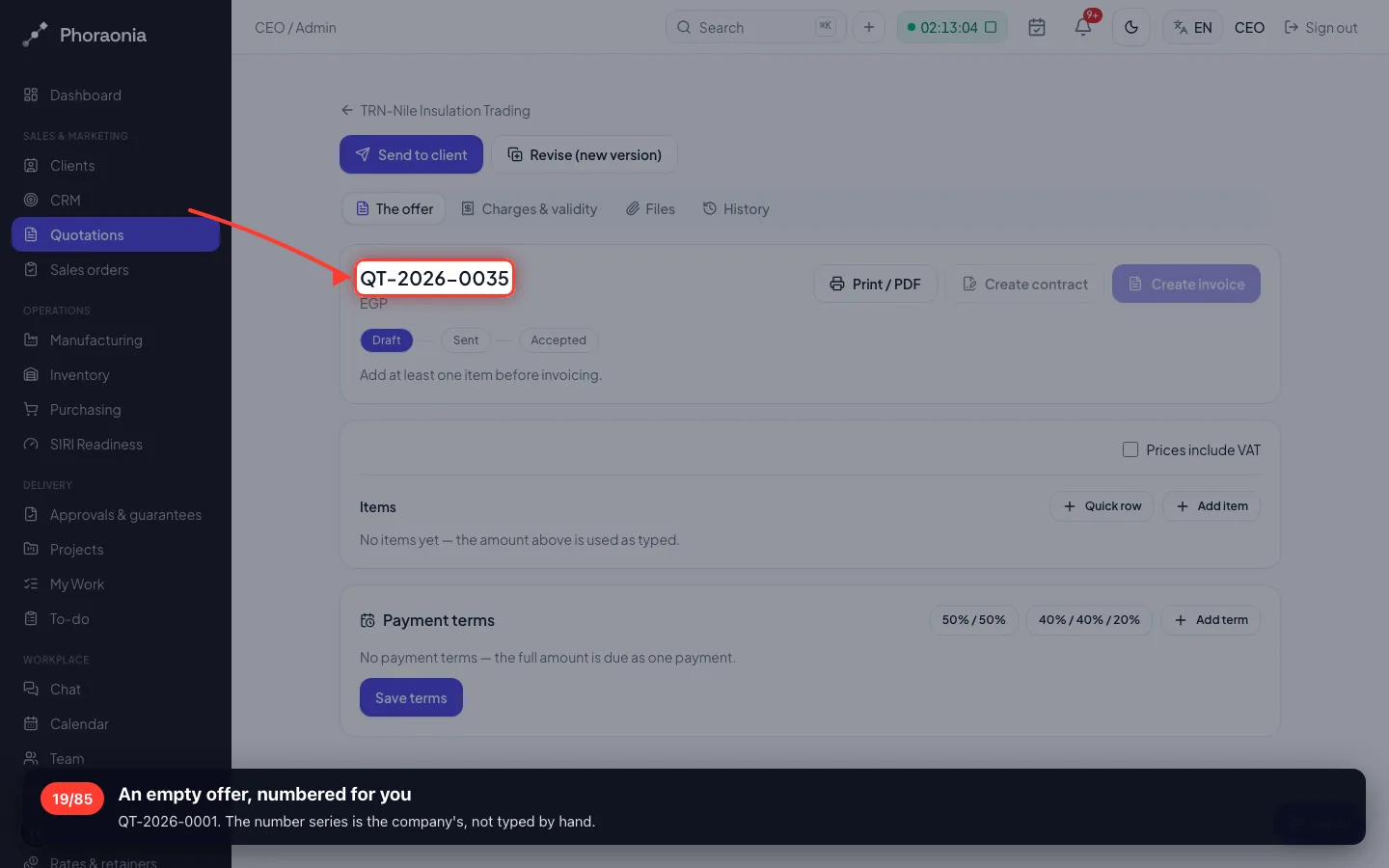
An empty offer, numbered for you
QT-2026-0001. The number series is the company's, not typed by hand.
- 20
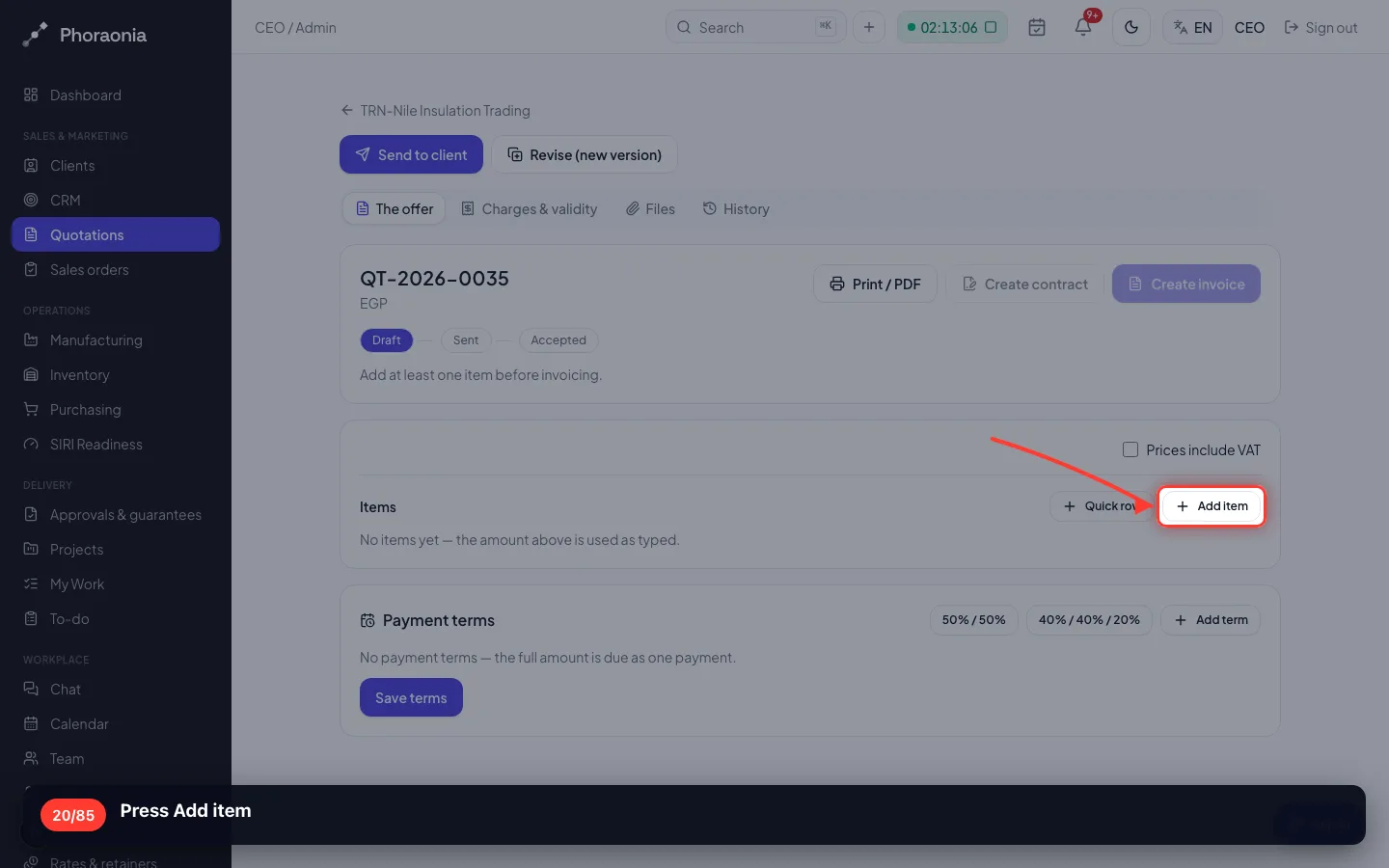
Press Add item
- 21
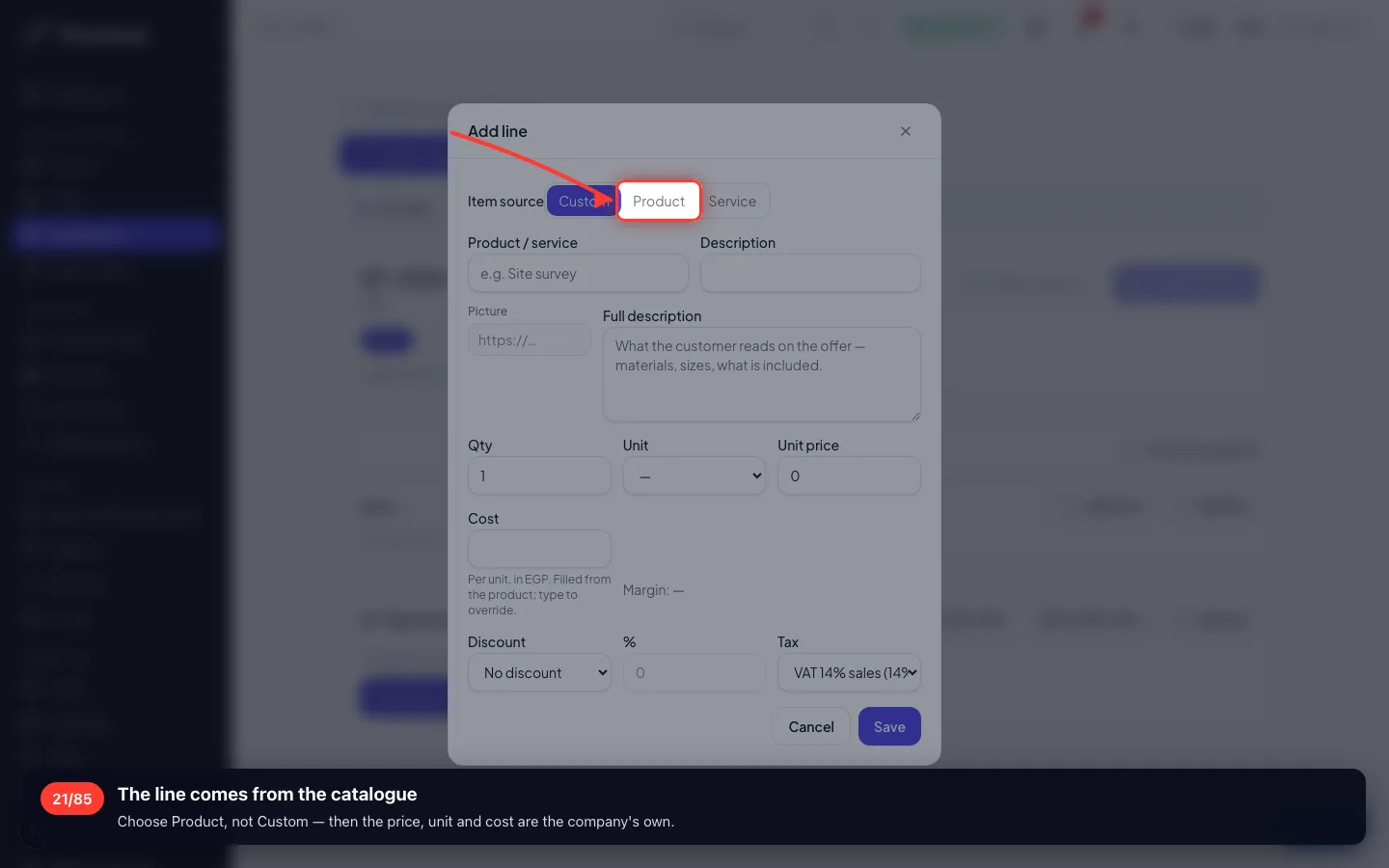
The line comes from the catalogue
Choose Product, not Custom — then the price, unit and cost are the company's own.
- 22
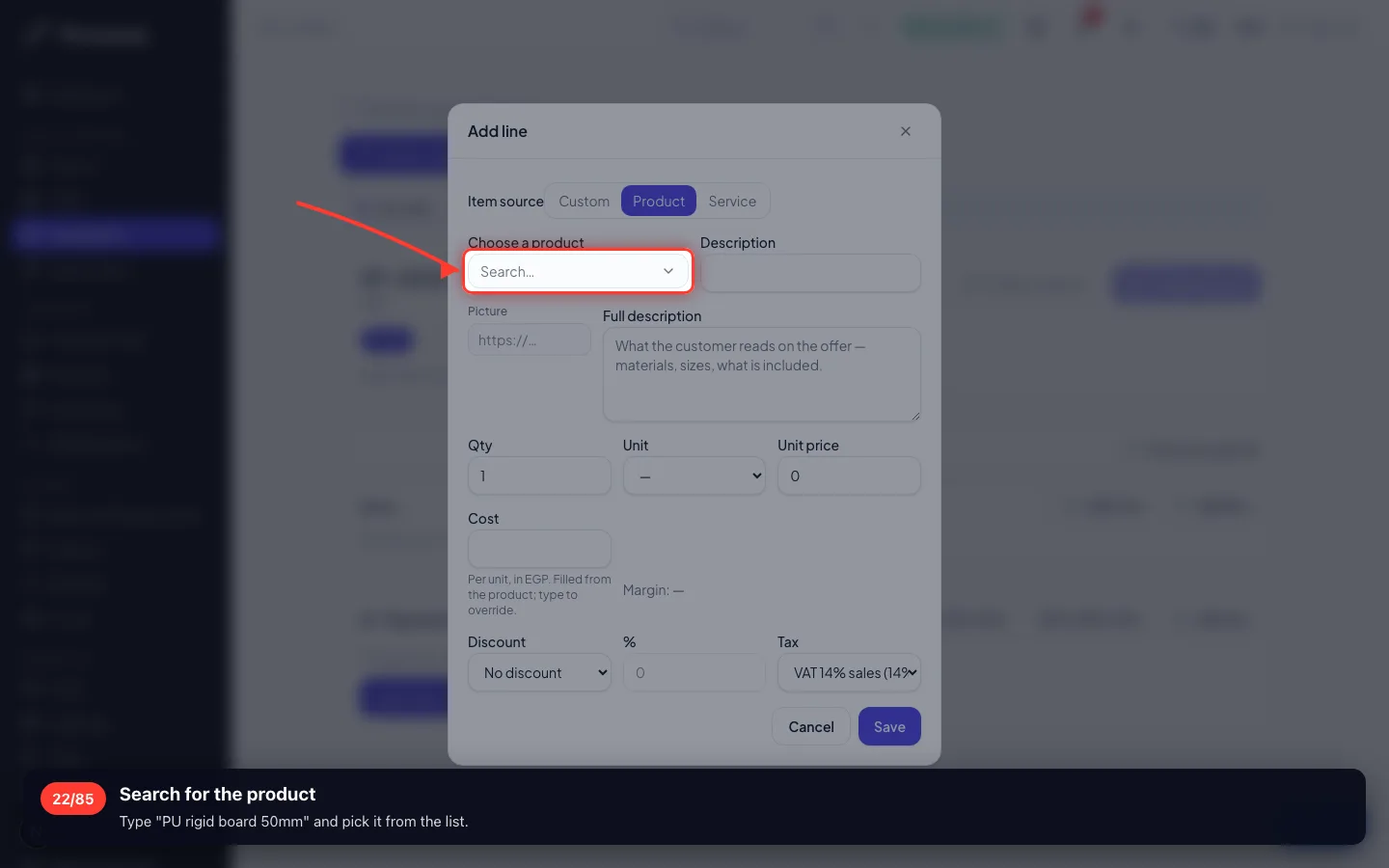
Search for the product
Type "PU rigid board 50mm" and pick it from the list.
- 23
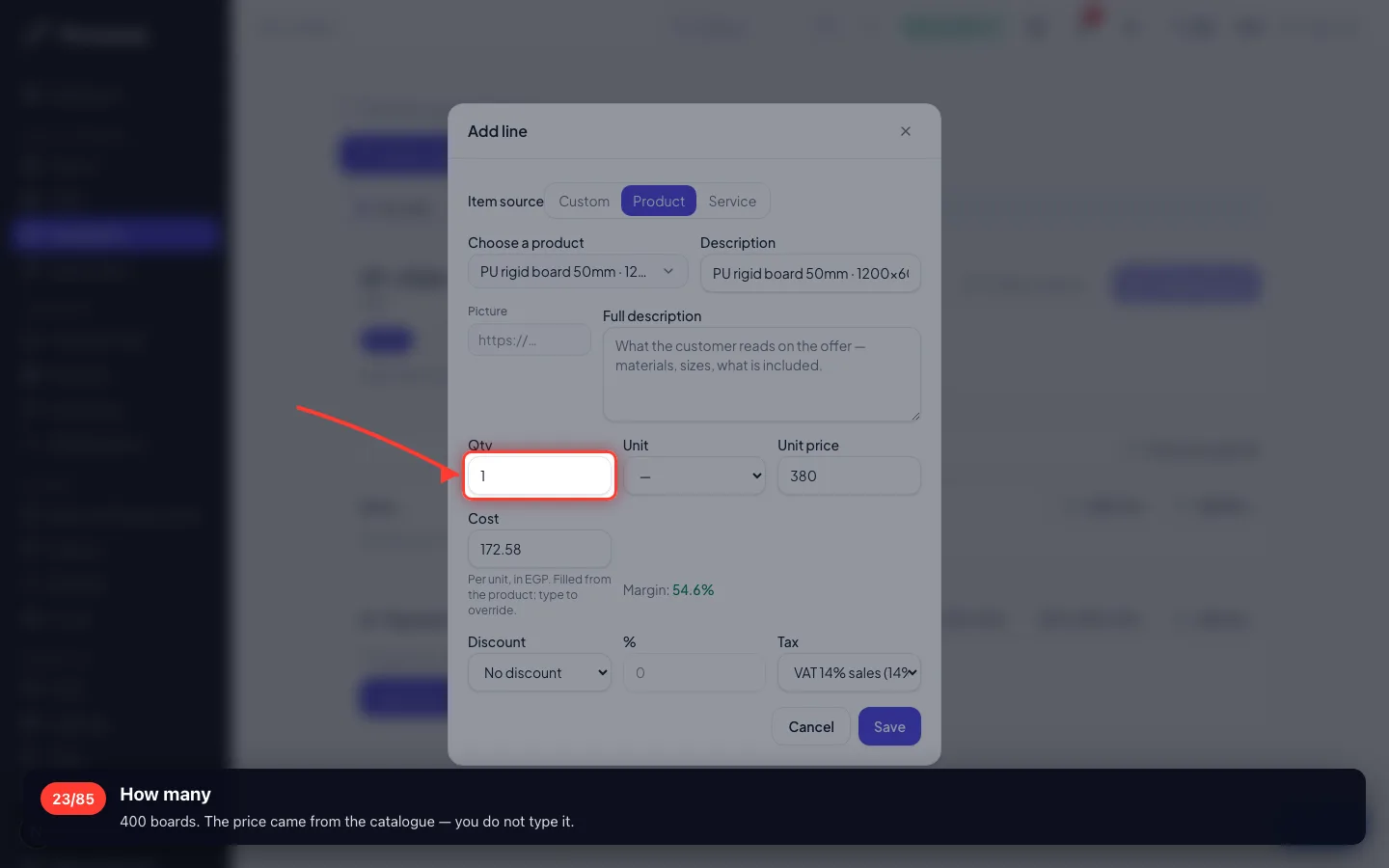
How many
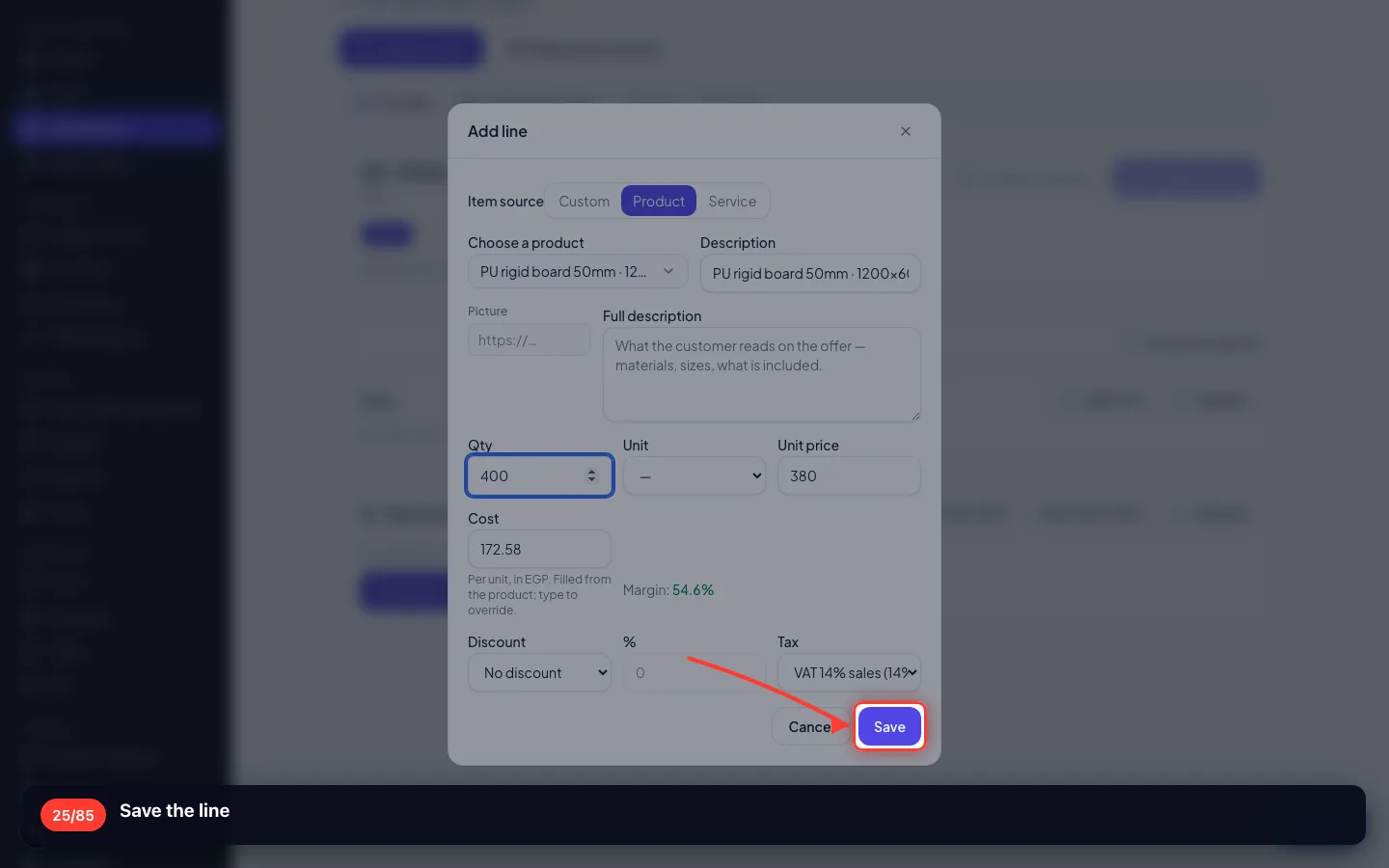
400 boards. The price came from the catalogue — you do not type it.
- 24
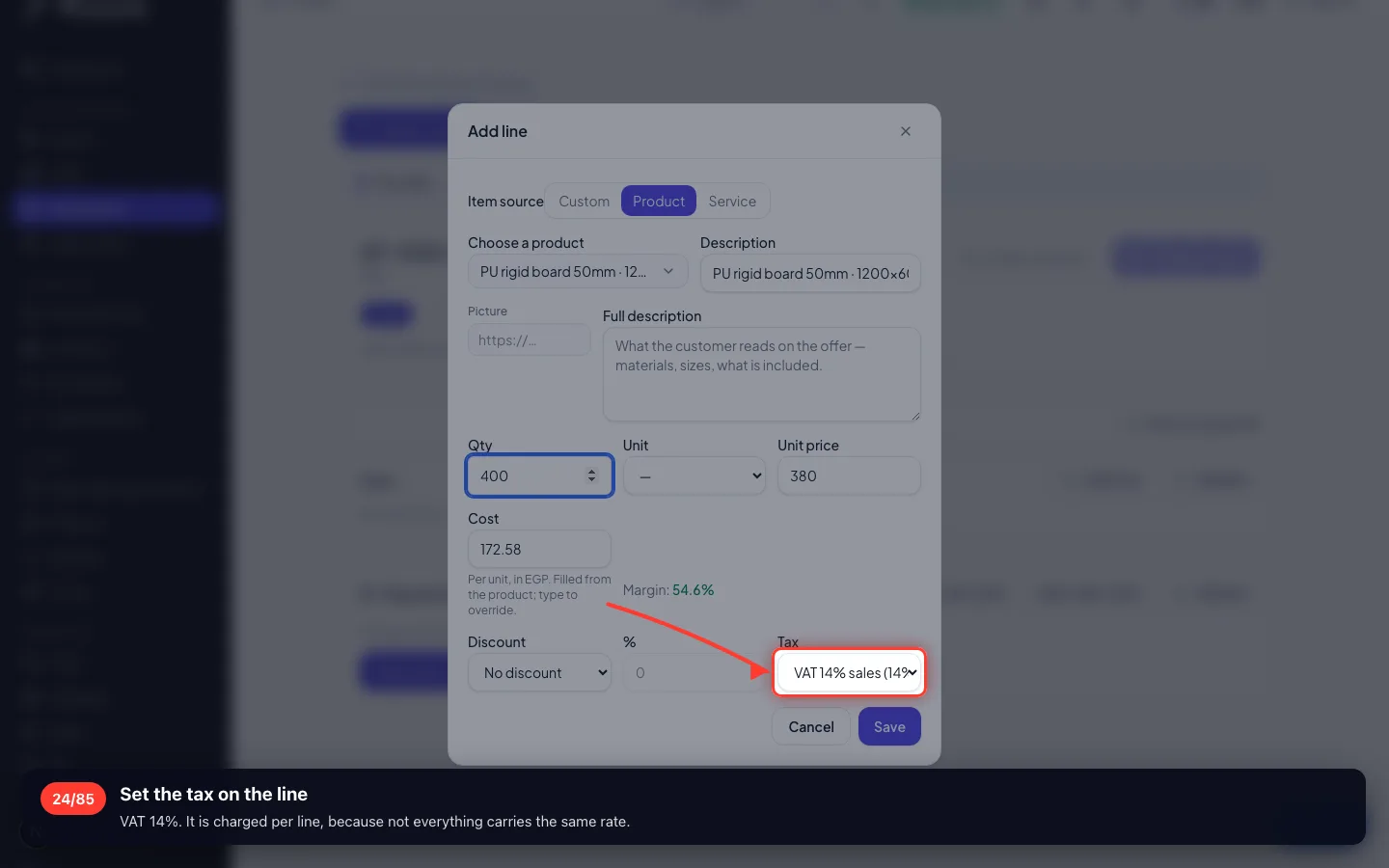
Set the tax on the line
VAT 14%. It is charged per line, because not everything carries the same rate.
- 25
Save the line
- 26
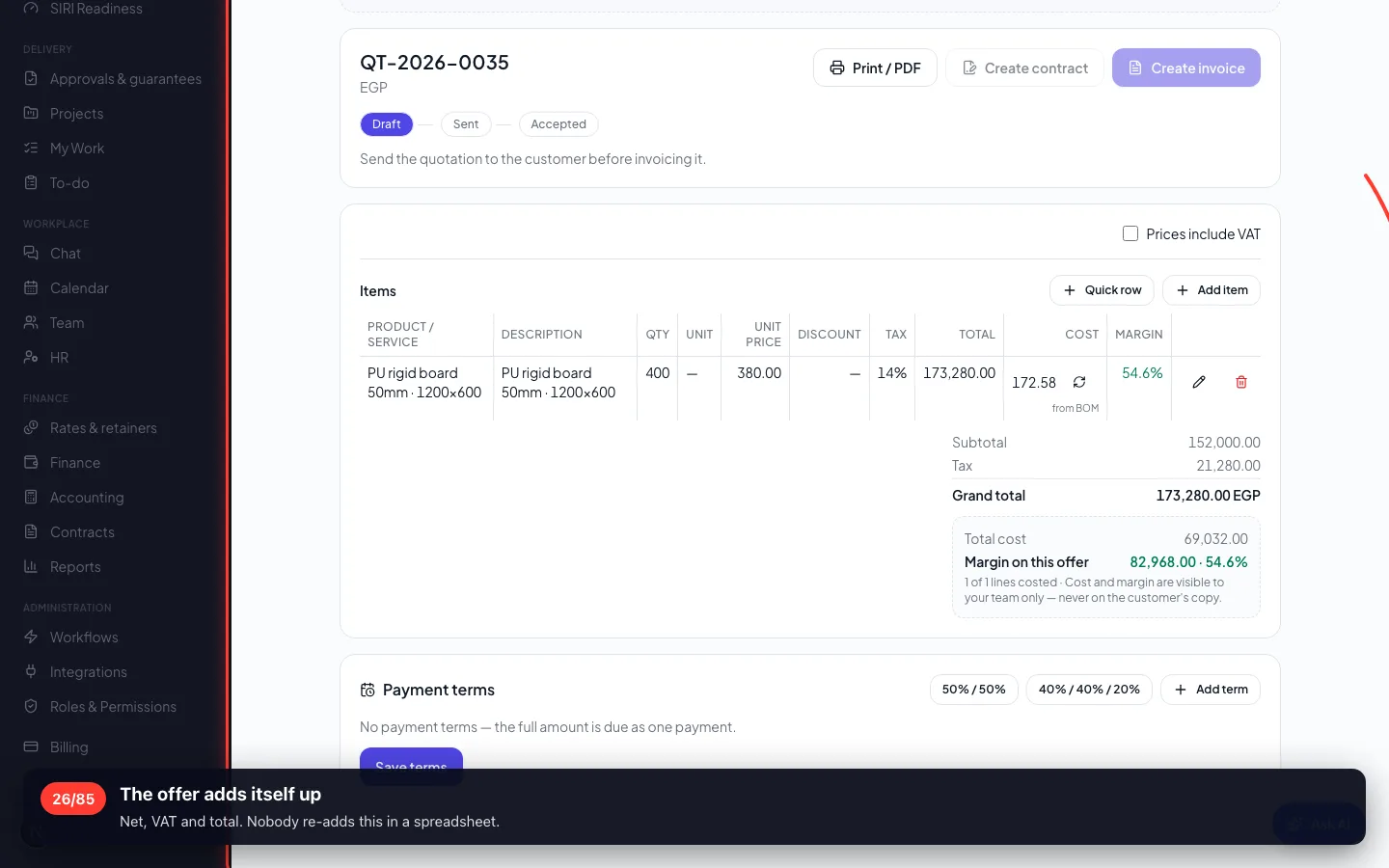
The offer adds itself up
Net, VAT and total. Nobody re-adds this in a spreadsheet.
- 27
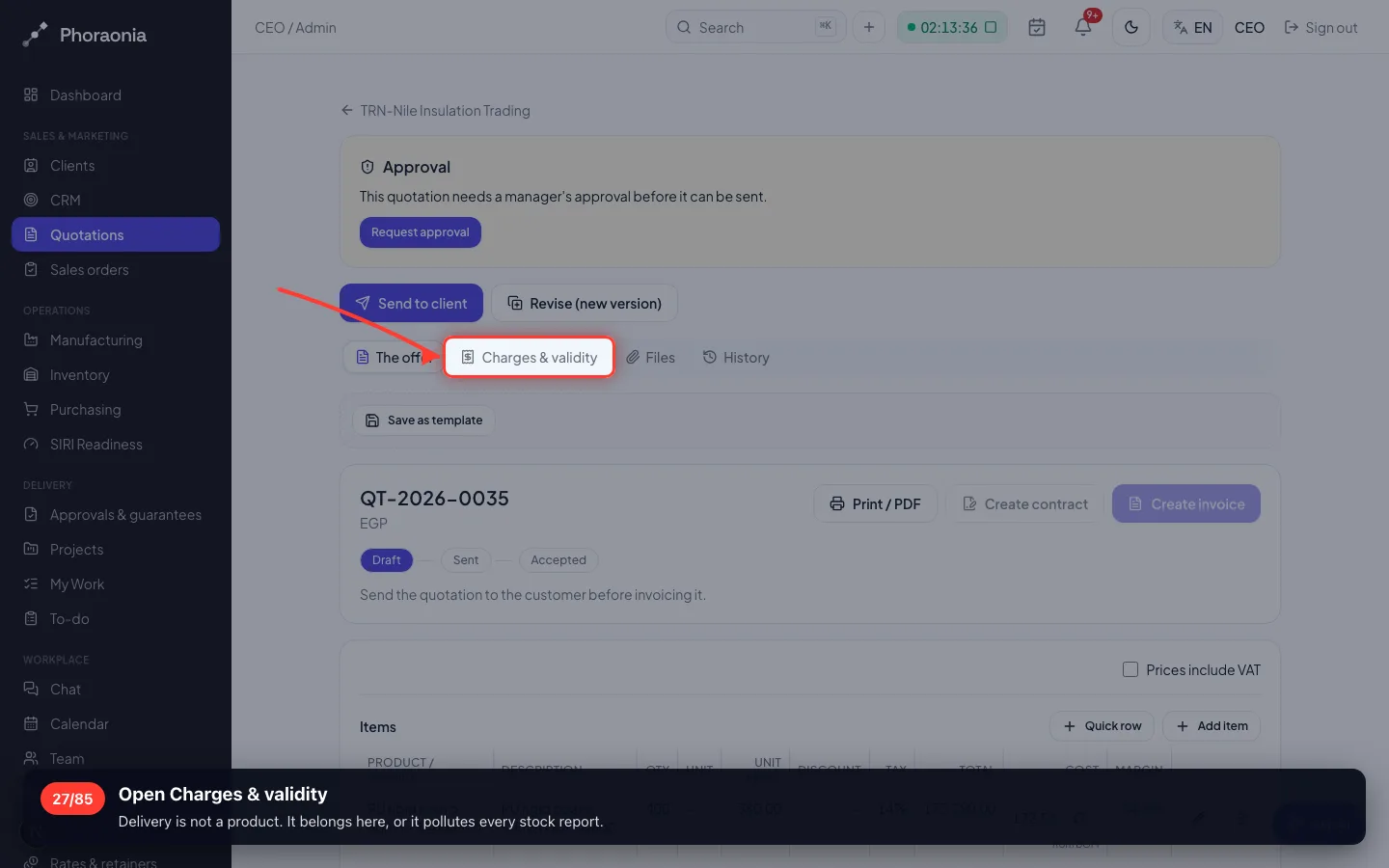
Open Charges & validity
Delivery is not a product. It belongs here, or it pollutes every stock report.
- 28
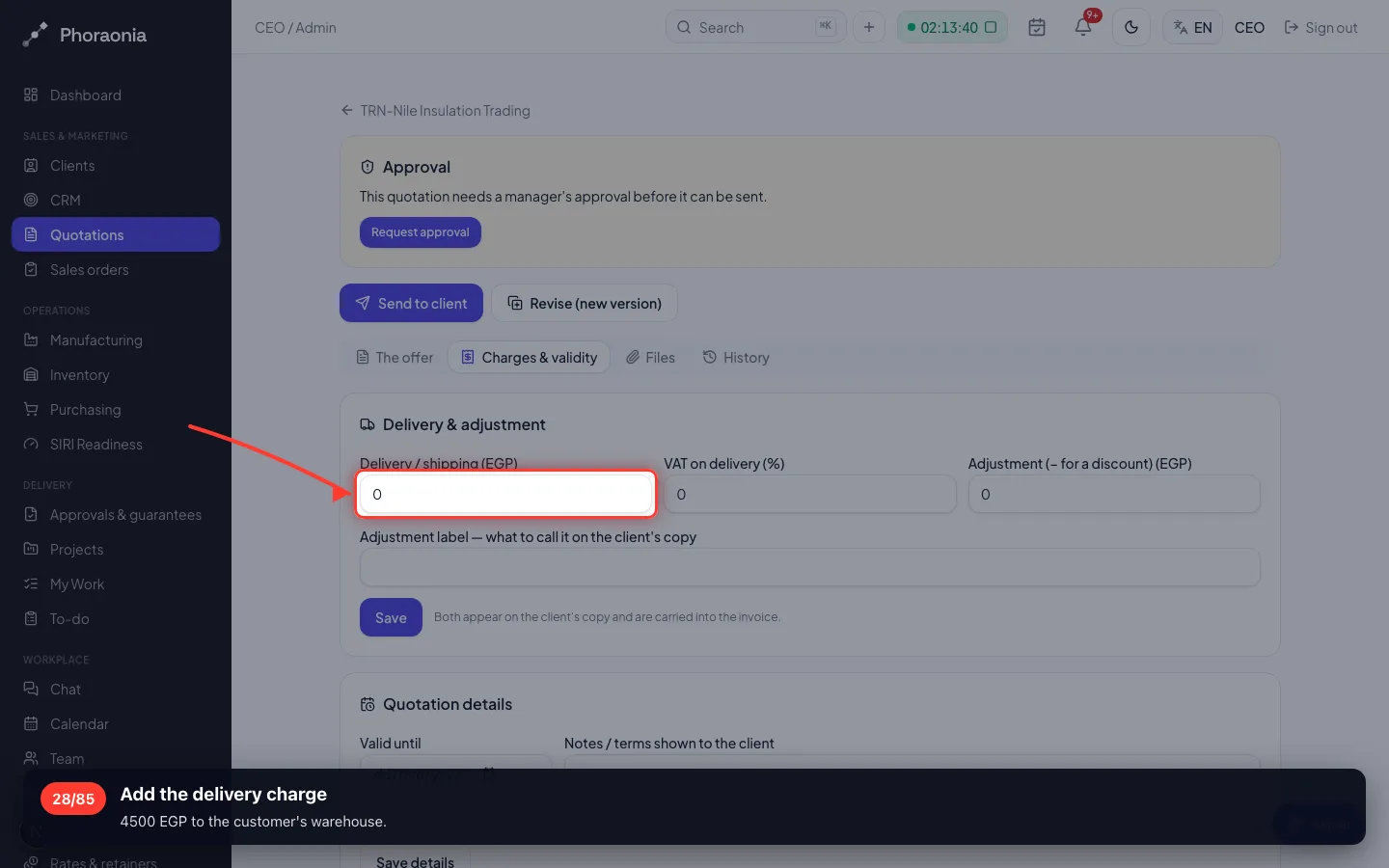
Add the delivery charge
4500 EGP to the customer's warehouse.
- 29
Save the charges
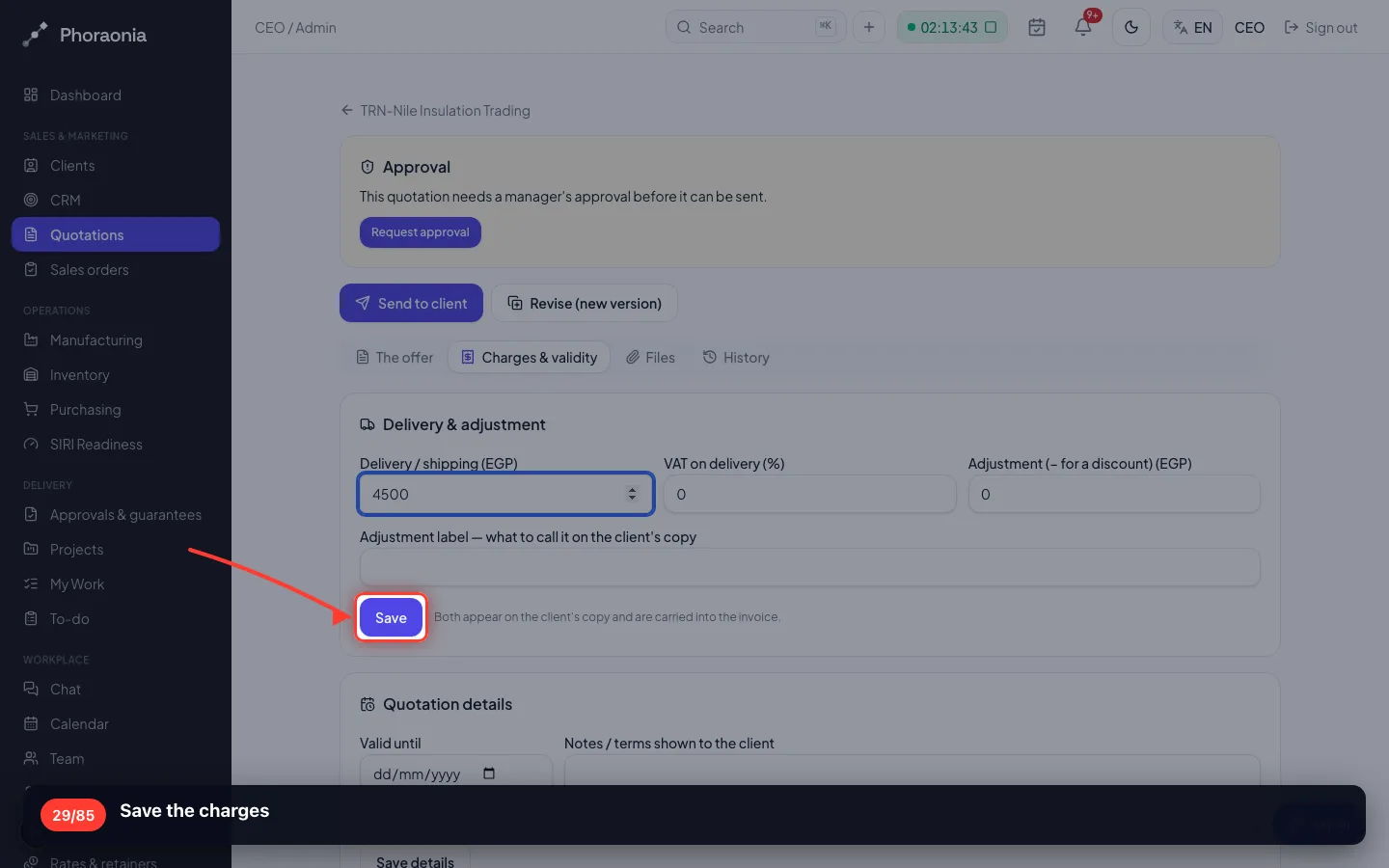
- 30
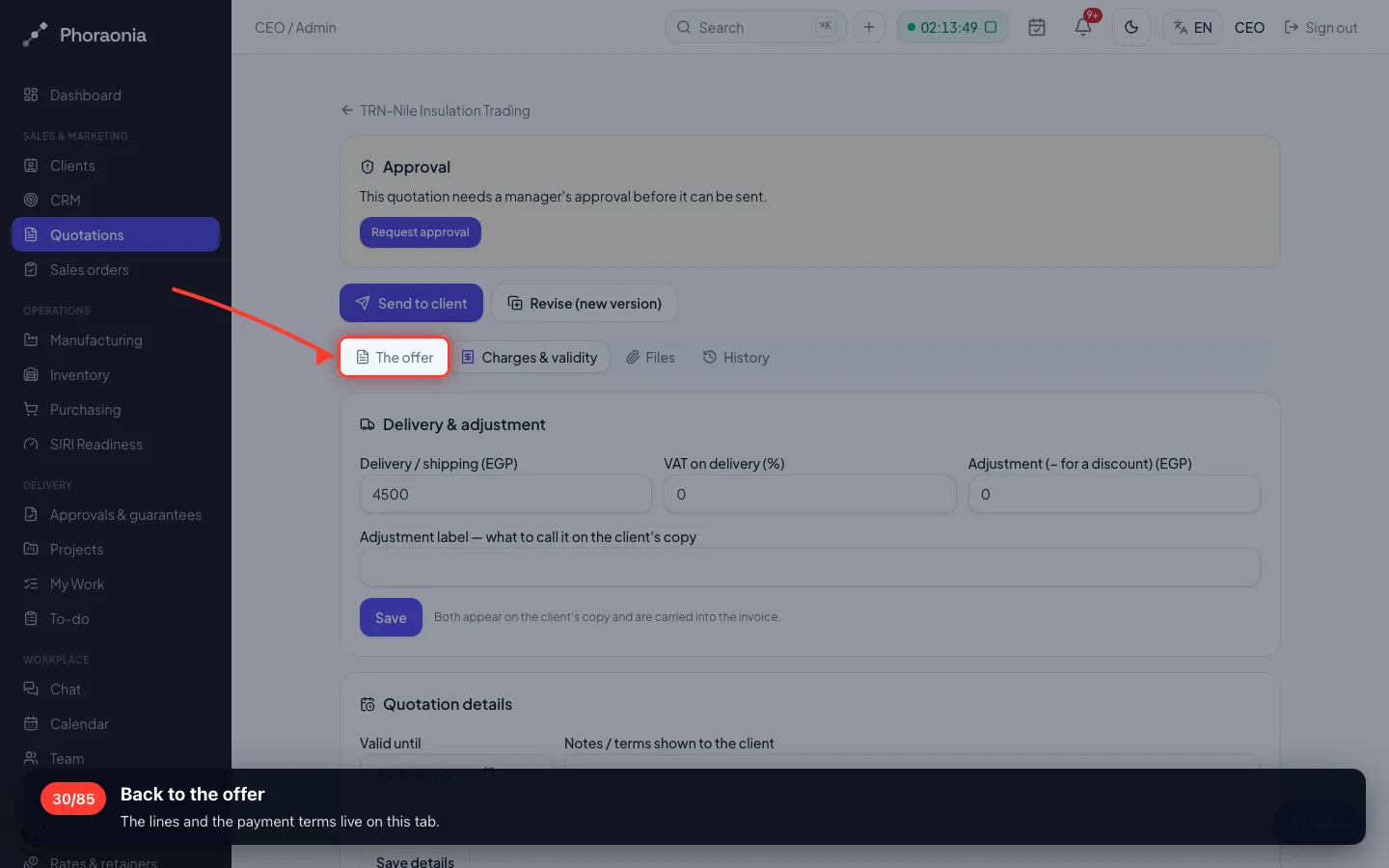
Back to the offer
The lines and the payment terms live on this tab.
- 31
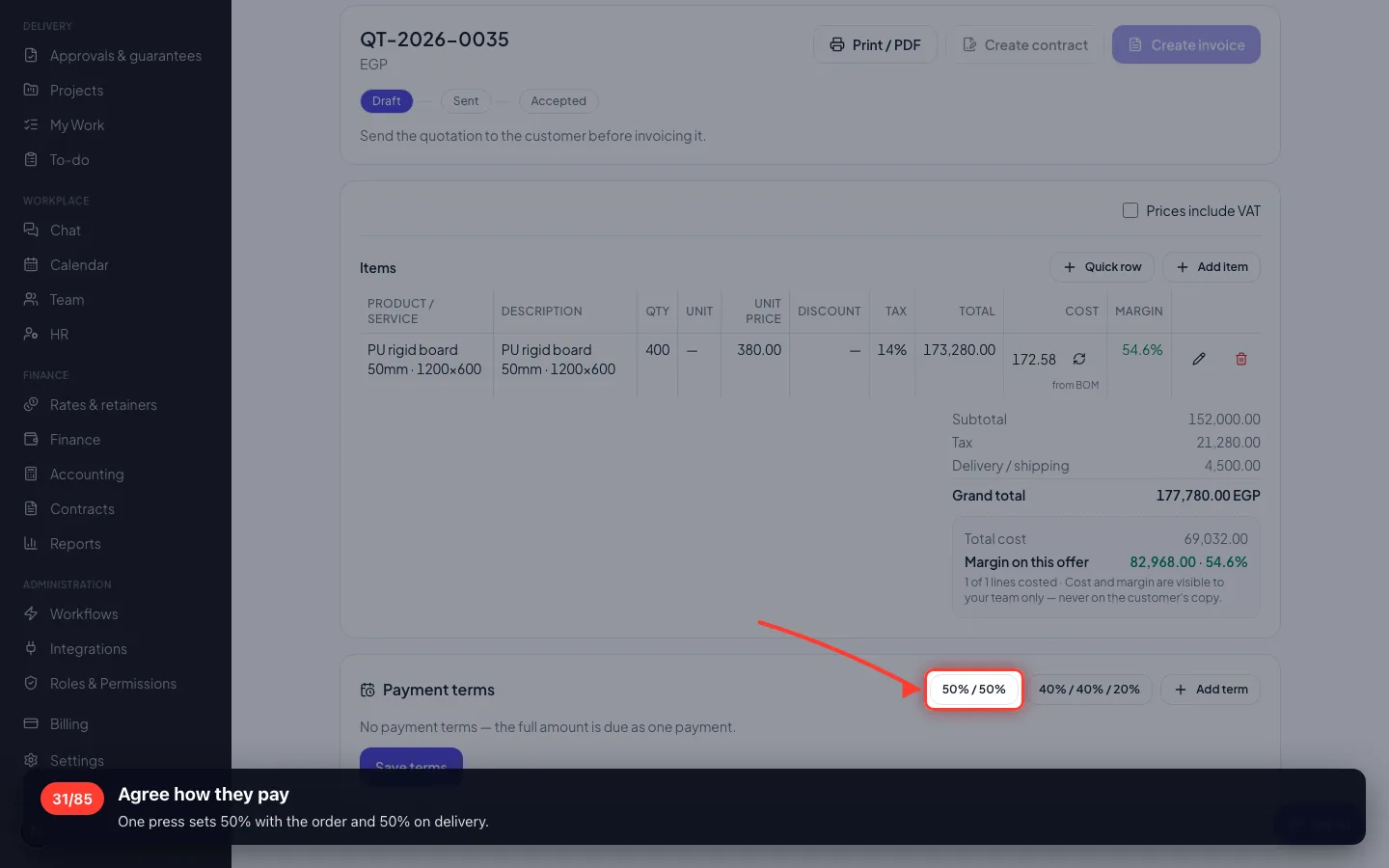
Agree how they pay
One press sets 50% with the order and 50% on delivery.
4 · A manager has to approve it
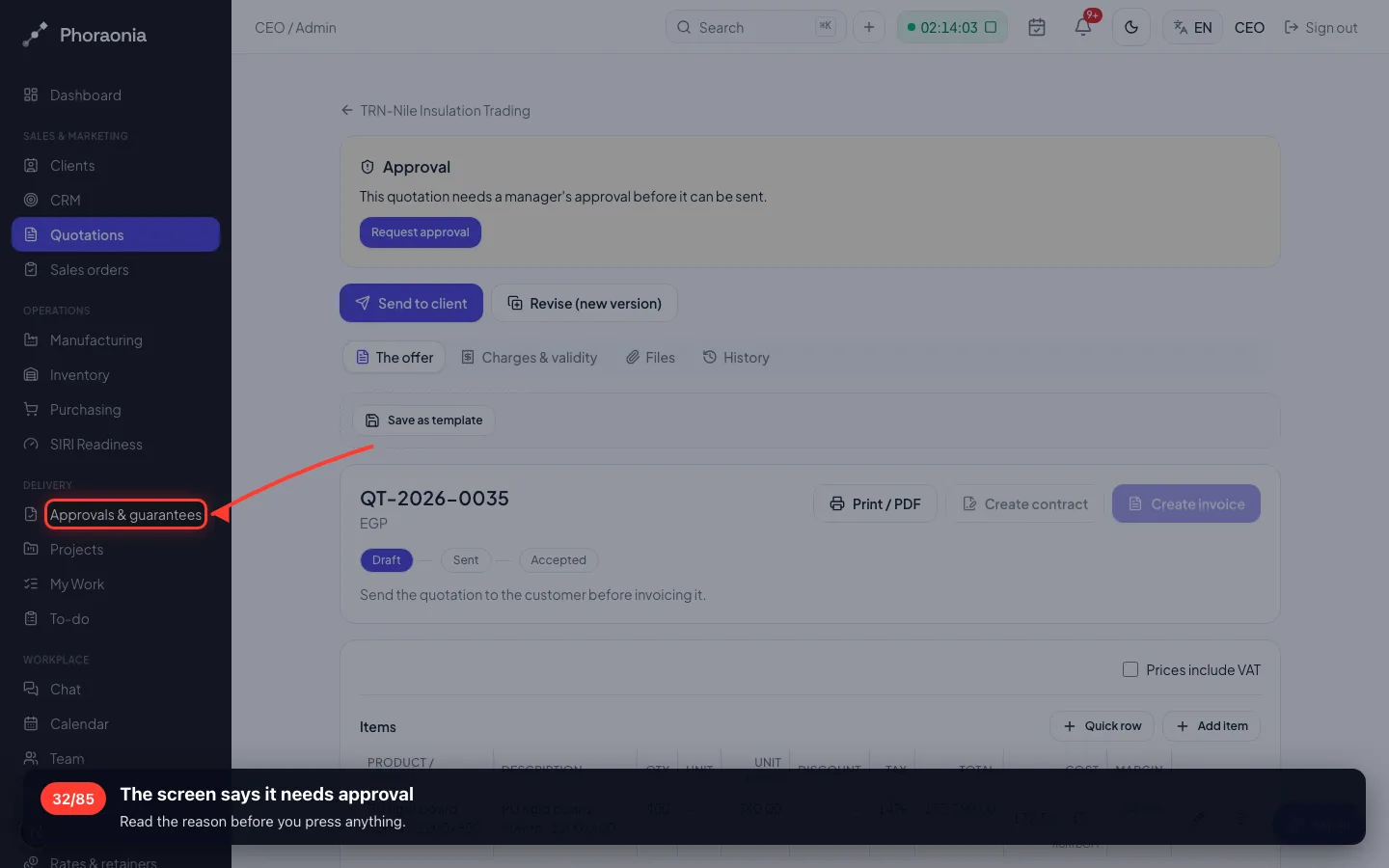
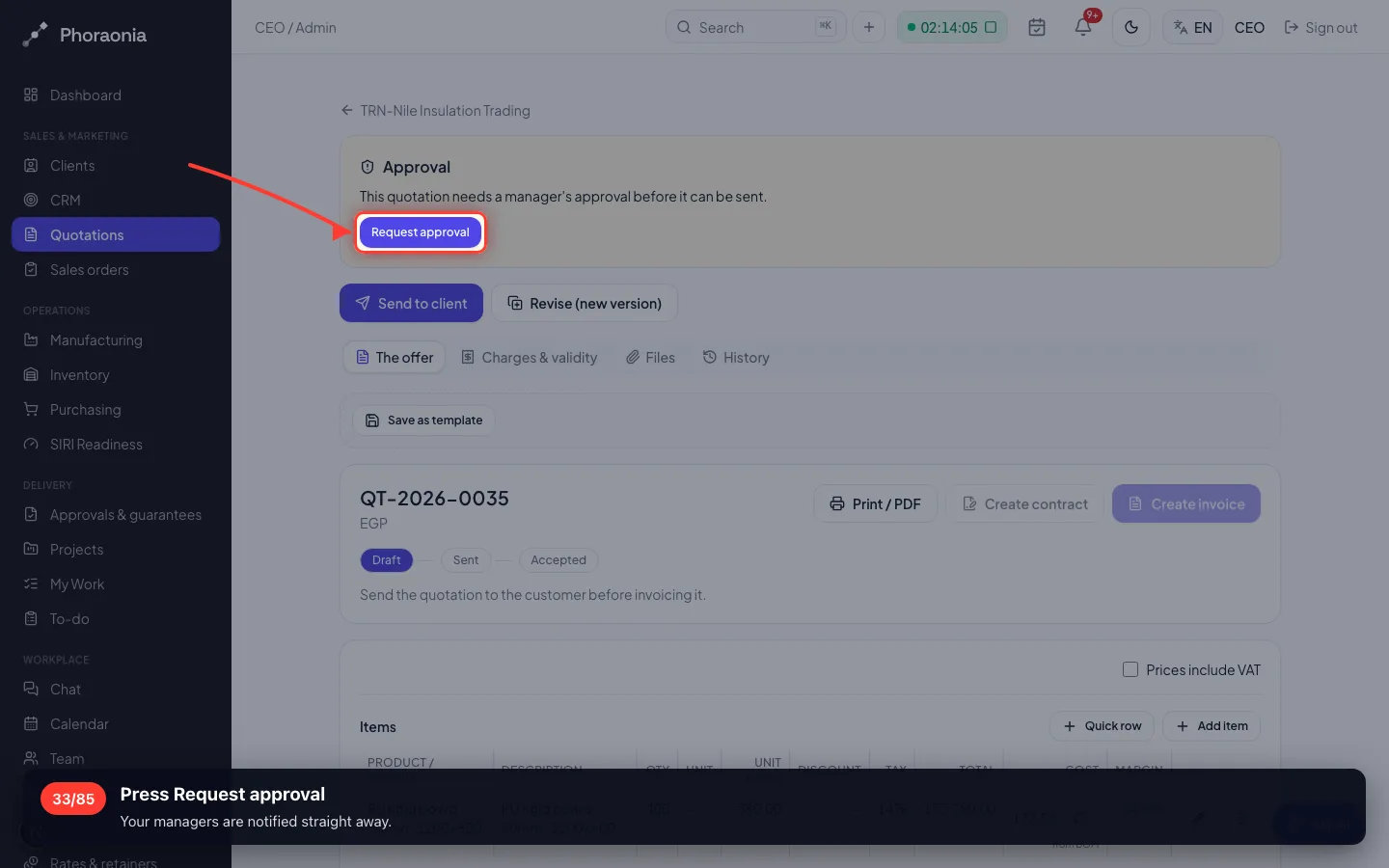
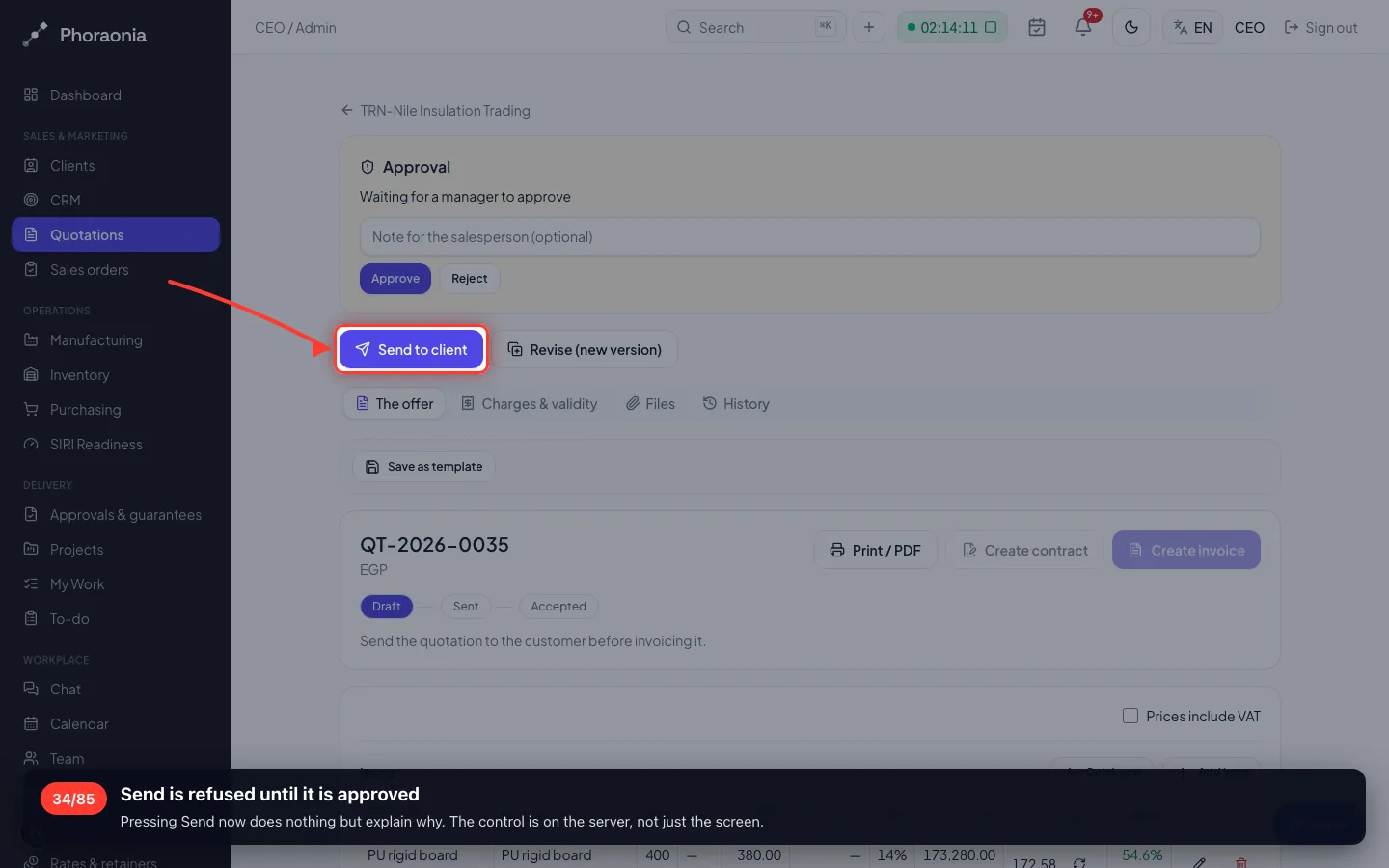
This workspace requires approval over 100,000 EGP. The offer is 173,415 — so Send is refused until somebody signs.
32The screen says it needs approval
Read the reason before you press anything.
- 33
Press Request approval
Your managers are notified straight away.
- 34
Send is refused until it is approved
Pressing Send now does nothing but explain why. The control is on the server, not just the screen.
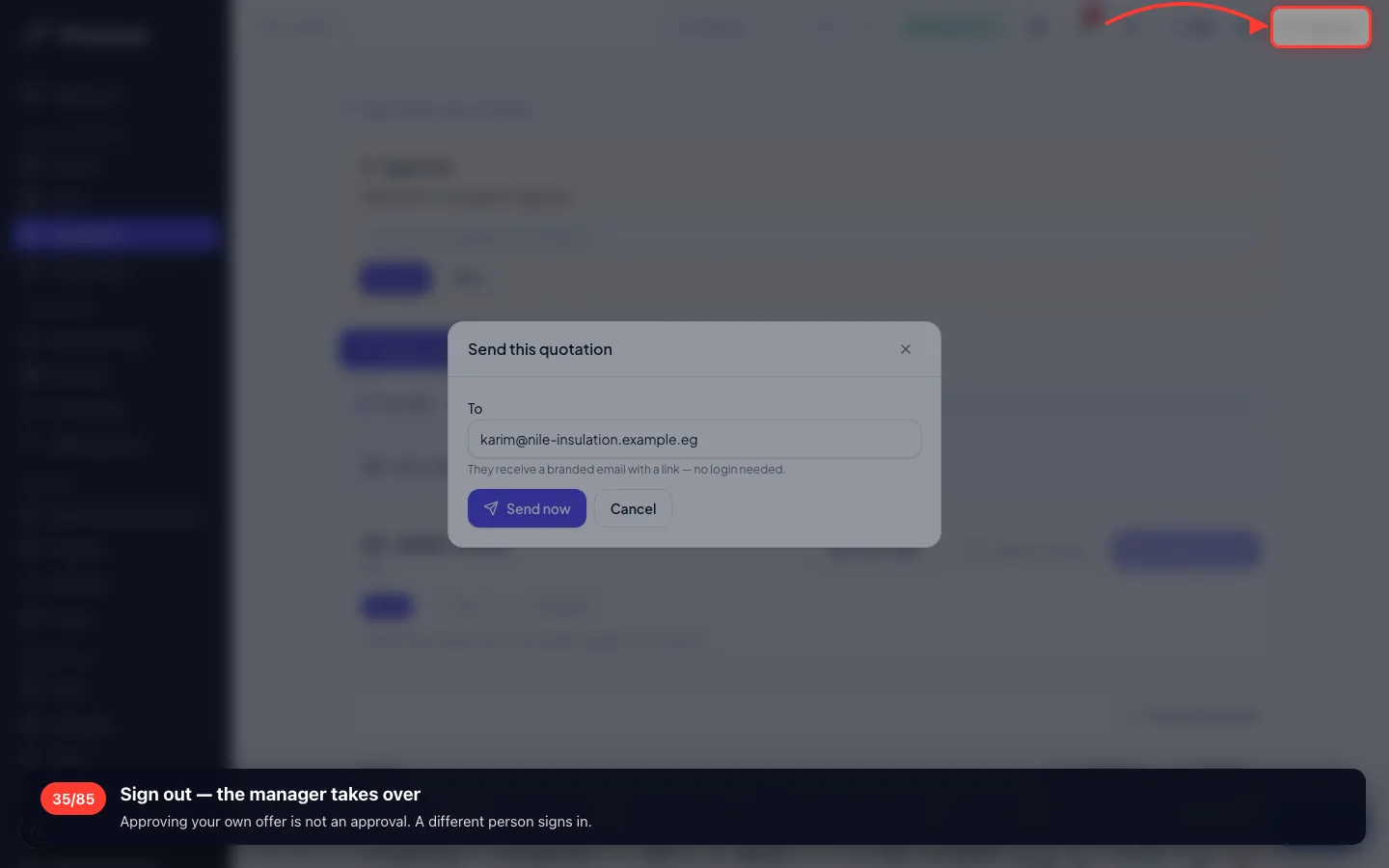
- 35
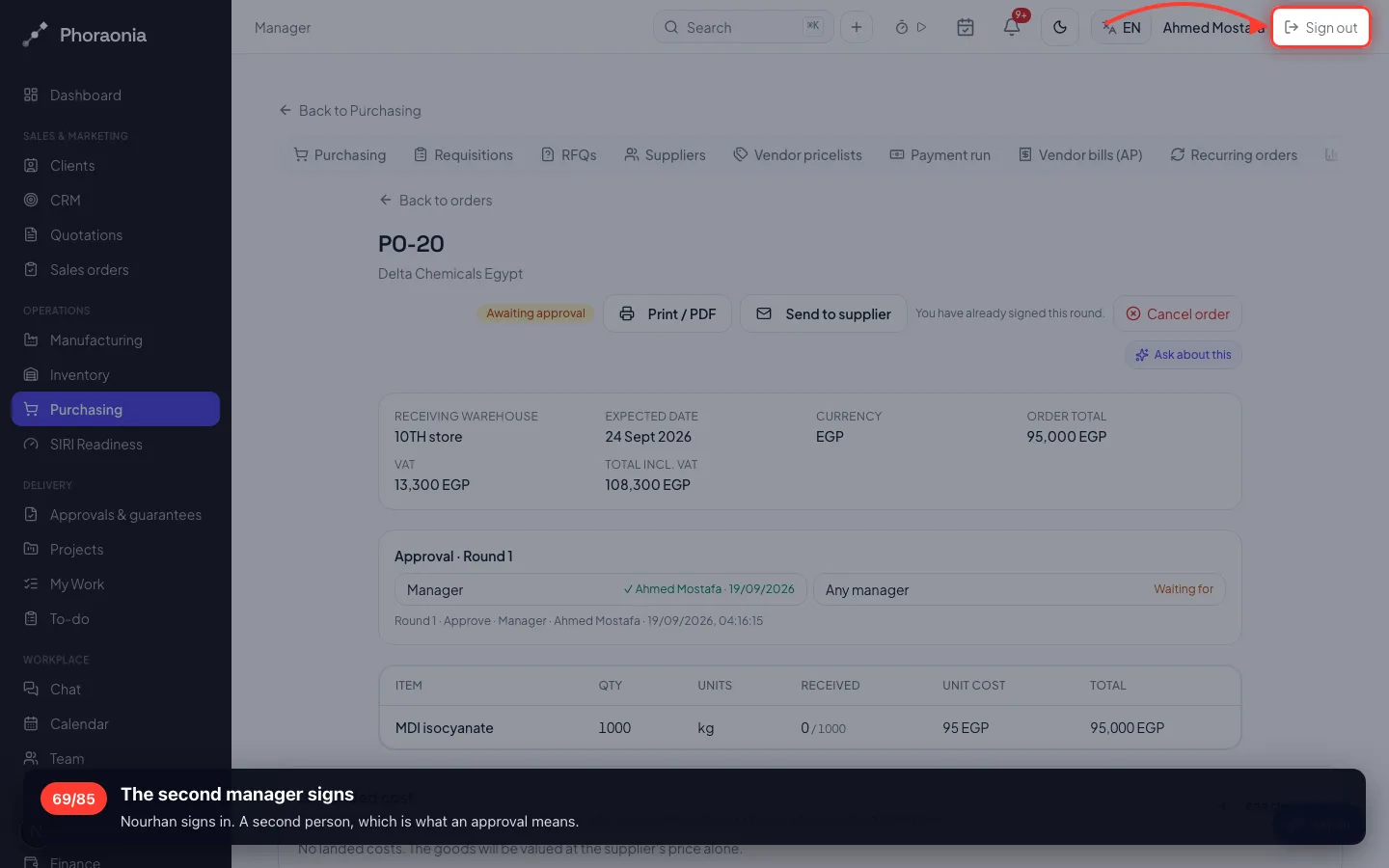
Sign out — the manager takes over
Approving your own offer is not an approval. A different person signs in.
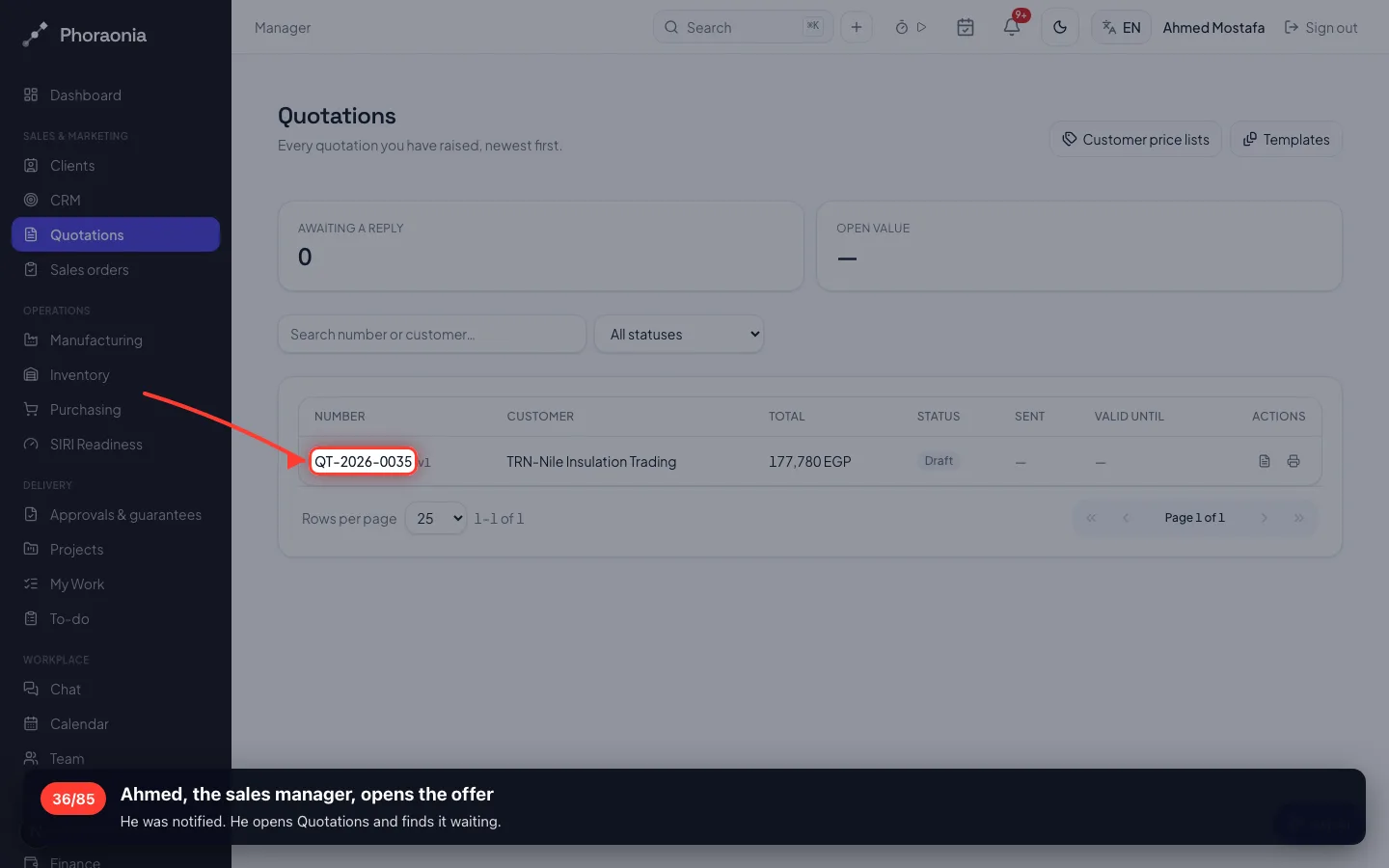
- 36
Ahmed, the sales manager, opens the offer
He was notified. He opens Quotations and finds it waiting.
- 37
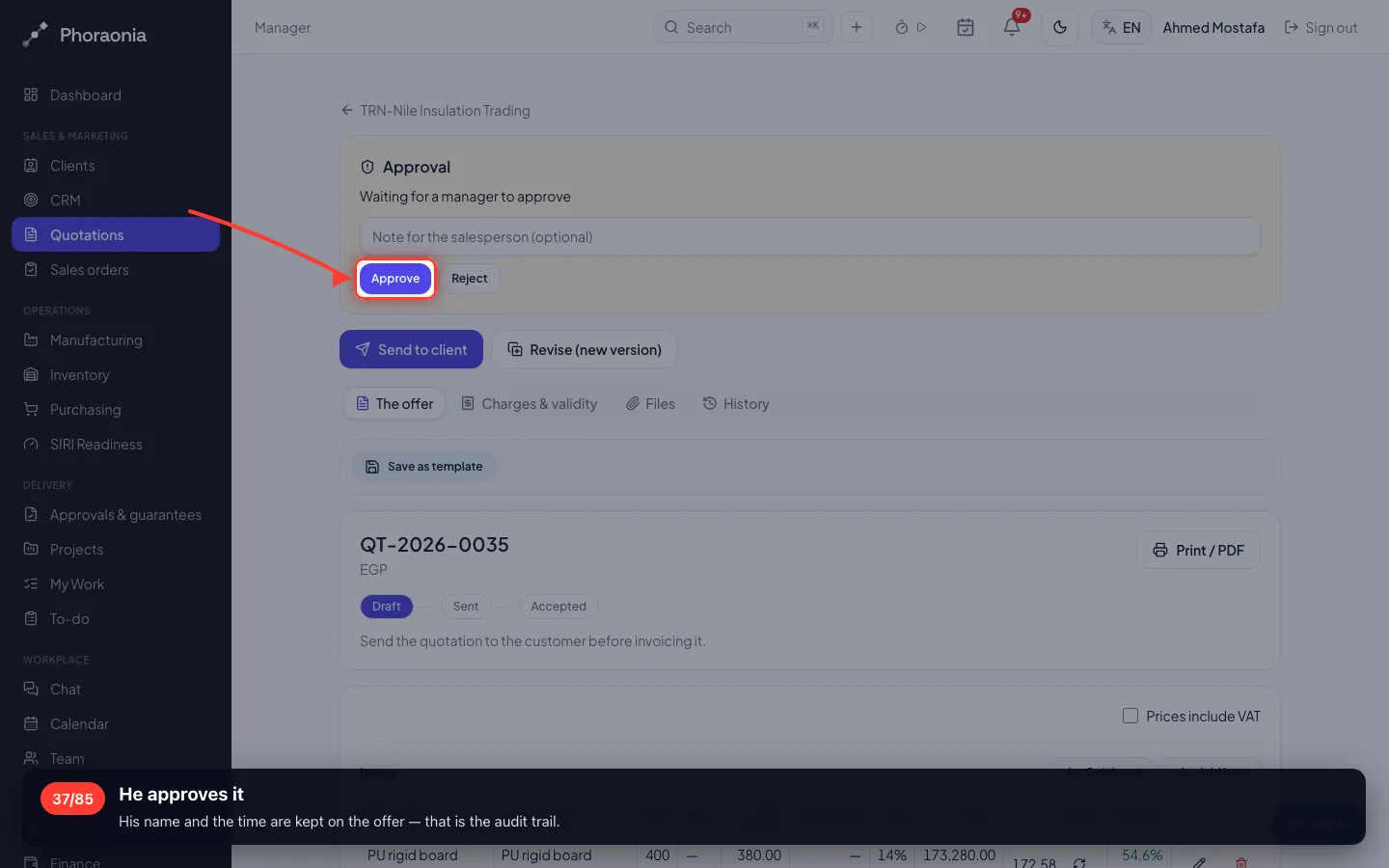
He approves it
His name and the time are kept on the offer — that is the audit trail.
5 · Sending it to the customer
Back as the sales person. Now Send works.
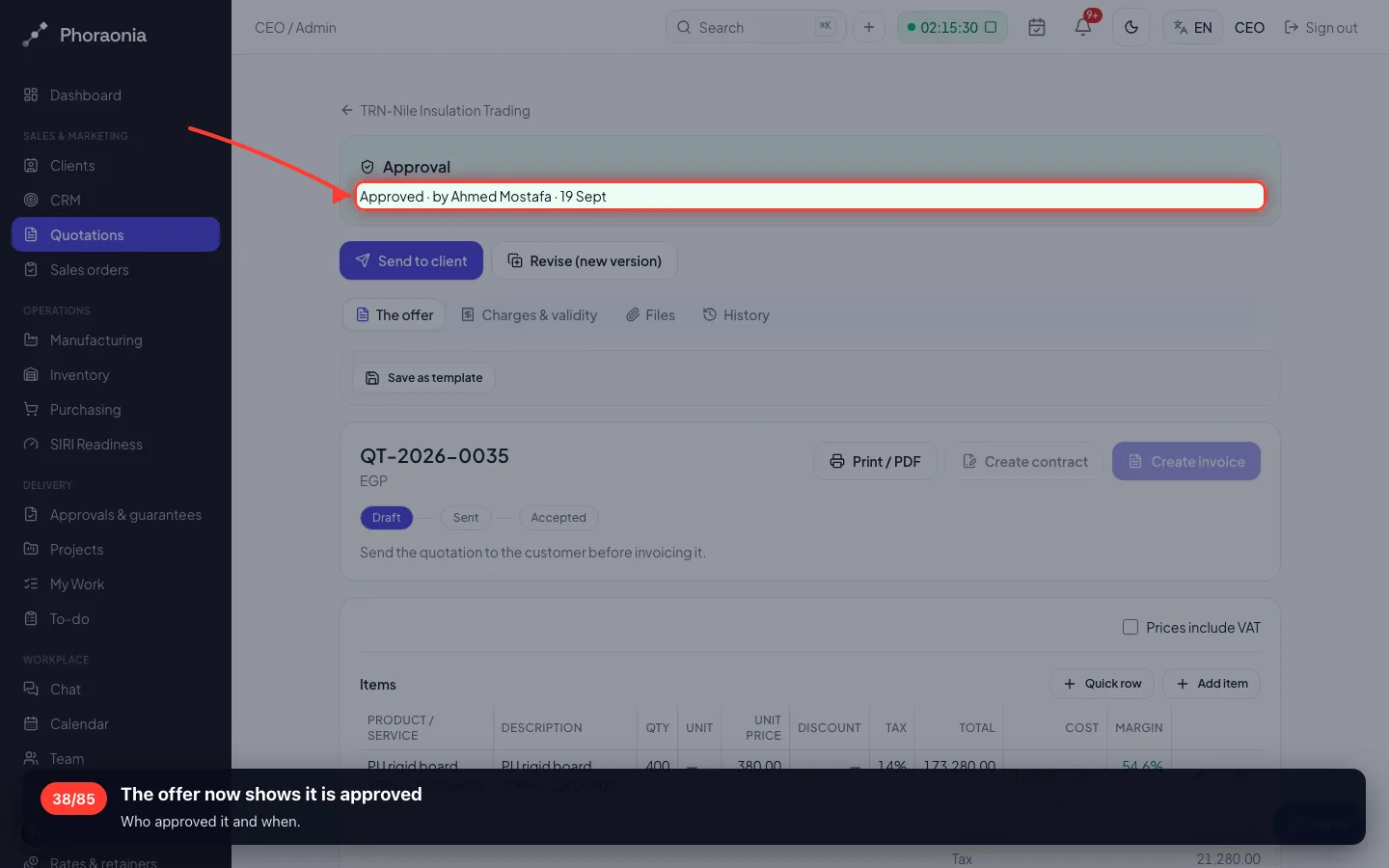
38The offer now shows it is approved
Who approved it and when.
- 39
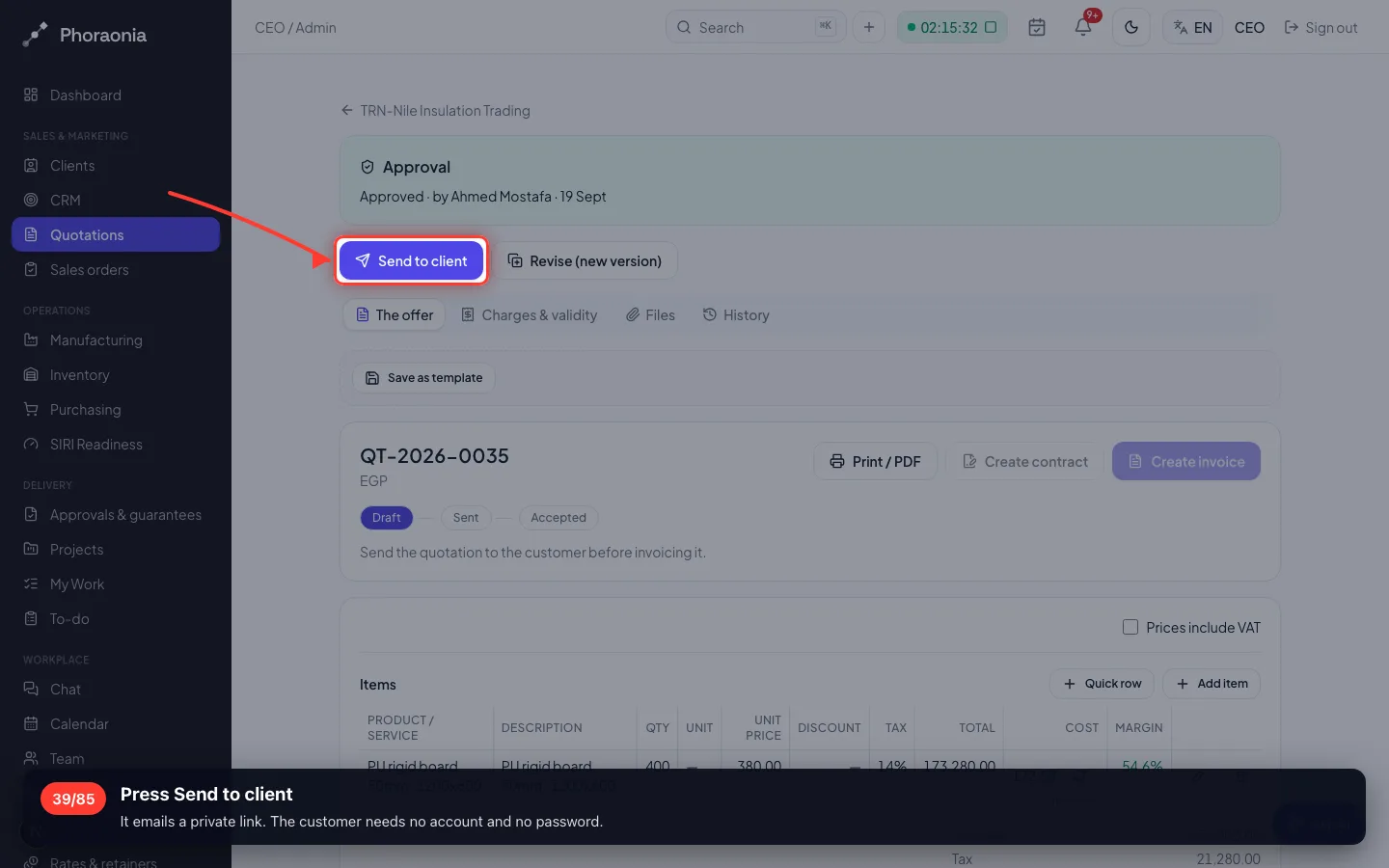
Press Send to client
It emails a private link. The customer needs no account and no password.
- 40
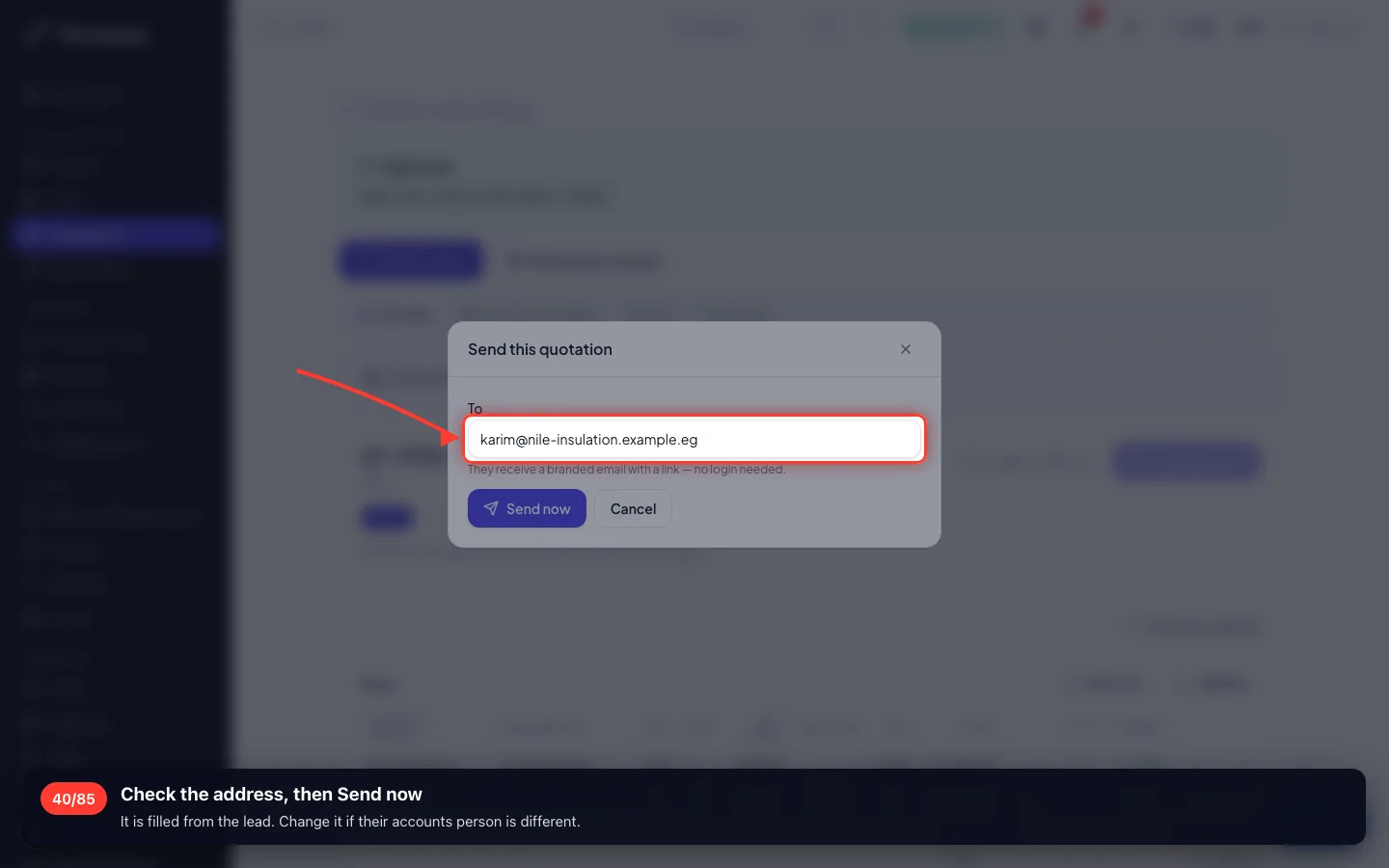
Check the address, then Send now
It is filled from the lead. Change it if their accounts person is different.
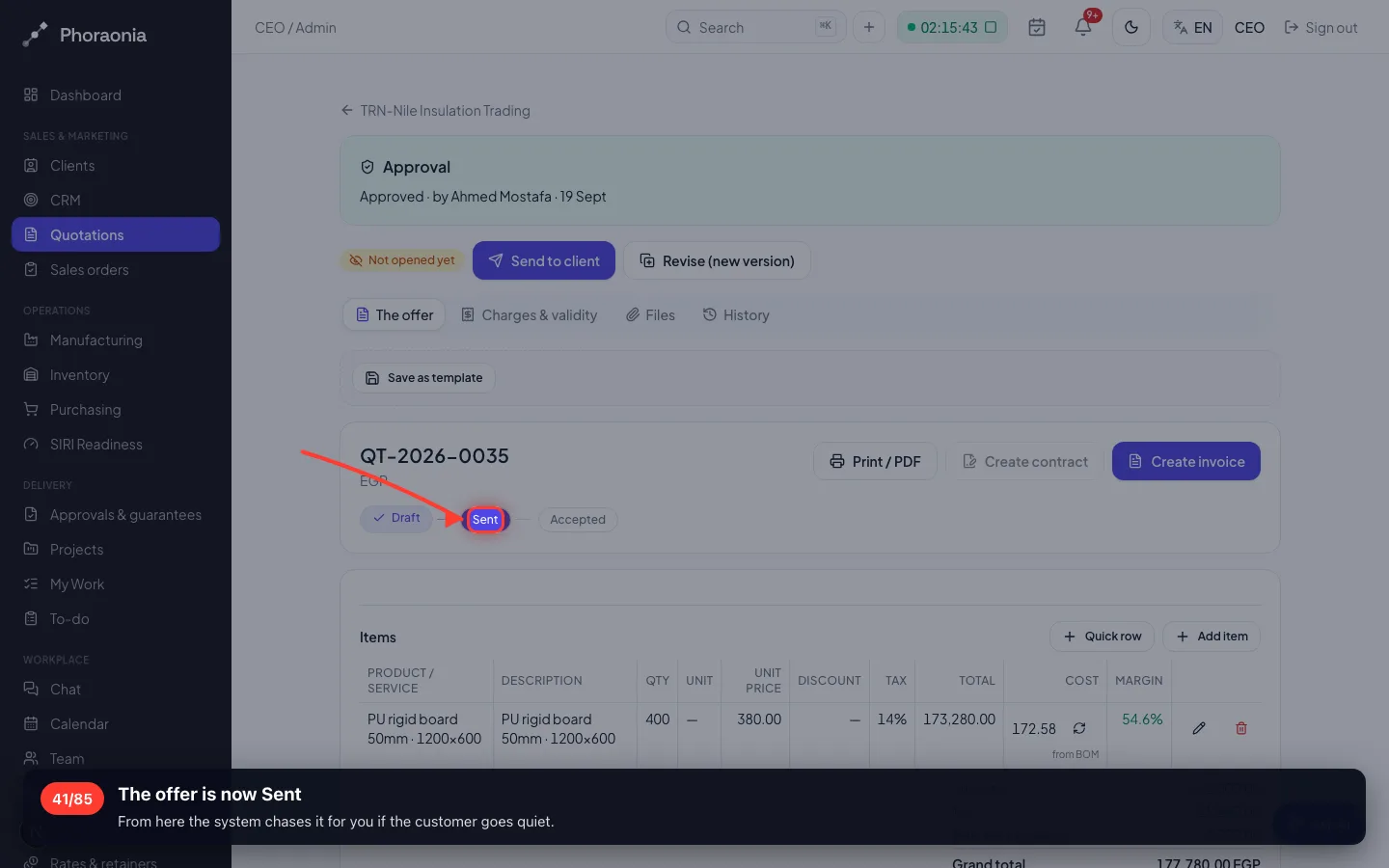
- 41
The offer is now Sent
From here the system chases it for you if the customer goes quiet.
6 · The customer answers
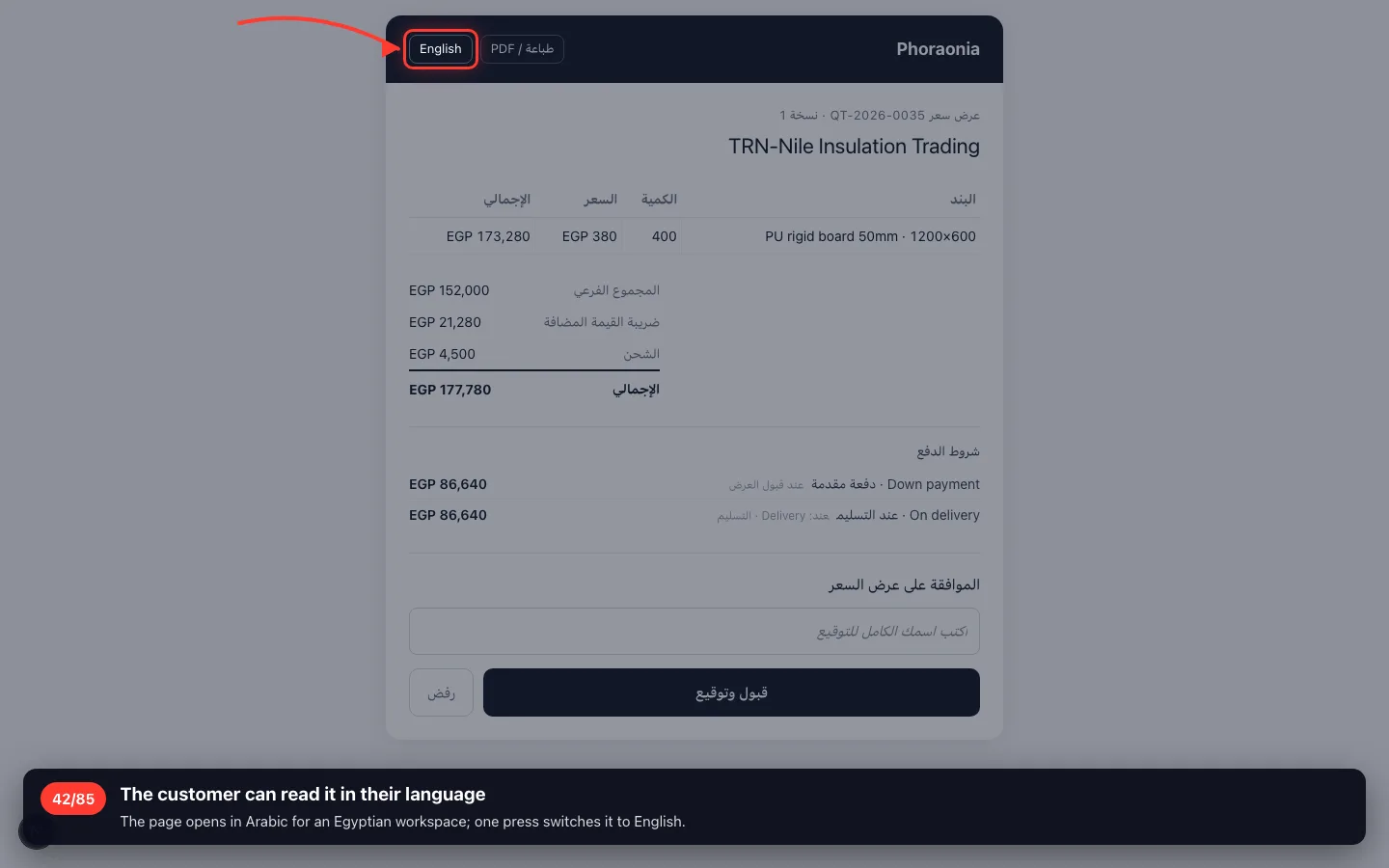
This is the customer's own screen — no login, just the private link they were emailed.
42The customer can read it in their language
The page opens in Arabic for an Egyptian workspace; one press switches it to English.
- 43
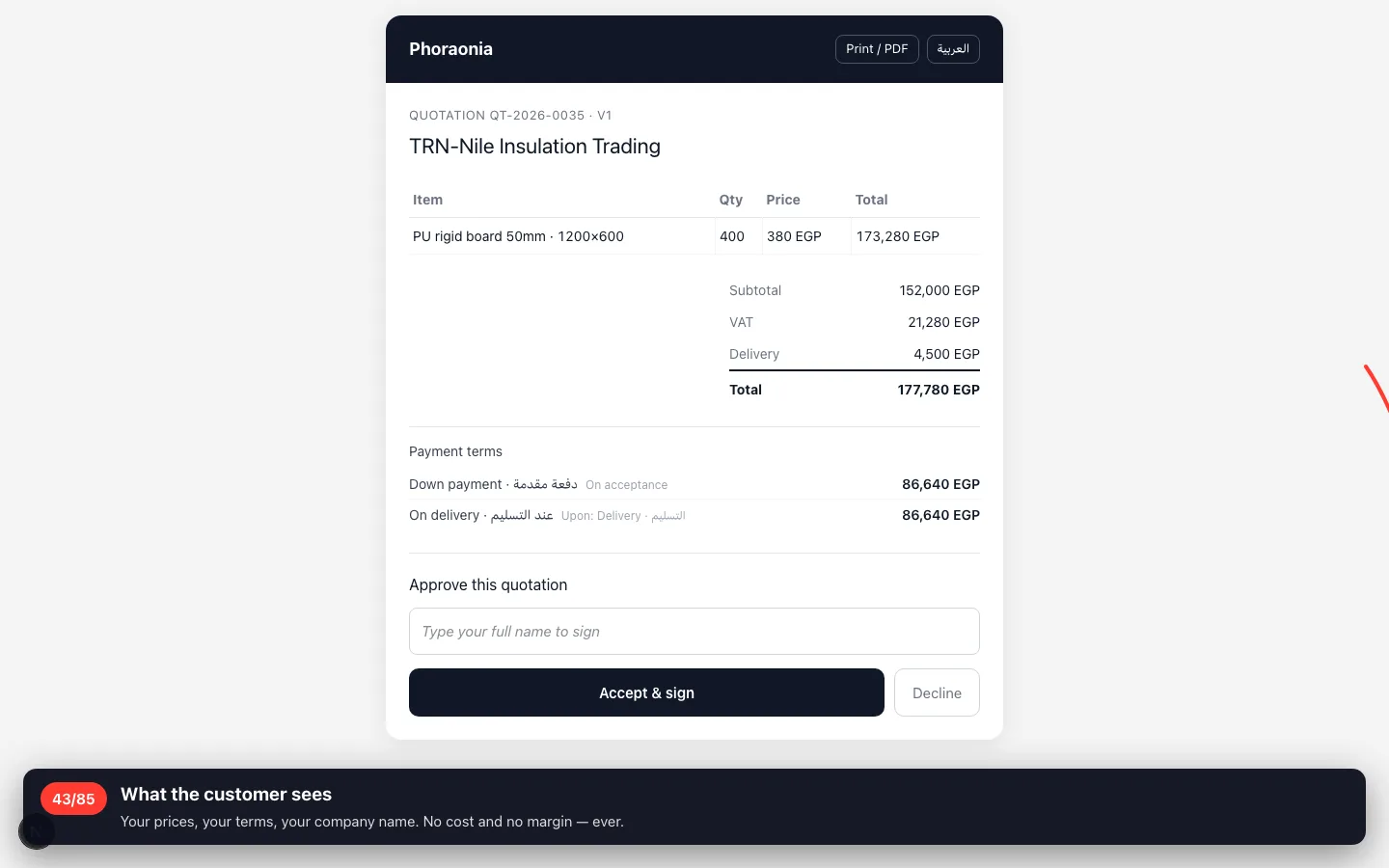
What the customer sees
Your prices, your terms, your company name. No cost and no margin — ever.
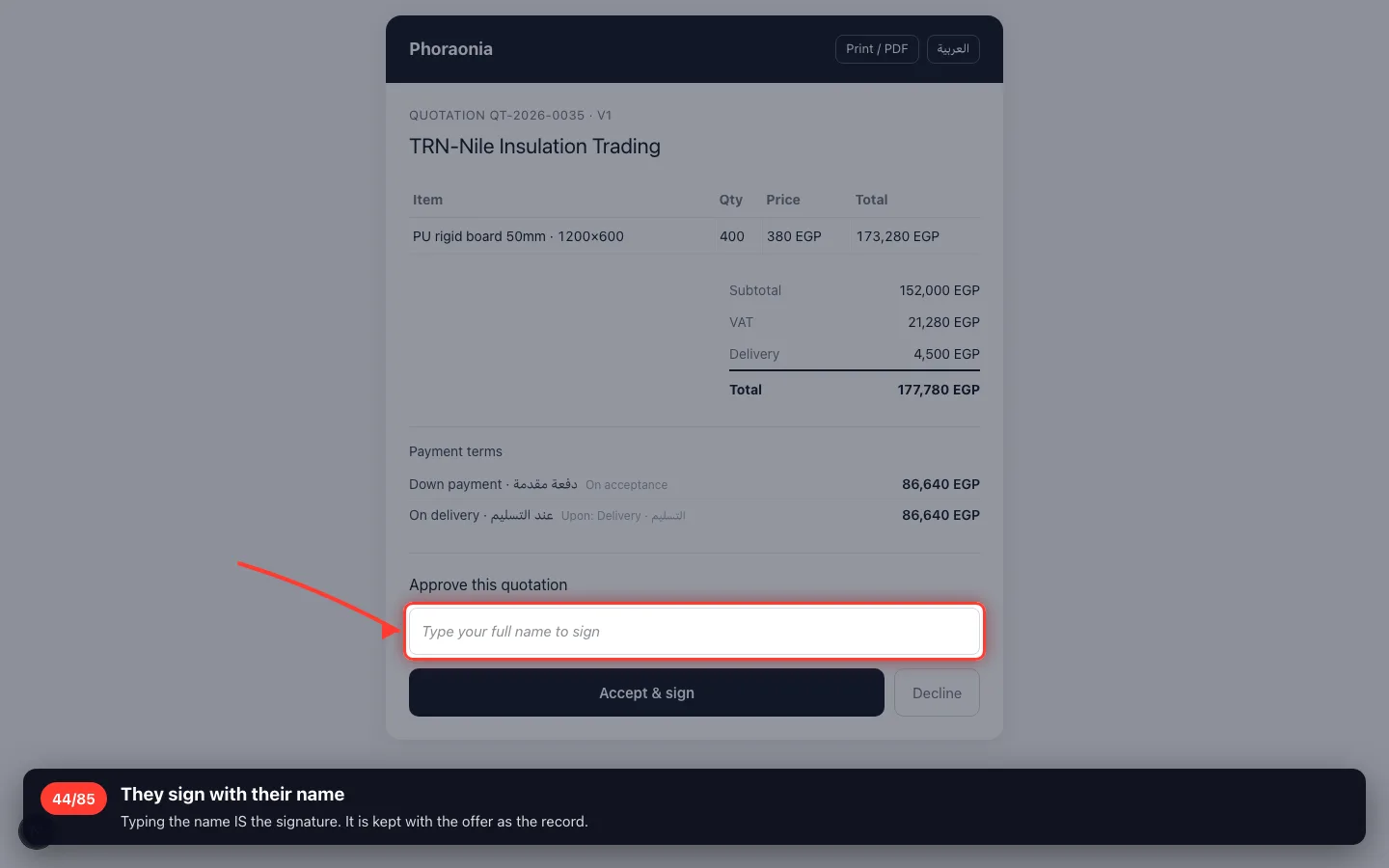
- 44
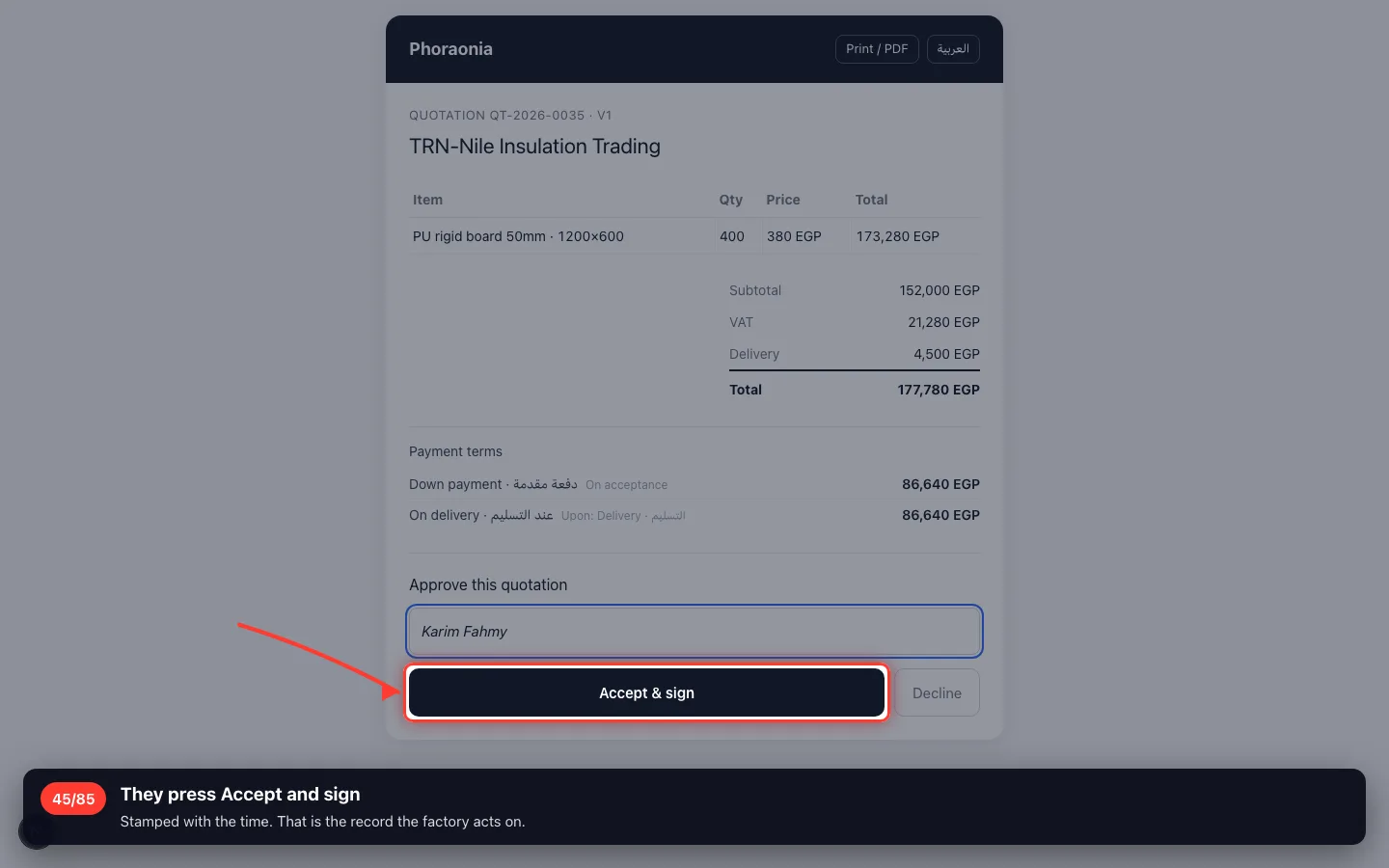
They sign with their name
Typing the name IS the signature. It is kept with the offer as the record.
- 45
They press Accept and sign
Stamped with the time. That is the record the factory acts on.
7 · The accepted offer becomes an order
Back in the workspace. The order is what the factory and the warehouse work from.
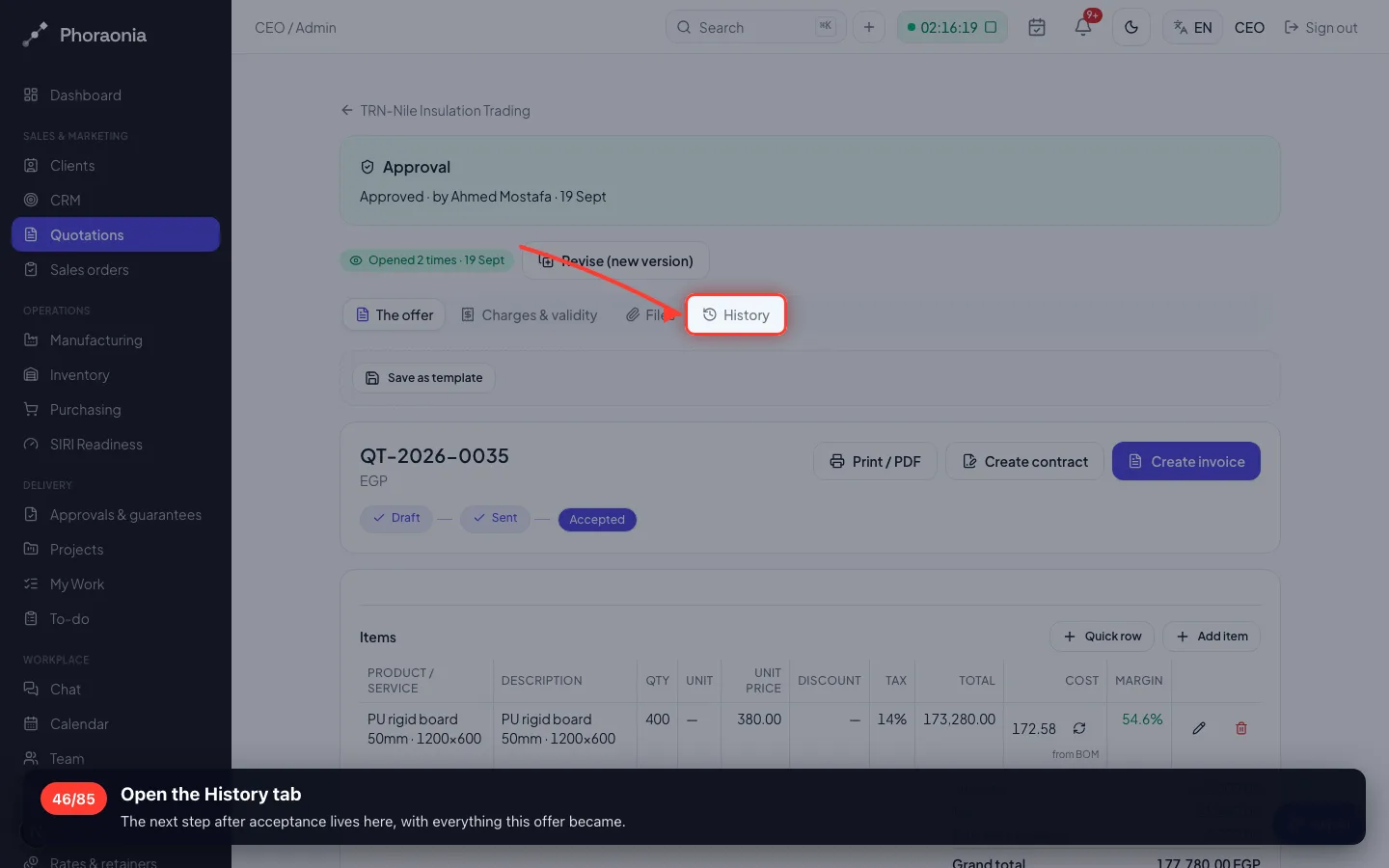
46Open the History tab
The next step after acceptance lives here, with everything this offer became.
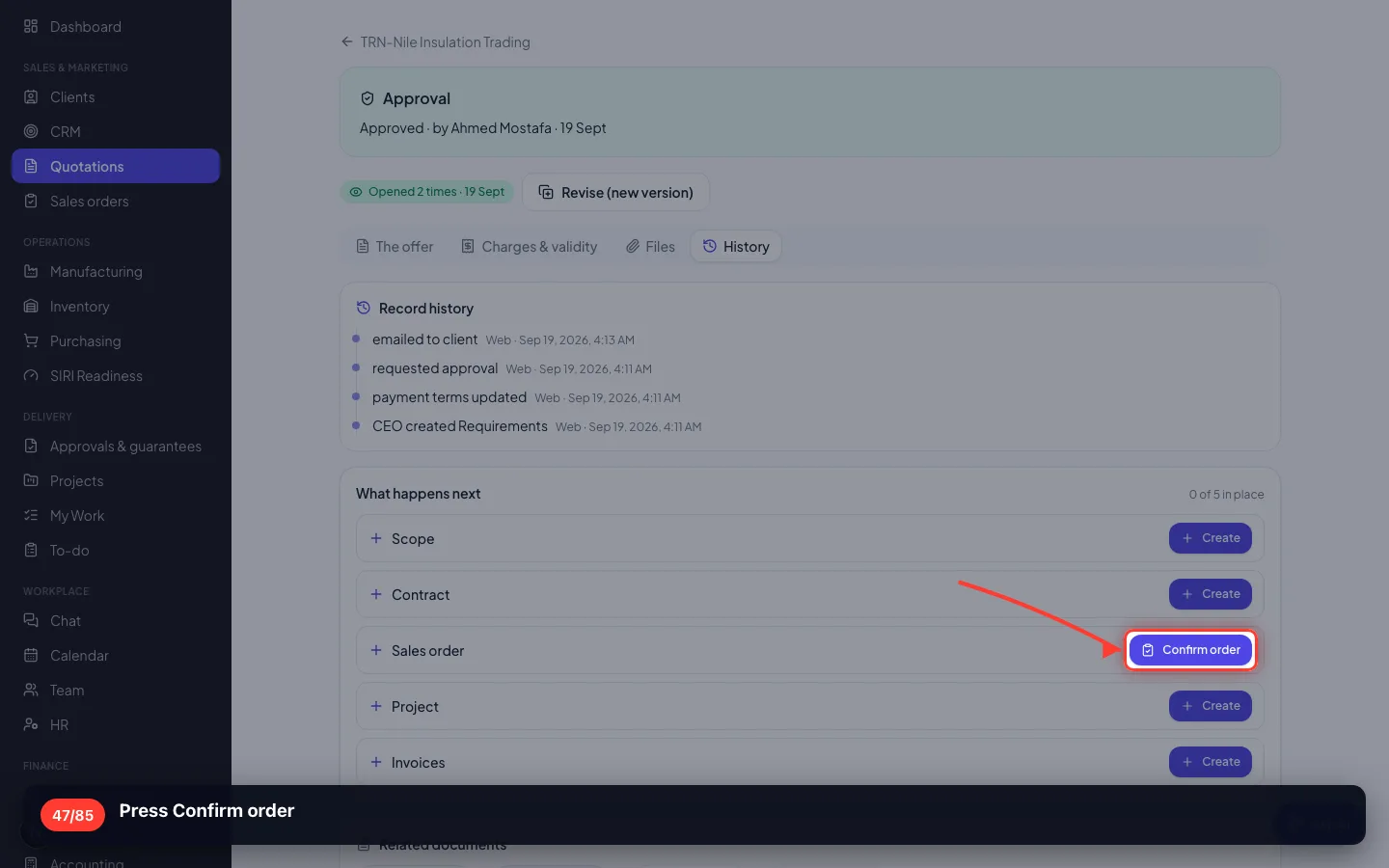
- 47
Press Confirm order
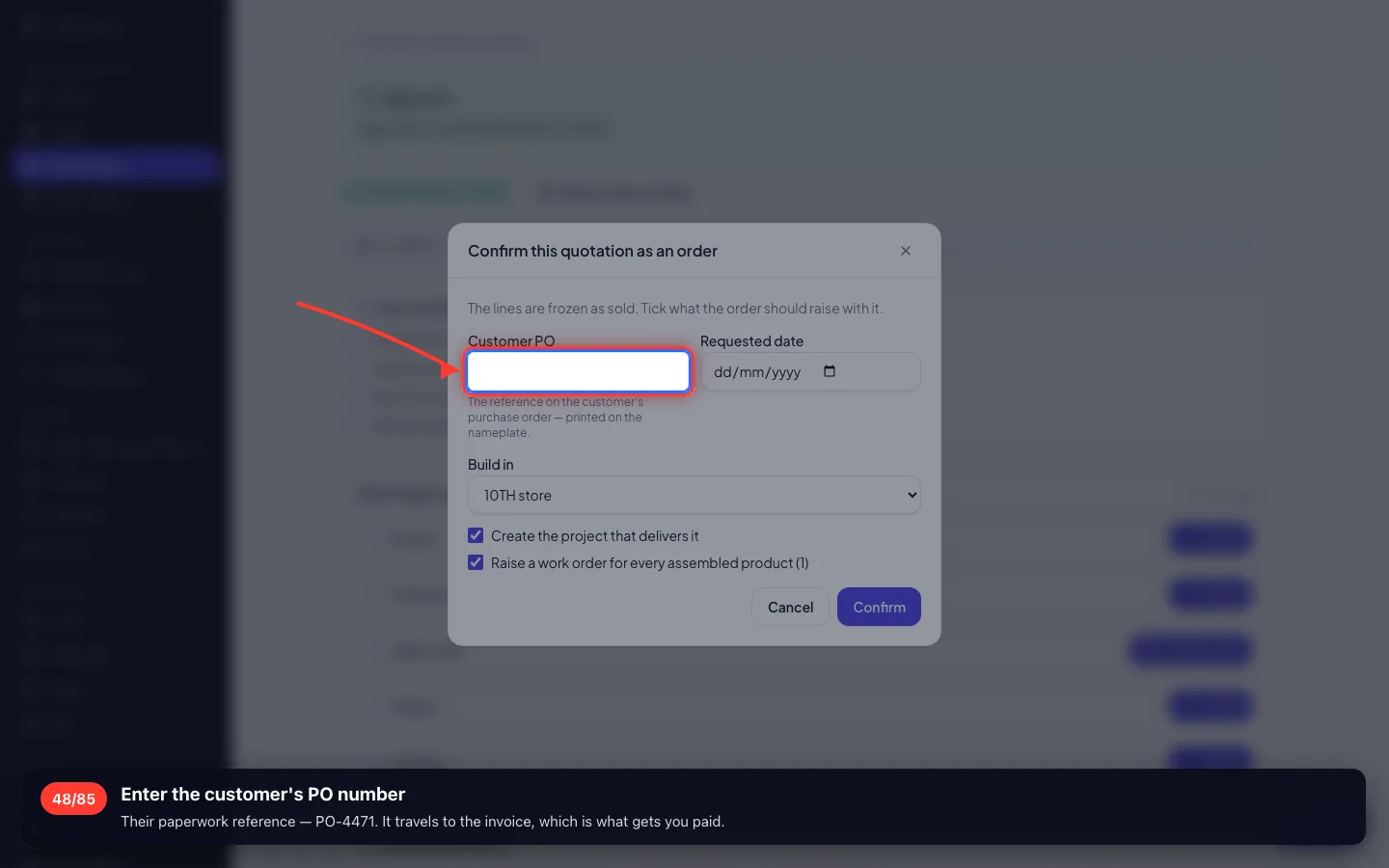
- 48
Enter the customer's PO number
Their paperwork reference — PO-4471. It travels to the invoice, which is what gets you paid.
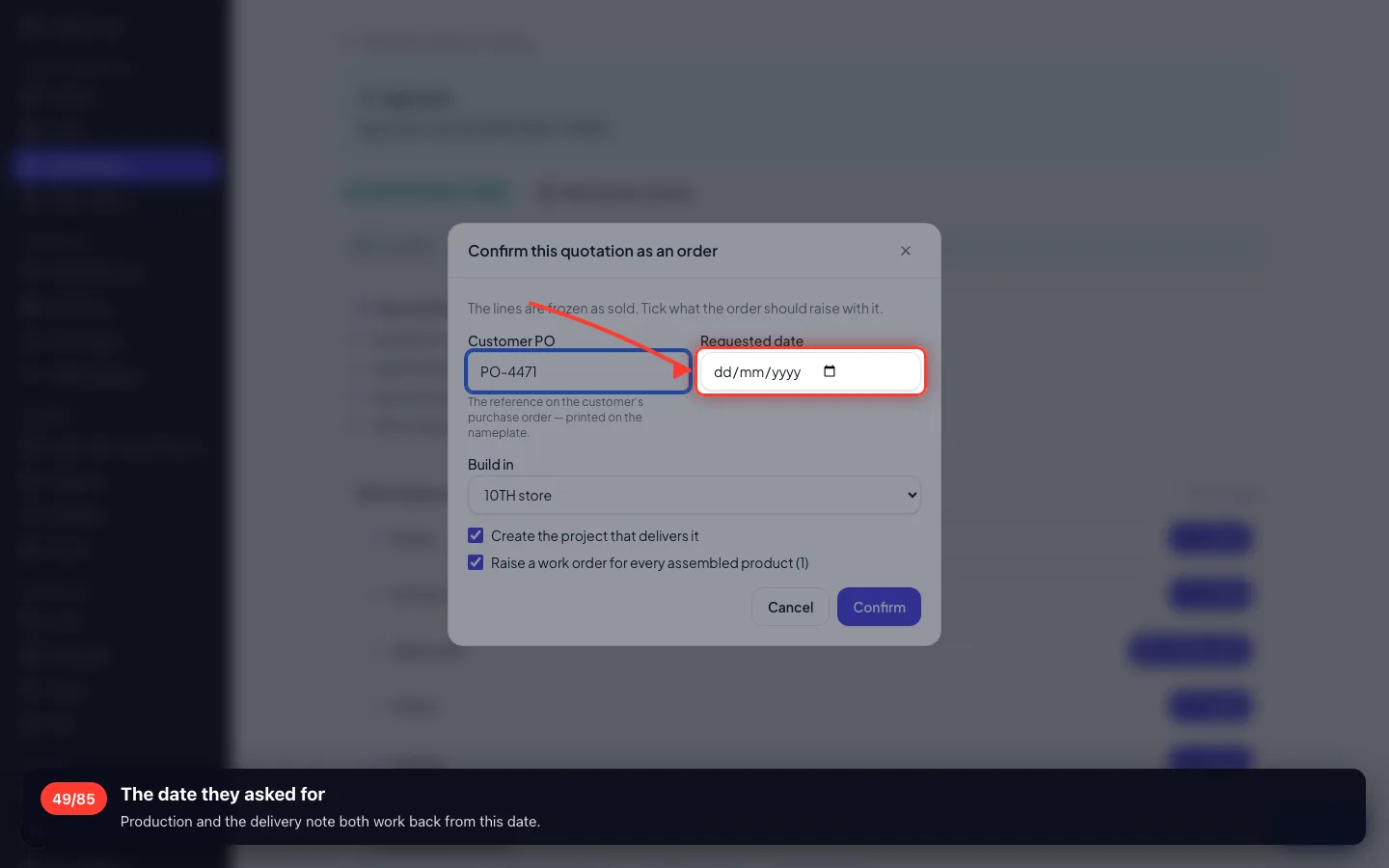
- 49
The date they asked for
Production and the delivery note both work back from this date.
- 50
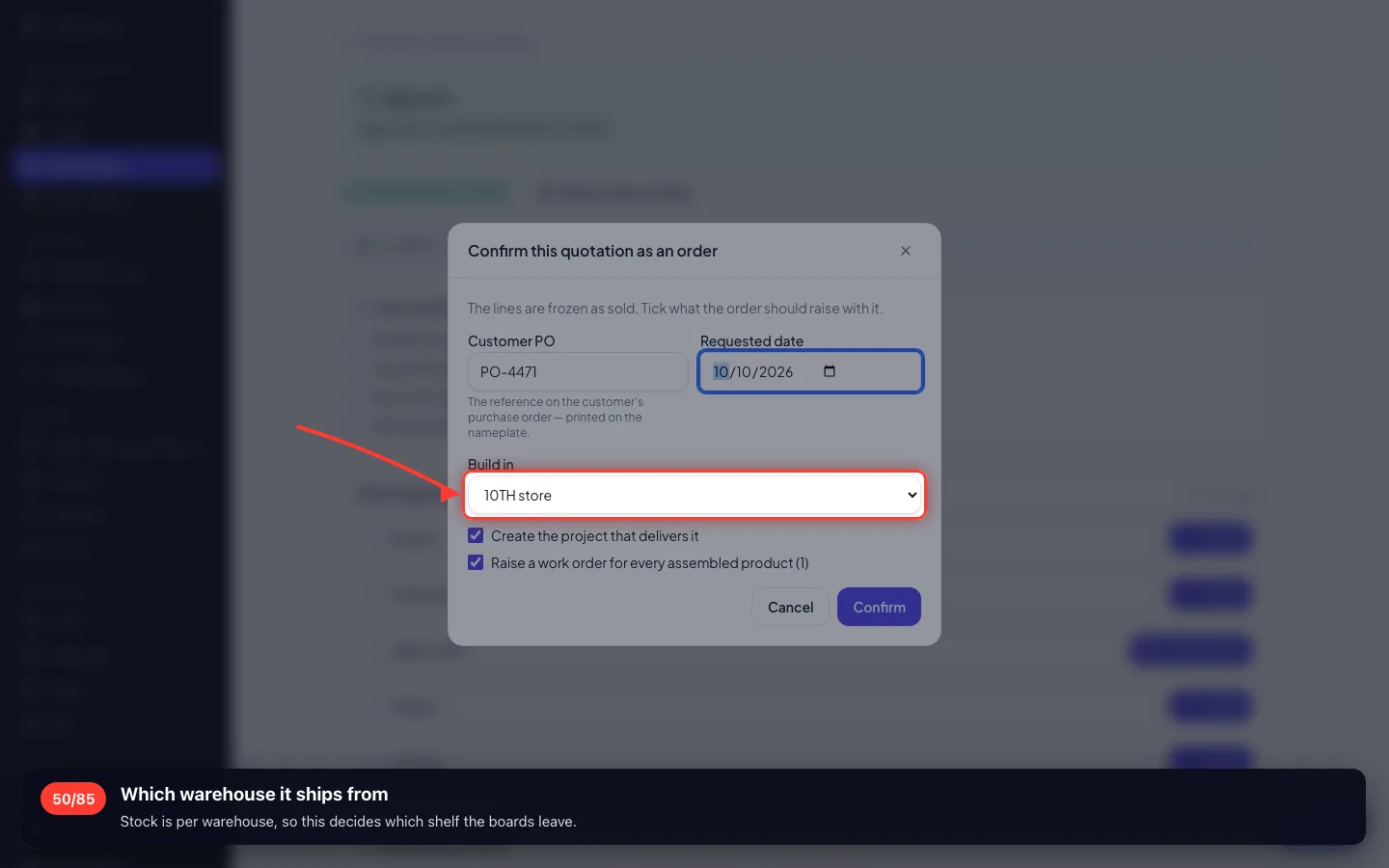
Which warehouse it ships from
Stock is per warehouse, so this decides which shelf the boards leave.
- 51
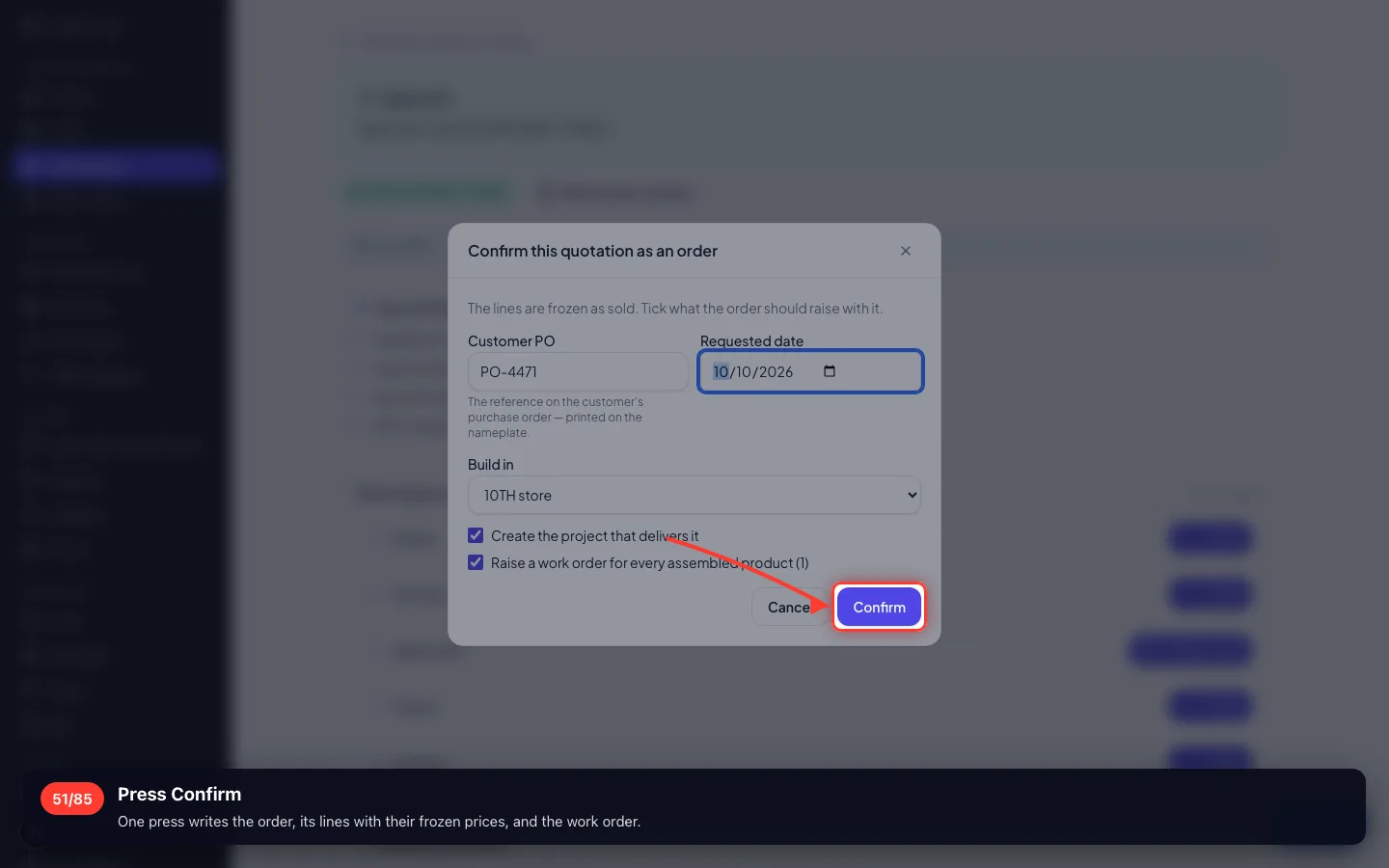
Press Confirm
One press writes the order, its lines with their frozen prices, and the work order.
- 52
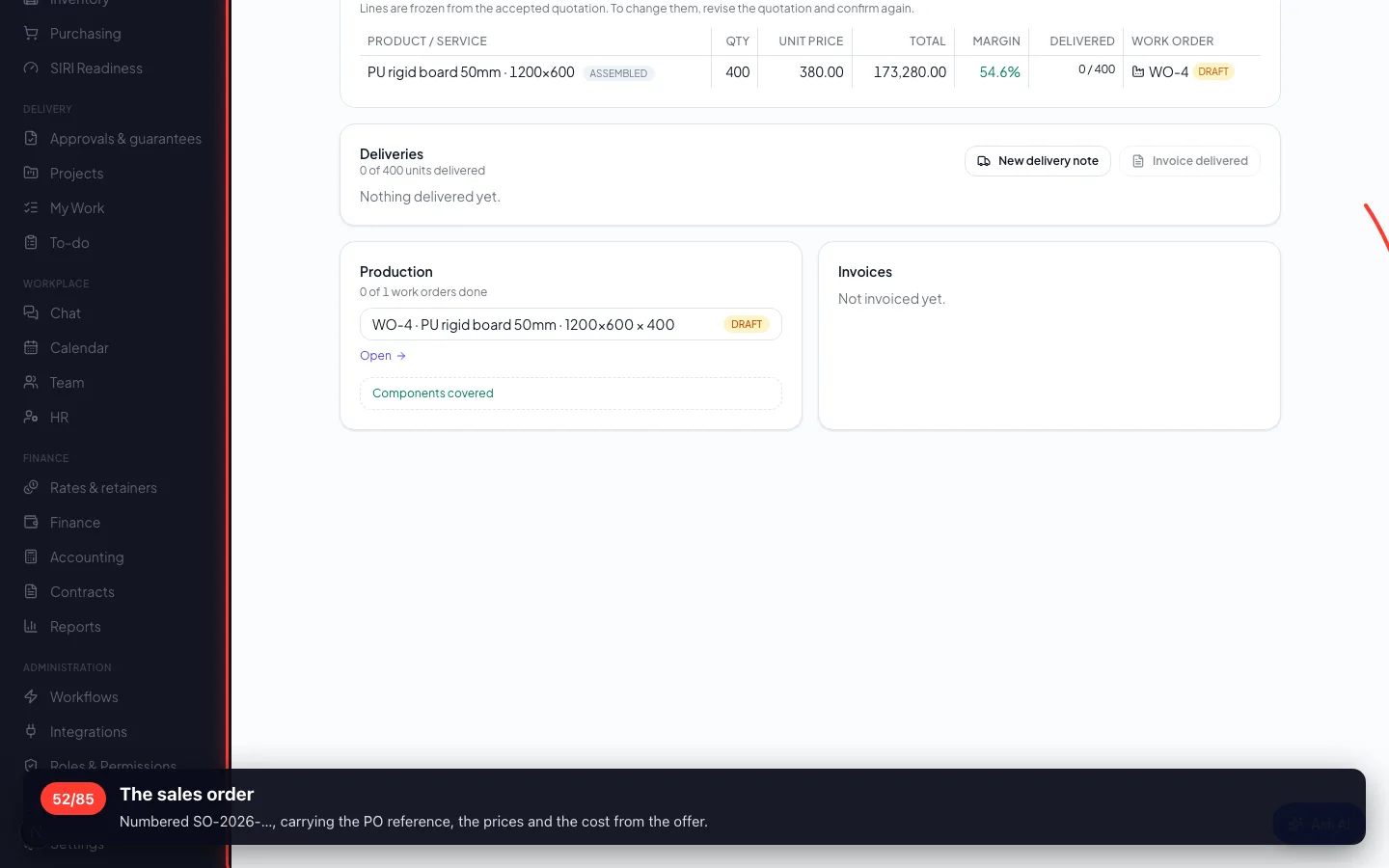
The sales order
Numbered SO-2026-…, carrying the PO reference, the prices and the cost from the offer.
8 · Making the goods
Confirming the order raised the work order by itself. The factory takes the components and builds.
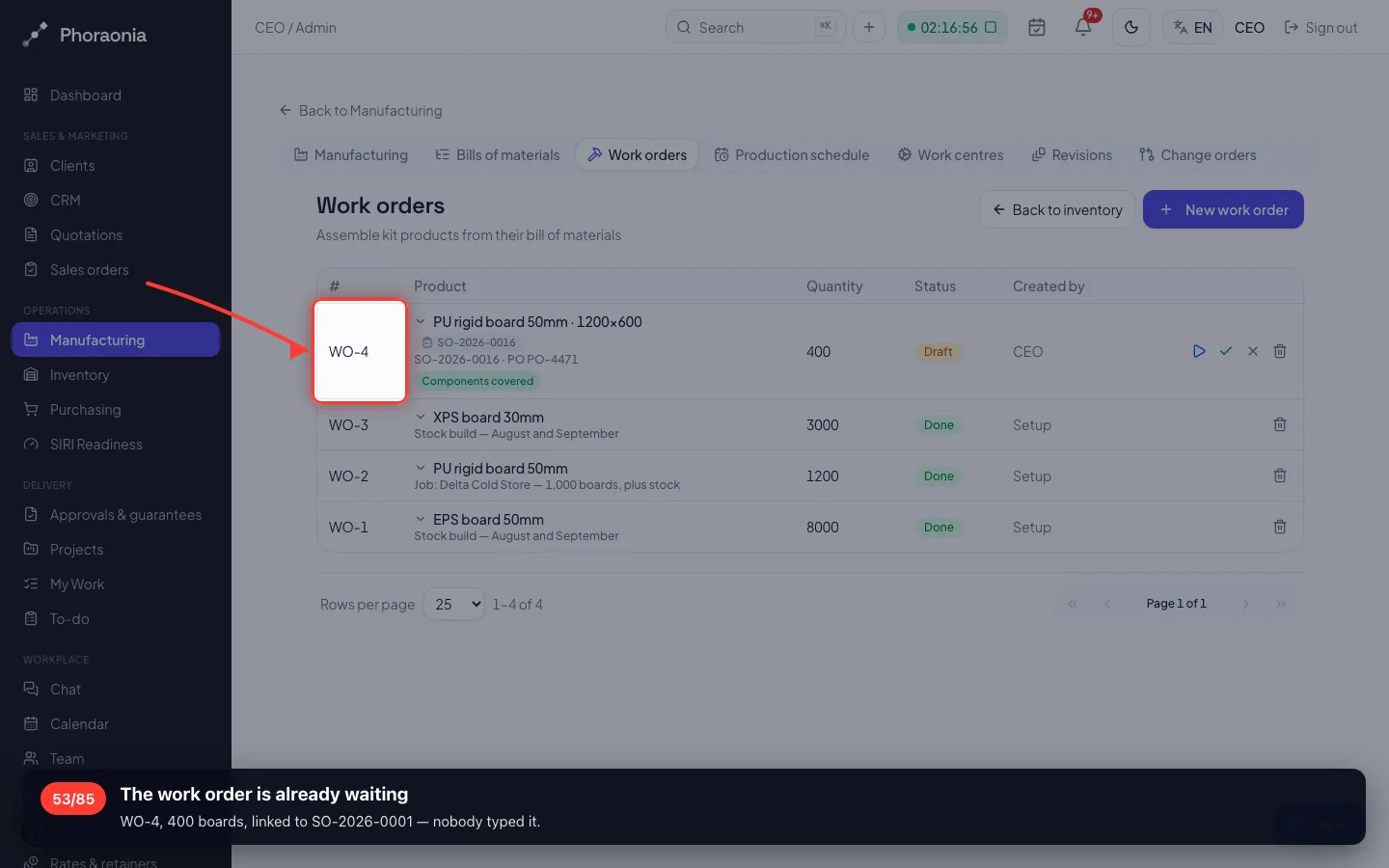
53The work order is already waiting
WO-4, 400 boards, linked to SO-2026-0001 — nobody typed it.
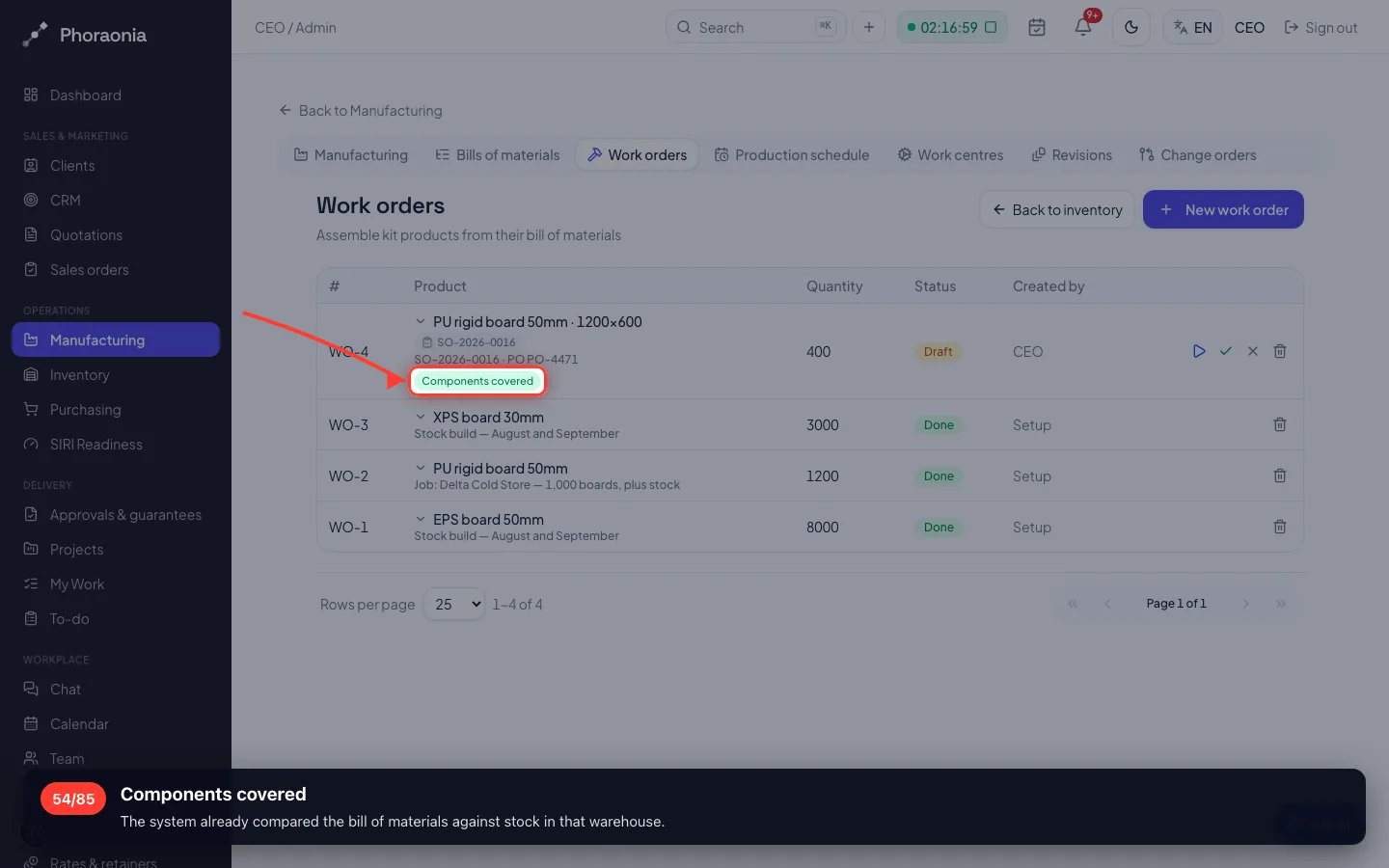
- 54
Components covered
The system already compared the bill of materials against stock in that warehouse.
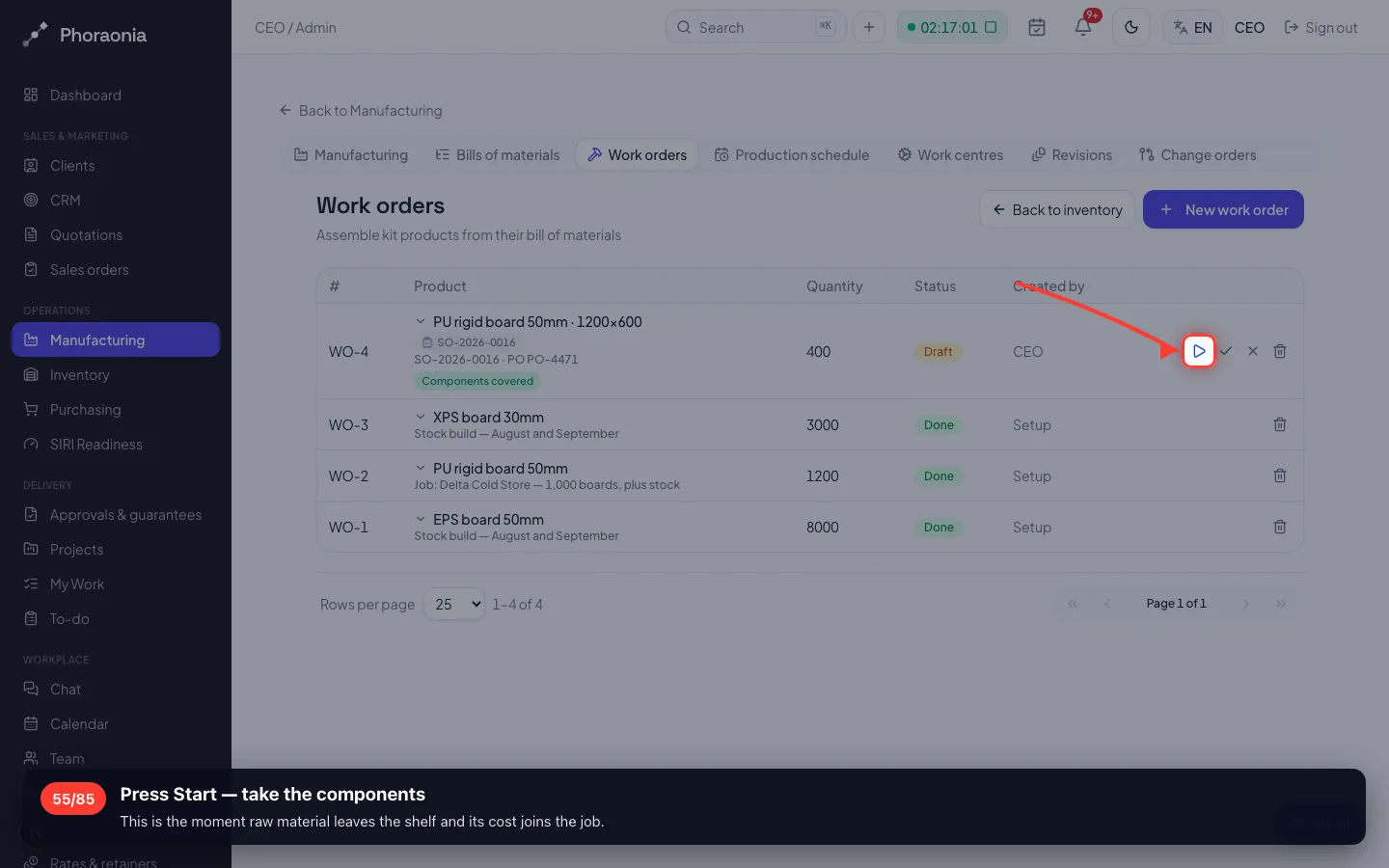
- 55
Press Start — take the components
This is the moment raw material leaves the shelf and its cost joins the job.
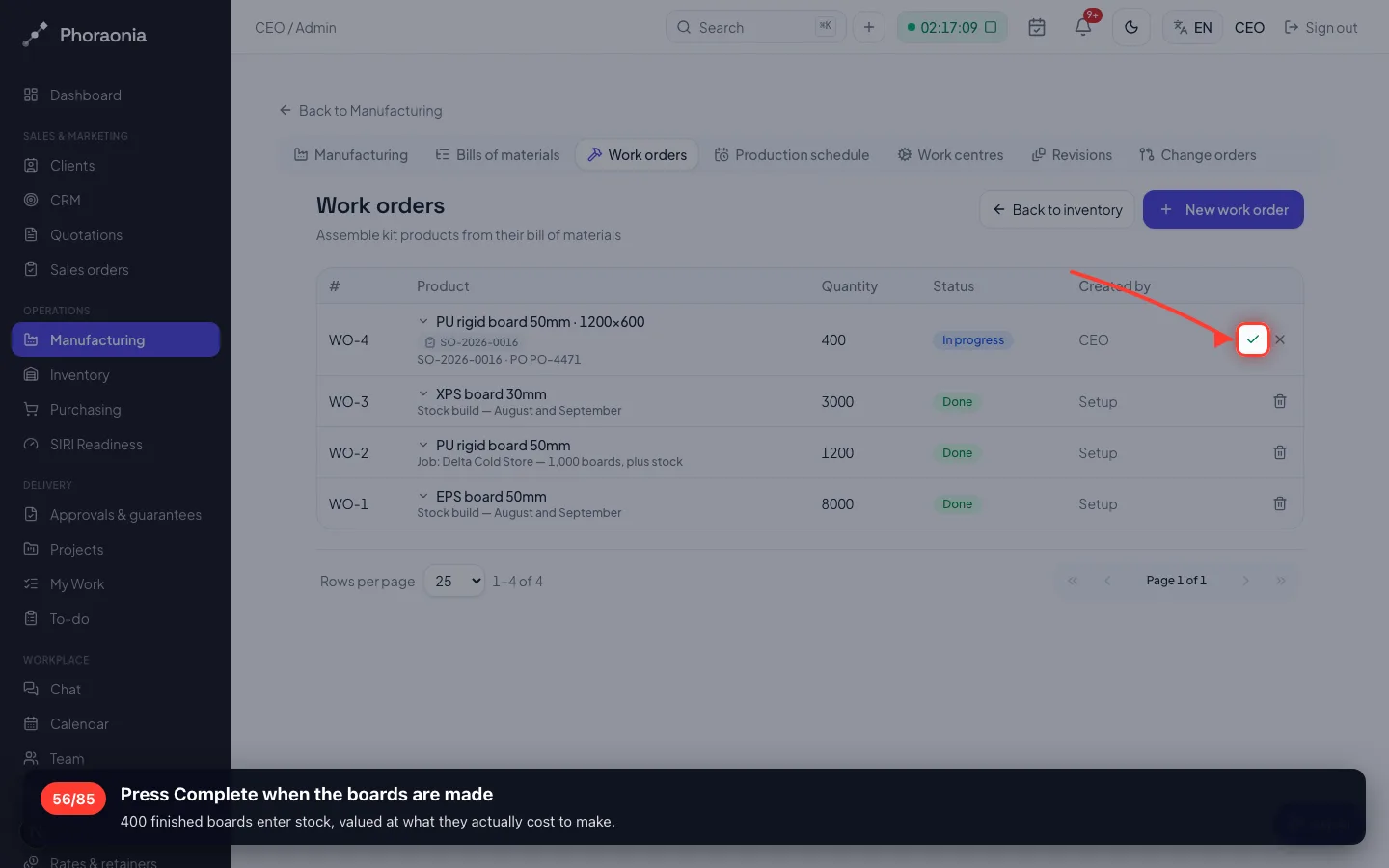
- 56
Press Complete when the boards are made
400 finished boards enter stock, valued at what they actually cost to make.
- 57
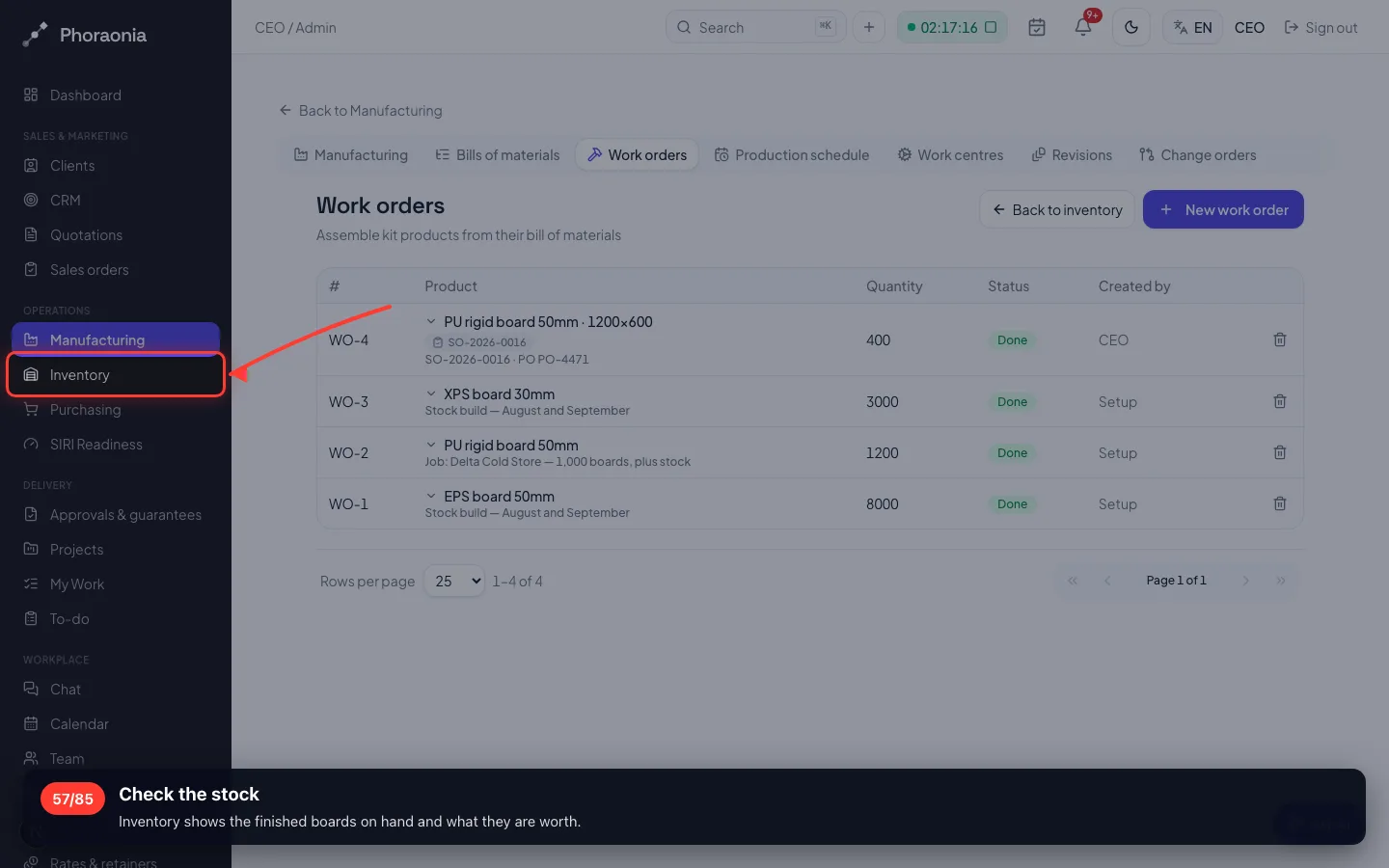
Check the stock
Inventory shows the finished boards on hand and what they are worth.
- 58
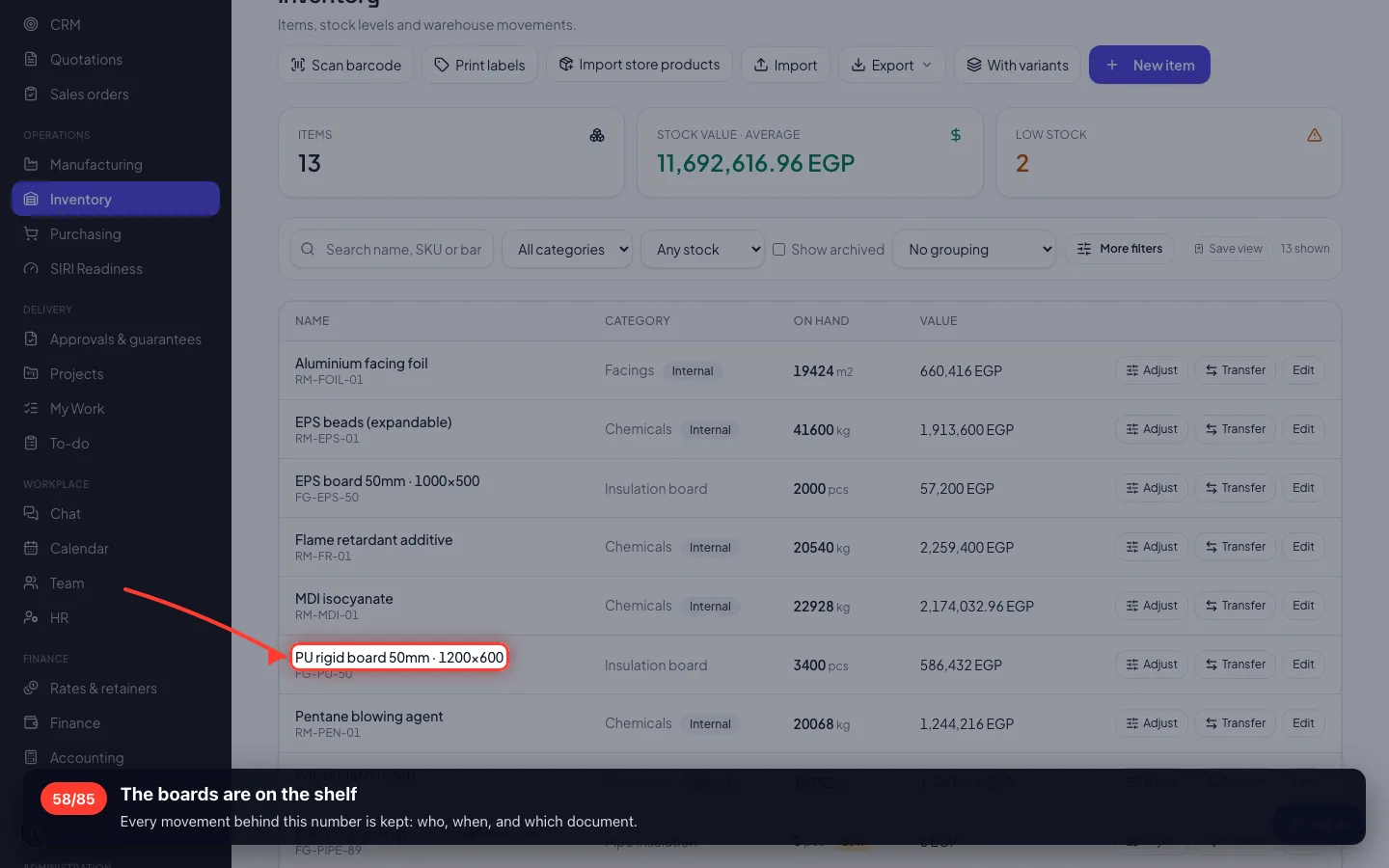
The boards are on the shelf
Every movement behind this number is kept: who, when, and which document.
9 · Buying the raw material back
Production used chemicals. Replacing them is a purchase order — and over 50,000 EGP it needs two signatures.
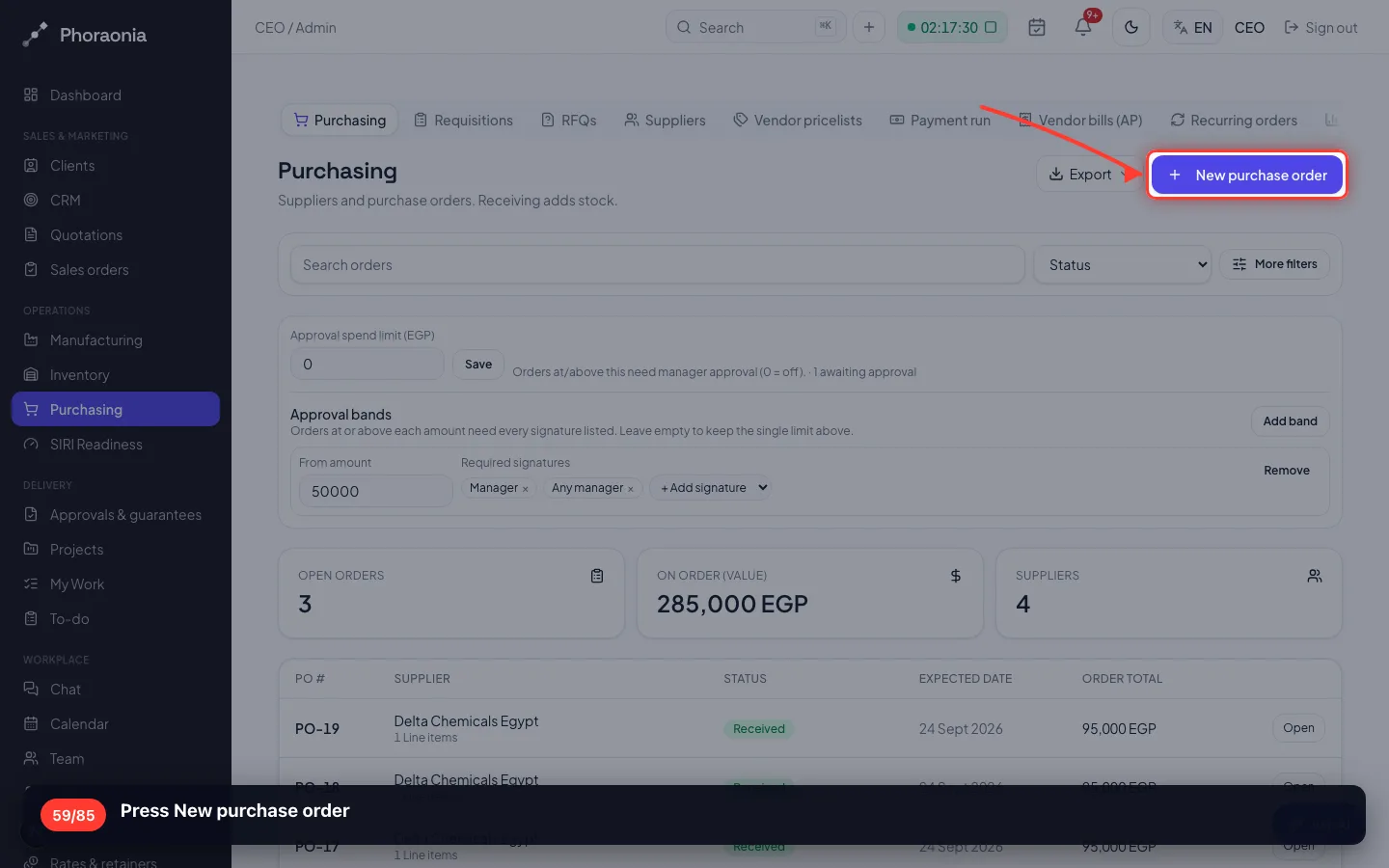
59Press New purchase order
- 60
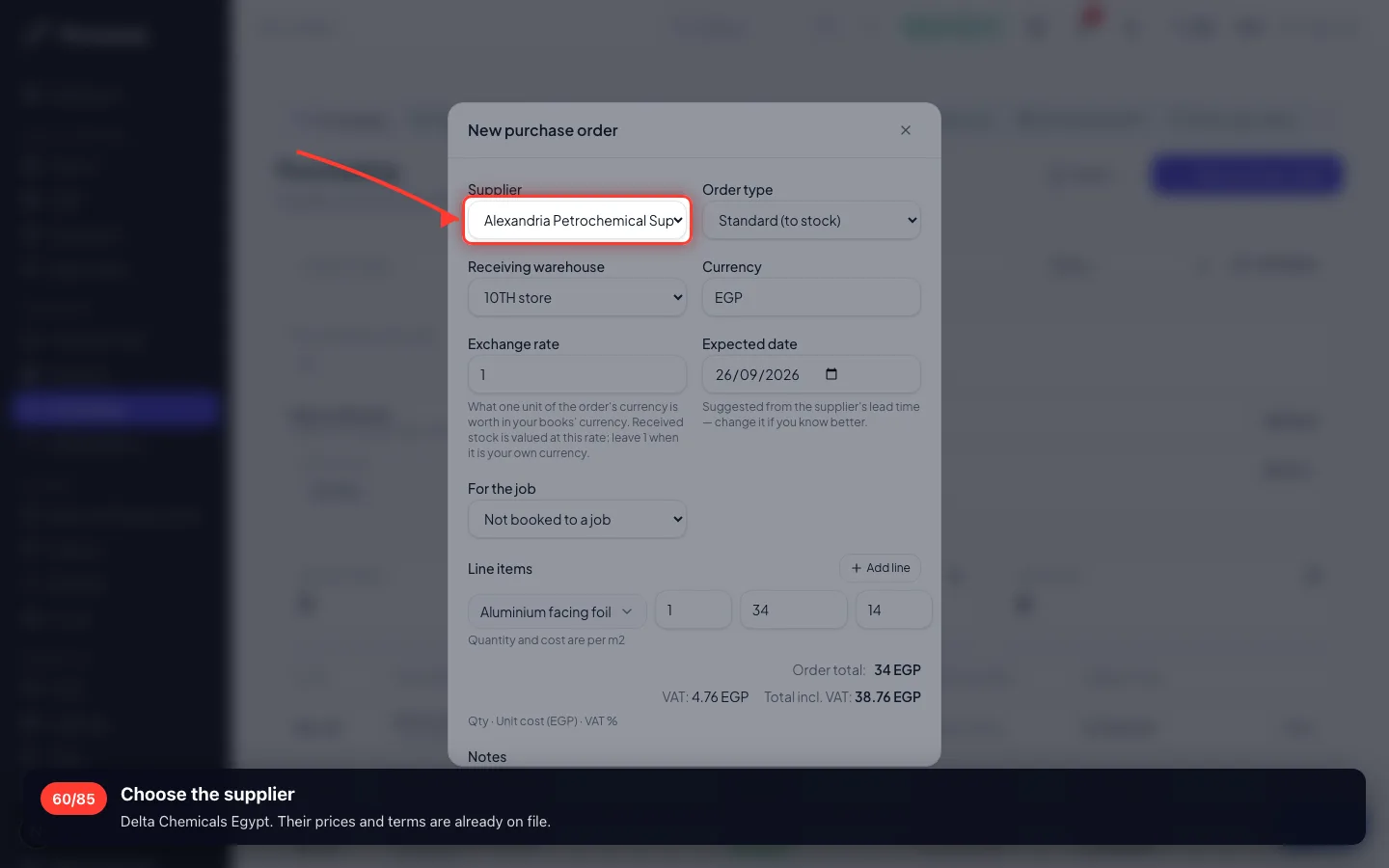
Choose the supplier
Delta Chemicals Egypt. Their prices and terms are already on file.
- 61
Which warehouse receives it
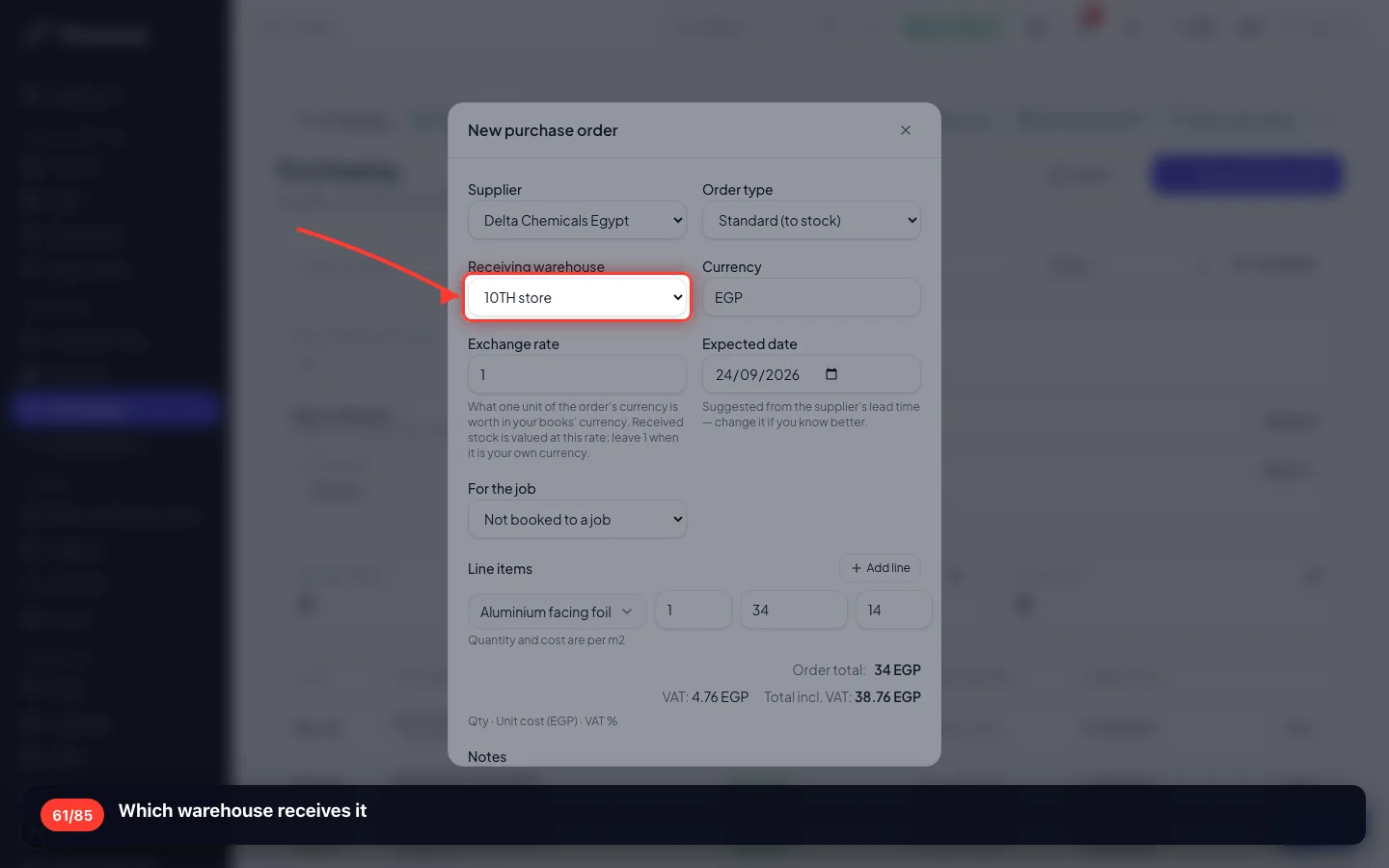
- 62
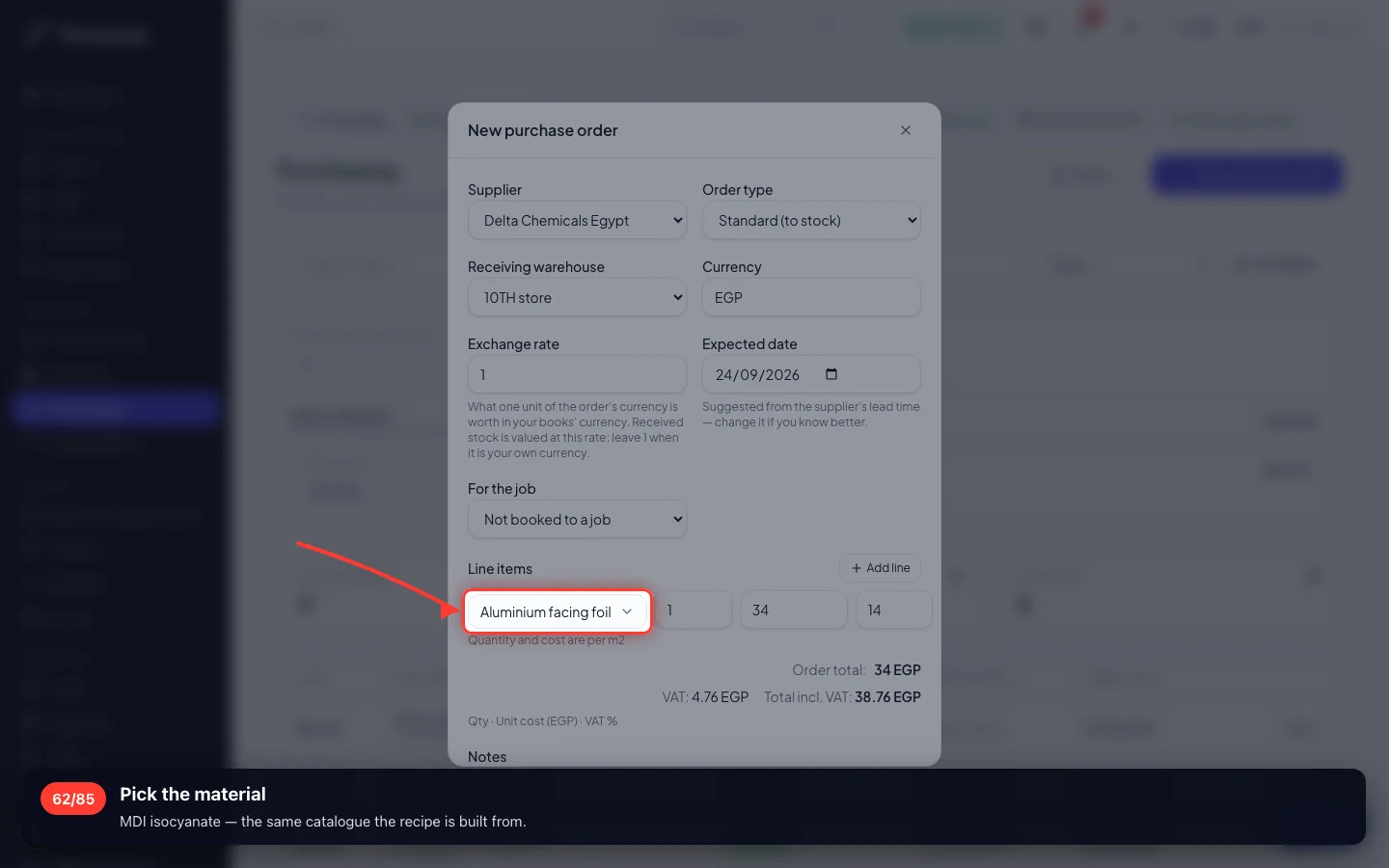
Pick the material
MDI isocyanate — the same catalogue the recipe is built from.
- 63
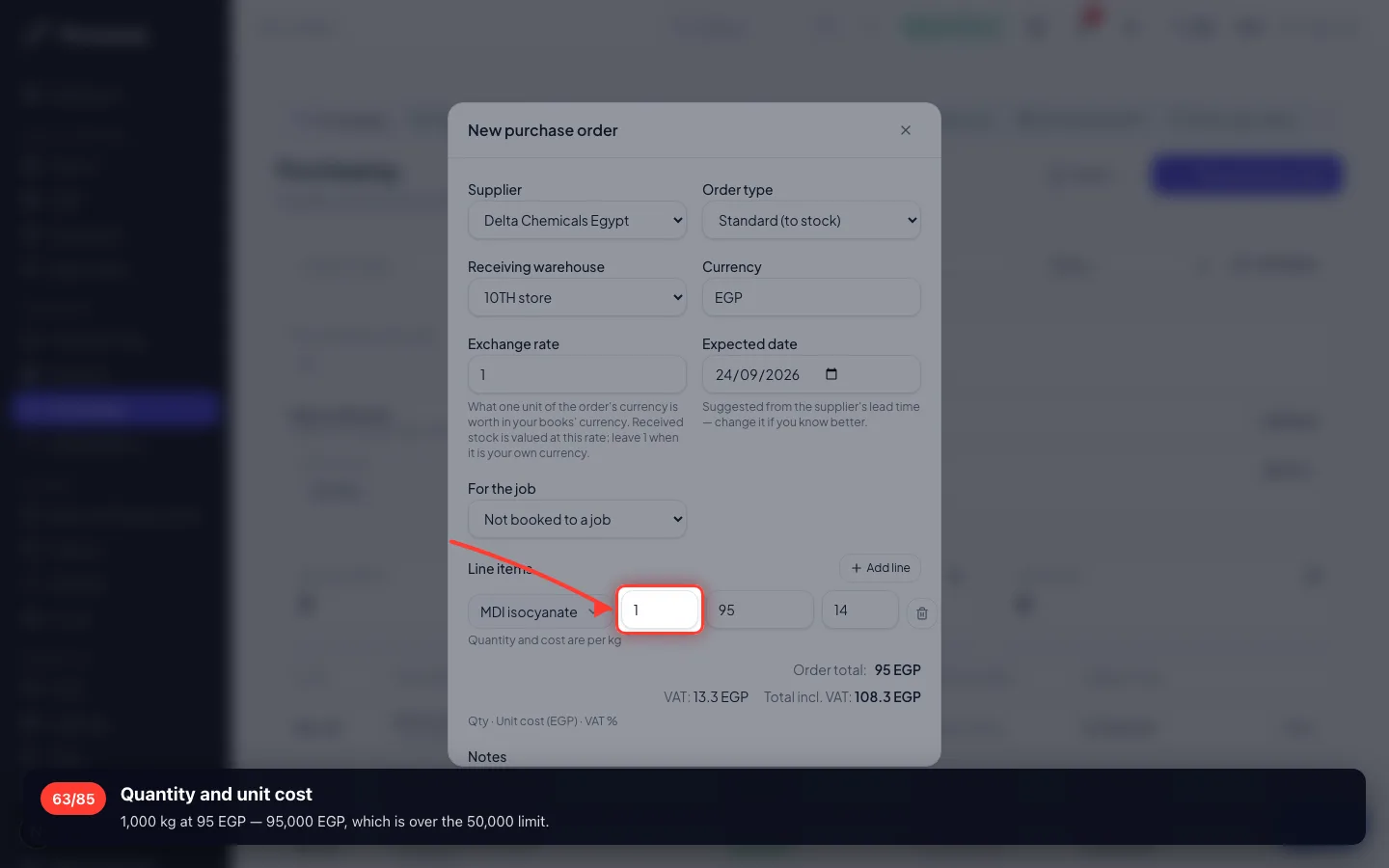
Quantity and unit cost
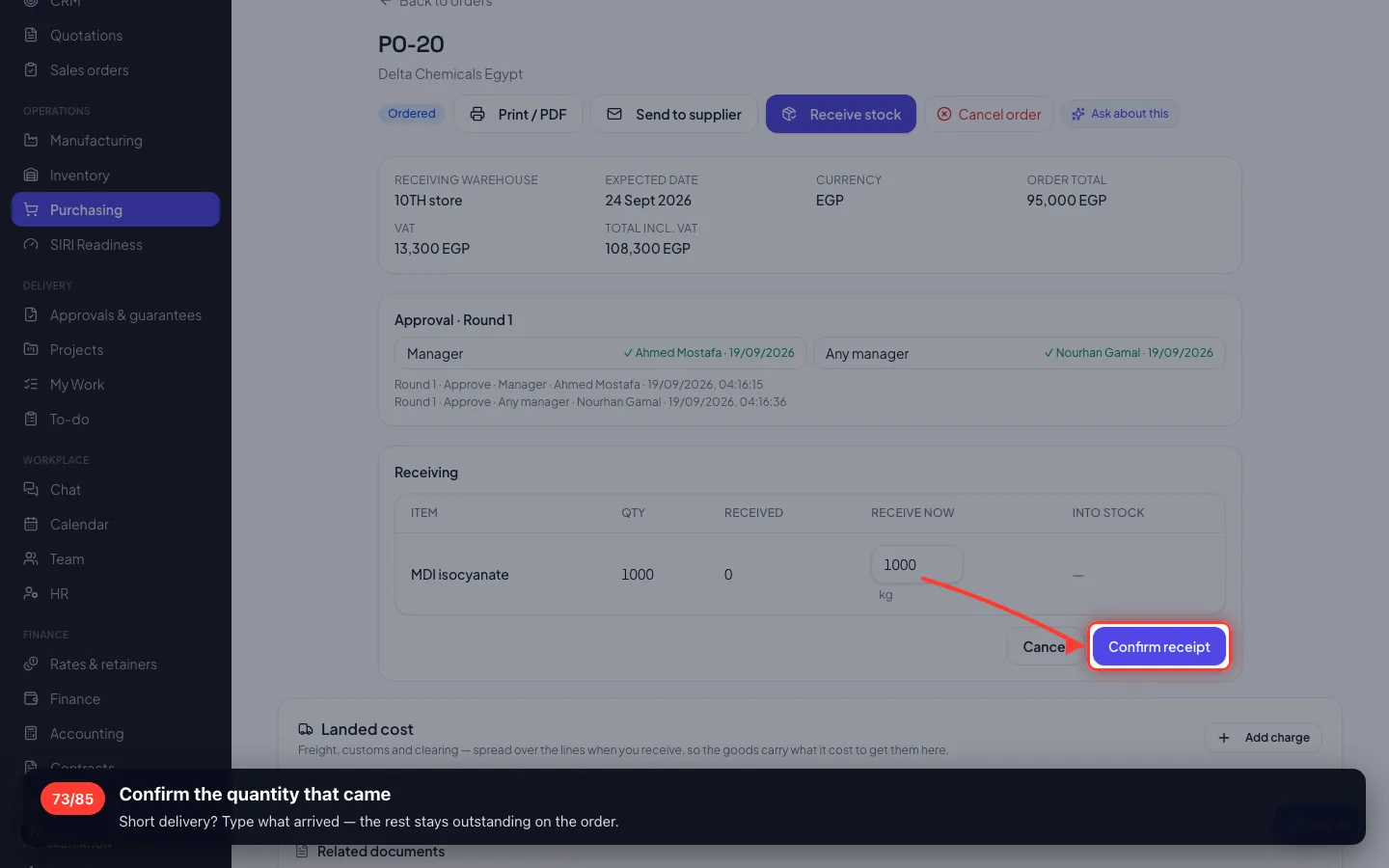
1,000 kg at 95 EGP — 95,000 EGP, which is over the 50,000 limit.
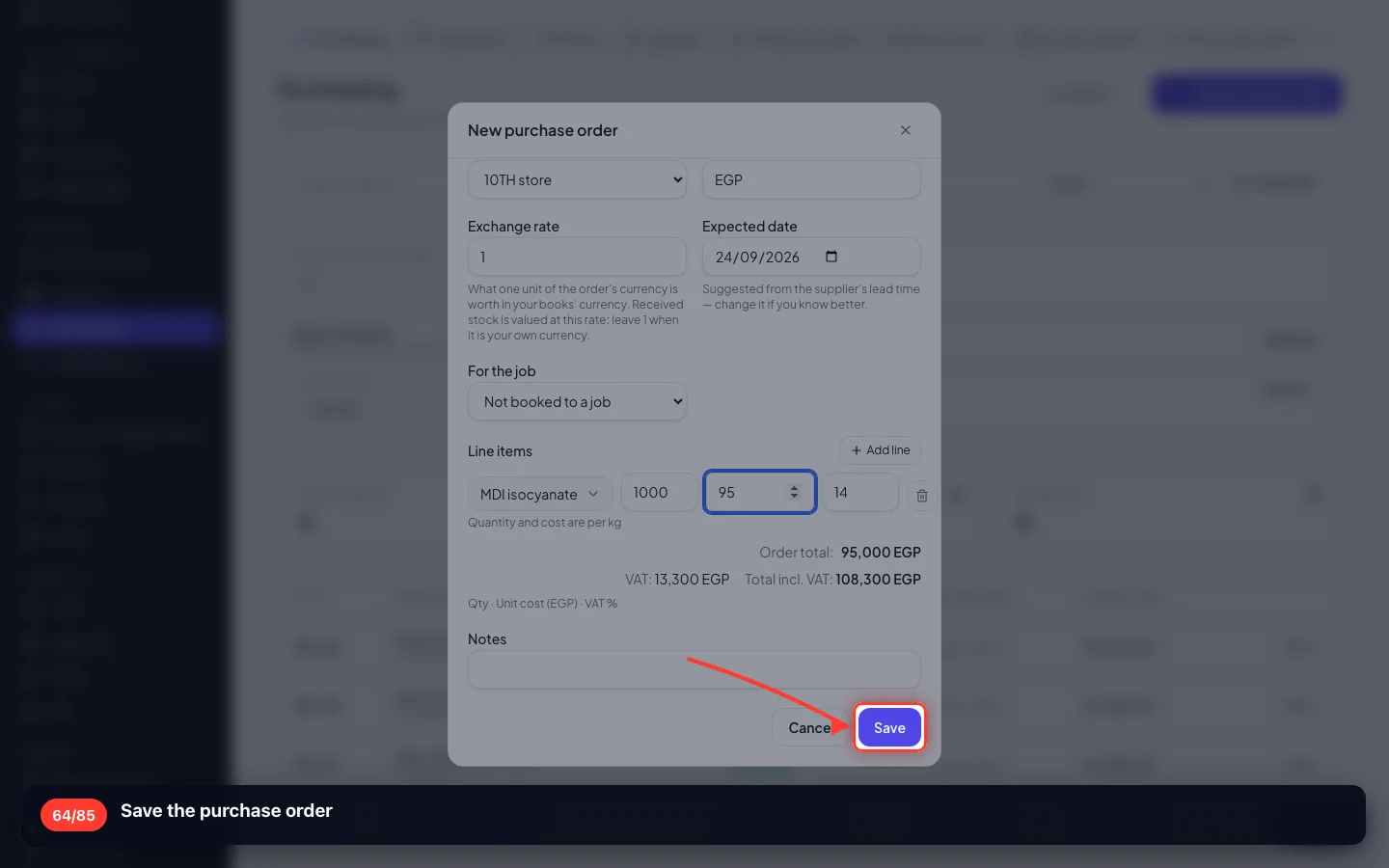
- 64
Save the purchase order
- 65
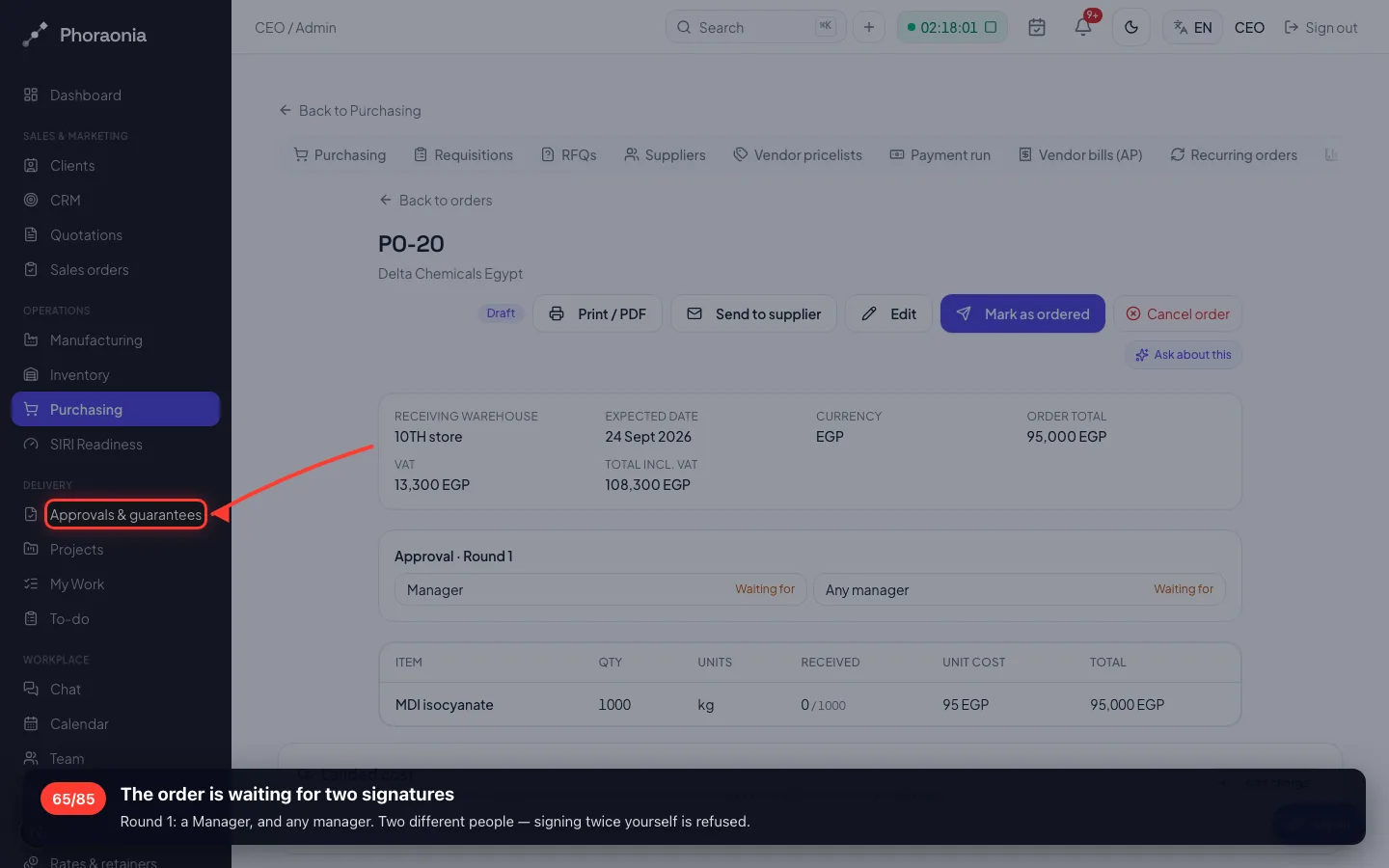
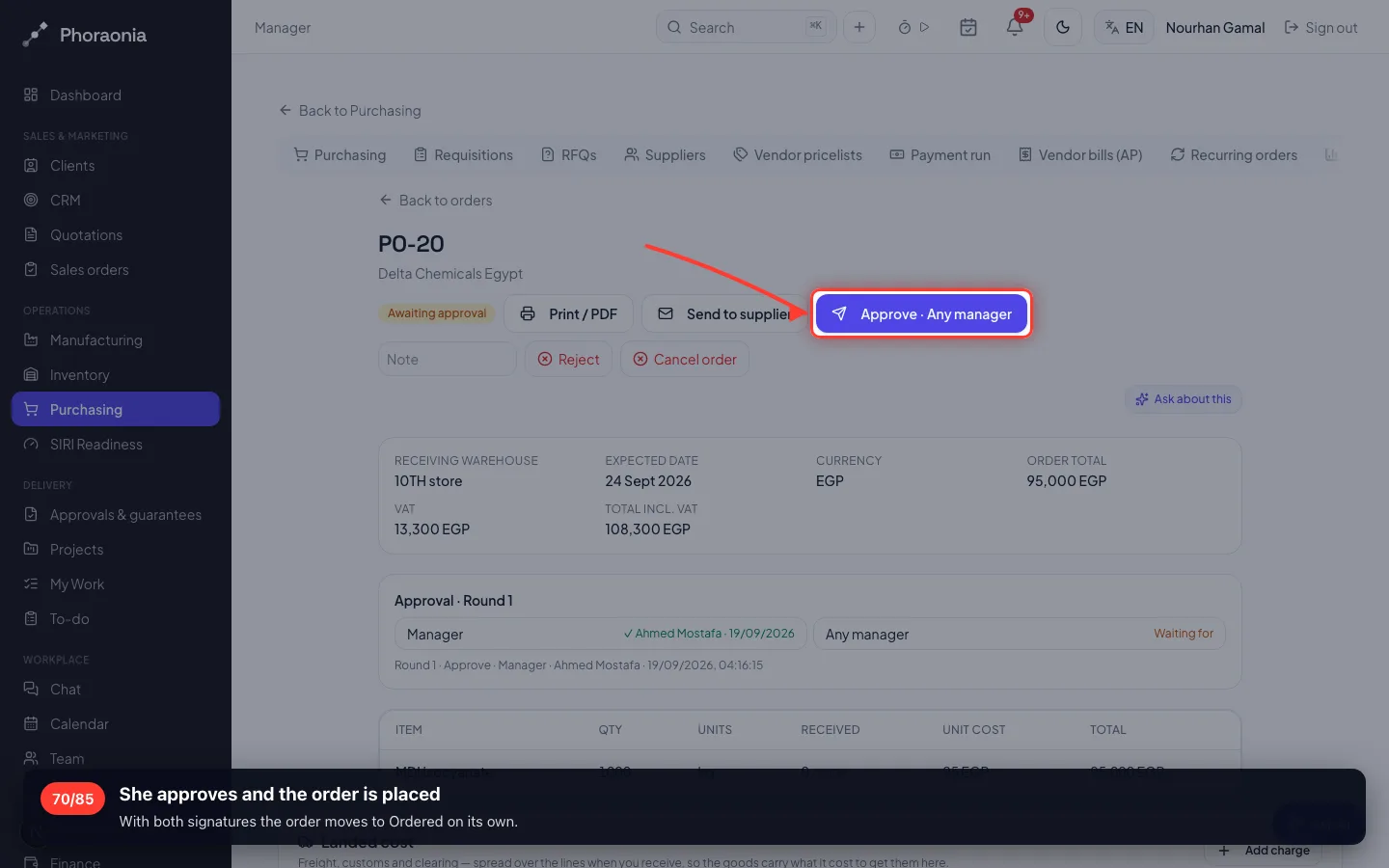
The order is waiting for two signatures
Round 1: a Manager, and any manager. Two different people — signing twice yourself is refused.
- 66
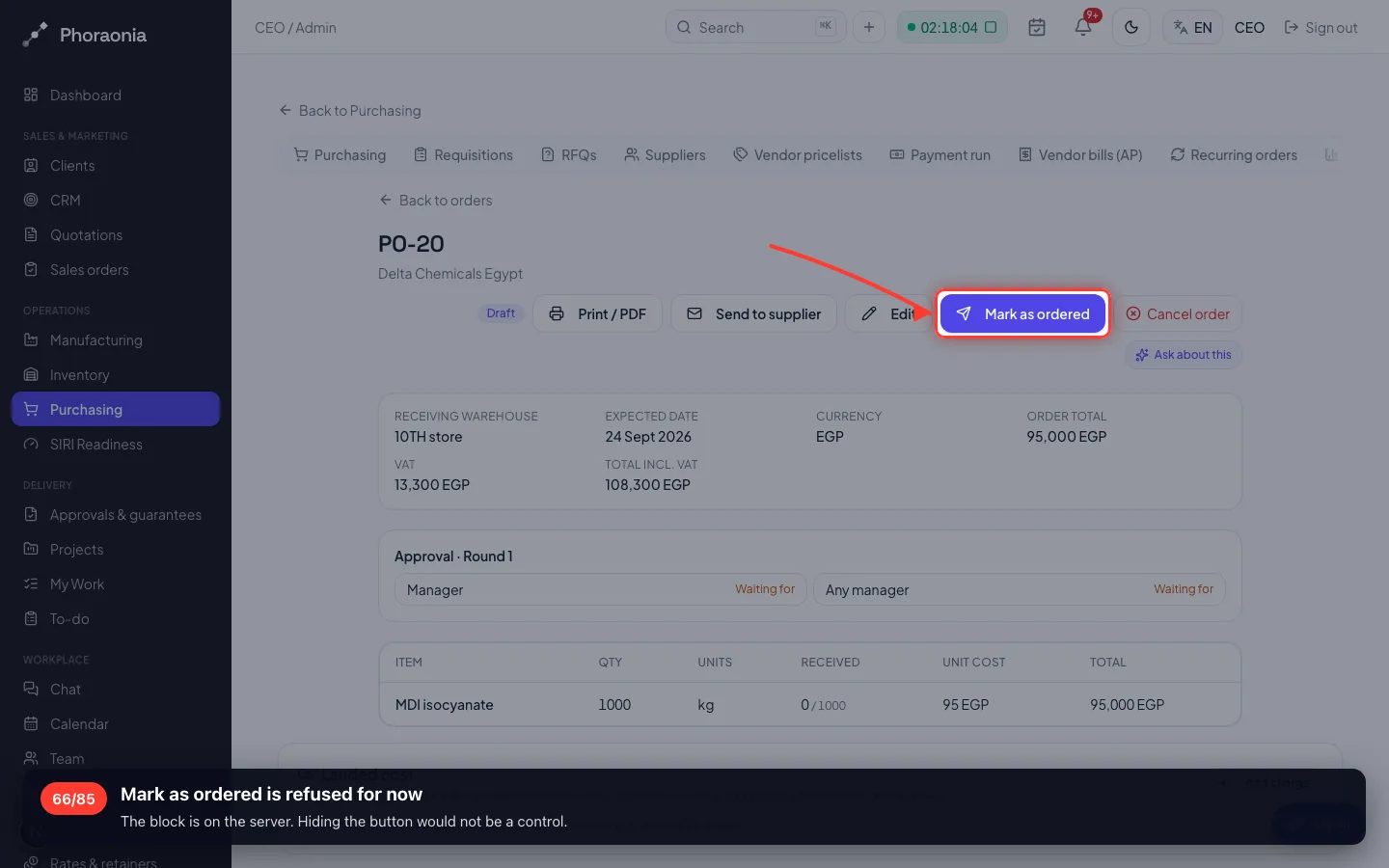
Mark as ordered is refused for now
The block is on the server. Hiding the button would not be a control.
- 67
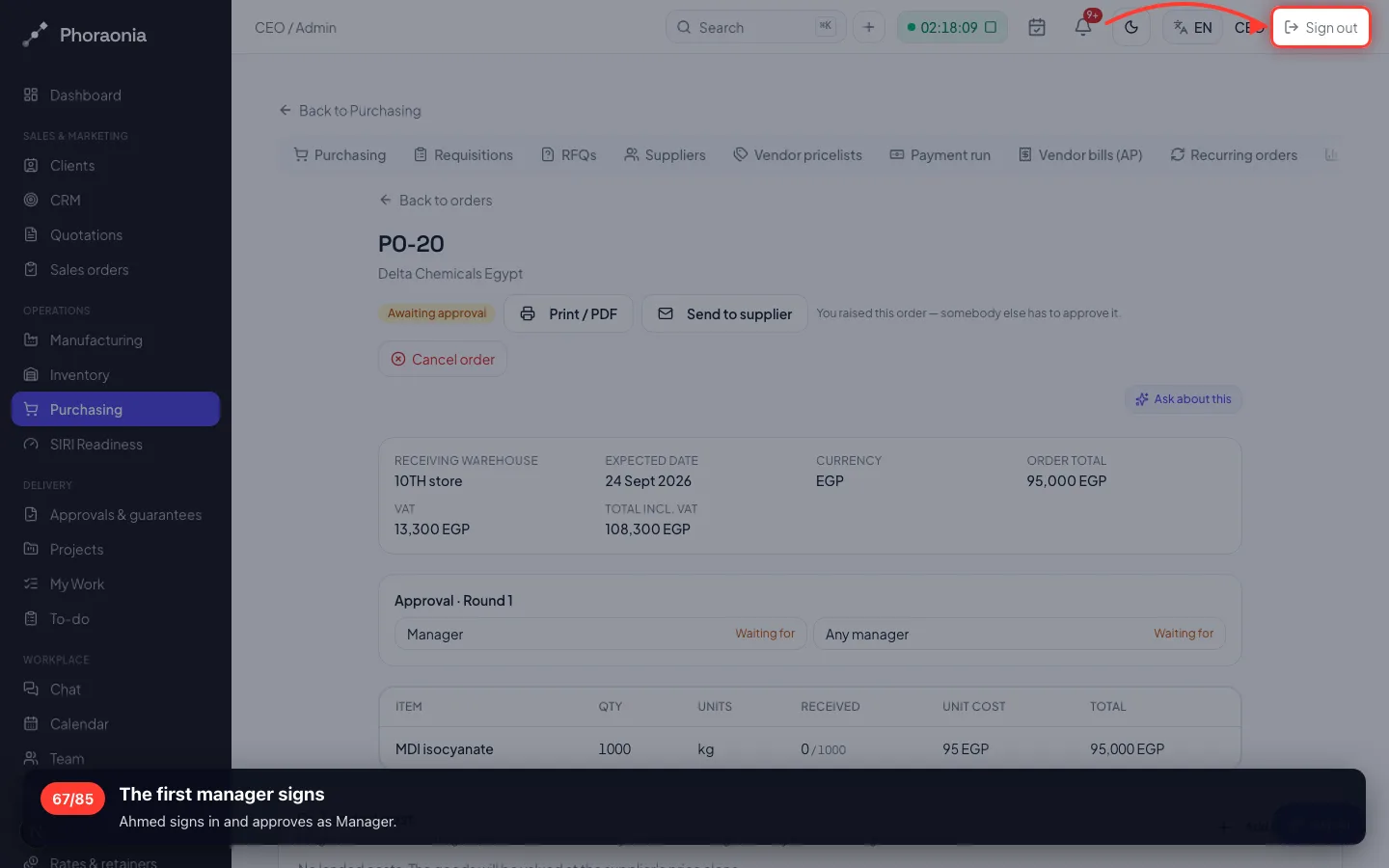
The first manager signs
Ahmed signs in and approves as Manager.
- 68
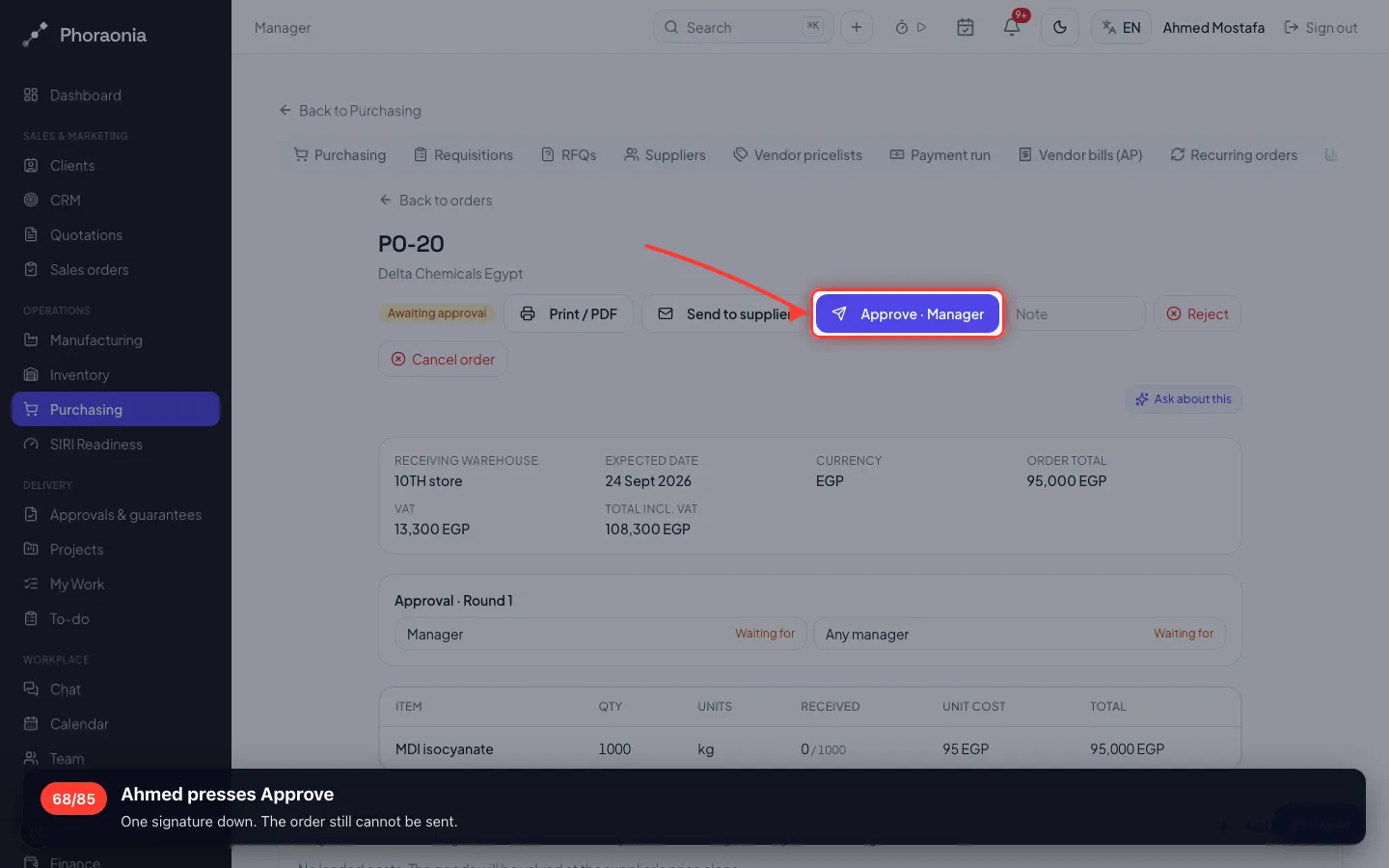
Ahmed presses Approve
One signature down. The order still cannot be sent.
- 69
The second manager signs
Nourhan signs in. A second person, which is what an approval means.
- 70
She approves and the order is placed
With both signatures the order moves to Ordered on its own.
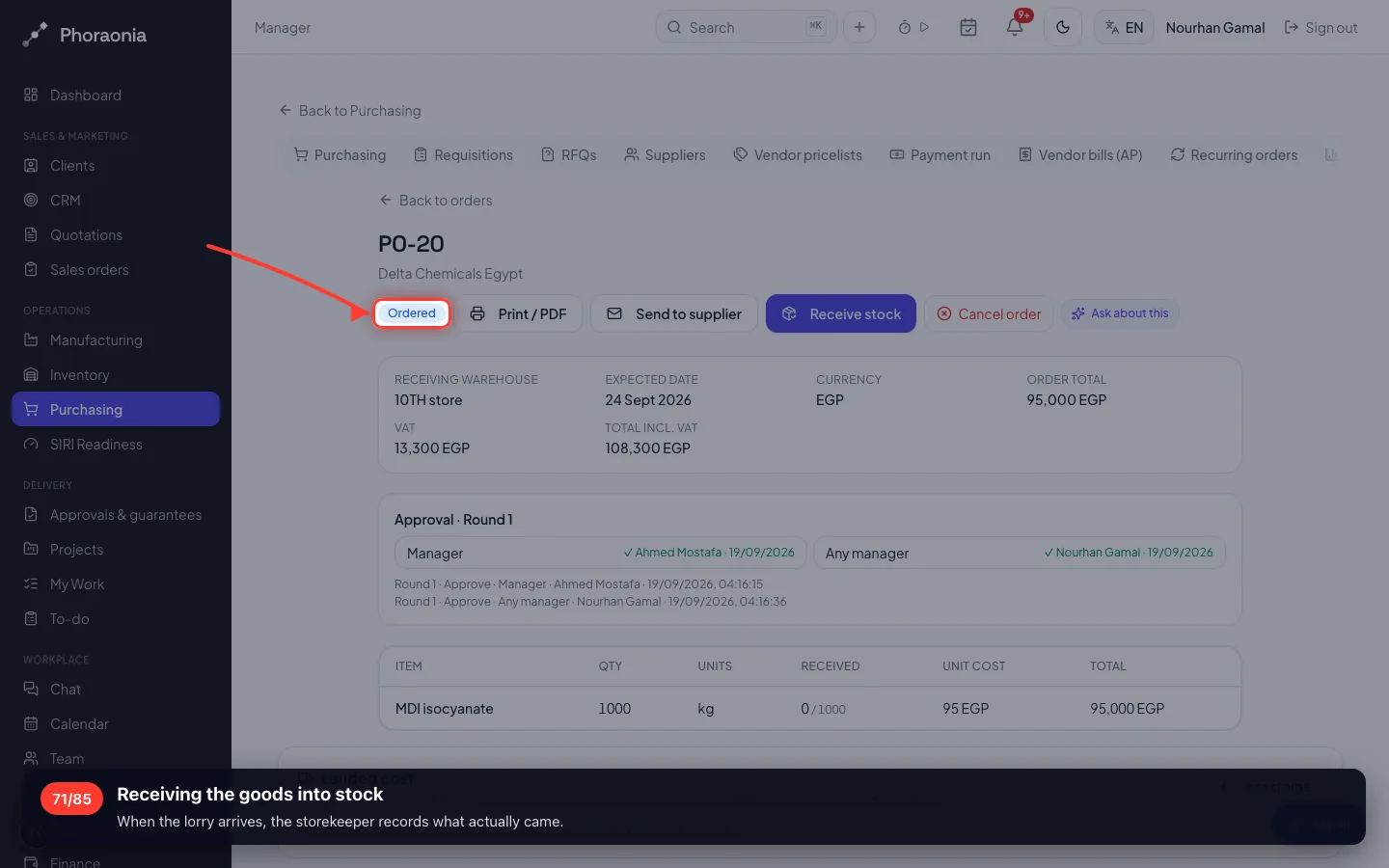
- 71
Receiving the goods into stock
When the lorry arrives, the storekeeper records what actually came.
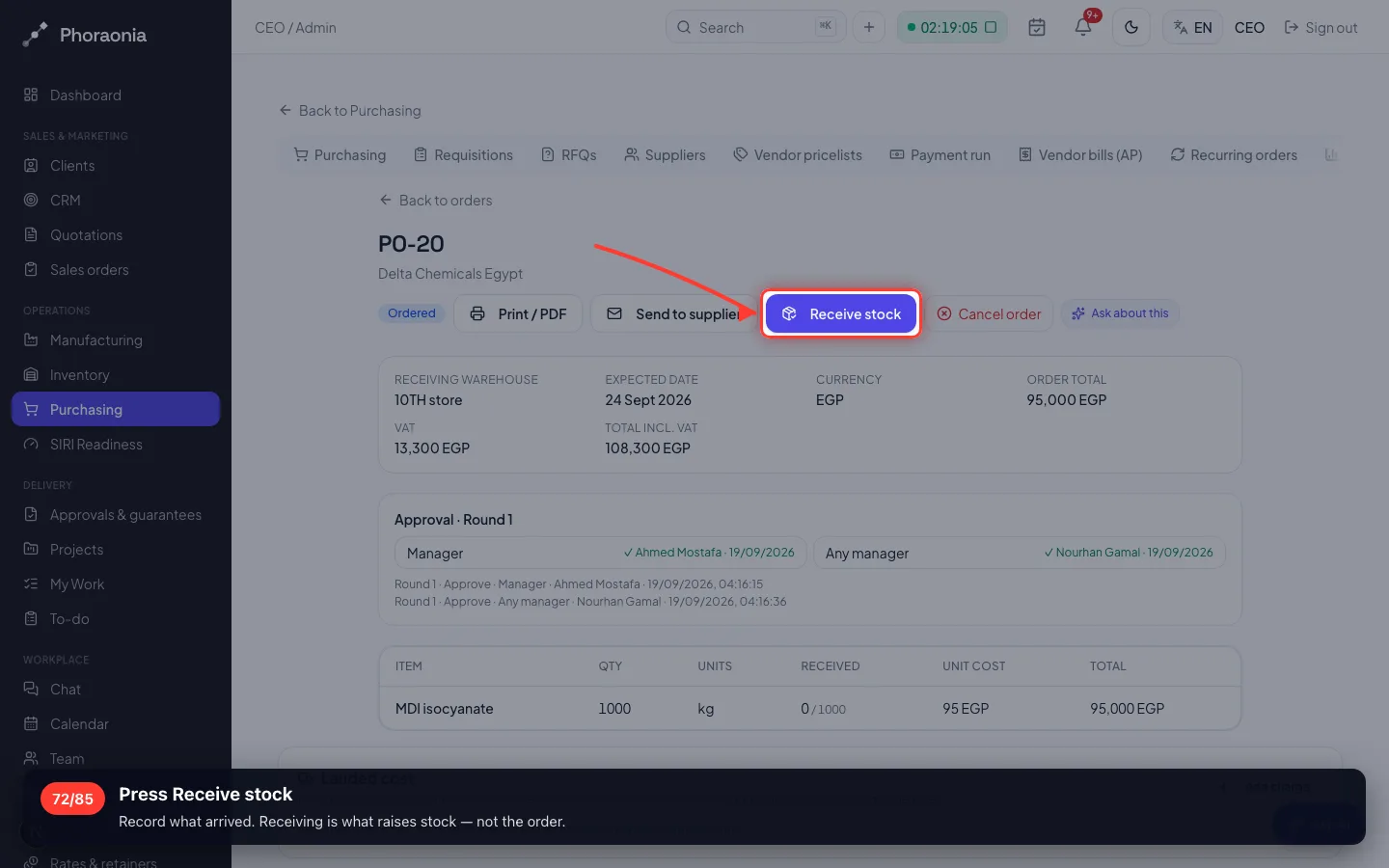
- 72
Press Receive stock
Record what arrived. Receiving is what raises stock — not the order.
- 73
Confirm the quantity that came
Short delivery? Type what arrived — the rest stays outstanding on the order.
10 · Delivering to the customer
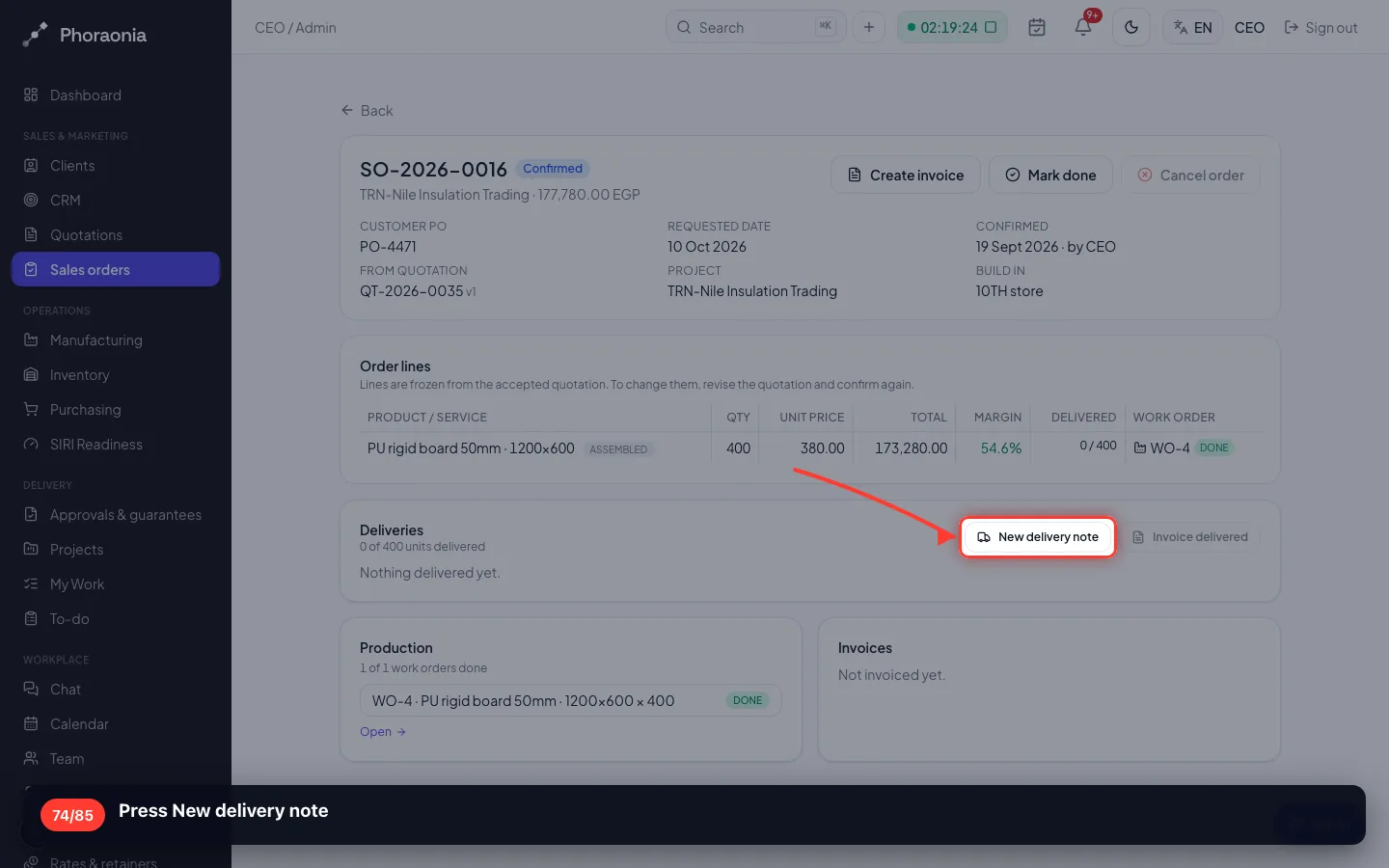
The delivery note takes the boards out of the warehouse and records who received them.
74Press New delivery note
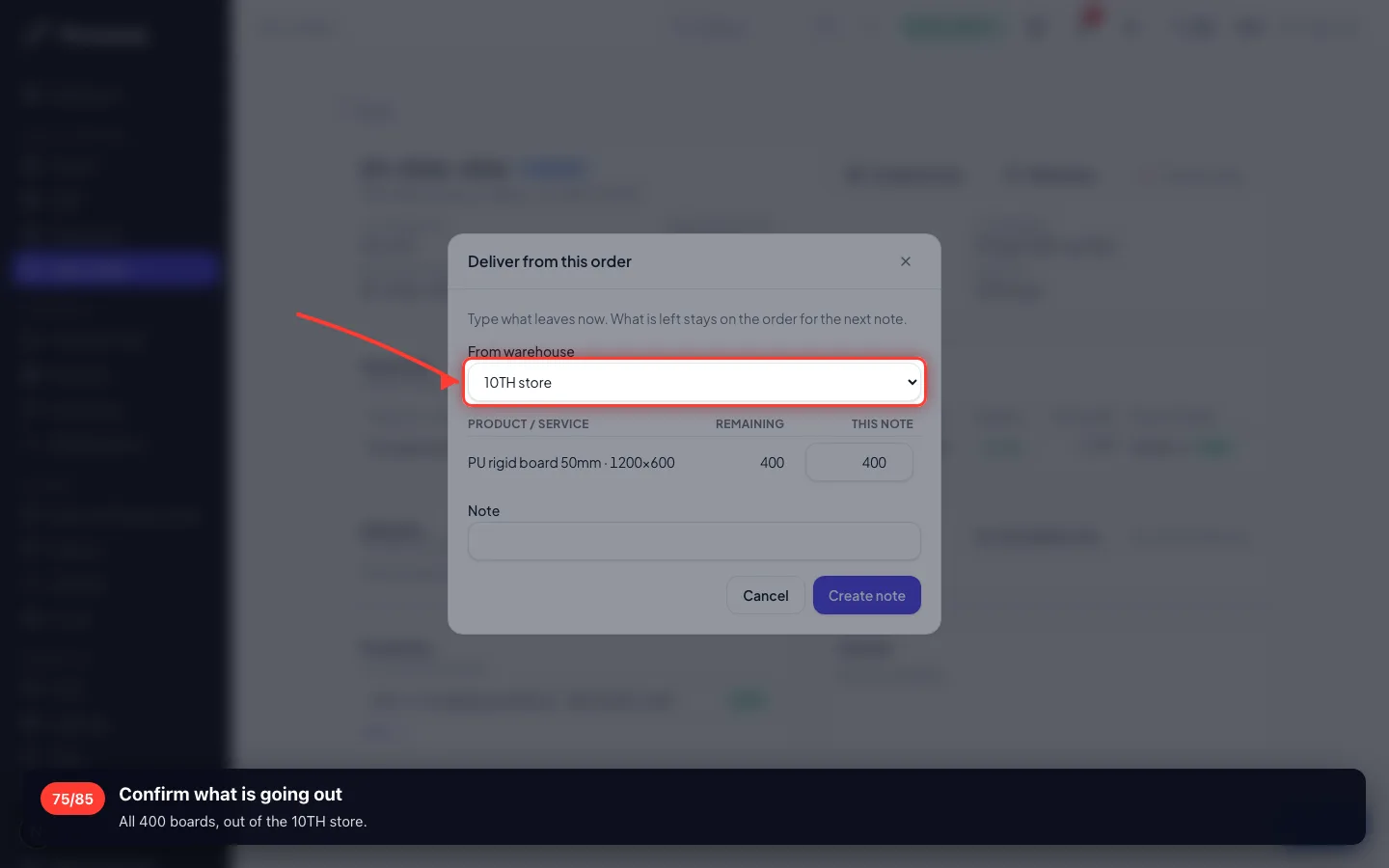
- 75
Confirm what is going out
All 400 boards, out of the 10TH store.
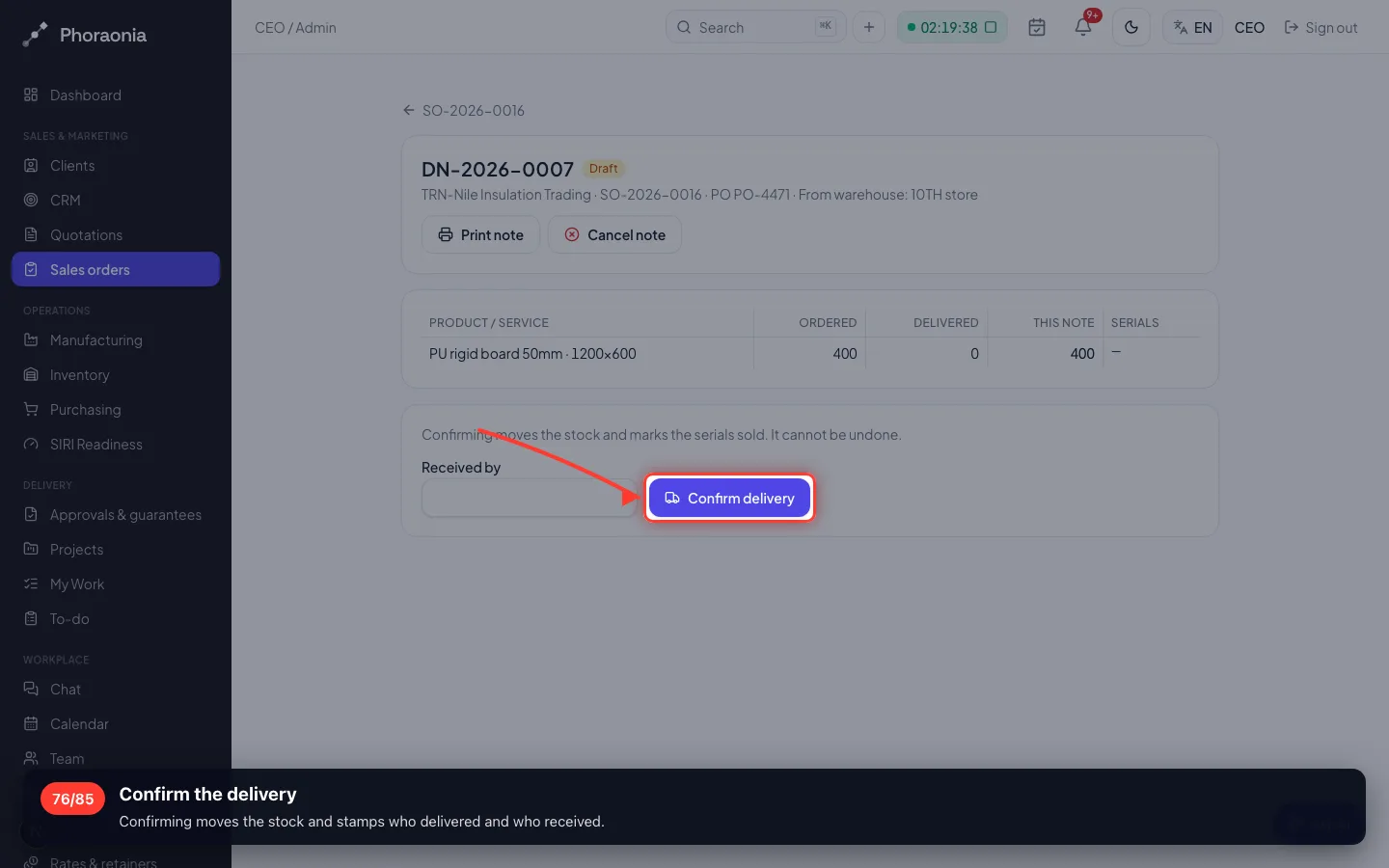
- 76
Confirm the delivery
Confirming moves the stock and stamps who delivered and who received.
11 · Invoicing what was delivered
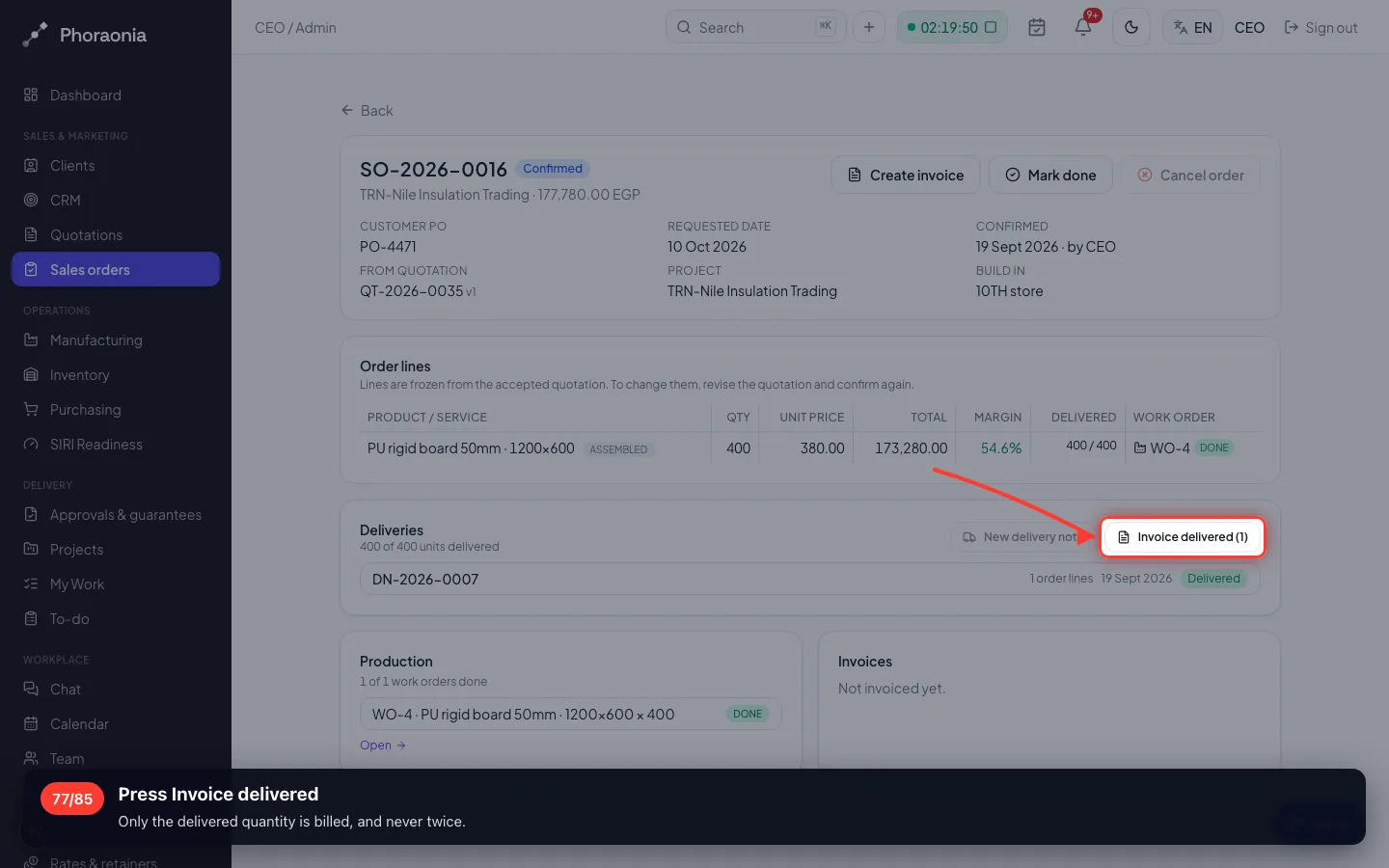
You bill what left the warehouse, at the price the customer accepted.
77Press Invoice delivered
Only the delivered quantity is billed, and never twice.
- 78
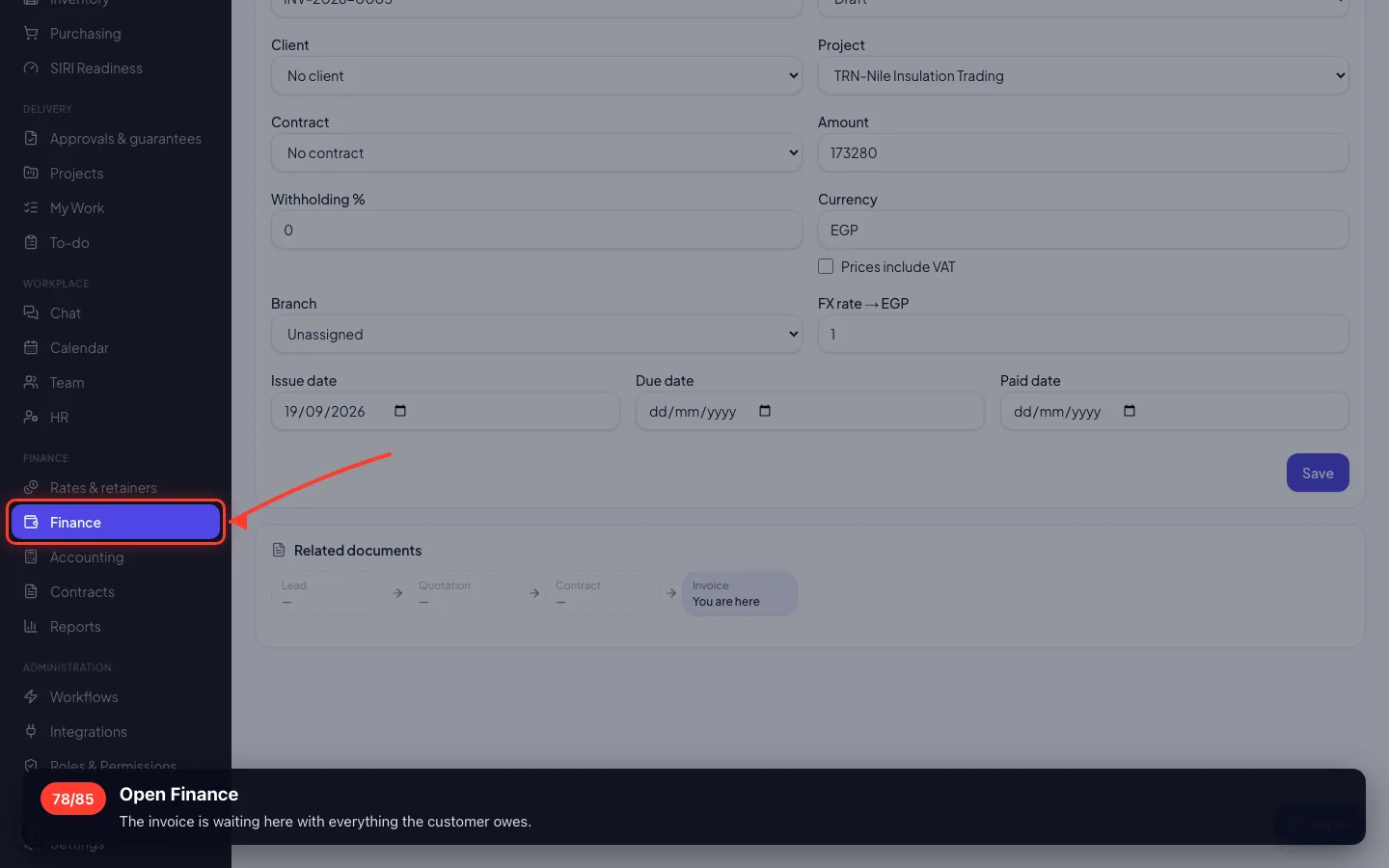
Open Finance
The invoice is waiting here with everything the customer owes.
- 79
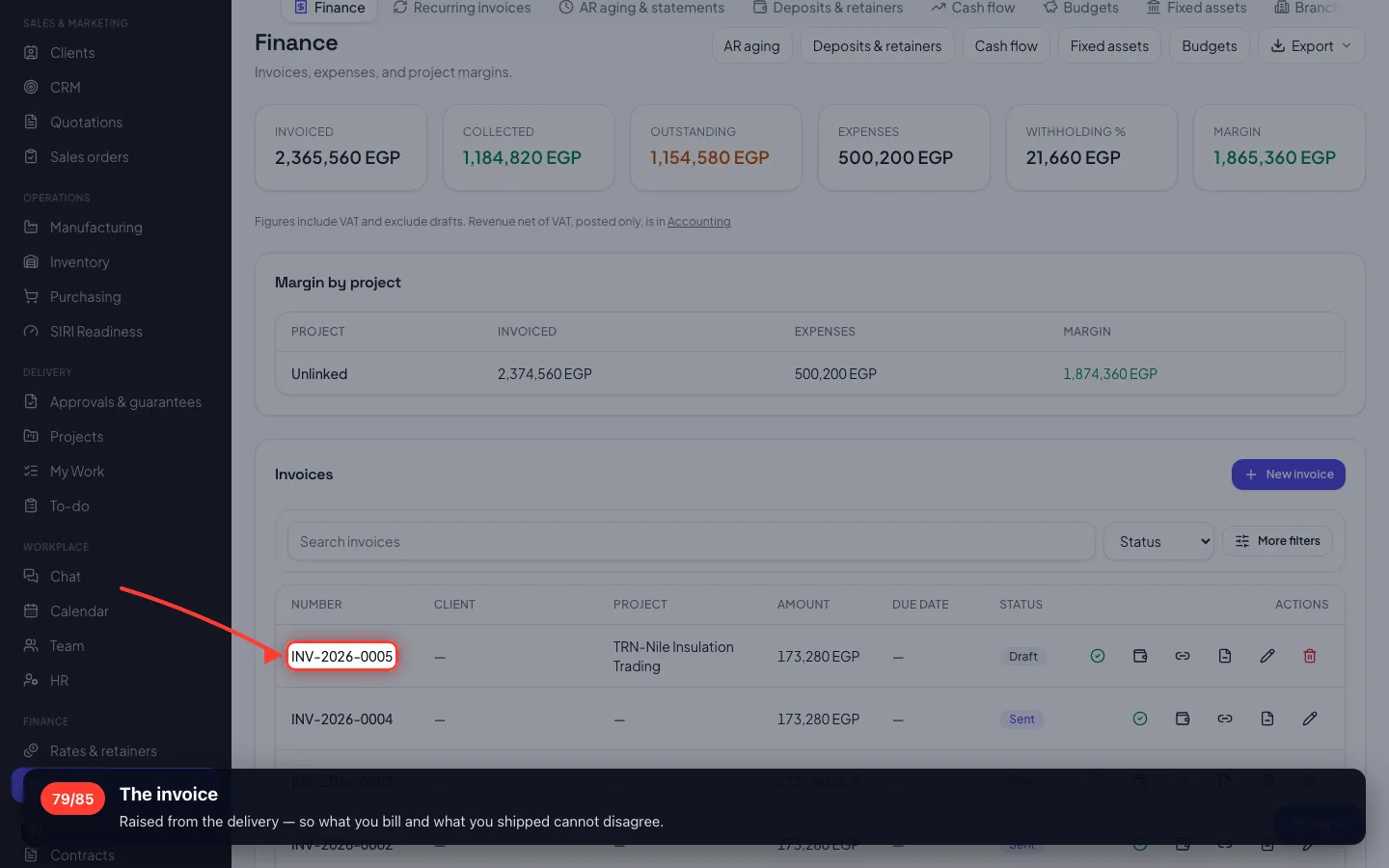
The invoice
Raised from the delivery — so what you bill and what you shipped cannot disagree.
12 · The customer pays
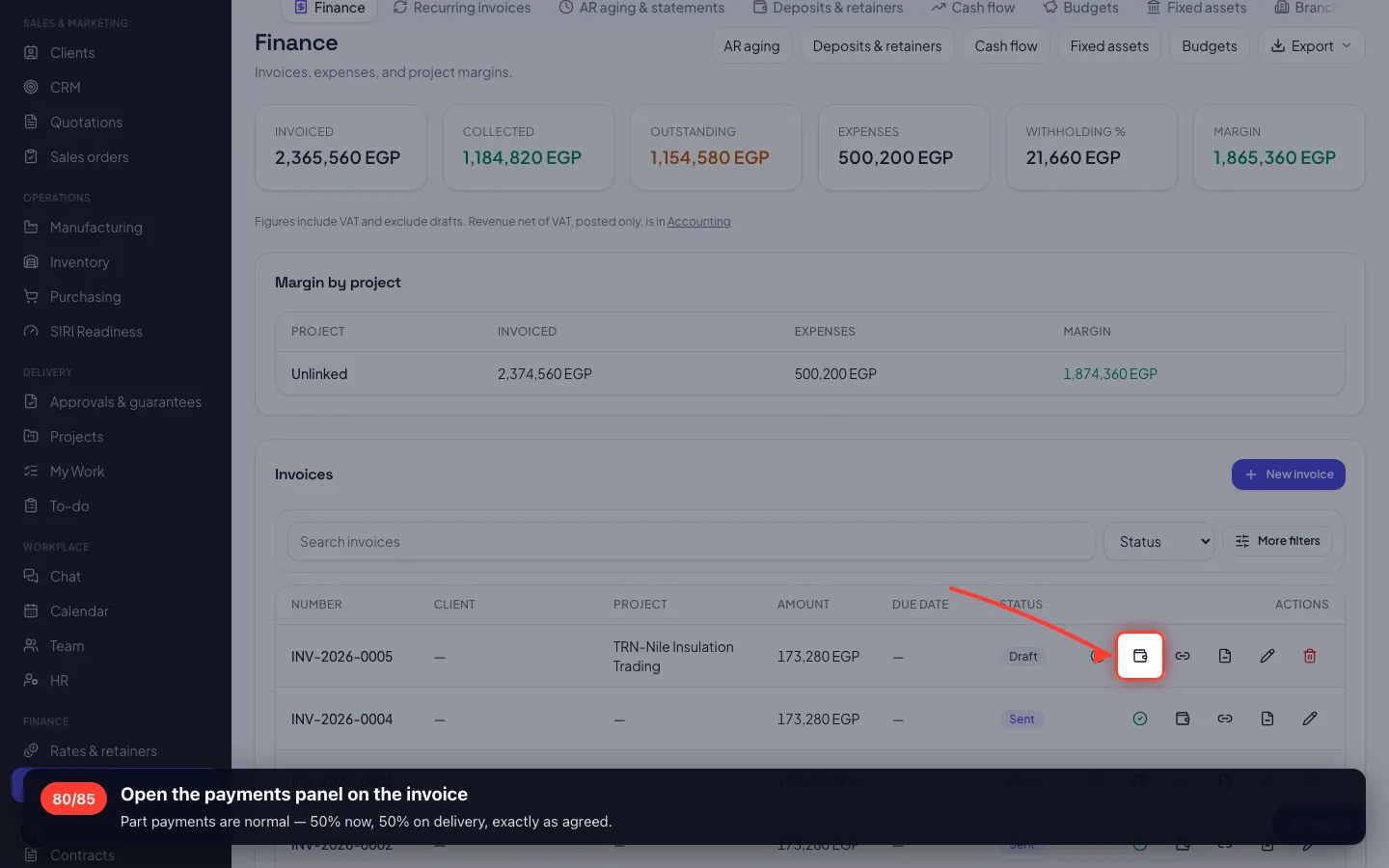
Recording the money is what makes the invoice paid — a status on its own is not money.
80Open the payments panel on the invoice
Part payments are normal — 50% now, 50% on delivery, exactly as agreed.
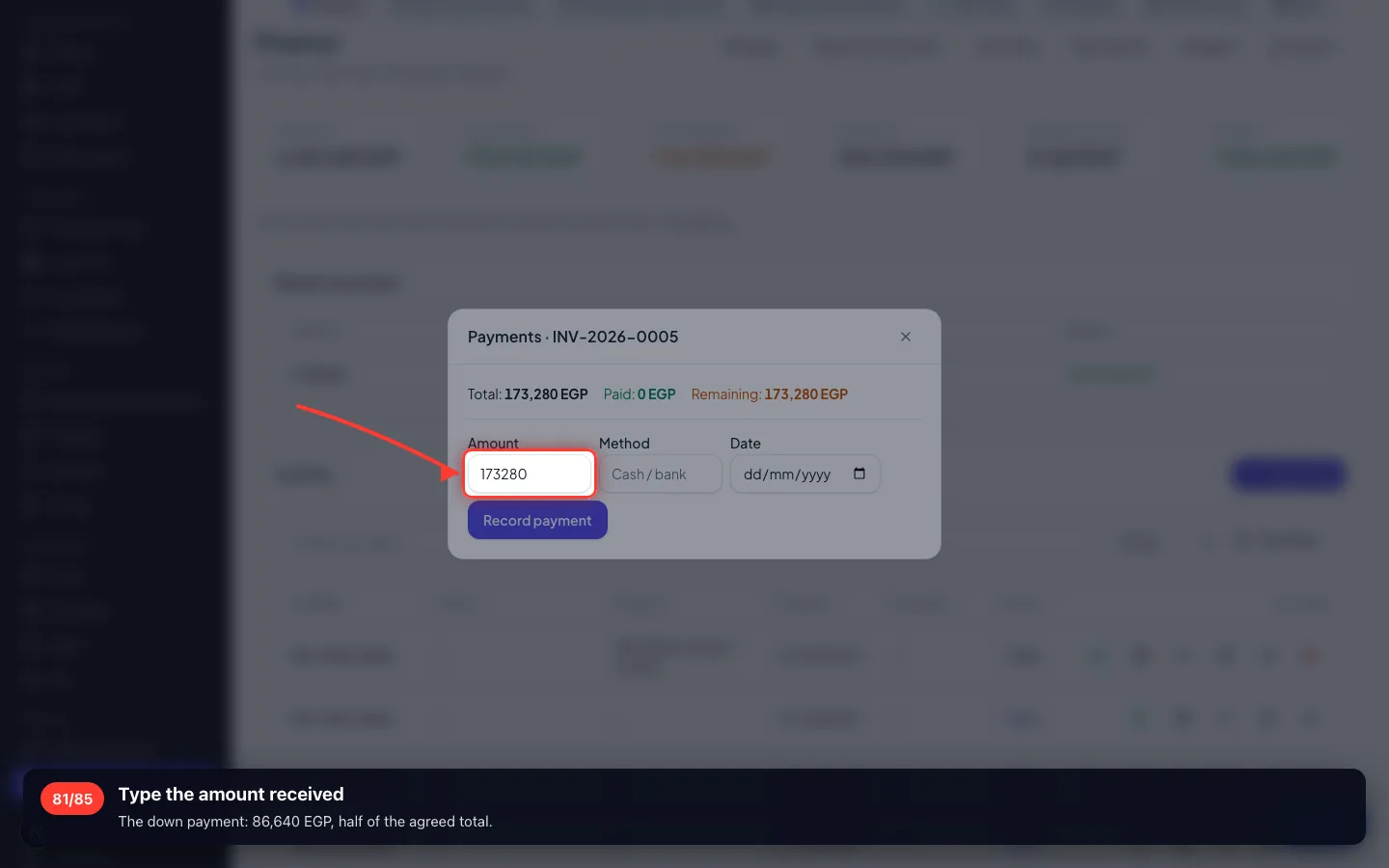
- 81
Type the amount received
The down payment: 86,640 EGP, half of the agreed total.
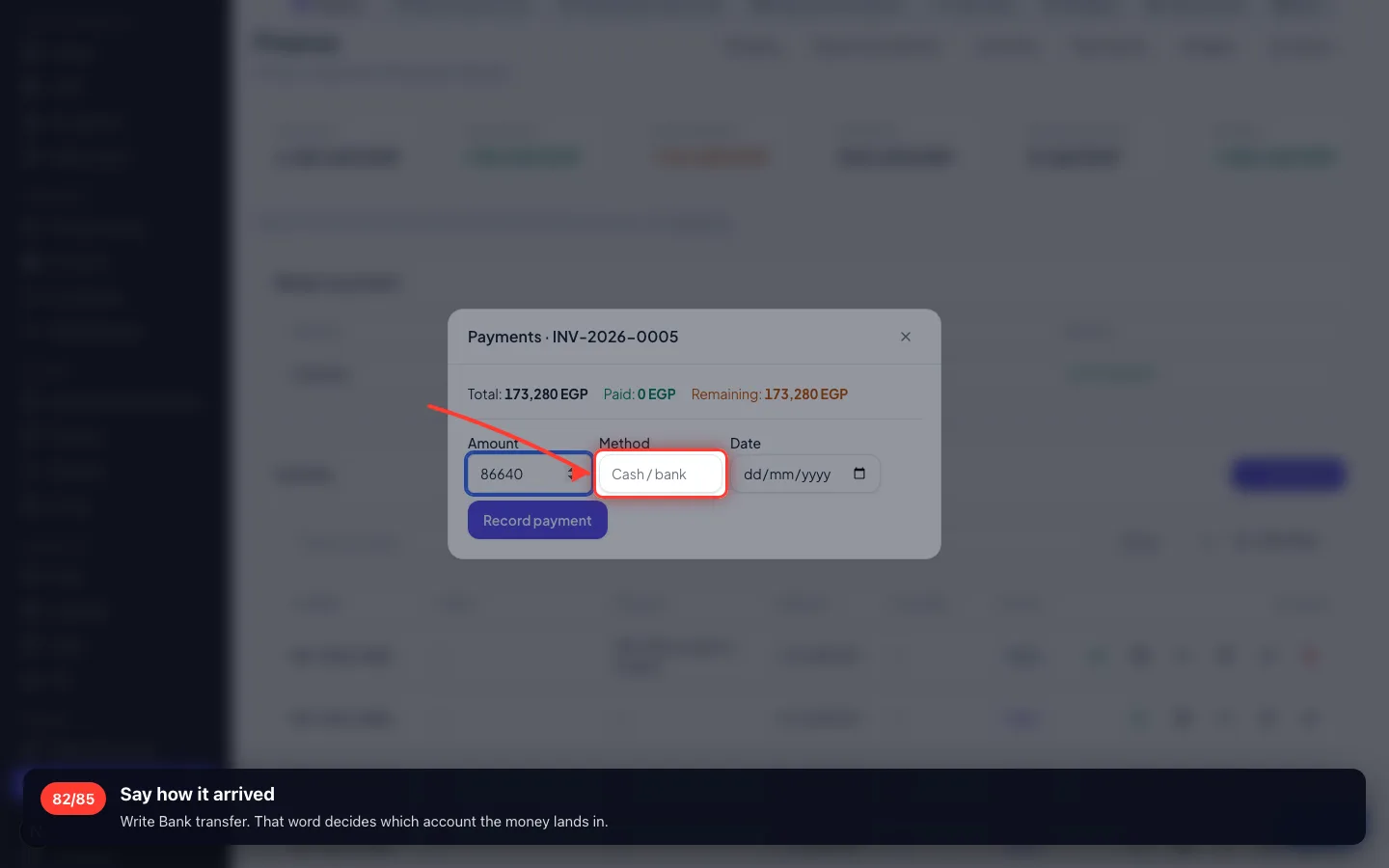
- 82
Say how it arrived
Write Bank transfer. That word decides which account the money lands in.
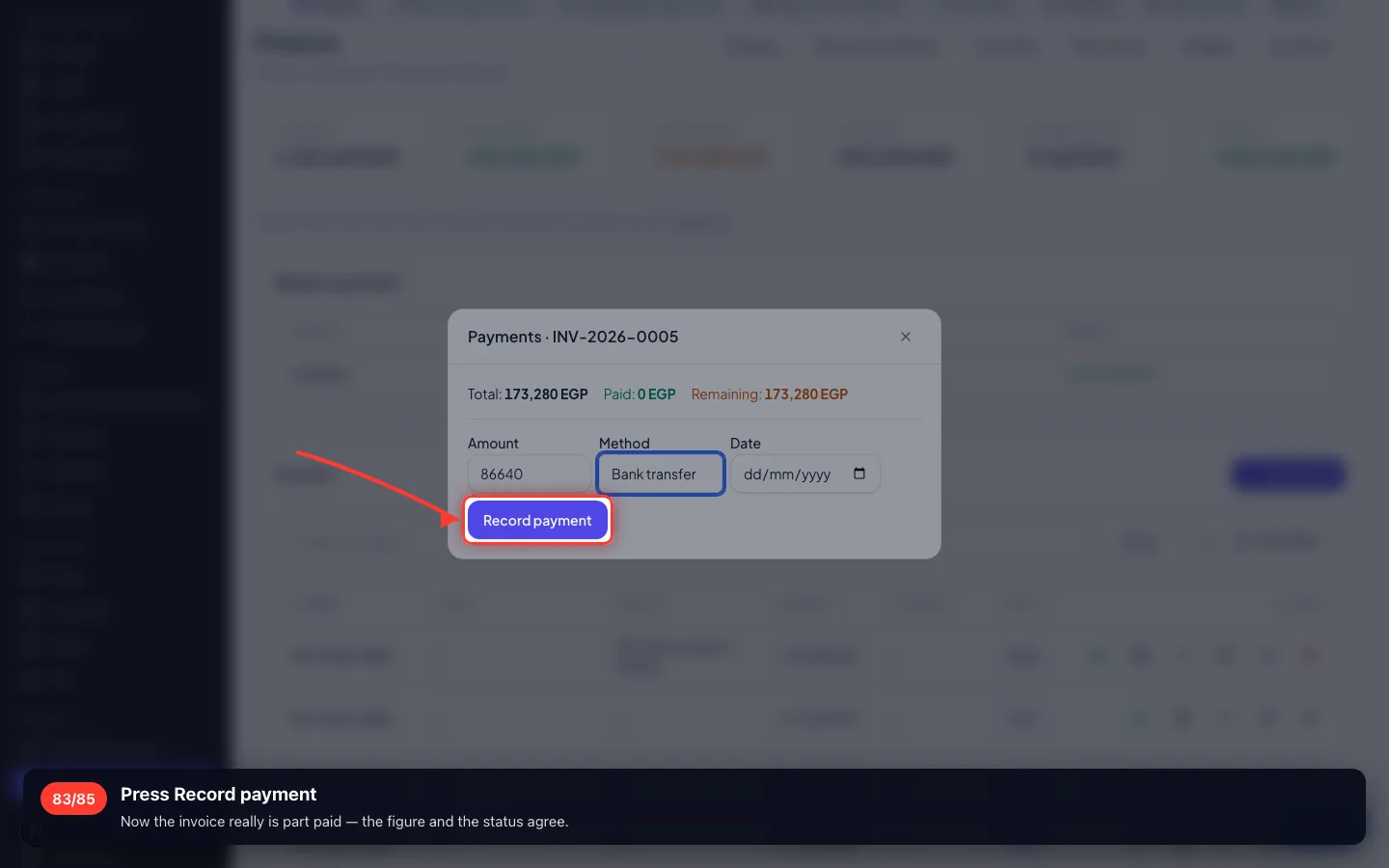
- 83
Press Record payment
Now the invoice really is part paid — the figure and the status agree.
13 · The books
Nothing here is typed twice: the ledger is built from the documents you already made.
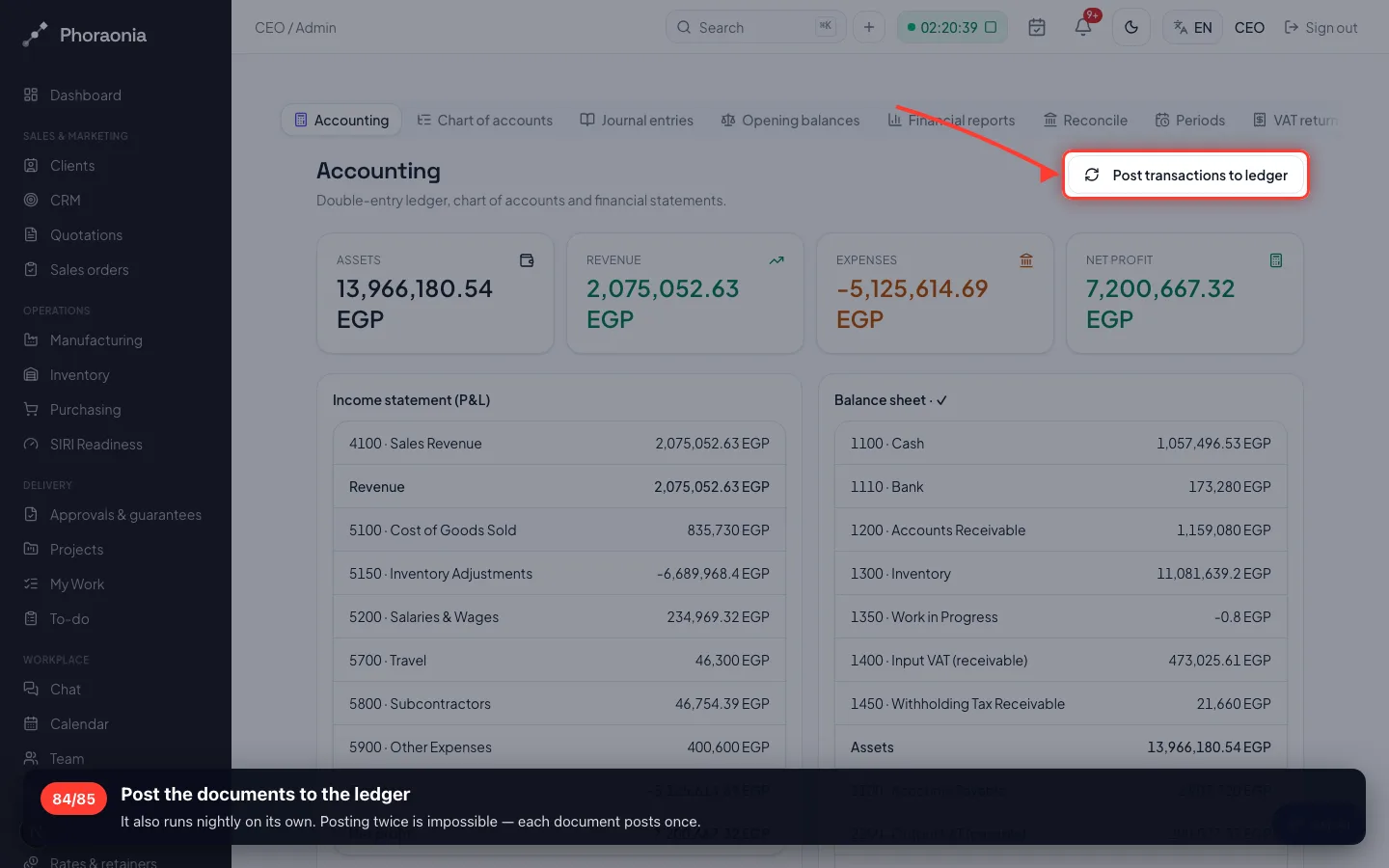
84Post the documents to the ledger
It also runs nightly on its own. Posting twice is impossible — each document posts once.
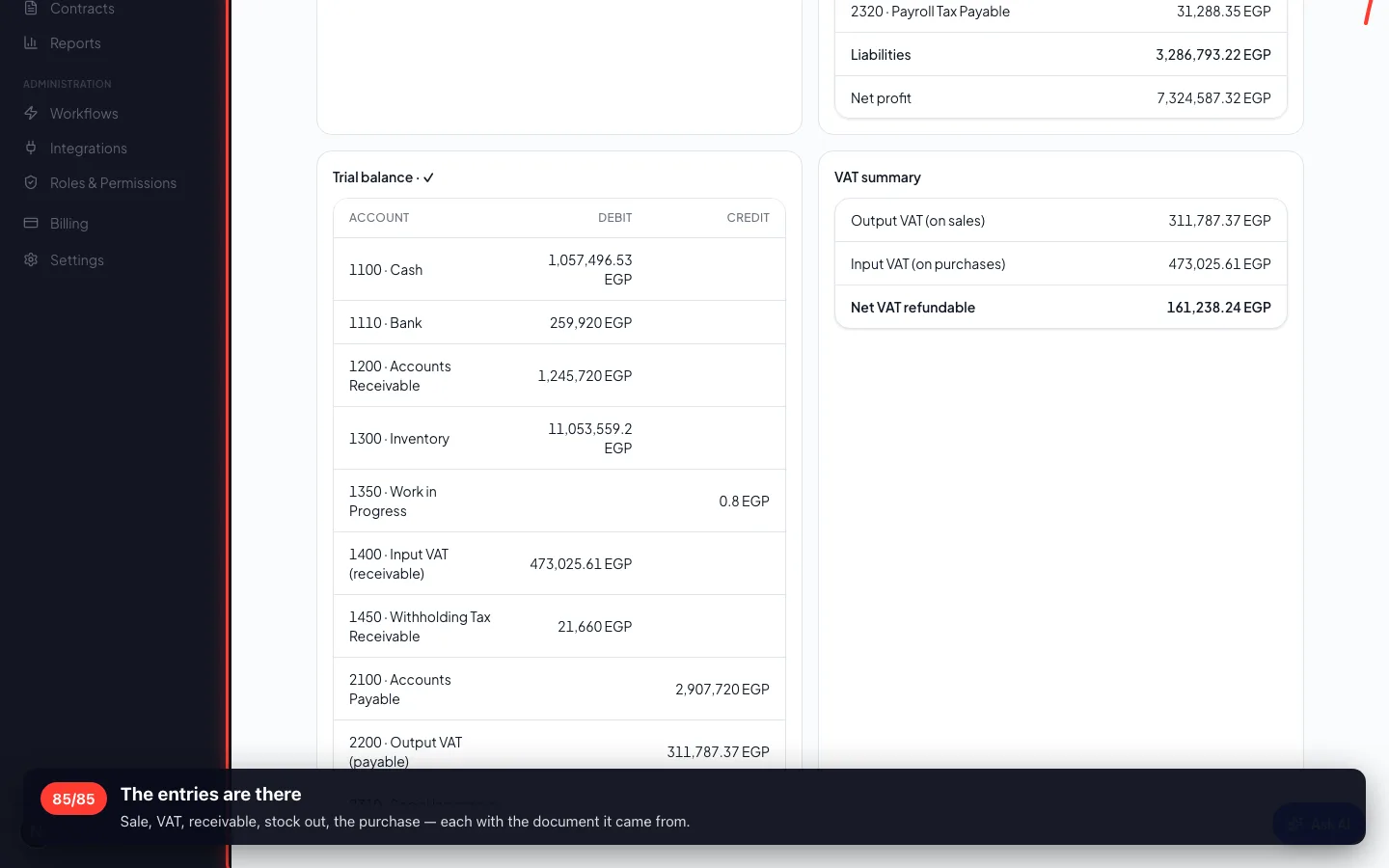
- 85
The entries are there
Sale, VAT, receivable, stock out, the purchase — each with the document it came from.
Enregistré sur un espace de démonstration. Les chiffres sont fictifs, les écrans sont réels.