Quotations and sales orders
Pricing an offer from the catalogue, what the customer sees, the approval gate, revising a price without confusing anybody, and the order book the factory works from.
17 étapes
Le parcours complet, sans commentaire audio.
1 · The quotations list
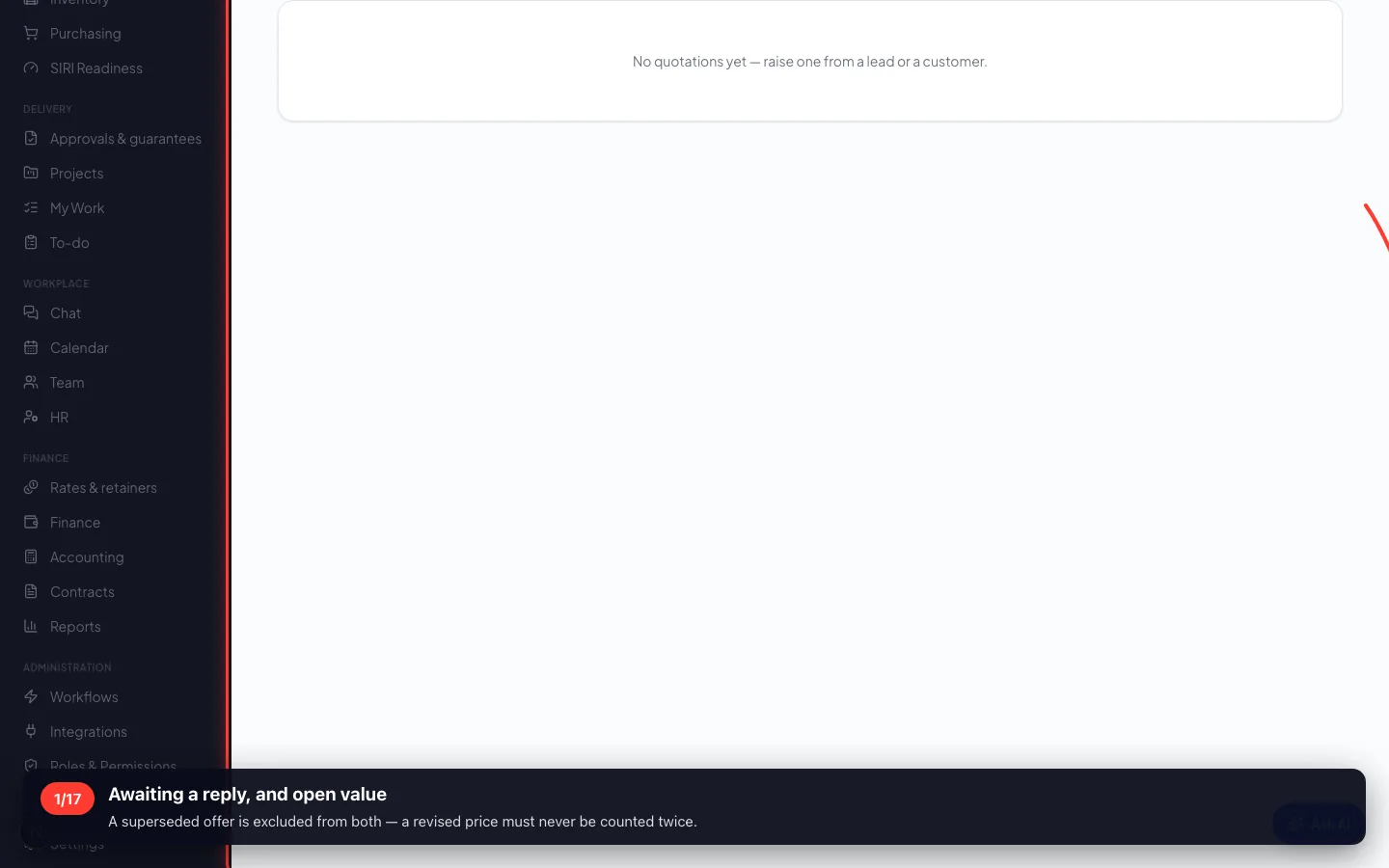
Every offer the company has made, what it is worth, whether the customer has opened it, and whether it is still live.
1Awaiting a reply, and open value
A superseded offer is excluded from both — a revised price must never be counted twice.
2 · Where an offer starts
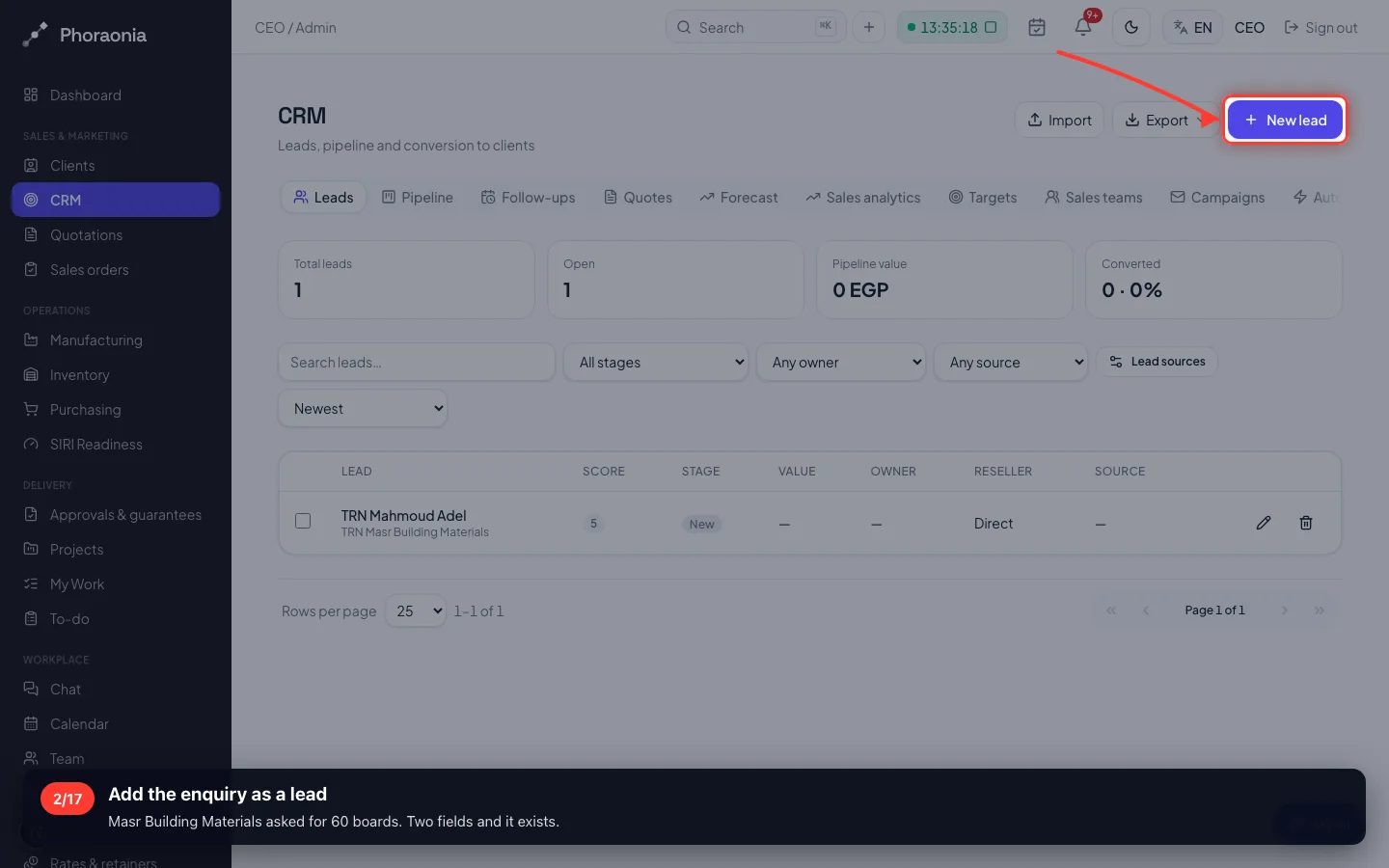
From the enquiry it answers. A quotation is raised on a lead, so the customer's details and the conversation come with it.
2Add the enquiry as a lead
Masr Building Materials asked for 60 boards. Two fields and it exists.
- 3
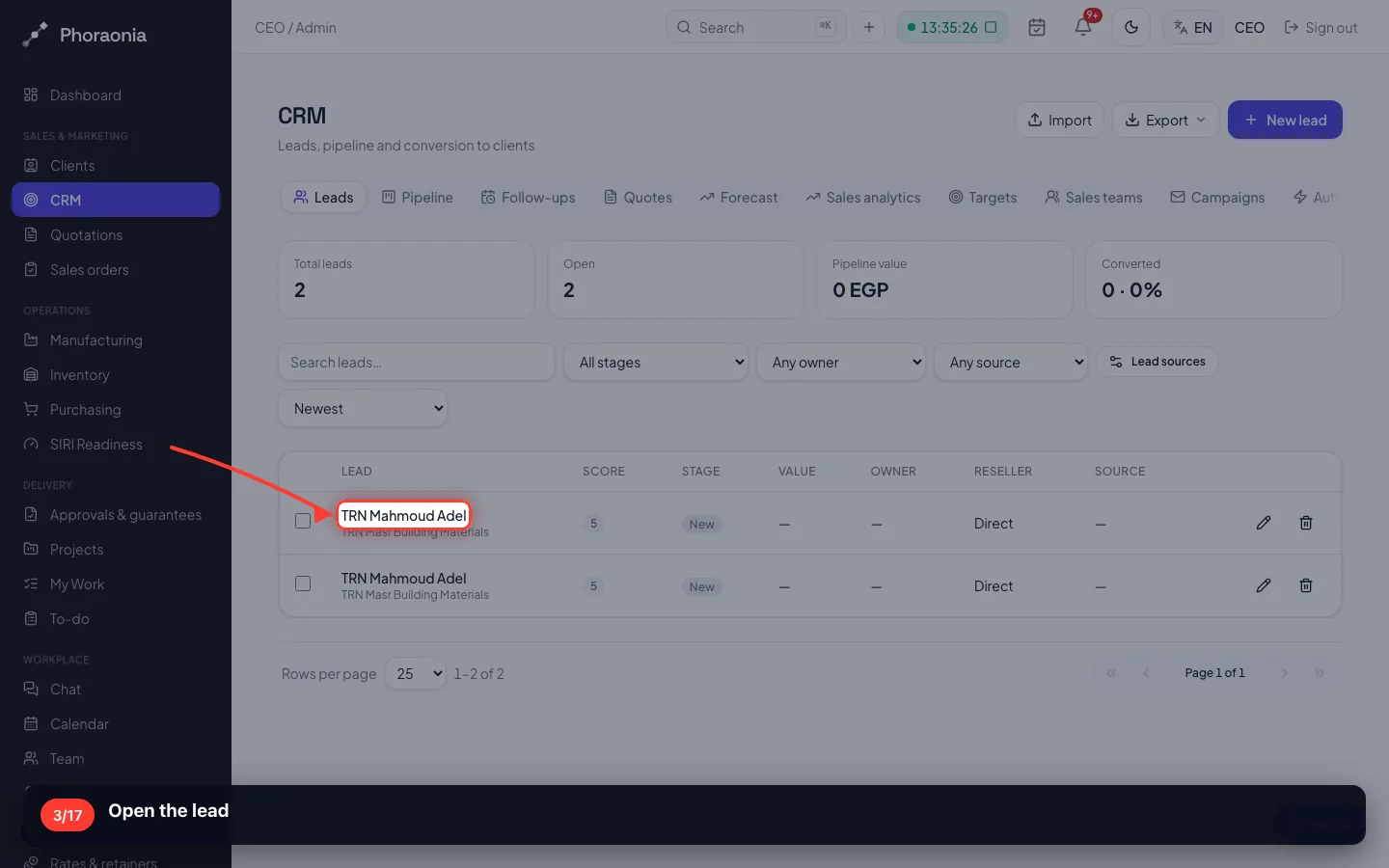
Open the lead
- 4
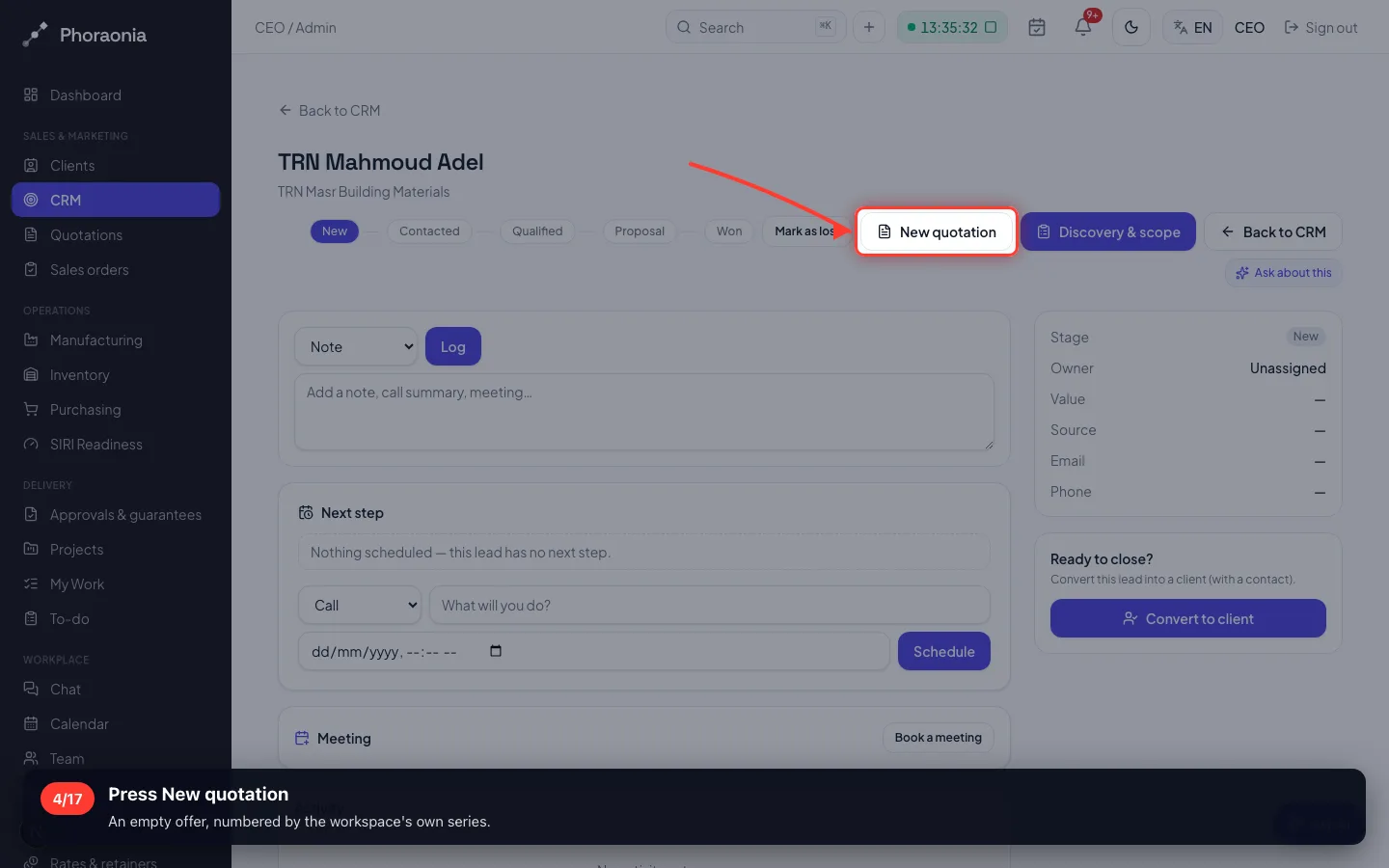
Press New quotation
An empty offer, numbered by the workspace's own series.
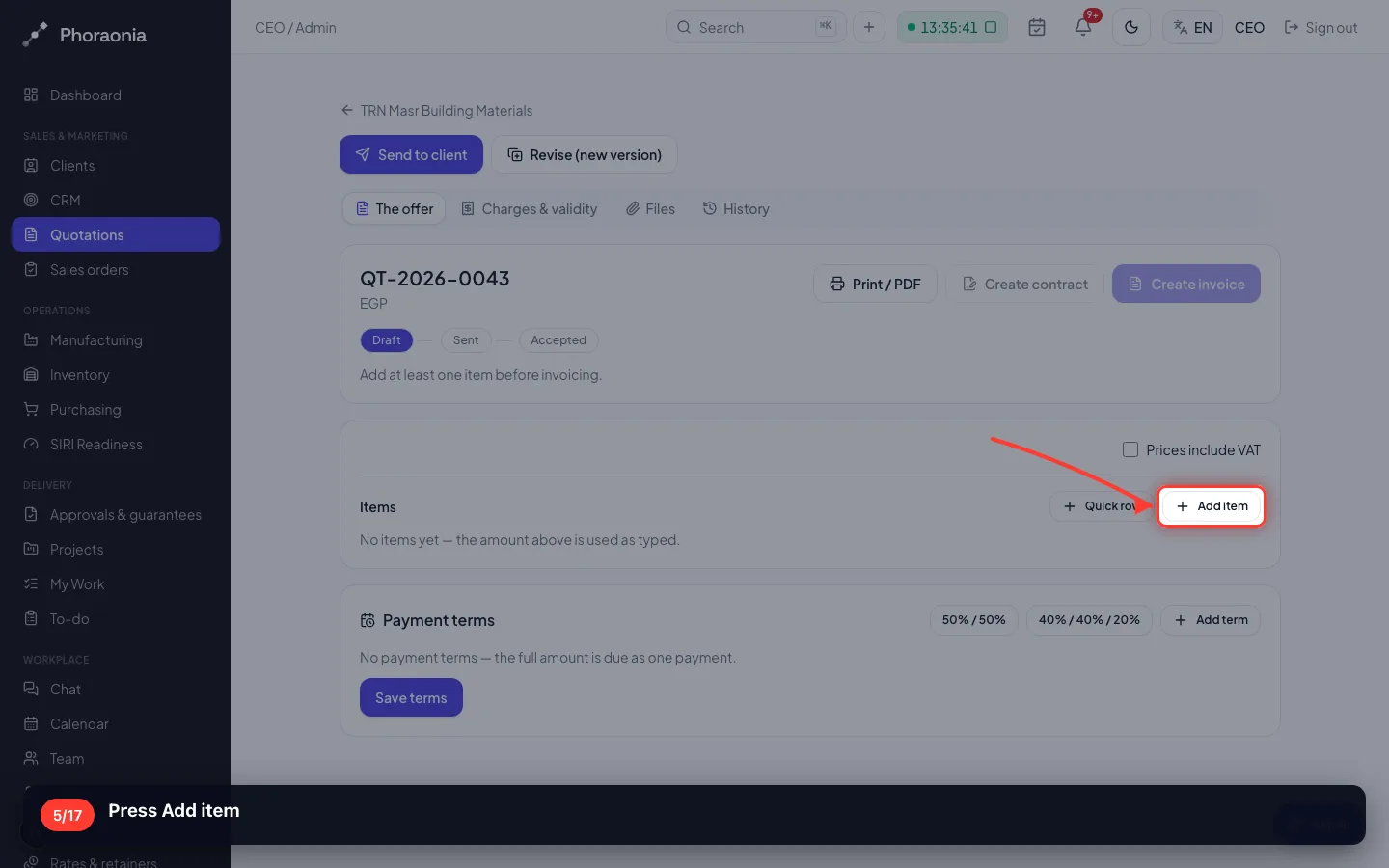
- 5
Press Add item
- 6
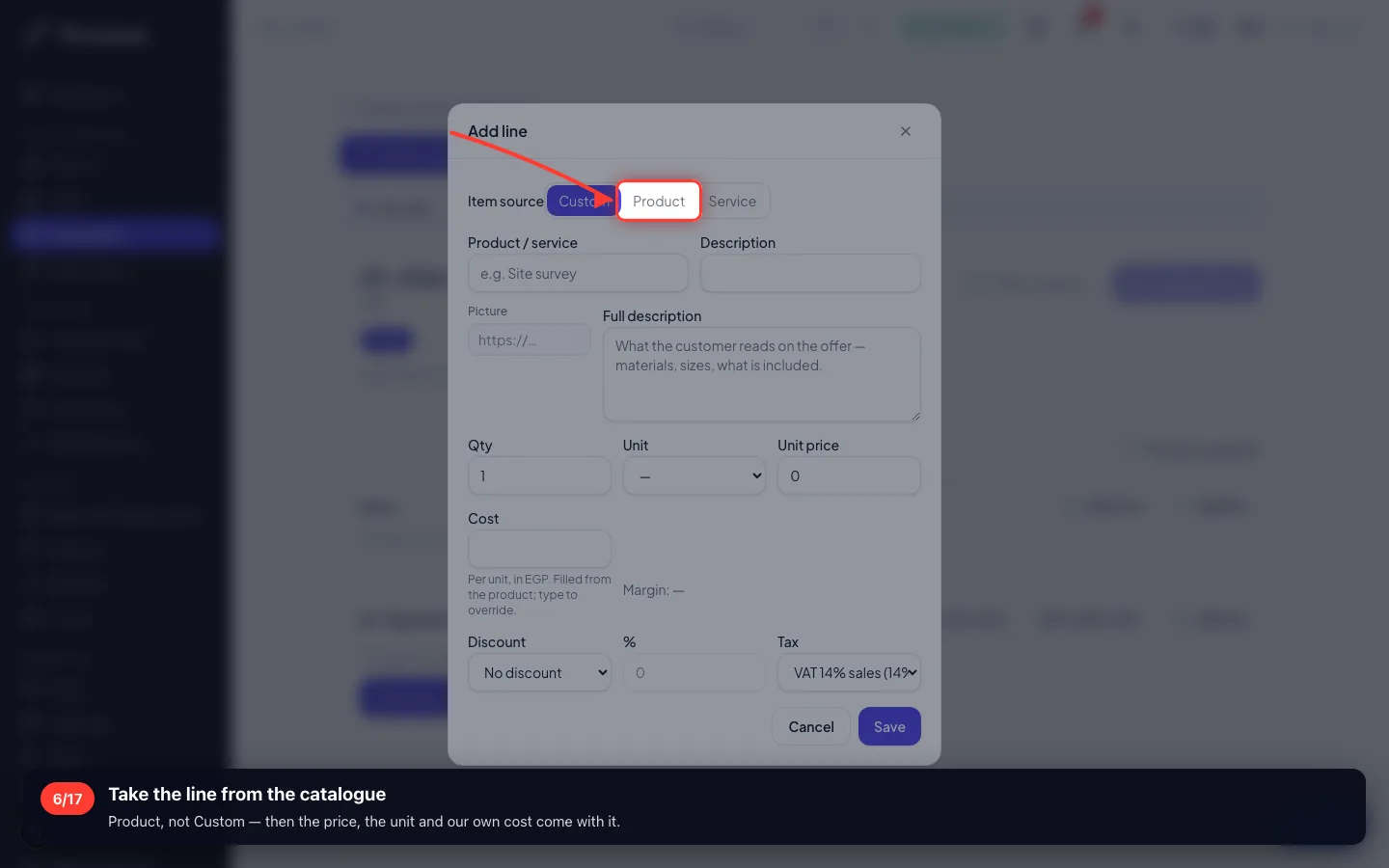
Take the line from the catalogue
Product, not Custom — then the price, the unit and our own cost come with it.
- 7
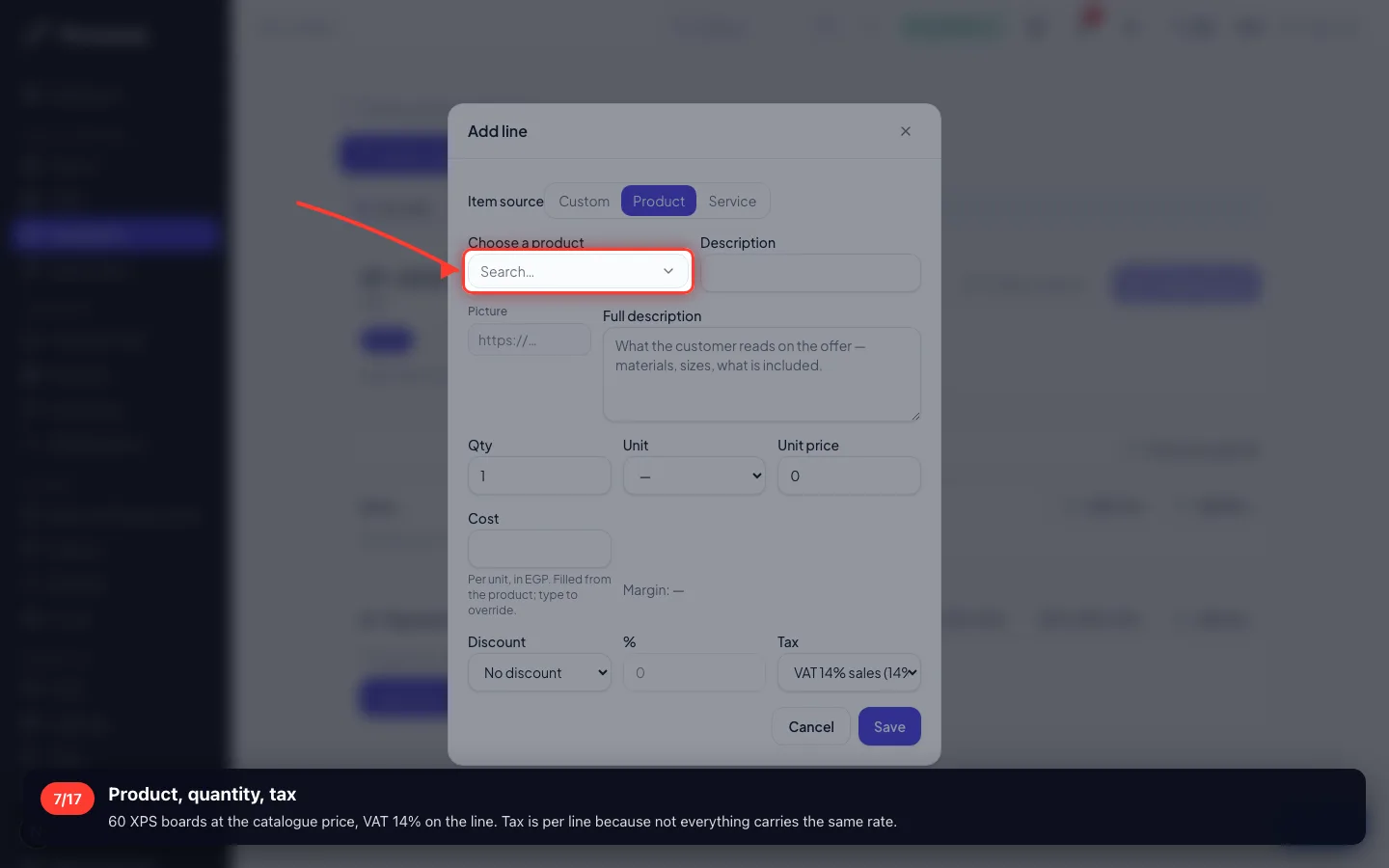
Product, quantity, tax
60 XPS boards at the catalogue price, VAT 14% on the line. Tax is per line because not everything carries the same rate.
- 8
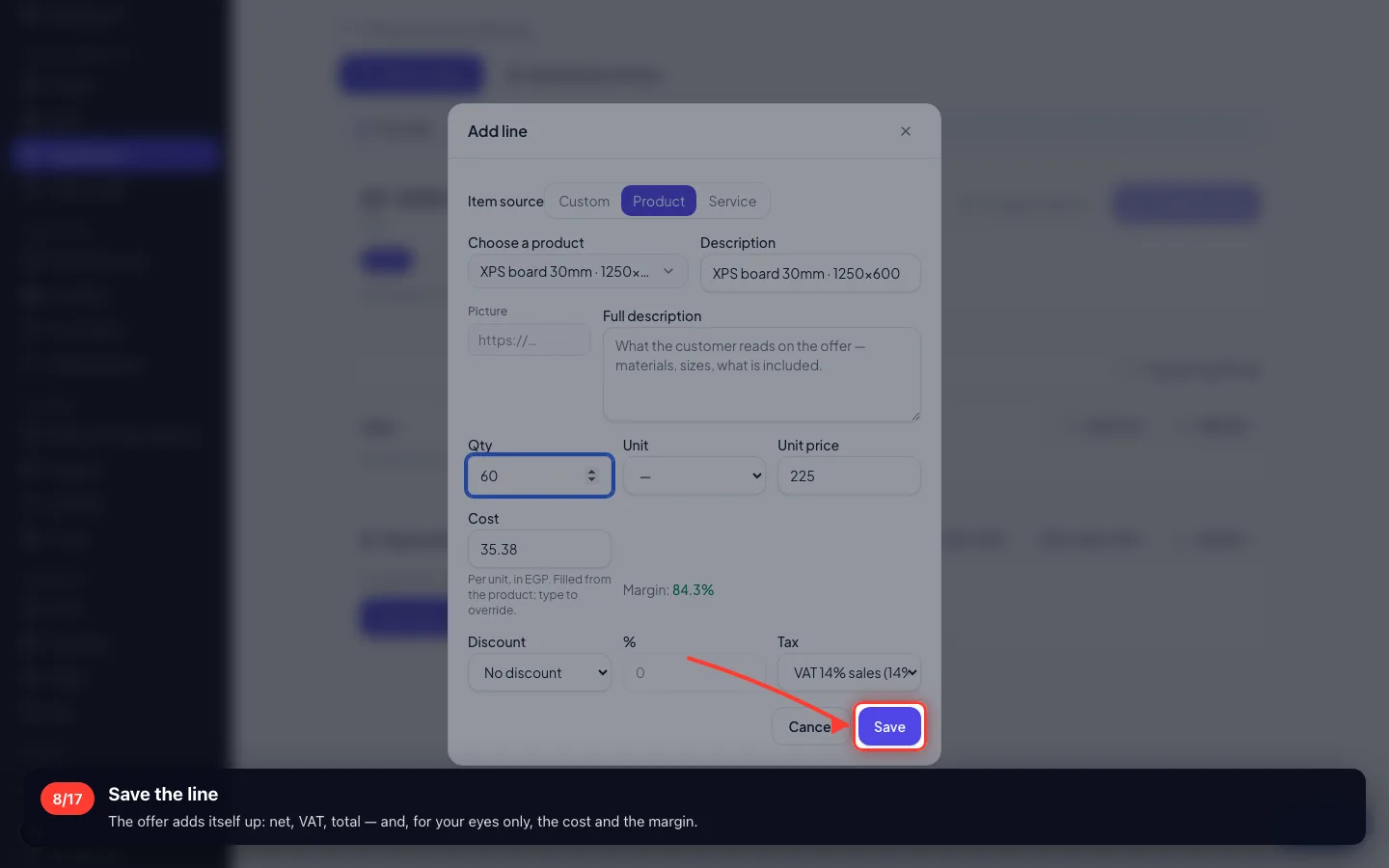
Save the line
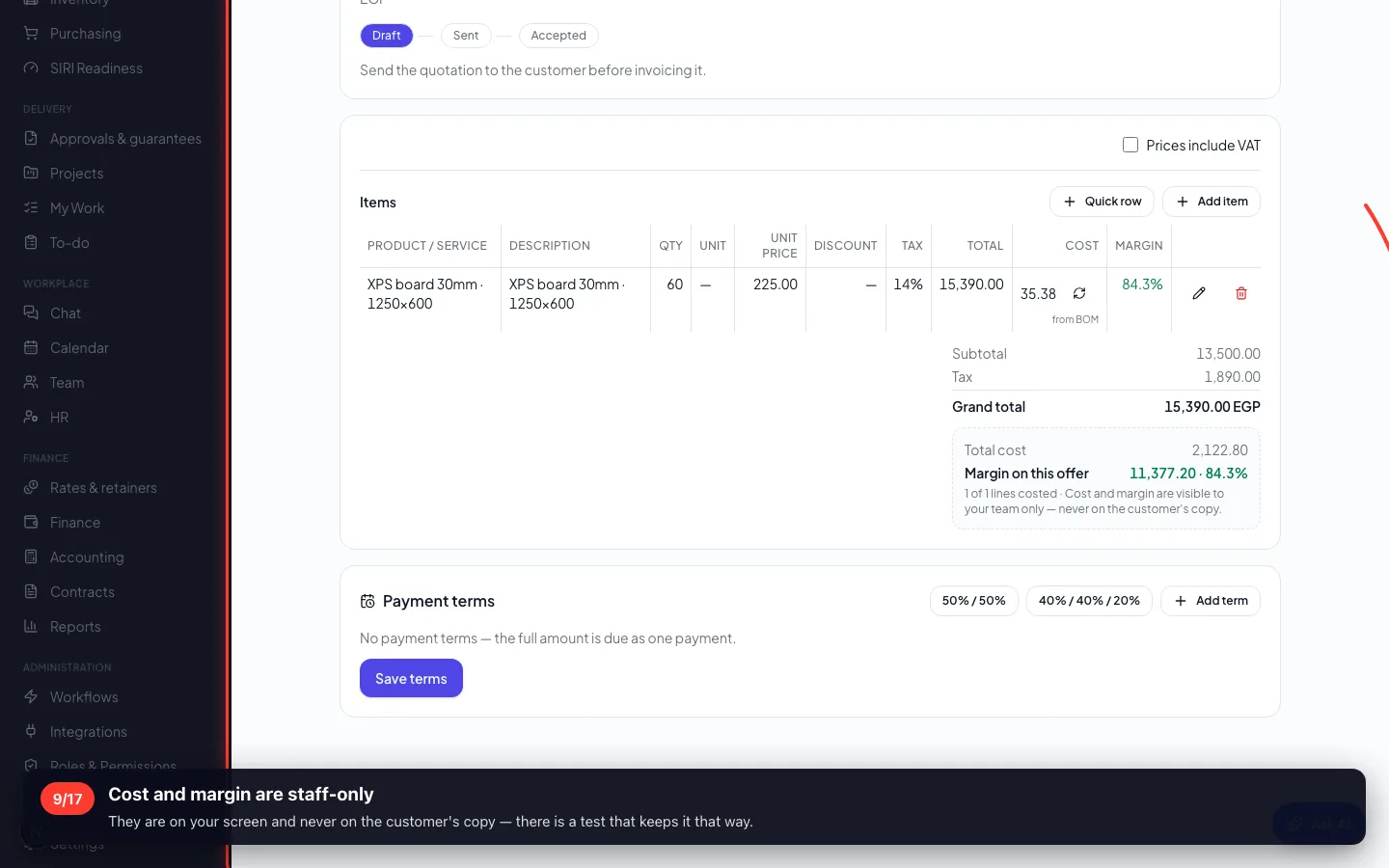
The offer adds itself up: net, VAT, total — and, for your eyes only, the cost and the margin.
- 9
Cost and margin are staff-only
They are on your screen and never on the customer's copy — there is a test that keeps it that way.
3 · Everything else on the offer
Delivery, an agreed discount, how long the price holds, and how they pay.
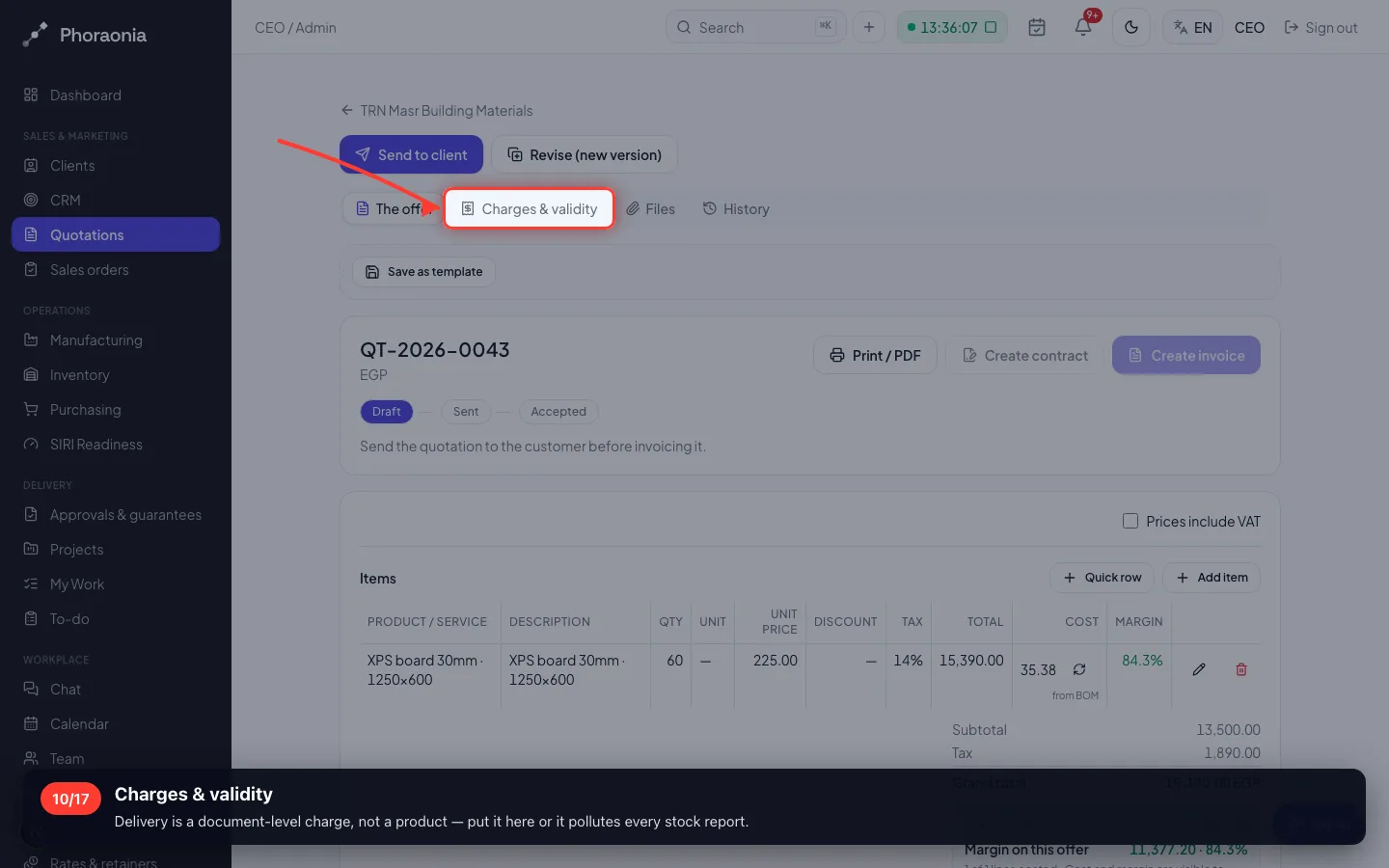
10Charges & validity
Delivery is a document-level charge, not a product — put it here or it pollutes every stock report.
- 11
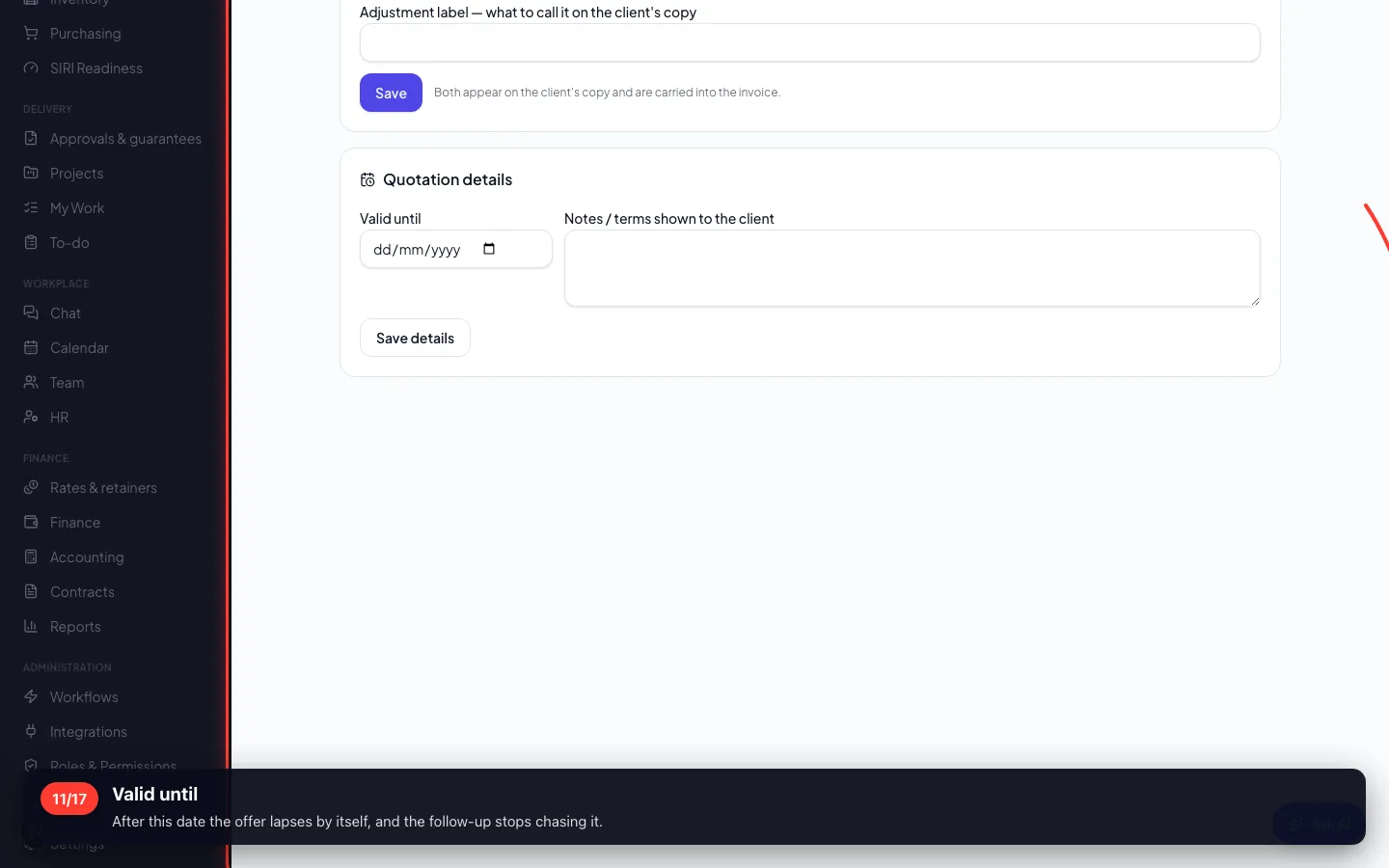
Valid until
After this date the offer lapses by itself, and the follow-up stops chasing it.
- 12
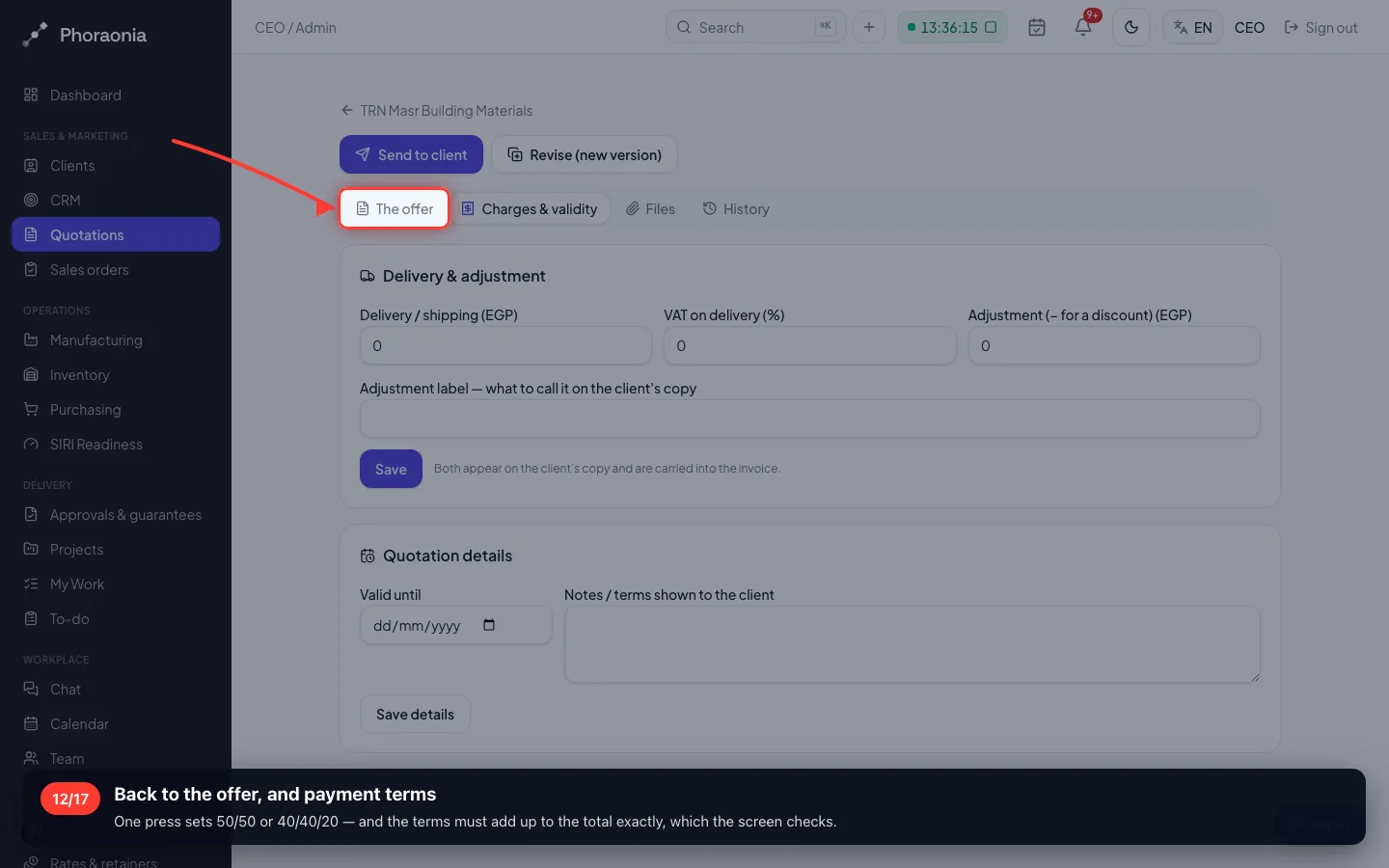
Back to the offer, and payment terms
One press sets 50/50 or 40/40/20 — and the terms must add up to the total exactly, which the screen checks.
4 · Before it can be sent
Above the workspace's limit, or discounted past it, an offer needs a manager. The block is on the server, not just the button.
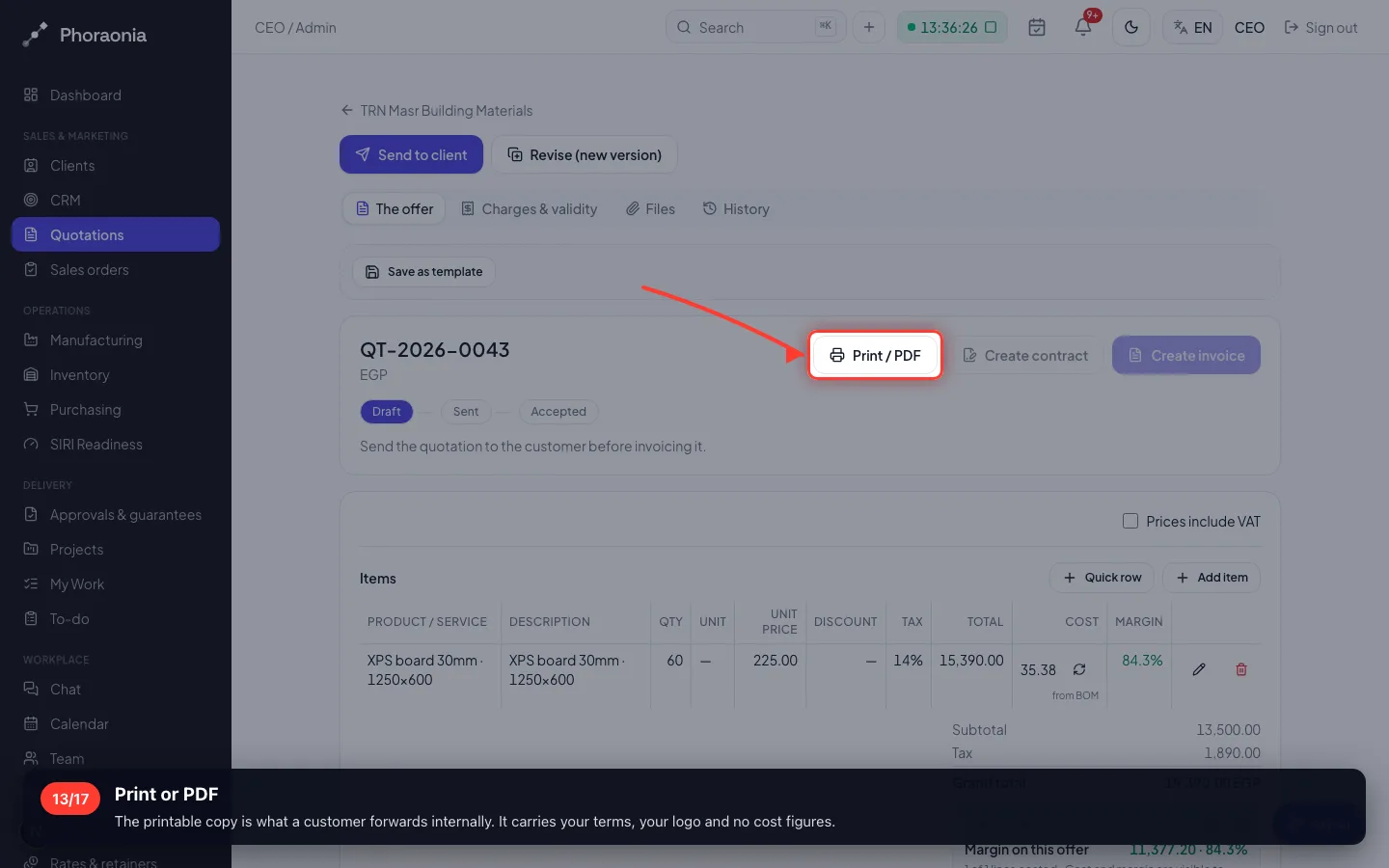
13Print or PDF
The printable copy is what a customer forwards internally. It carries your terms, your logo and no cost figures.
- 14
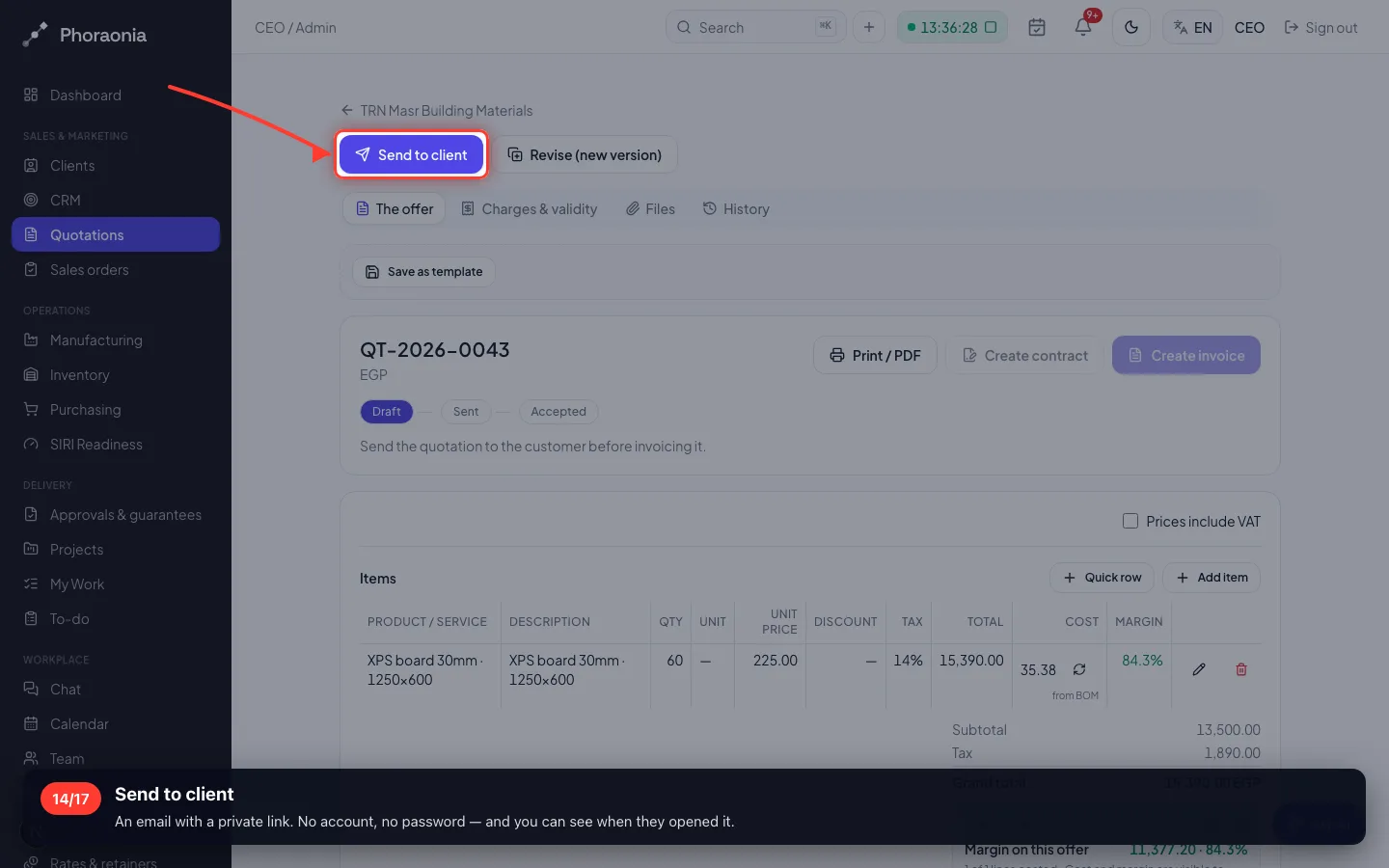
Send to client
An email with a private link. No account, no password — and you can see when they opened it.
5 · When the price has to change
Never edit a sent offer. Revise it — the old version is marked superseded and its link stops accepting answers.
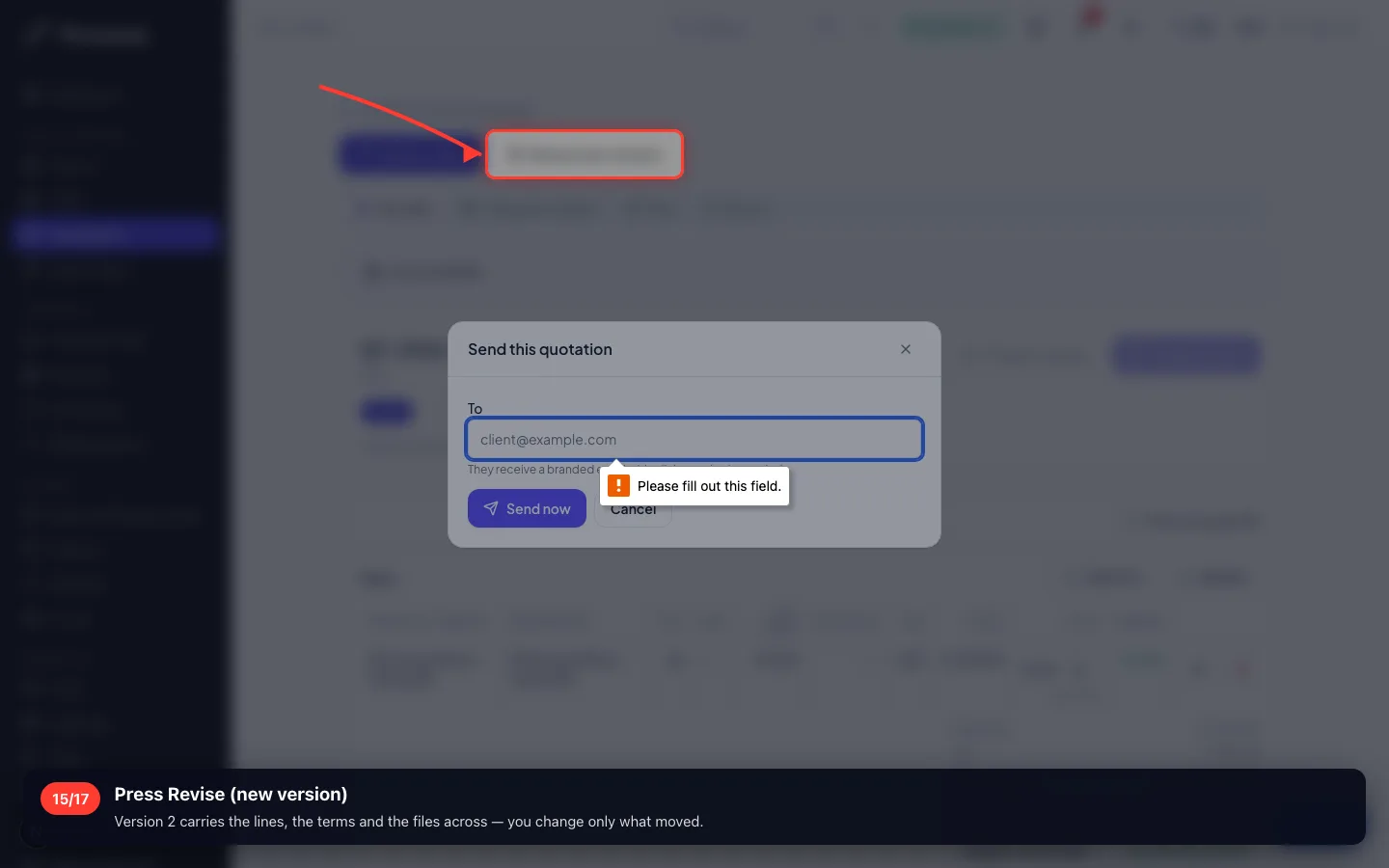
15Press Revise (new version)
Version 2 carries the lines, the terms and the files across — you change only what moved.
6 · Templates: the tenth offer
The first good offer becomes the template for the rest — lines, terms and validity, applied in one press.
16The template library
A template is a SNAPSHOT: editing it never rewrites an offer already sent.
7 · Stages you can name yourself
Draft, Sent, Accepted are the built-in behaviours. A workspace can add its own — 'Under negotiation' behaving as Sent — and decide which the customer sees.
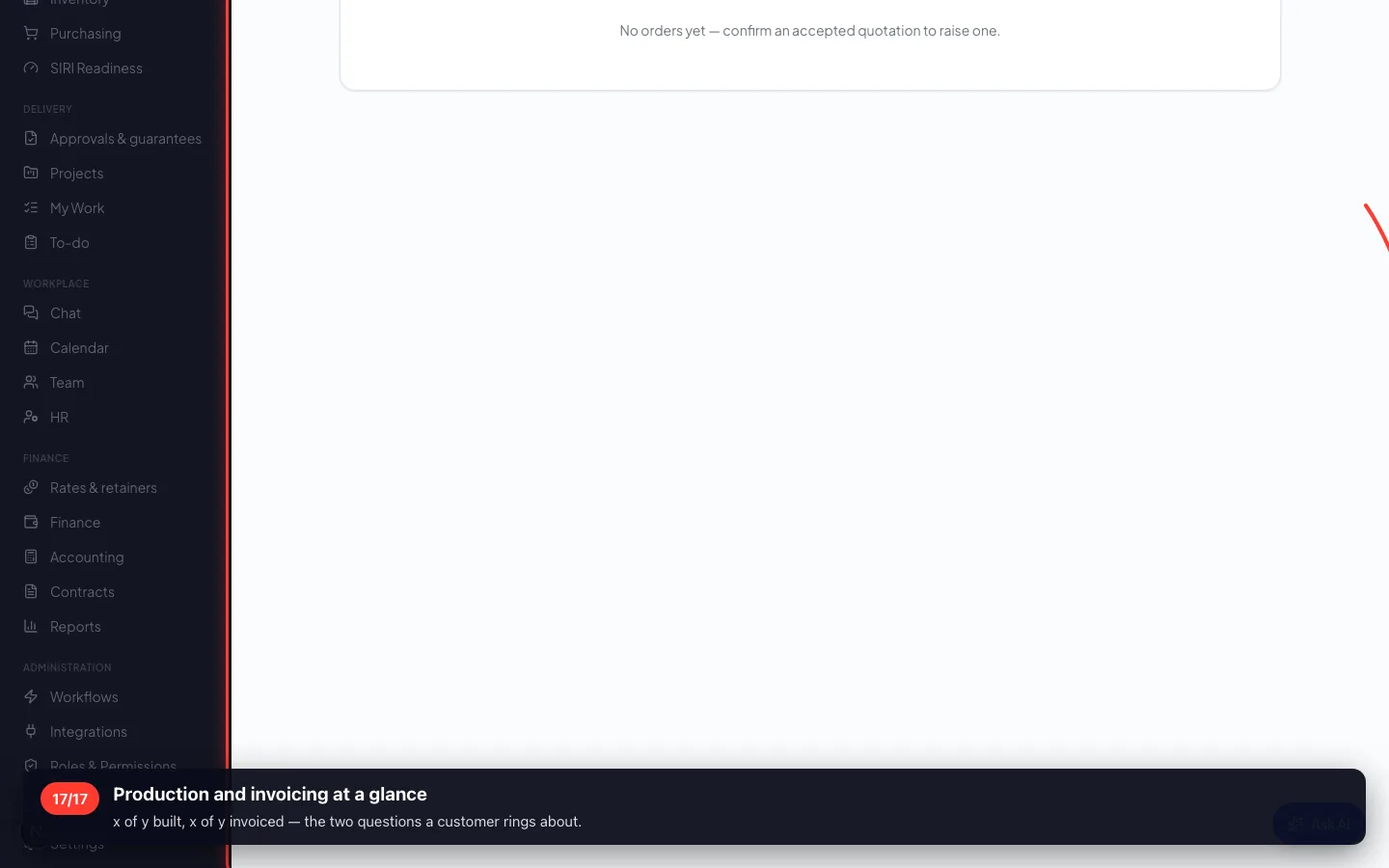
17Production and invoicing at a glance
x of y built, x of y invoiced — the two questions a customer rings about.
Enregistré sur un espace de démonstration. Les chiffres sont fictifs, les écrans sont réels.