Getting started with accounting
From an empty workspace to books you can trust: the chart of accounts, linking it to the entries, the start date and opening balances — then a sale, a purchase and an expense, checked in the entries and the reports.
73 étapes
Le parcours complet, sans commentaire audio.
1 · Where accounting lives
Accounting is the last stop of every document. You set it up once, and from then on invoices, bills, payments and expenses write their own entries.
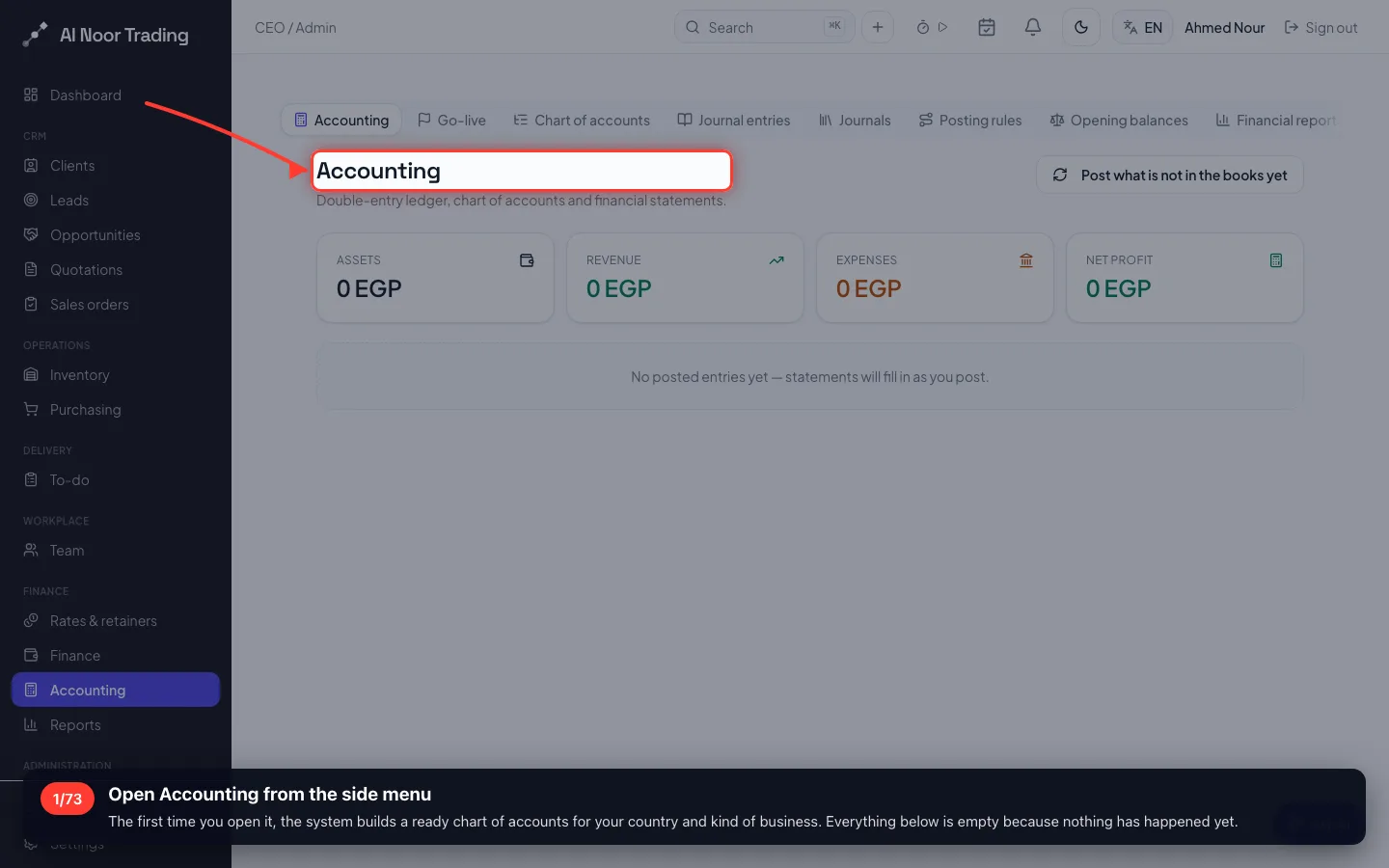
1Open Accounting from the side menu
The first time you open it, the system builds a ready chart of accounts for your country and kind of business. Everything below is empty because nothing has happened yet.
- 2
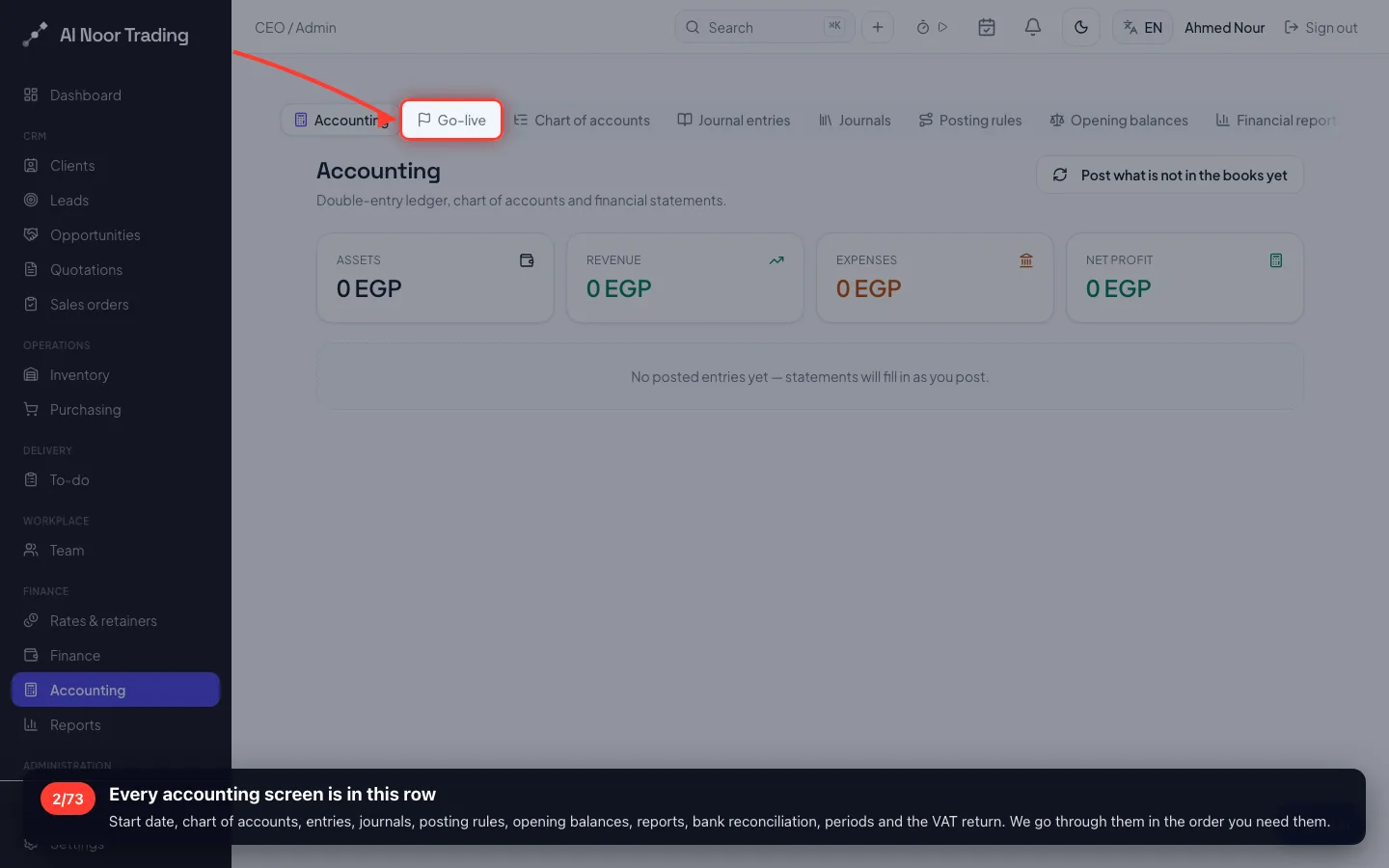
Every accounting screen is in this row
Start date, chart of accounts, entries, journals, posting rules, opening balances, reports, bank reconciliation, periods and the VAT return. We go through them in the order you need them.
2 · The start date and the financial year
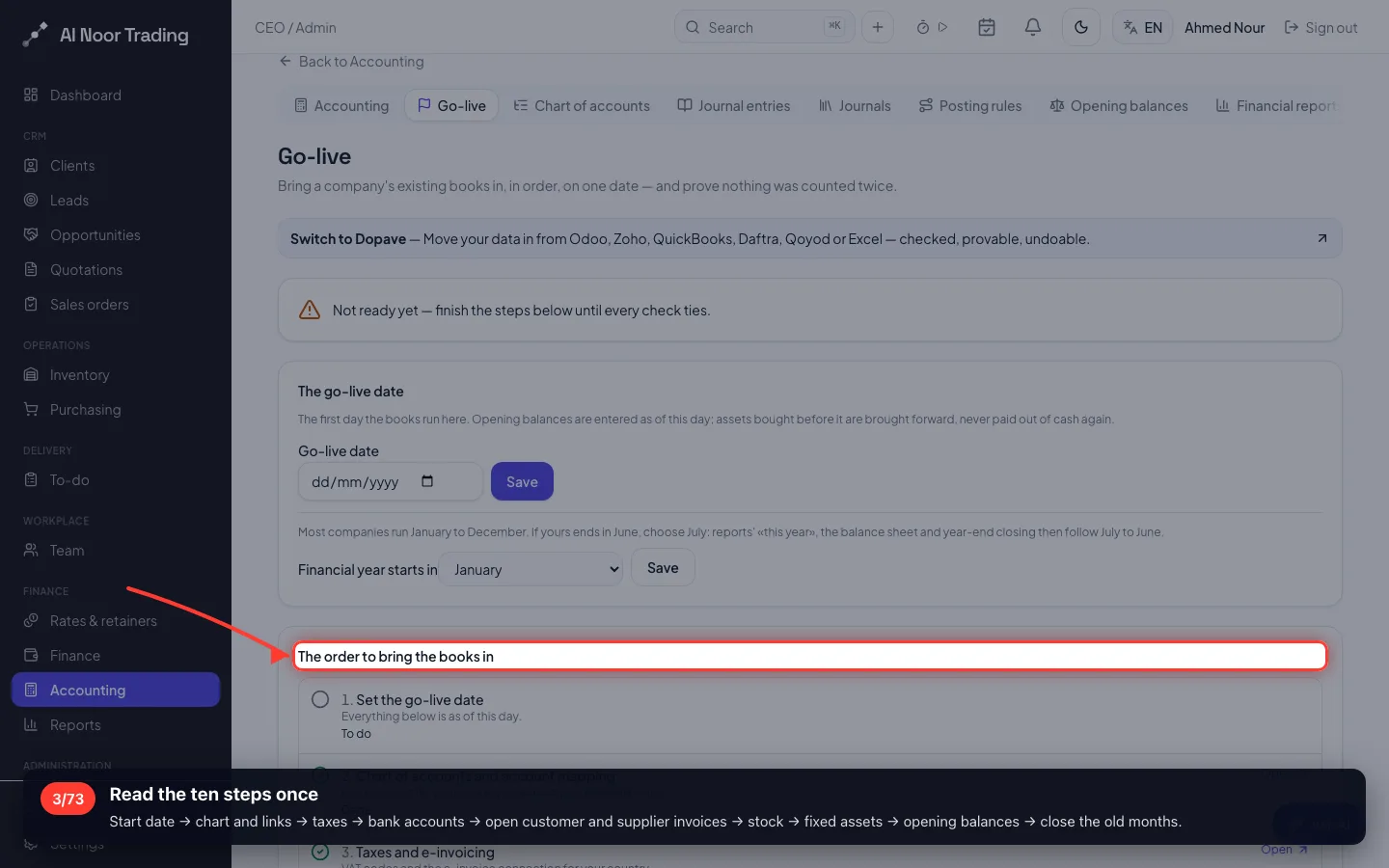
The Go-live page is your checklist: ten steps in order, each with its status. Do them top to bottom and nothing is counted twice.
3Read the ten steps once
Start date → chart and links → taxes → bank accounts → open customer and supplier invoices → stock → fixed assets → opening balances → close the old months.
- 4
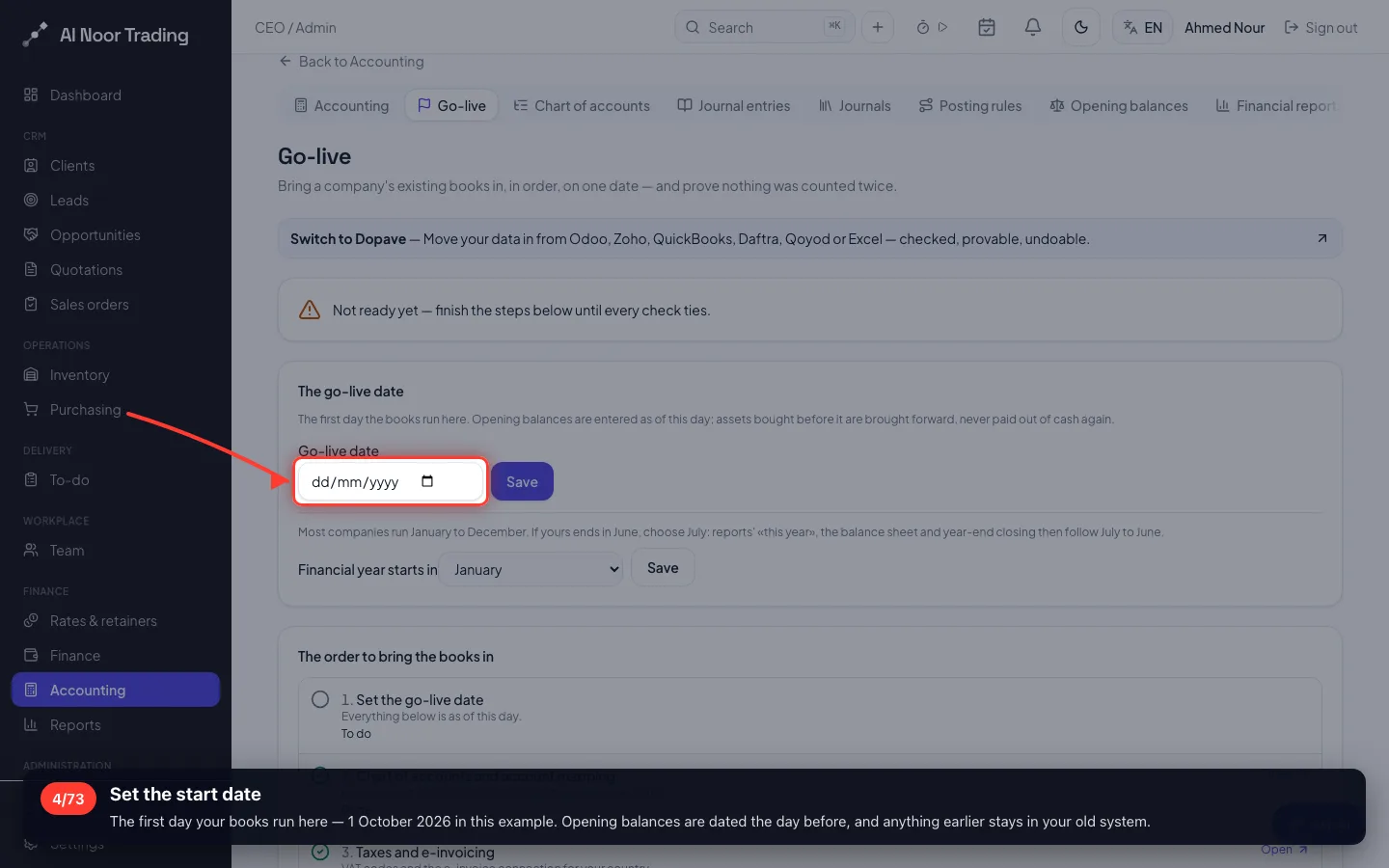
Set the start date
The first day your books run here — 1 October 2026 in this example. Opening balances are dated the day before, and anything earlier stays in your old system.
- 5
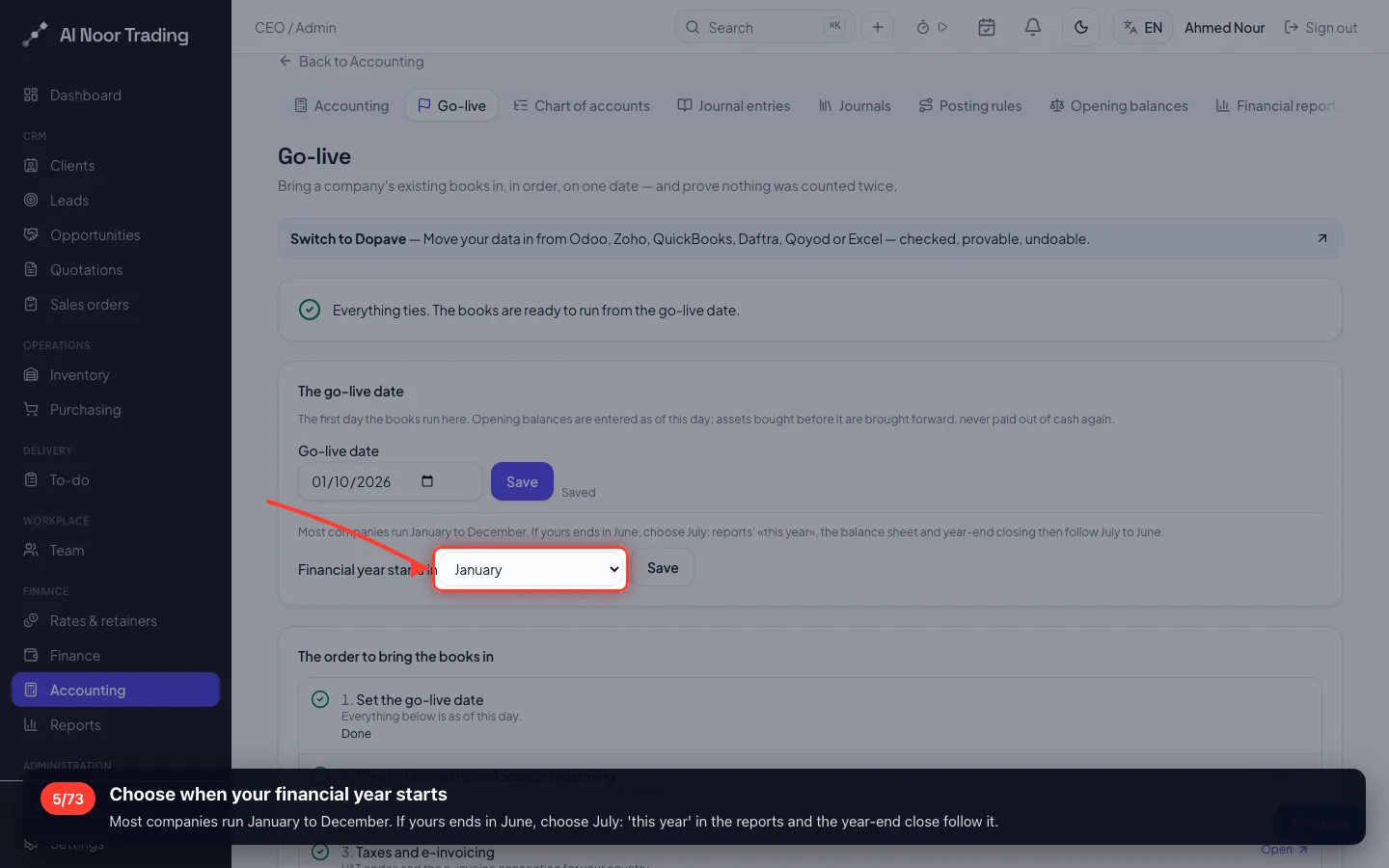
Choose when your financial year starts
Most companies run January to December. If yours ends in June, choose July: 'this year' in the reports and the year-end close follow it.
3 · The chart of accounts — three ways
Use the ready chart, upload the chart you already have, or build accounts on screen. Most businesses use the ready one; here we show all three.
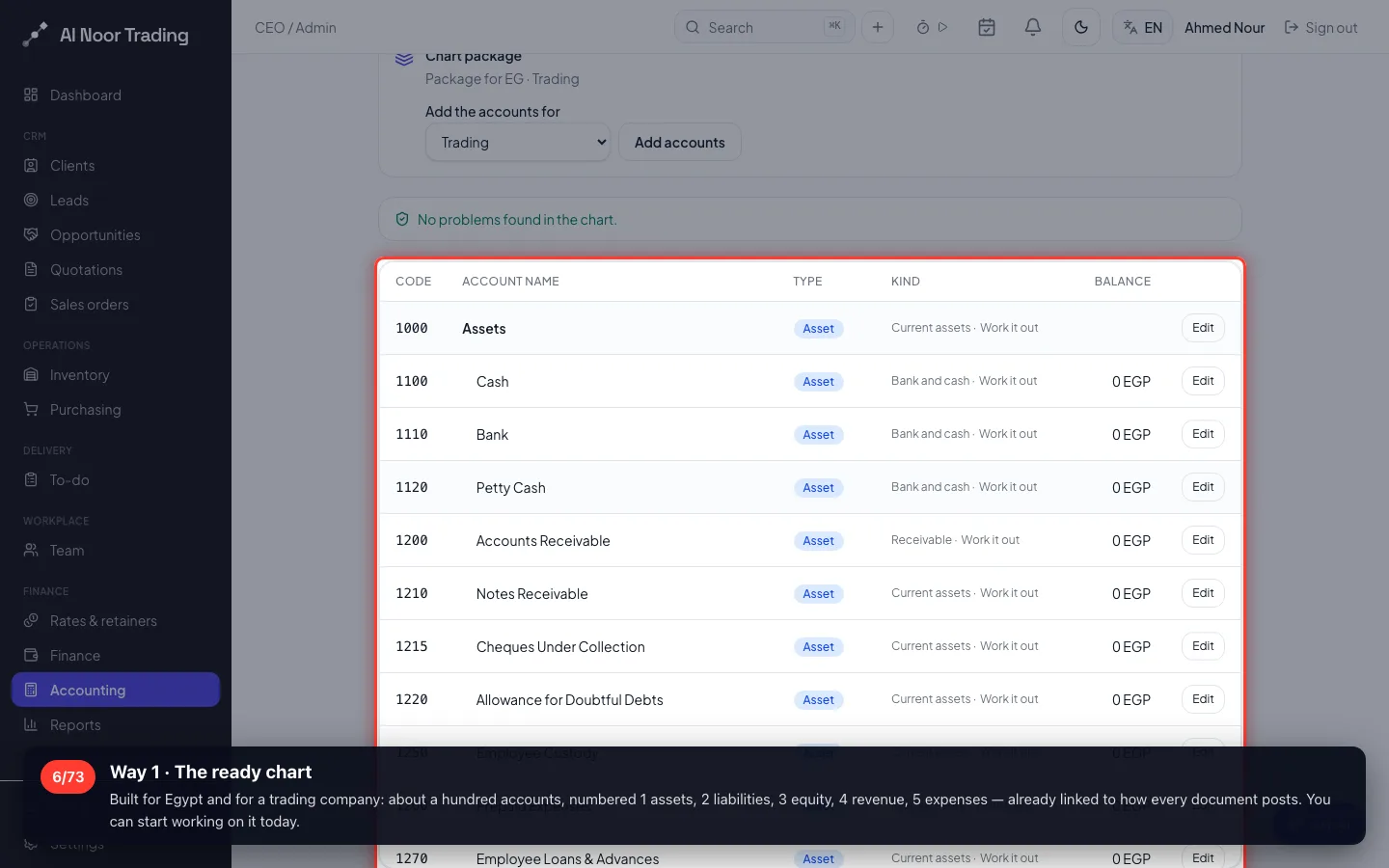
6Way 1 · The ready chart
Built for Egypt and for a trading company: about a hundred accounts, numbered 1 assets, 2 liabilities, 3 equity, 4 revenue, 5 expenses — already linked to how every document posts. You can start working on it today.
- 7
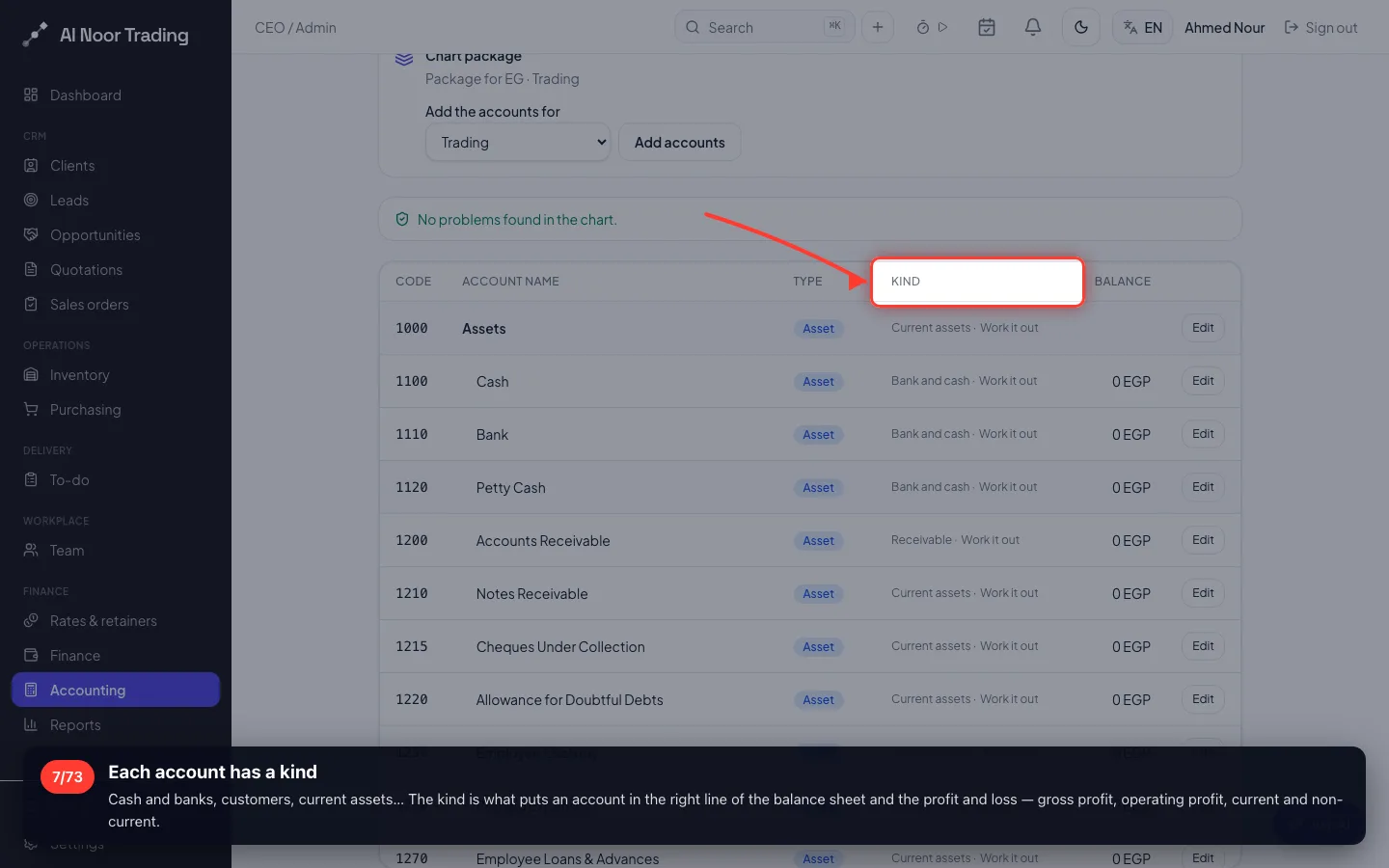
Each account has a kind
Cash and banks, customers, current assets… The kind is what puts an account in the right line of the balance sheet and the profit and loss — gross profit, operating profit, current and non-current.
- 8
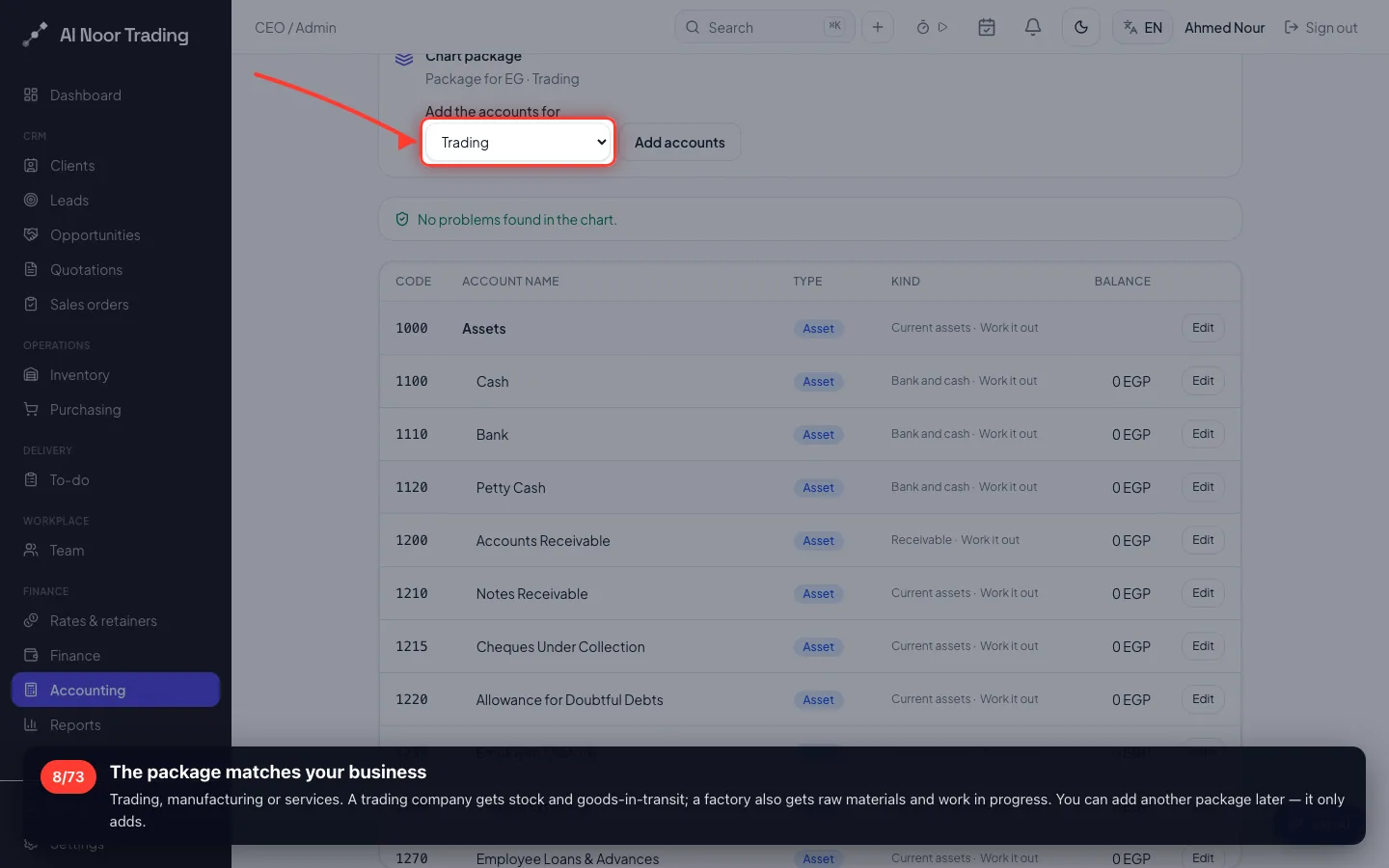
The package matches your business
Trading, manufacturing or services. A trading company gets stock and goods-in-transit; a factory also gets raw materials and work in progress. You can add another package later — it only adds.
- 9
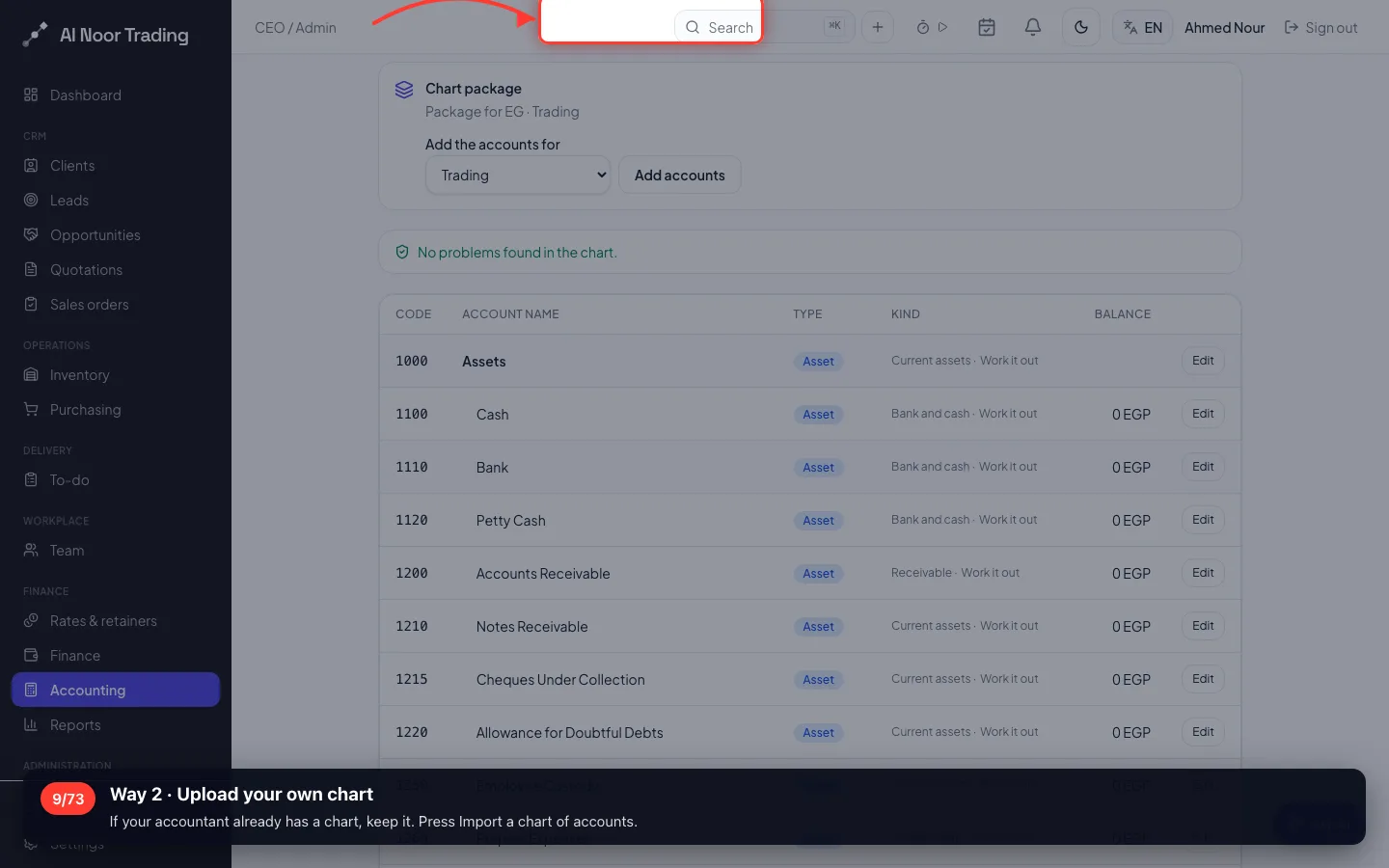
Way 2 · Upload your own chart
If your accountant already has a chart, keep it. Press Import a chart of accounts.
- 10
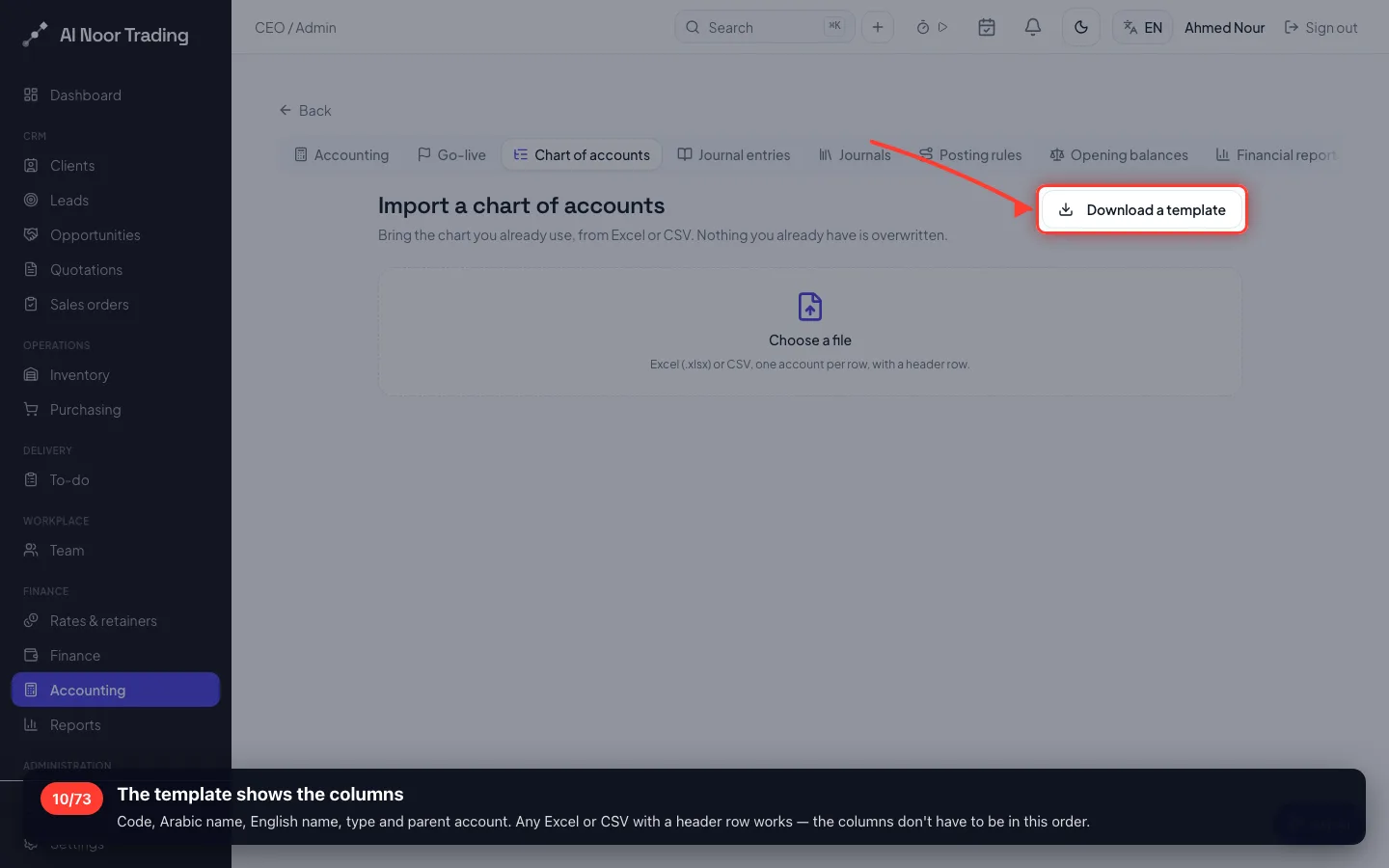
The template shows the columns
Code, Arabic name, English name, type and parent account. Any Excel or CSV with a header row works — the columns don't have to be in this order.
- 11
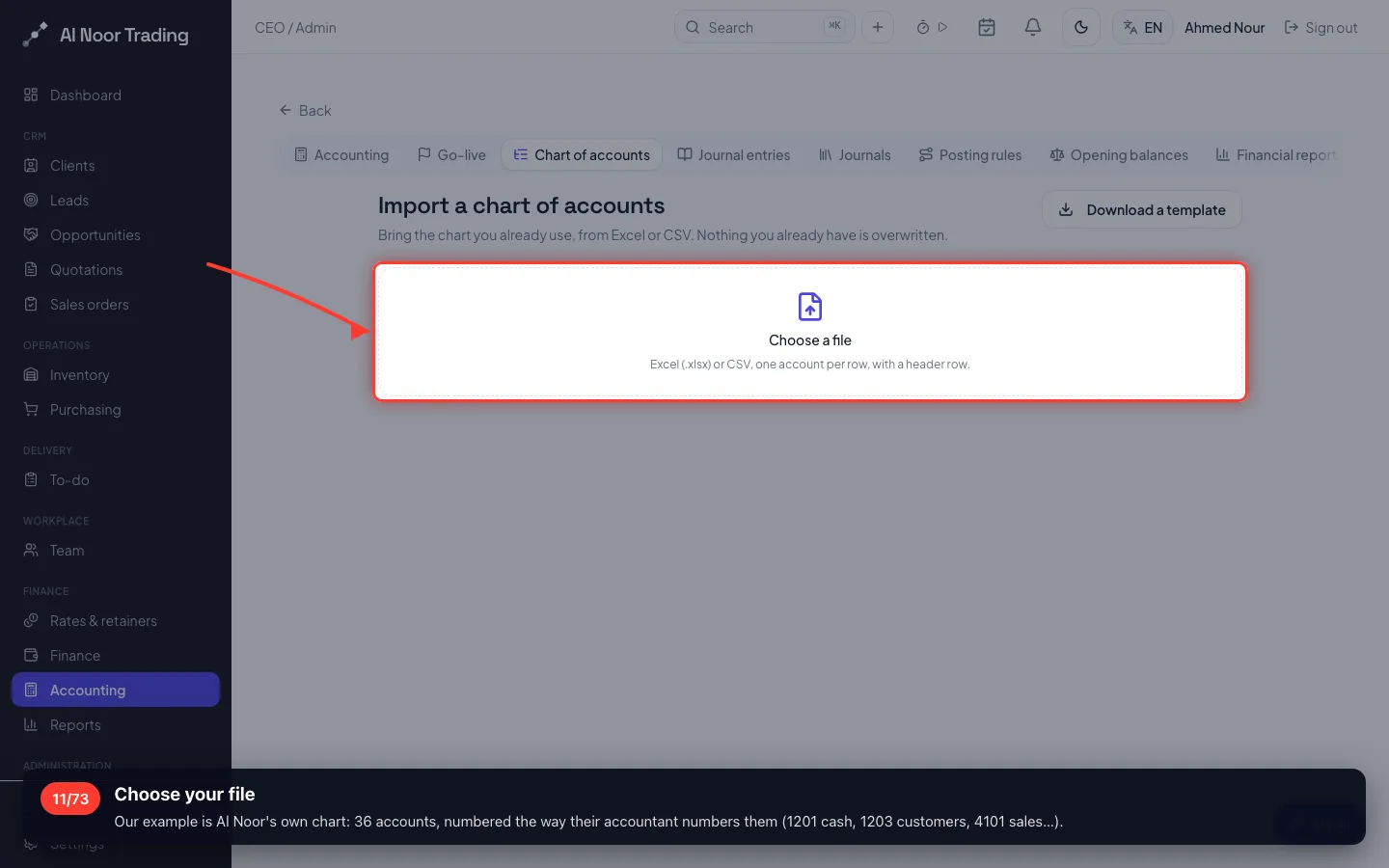
Choose your file
Our example is Al Noor's own chart: 36 accounts, numbered the way their accountant numbers them (1201 cash, 1203 customers, 4101 sales…).
- 12
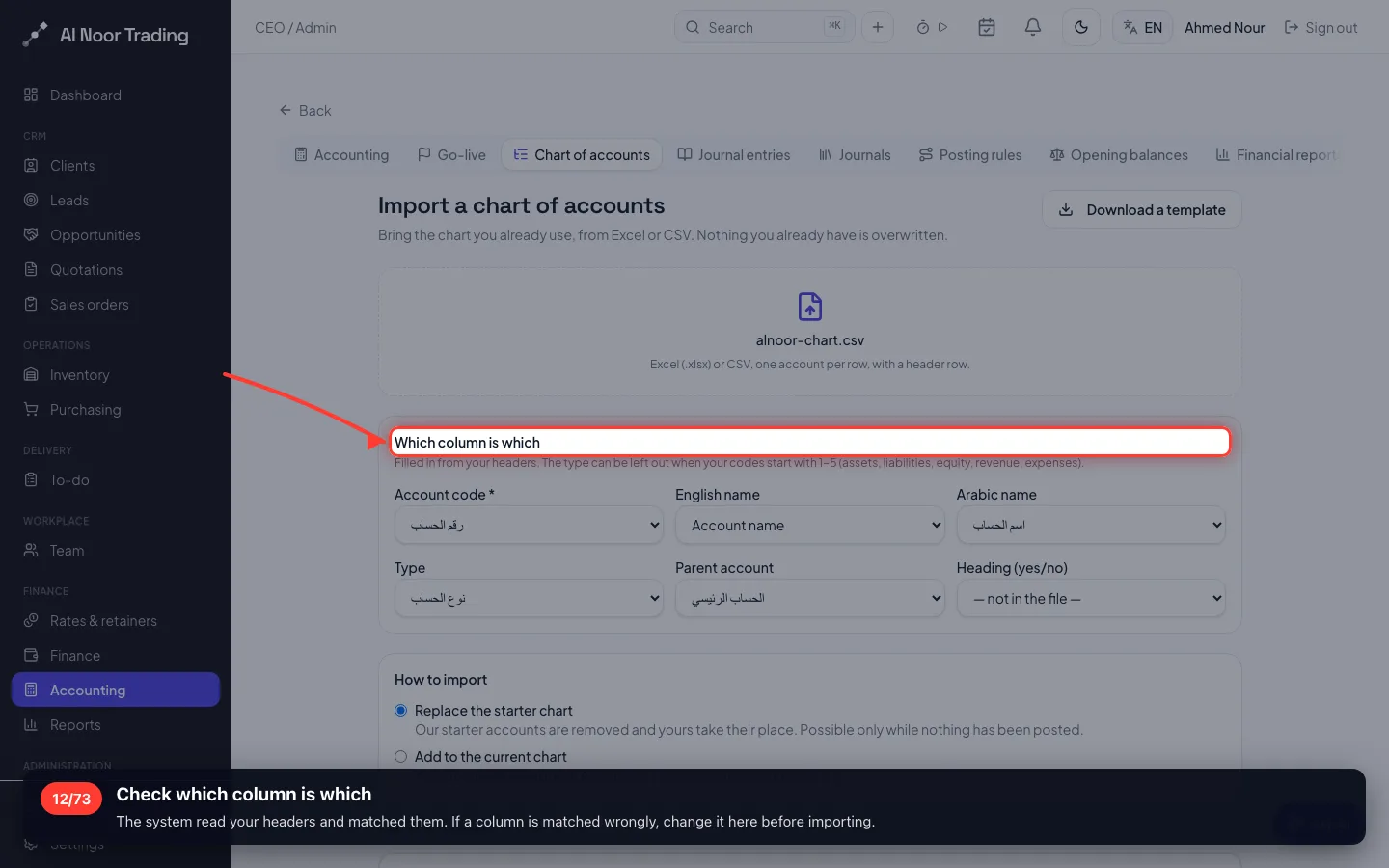
Check which column is which
The system read your headers and matched them. If a column is matched wrongly, change it here before importing.
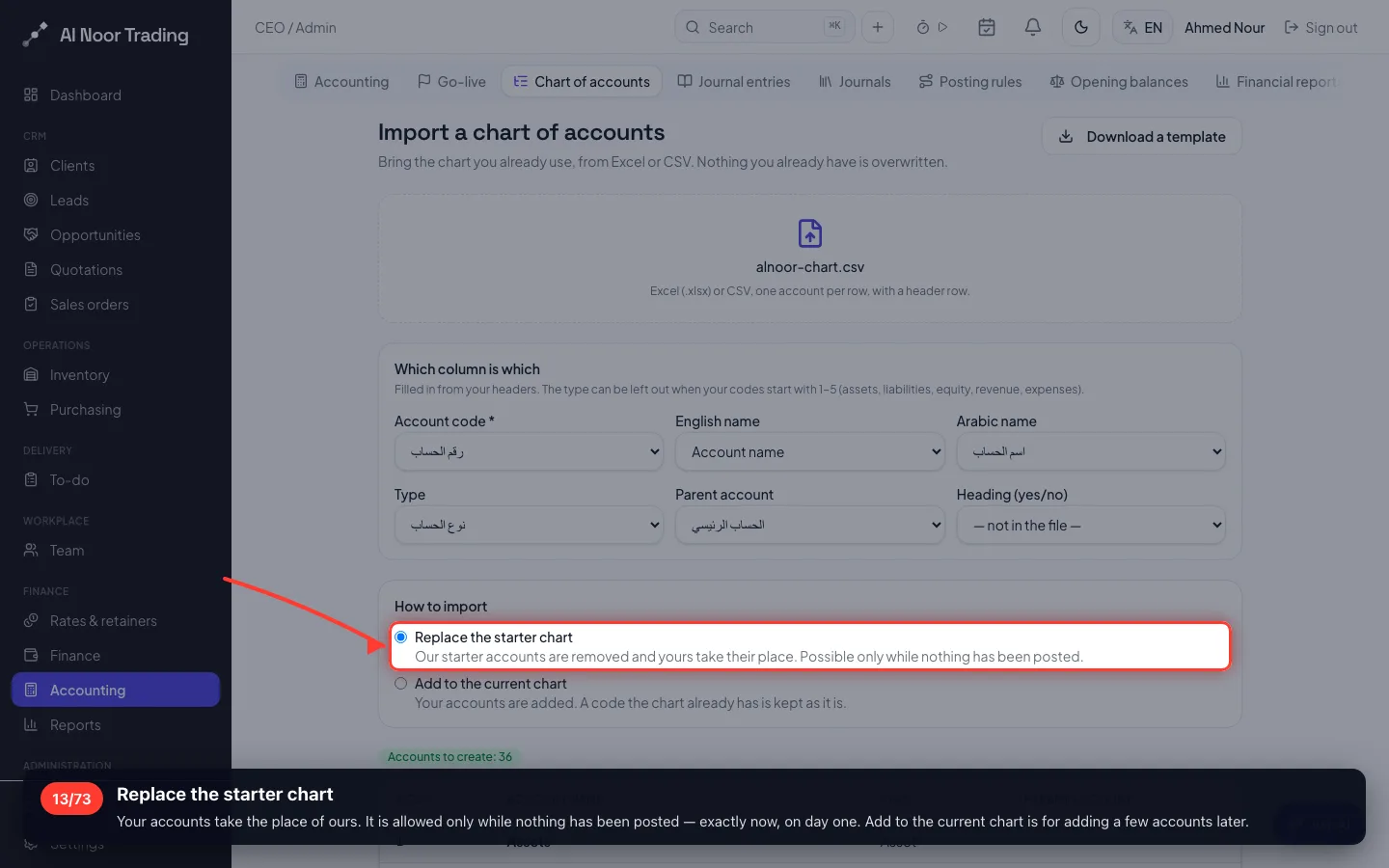
- 13
Replace the starter chart
Your accounts take the place of ours. It is allowed only while nothing has been posted — exactly now, on day one. Add to the current chart is for adding a few accounts later.
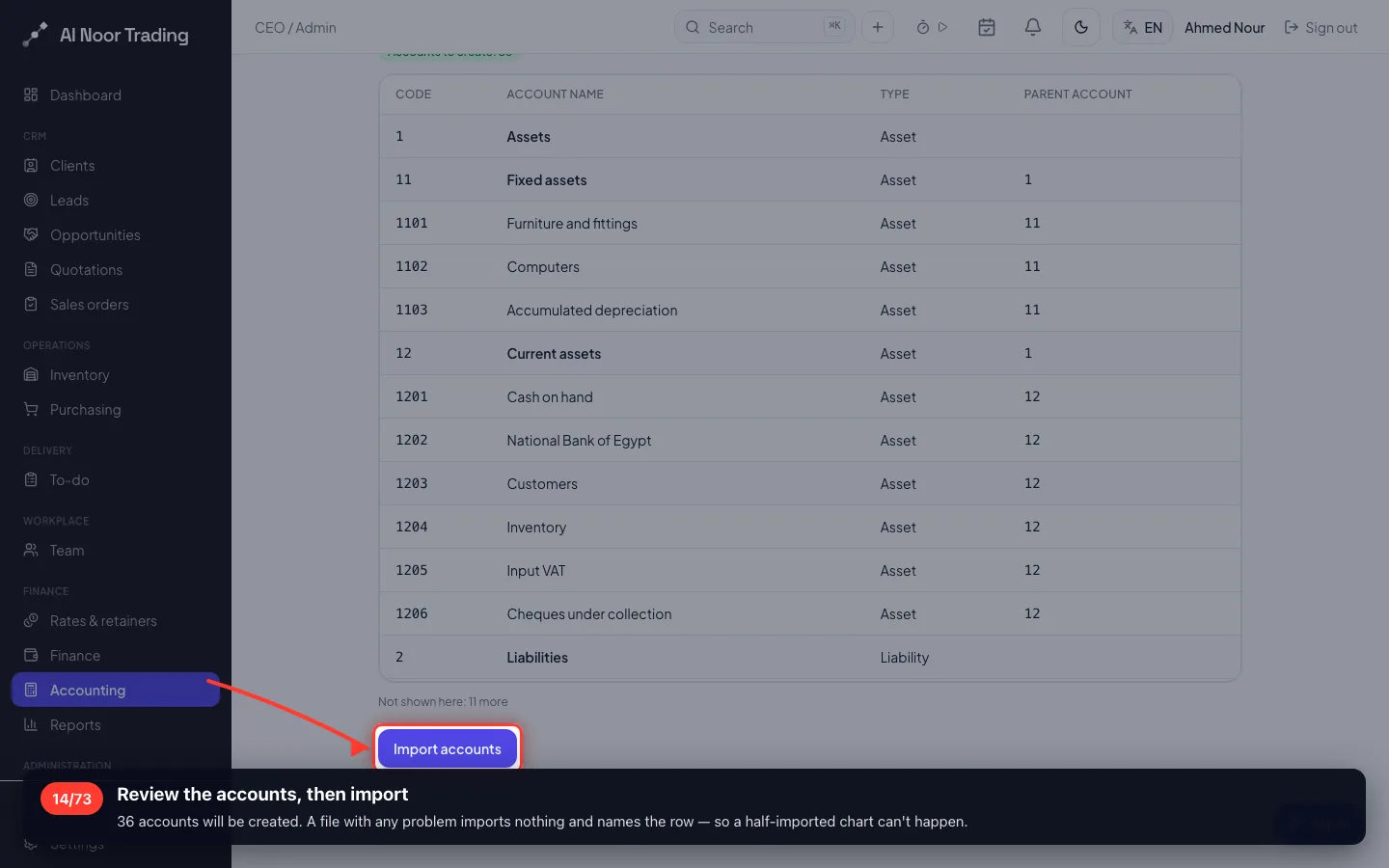
- 14
Review the accounts, then import
36 accounts will be created. A file with any problem imports nothing and names the row — so a half-imported chart can't happen.
4 · Link your chart to the entries
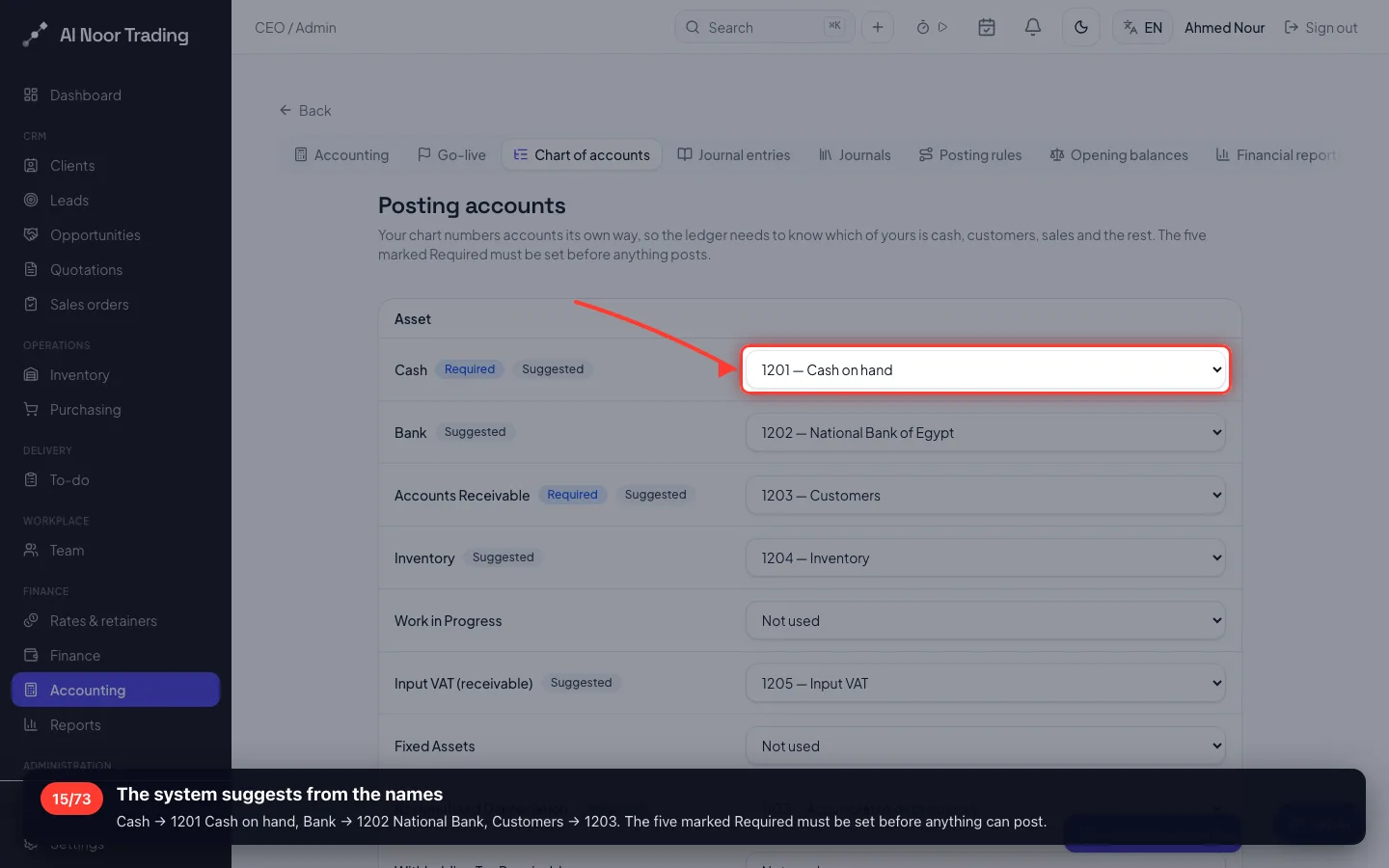
Your chart numbers accounts your way, so the books need to know which of your accounts is cash, customers, sales, VAT and so on. This is the step that makes every invoice post to the right place.
15The system suggests from the names
Cash → 1201 Cash on hand, Bank → 1202 National Bank, Customers → 1203. The five marked Required must be set before anything can post.
- 16
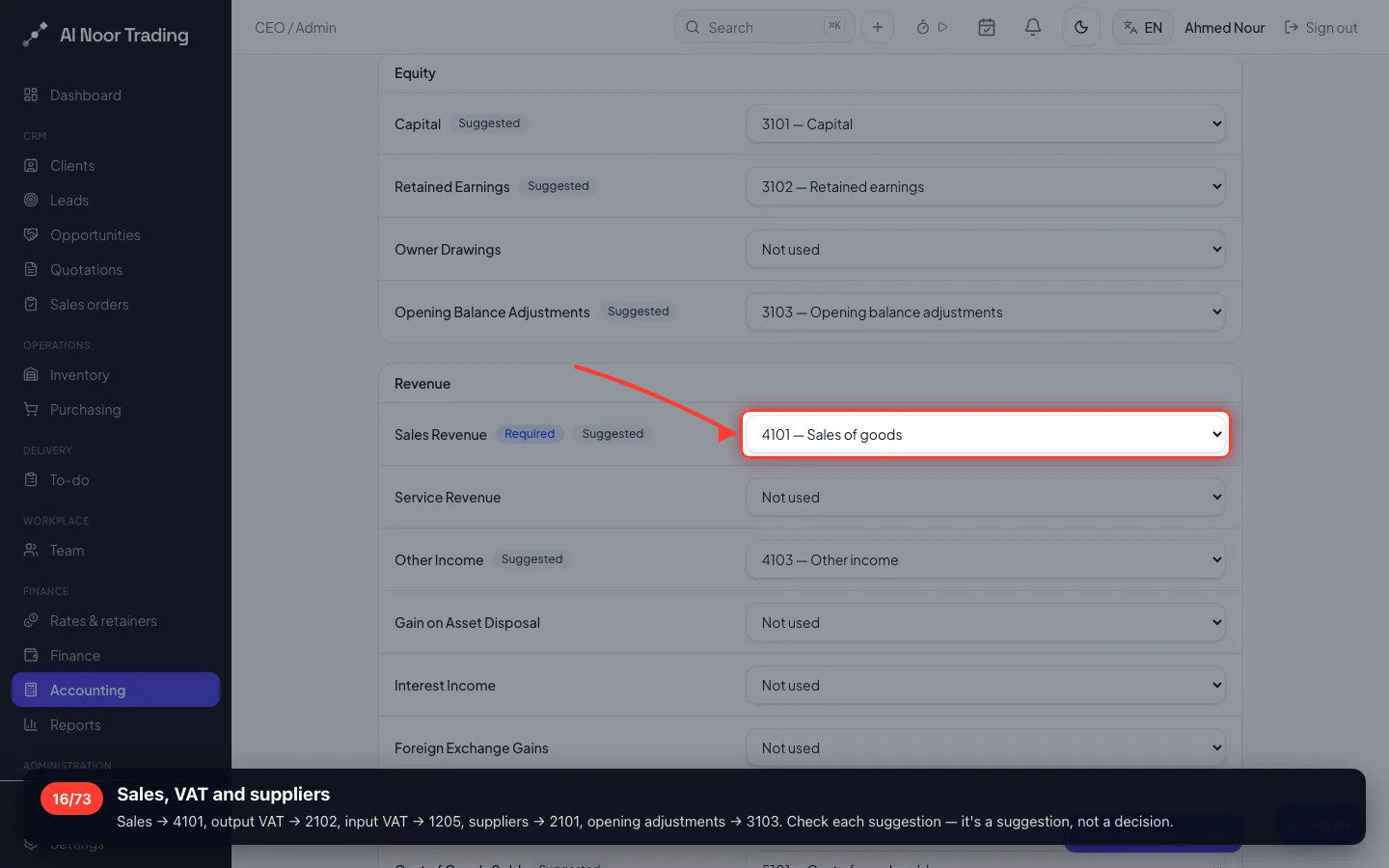
Sales, VAT and suppliers
Sales → 4101, output VAT → 2102, input VAT → 1205, suppliers → 2101, opening adjustments → 3103. Check each suggestion — it's a suggestion, not a decision.
- 17
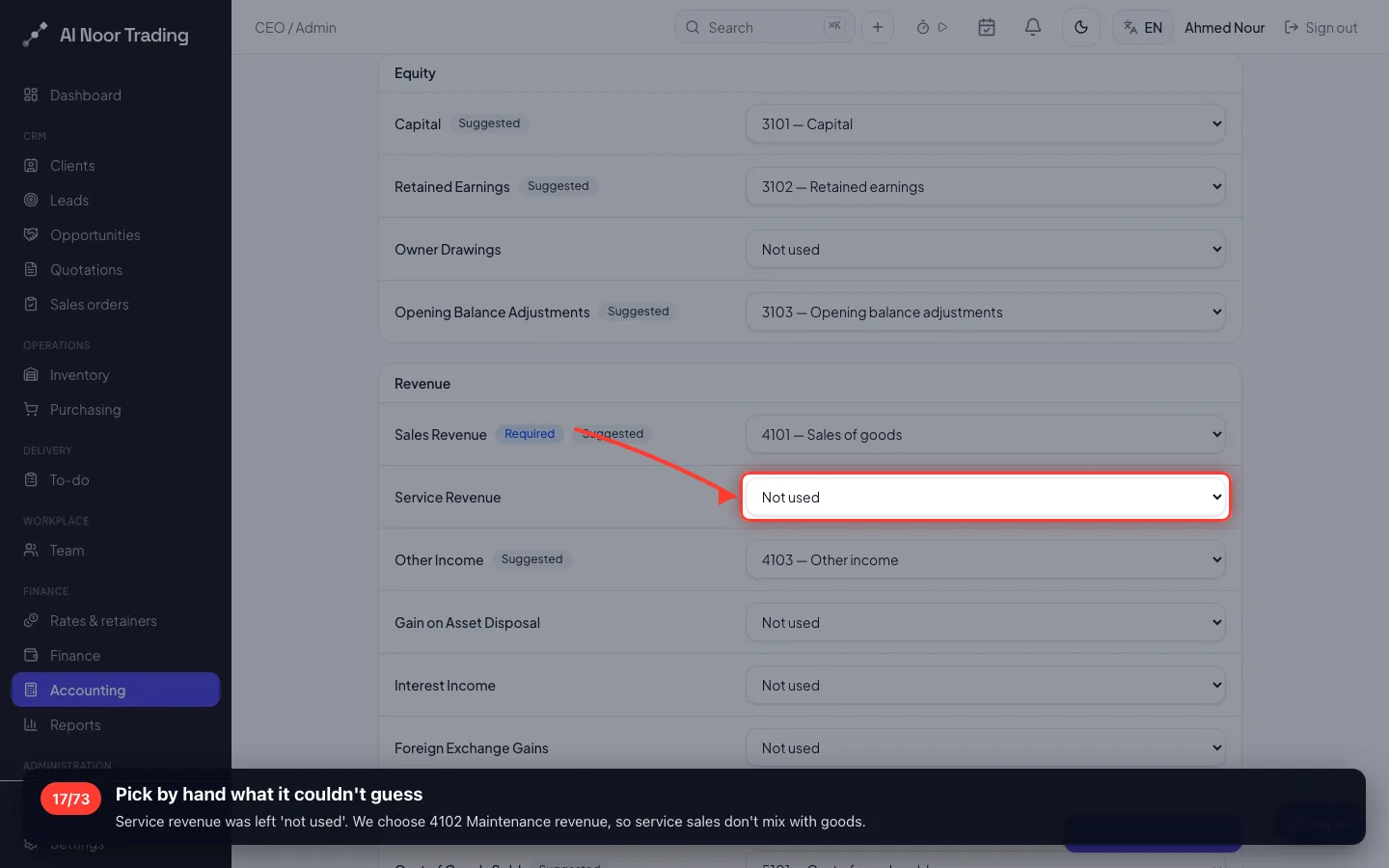
Pick by hand what it couldn't guess
Service revenue was left 'not used'. We choose 4102 Maintenance revenue, so service sales don't mix with goods.
- 18
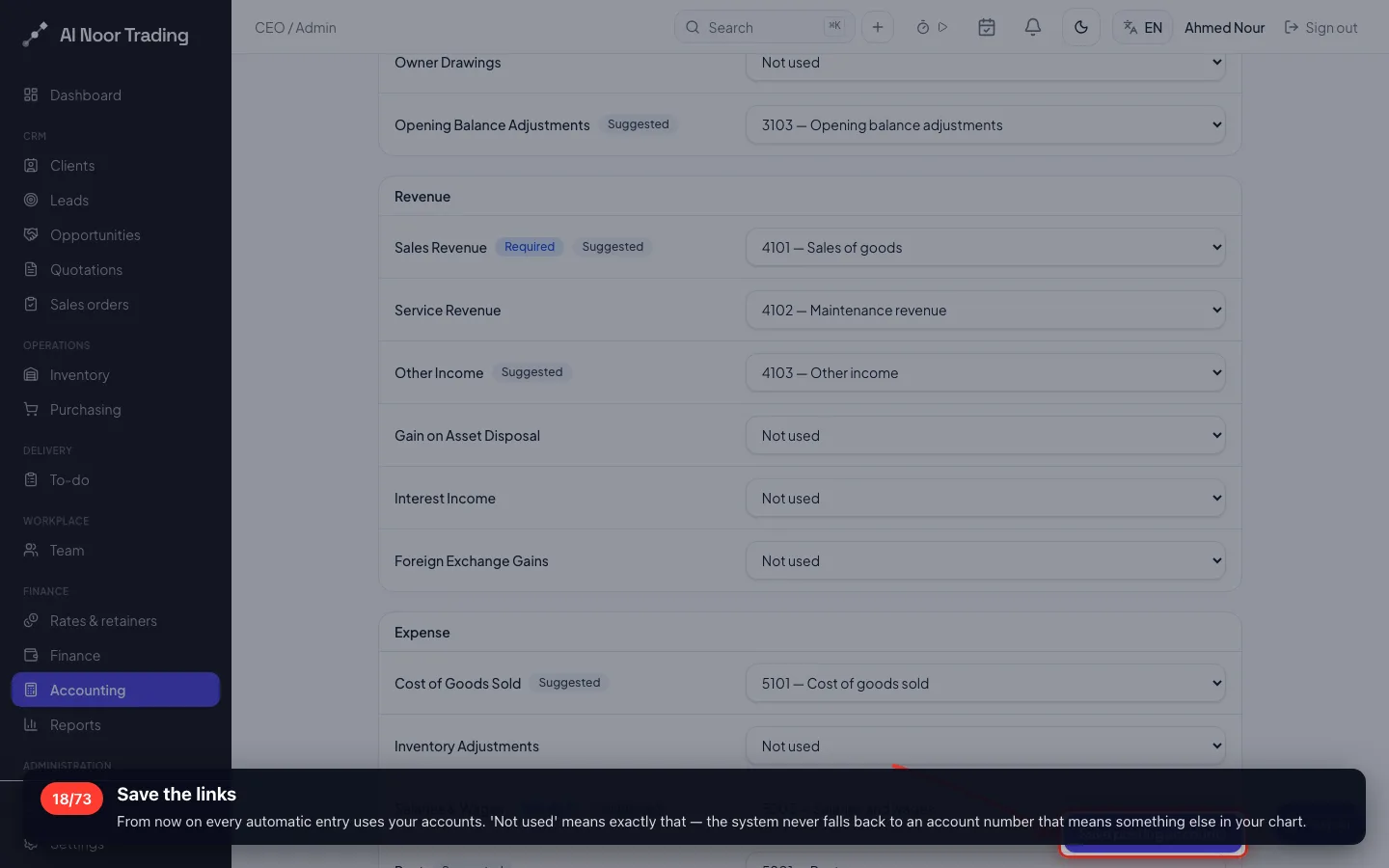
Save the links
From now on every automatic entry uses your accounts. 'Not used' means exactly that — the system never falls back to an account number that means something else in your chart.
- 19
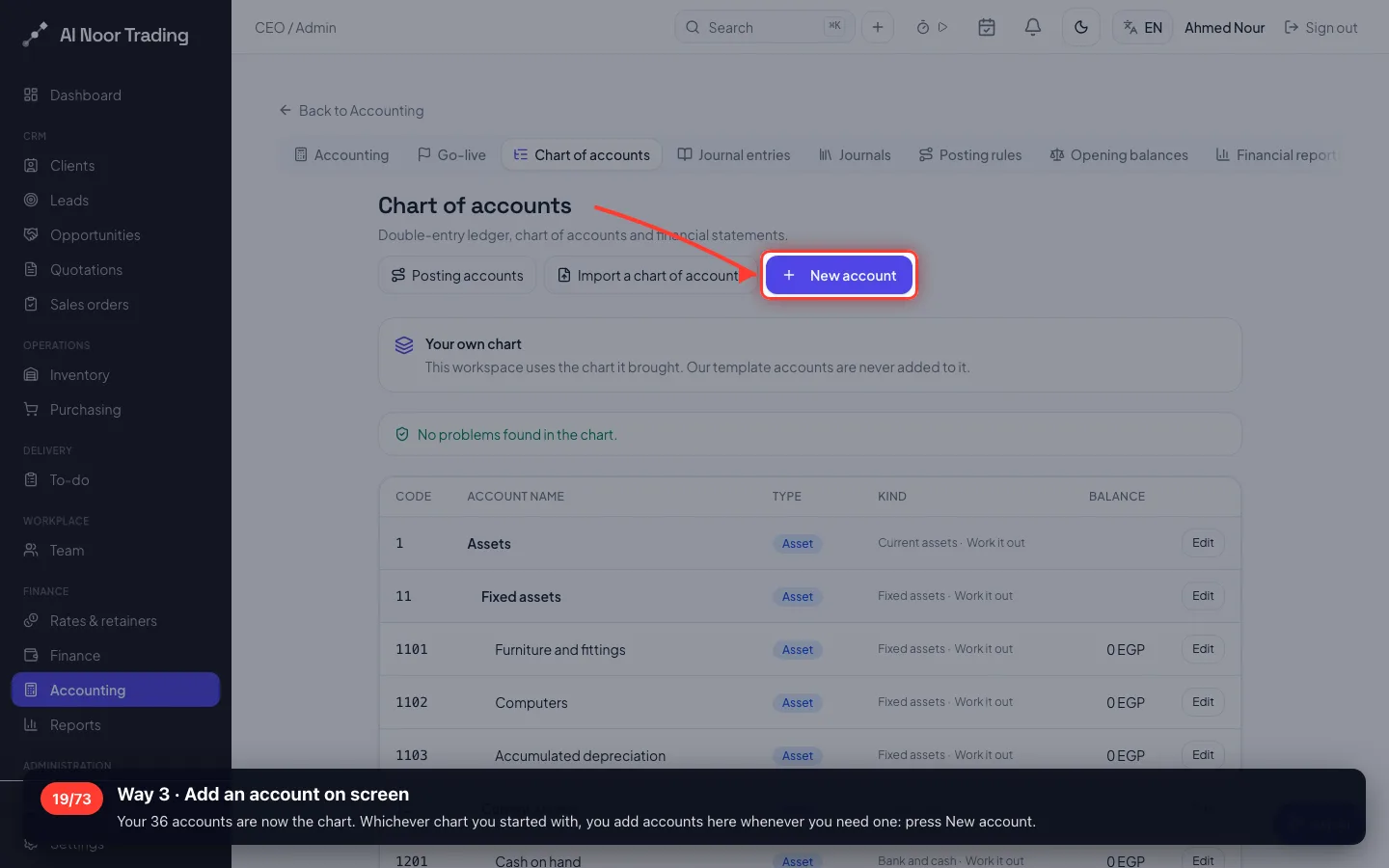
Way 3 · Add an account on screen
Your 36 accounts are now the chart. Whichever chart you started with, you add accounts here whenever you need one: press New account.
- 20
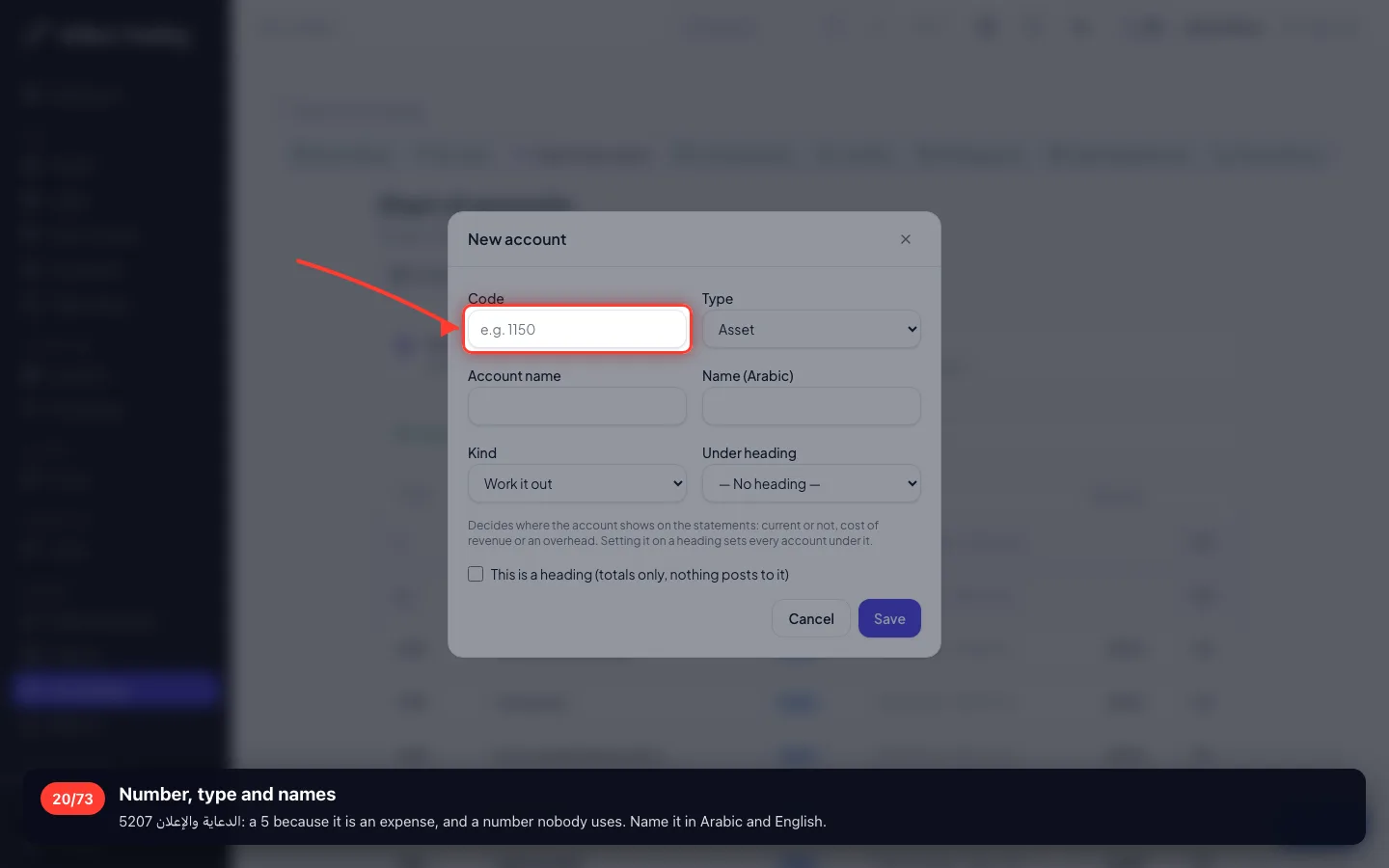
Number, type and names
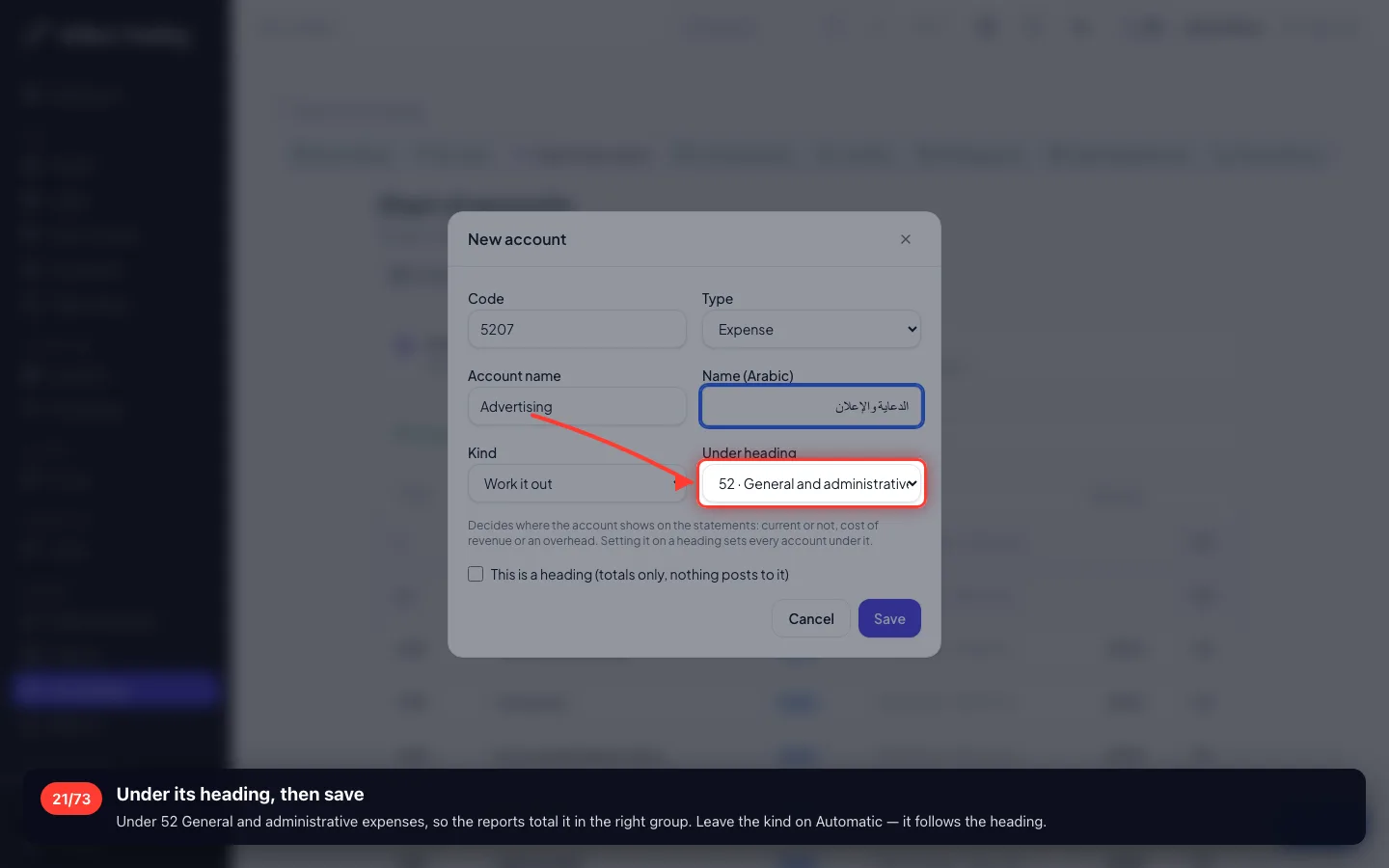
5207 الدعاية والإعلان: a 5 because it is an expense, and a number nobody uses. Name it in Arabic and English.
- 21
Under its heading, then save
Under 52 General and administrative expenses, so the reports total it in the right group. Leave the kind on Automatic — it follows the heading.
- 22
Link the new account too
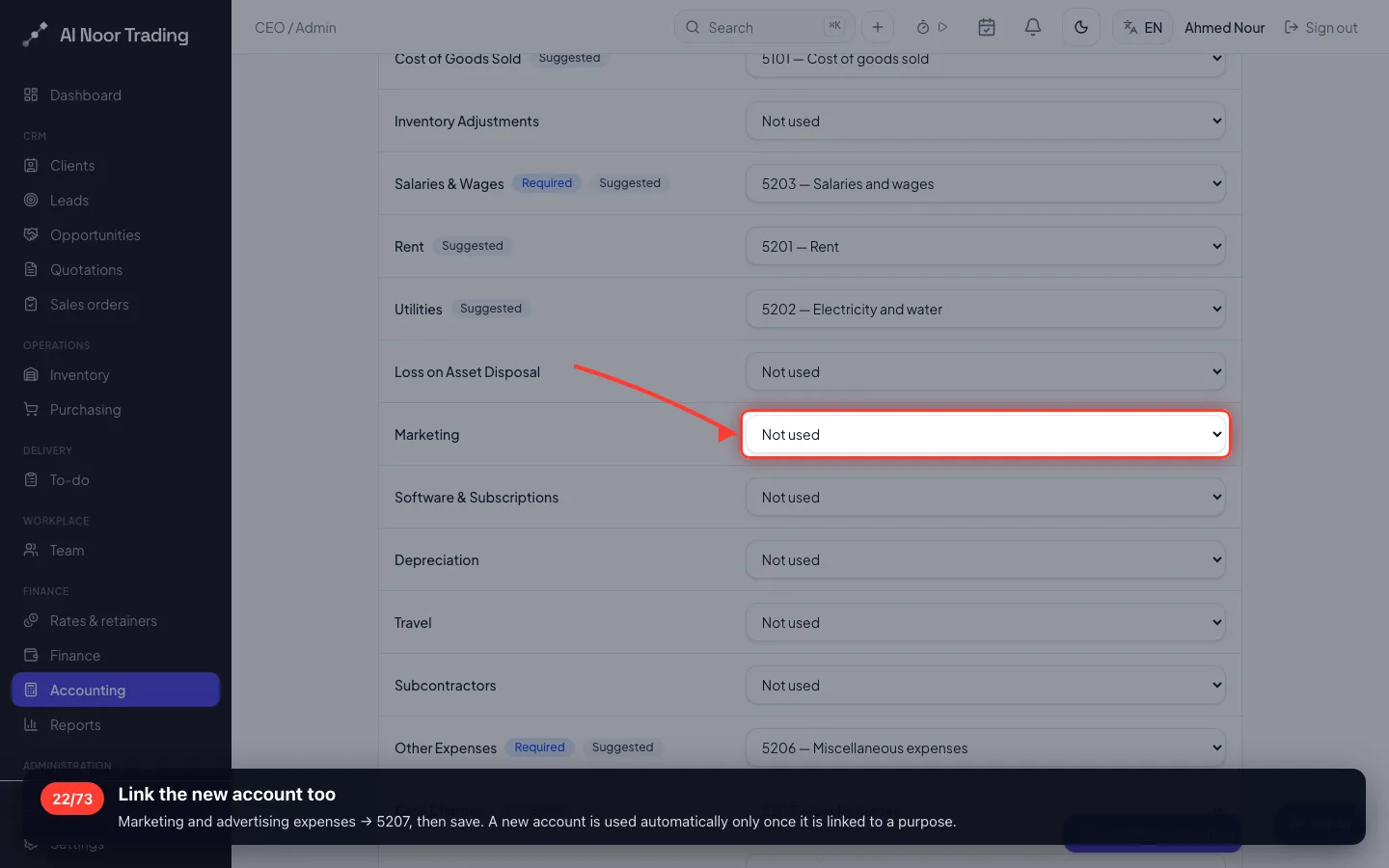
Marketing and advertising expenses → 5207, then save. A new account is used automatically only once it is linked to a purpose.
5 · Taxes, expense types, journals and banks
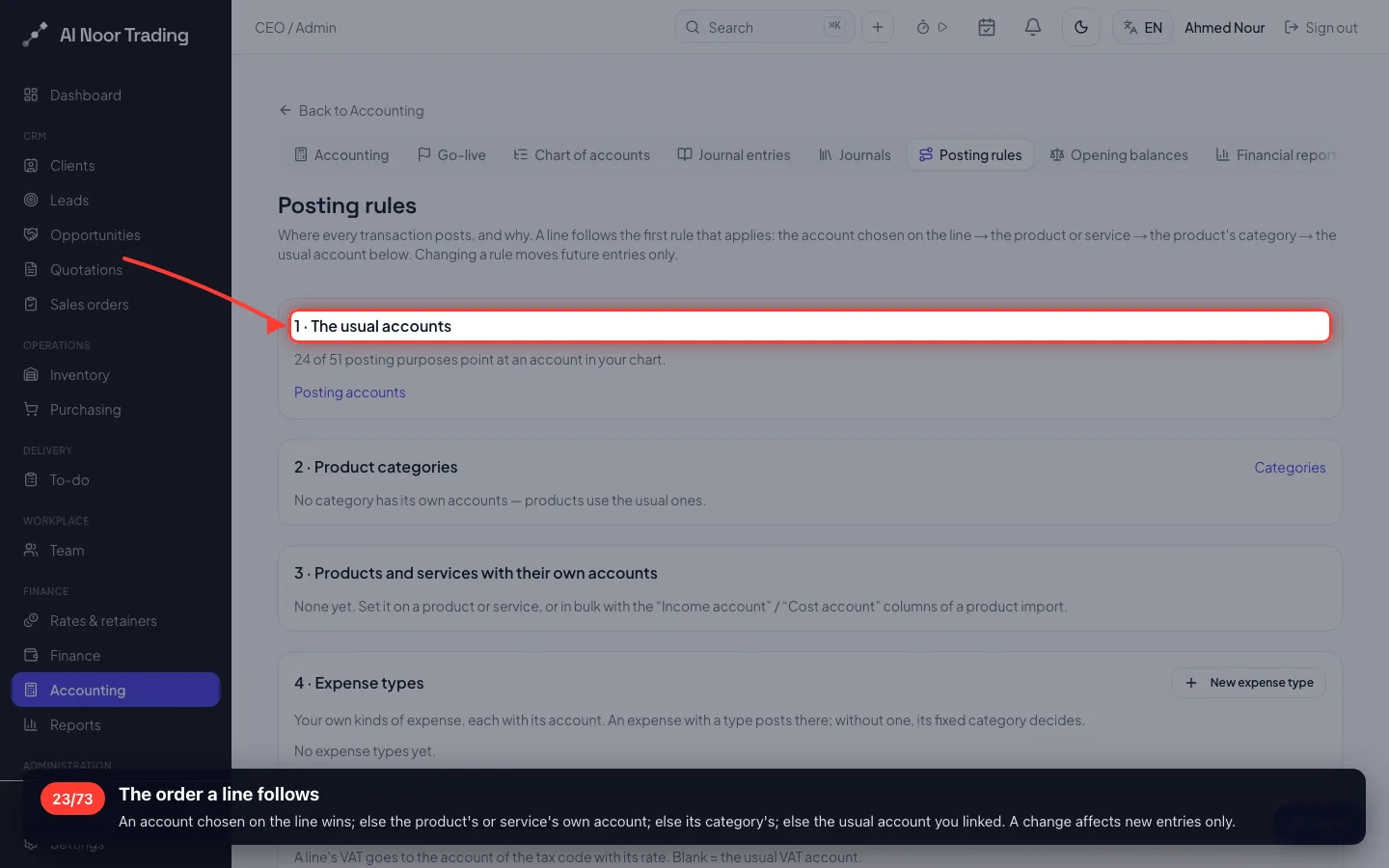
The posting rules page shows, in one place, where every kind of transaction goes and why.
23The order a line follows
An account chosen on the line wins; else the product's or service's own account; else its category's; else the usual account you linked. A change affects new entries only.
- 24
VAT codes and their accounts
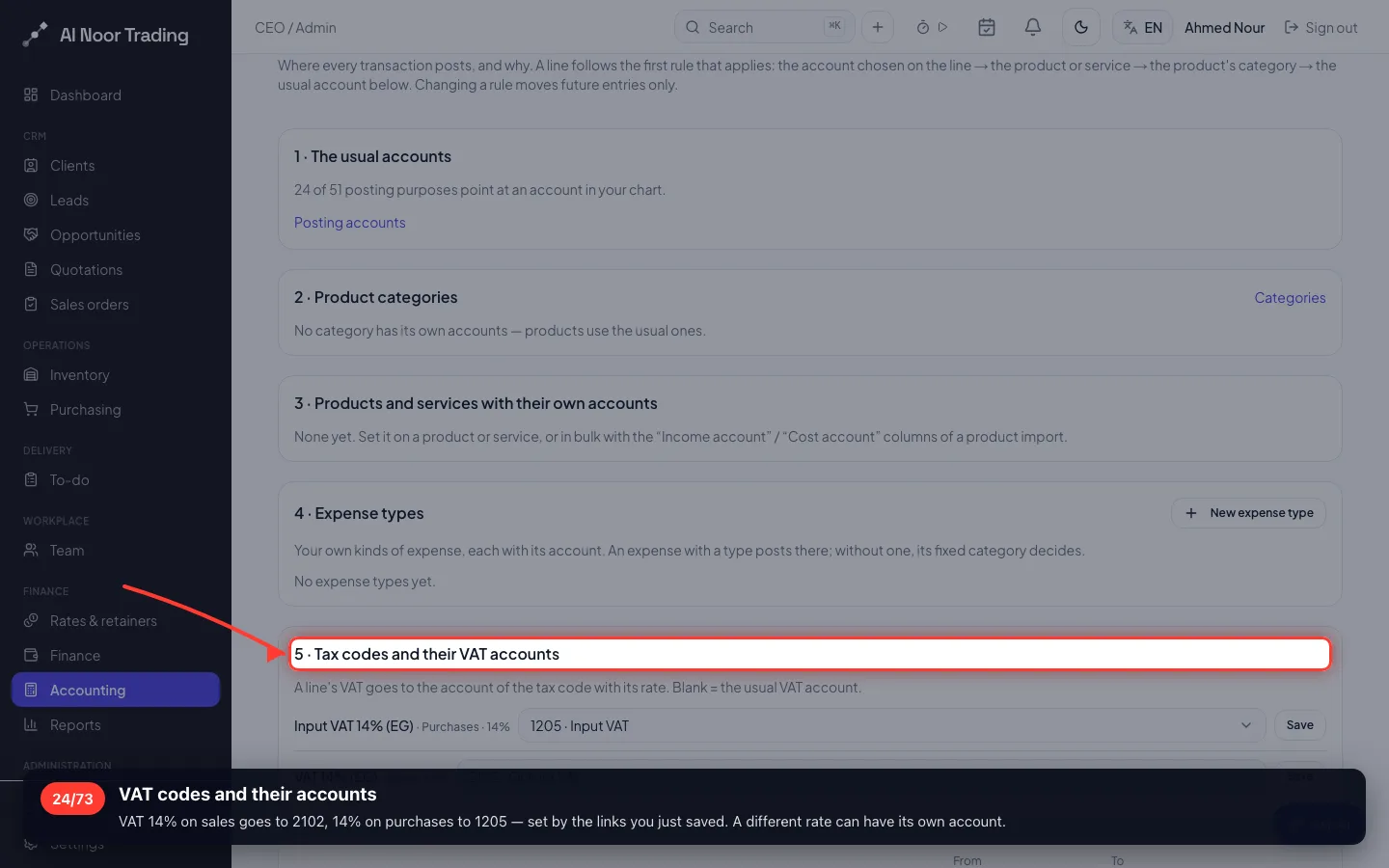
VAT 14% on sales goes to 2102, 14% on purchases to 1205 — set by the links you just saved. A different rate can have its own account.
- 25
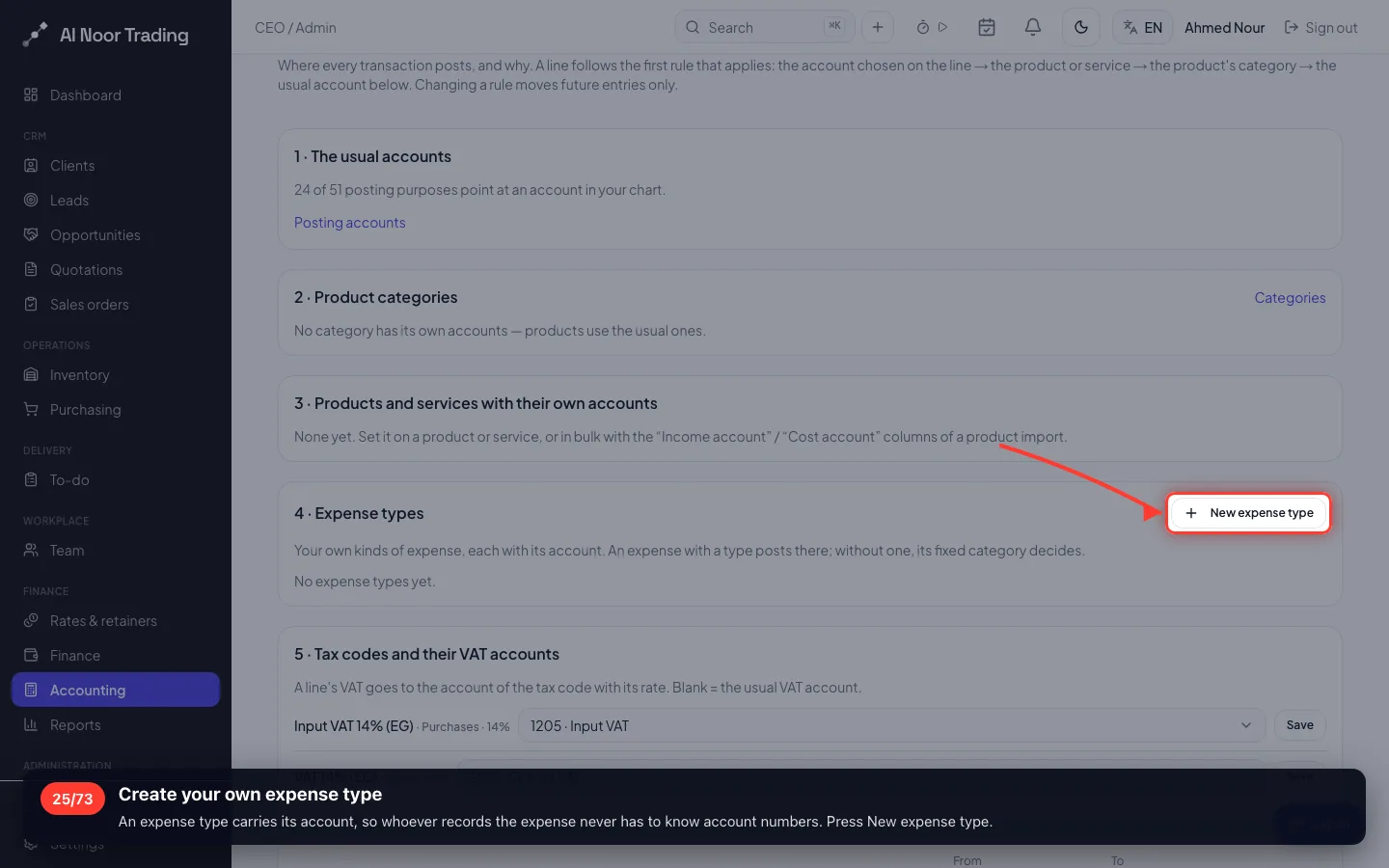
Create your own expense type
An expense type carries its account, so whoever records the expense never has to know account numbers. Press New expense type.
- 26
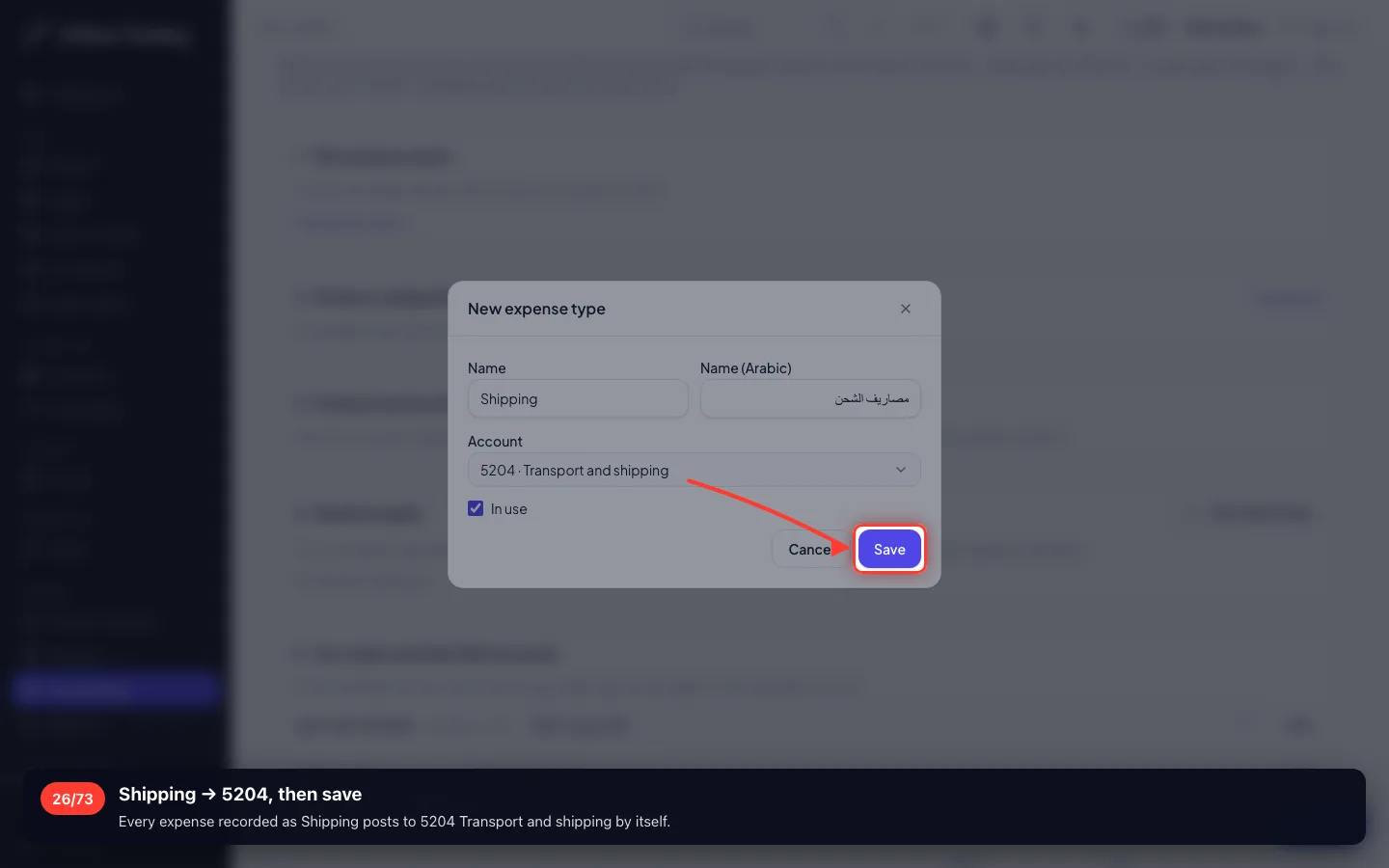
Shipping → 5204, then save
Every expense recorded as Shipping posts to 5204 Transport and shipping by itself.
- 27
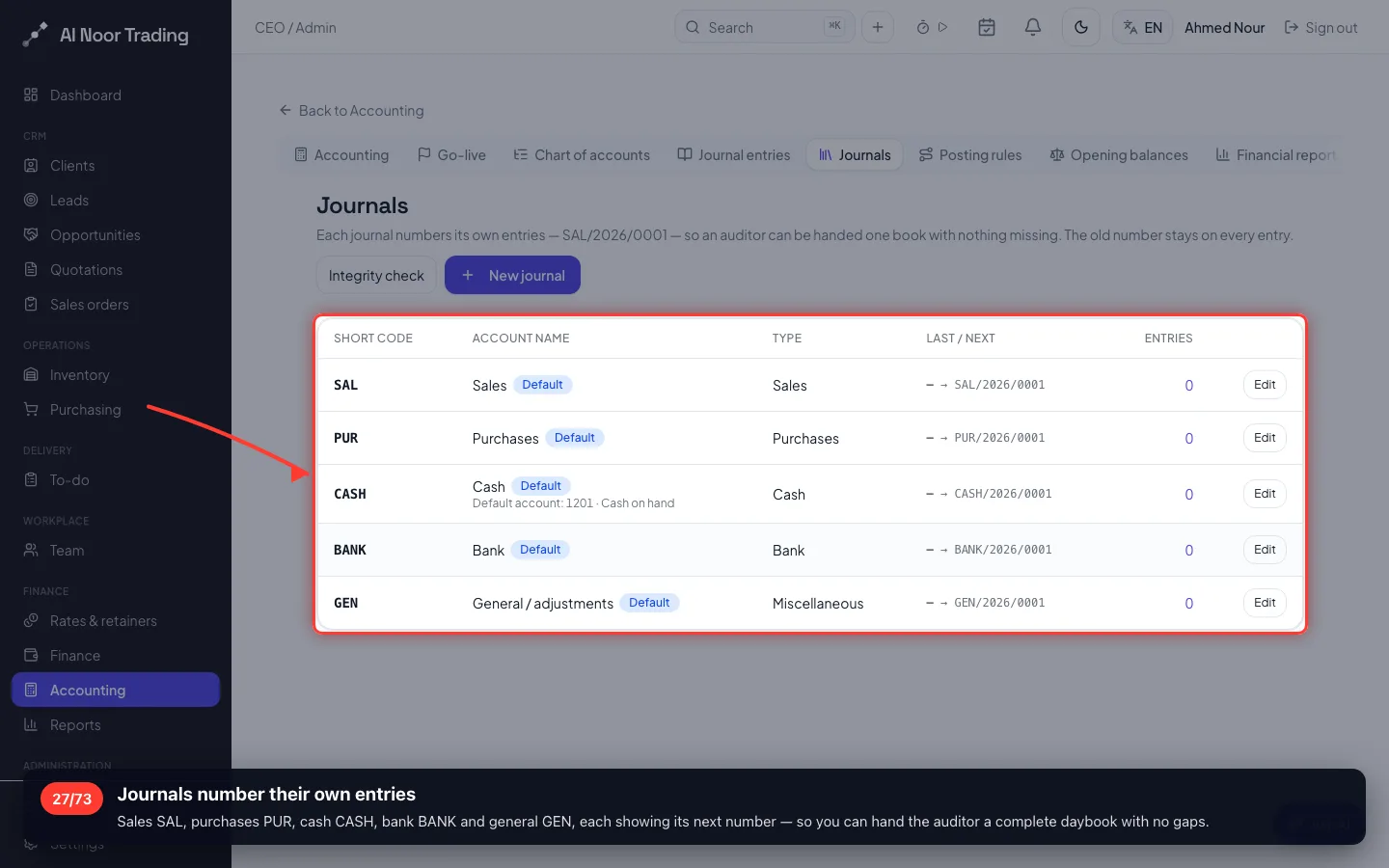
Journals number their own entries
Sales SAL, purchases PUR, cash CASH, bank BANK and general GEN, each showing its next number — so you can hand the auditor a complete daybook with no gaps.
- 28
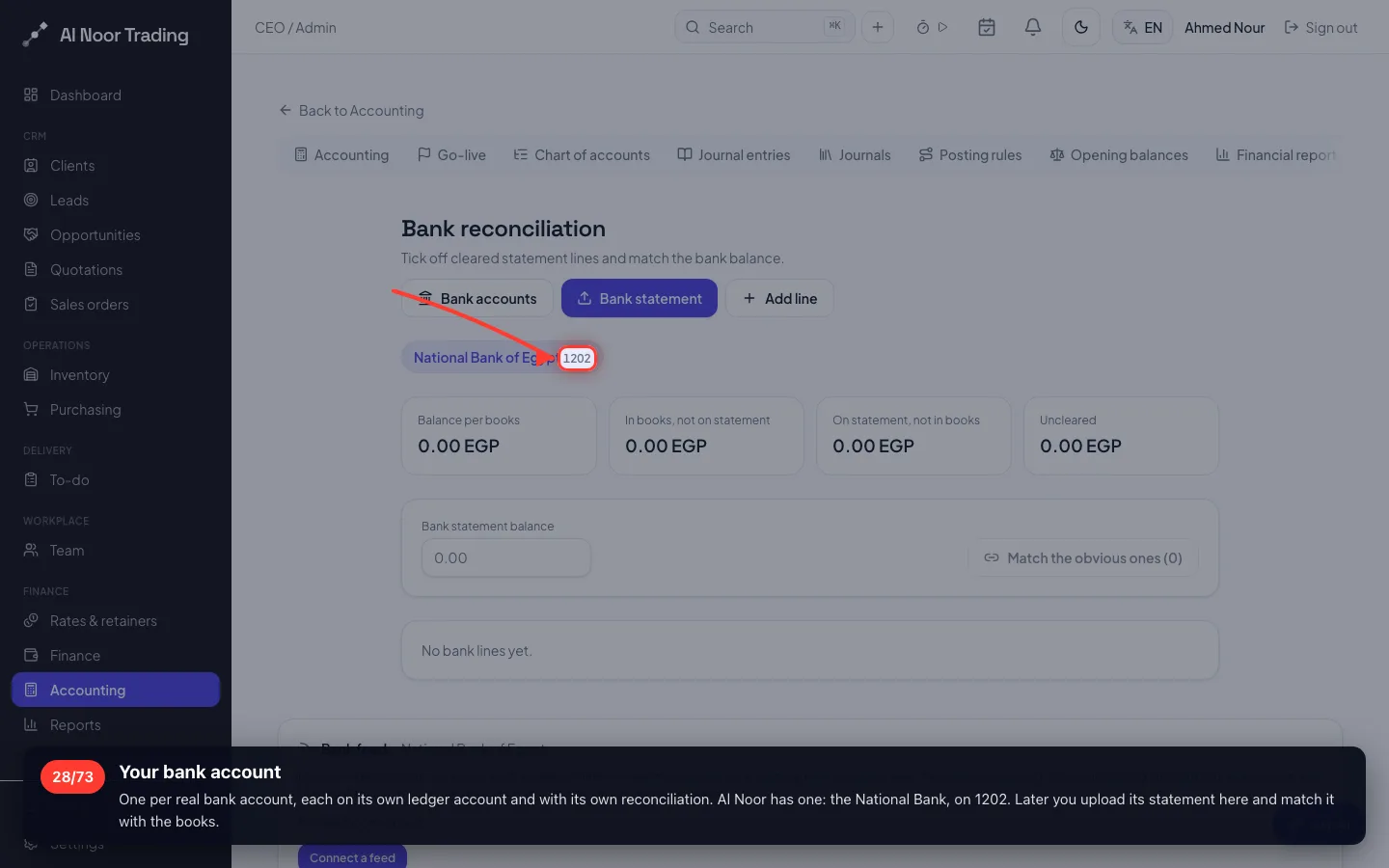
Your bank account
One per real bank account, each on its own ledger account and with its own reconciliation. Al Noor has one: the National Bank, on 1202. Later you upload its statement here and match it with the books.
6 · Opening balances
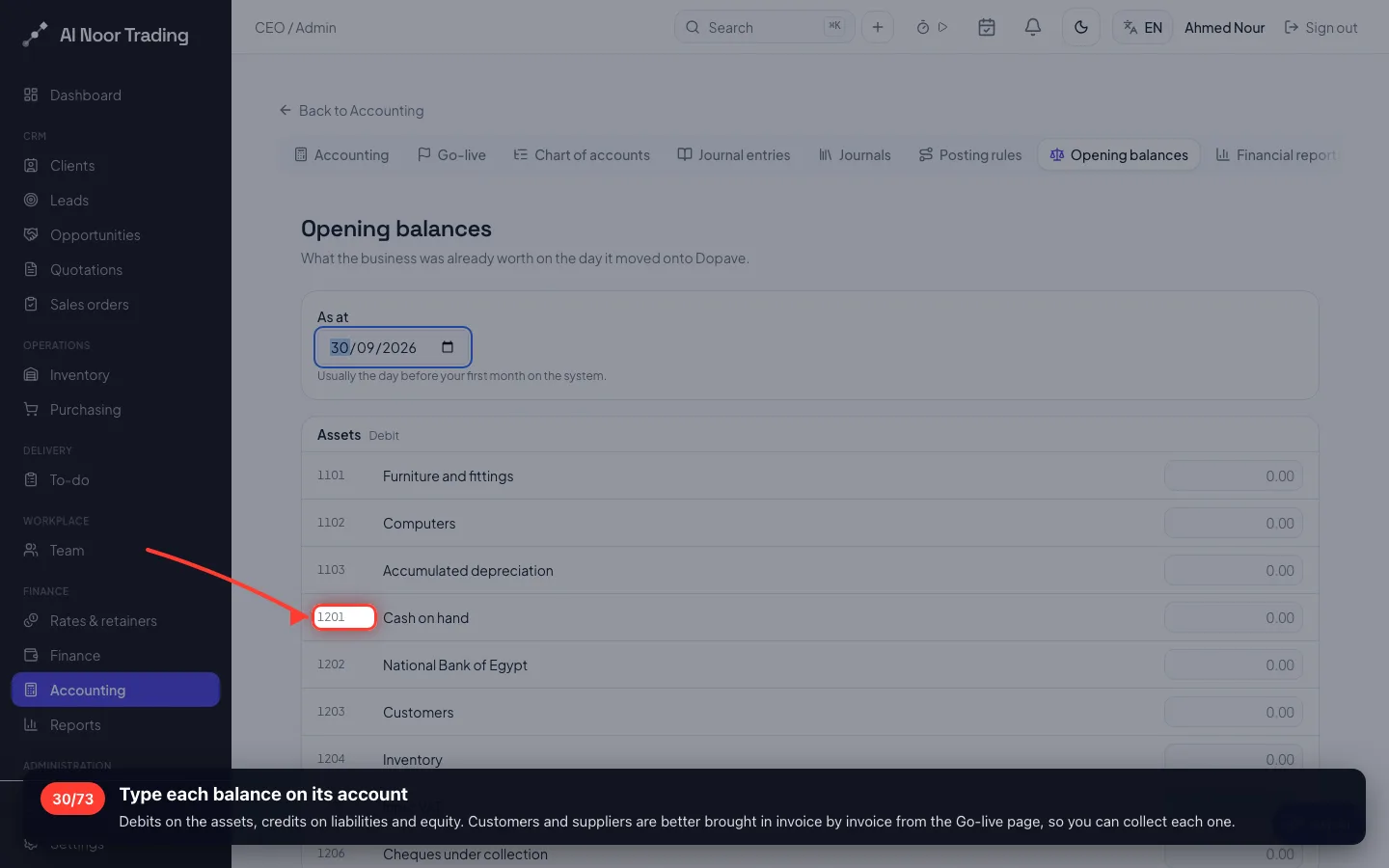
What the company had on the day it moved: cash 50,000, bank 300,000, computers 80,000 — against capital 430,000.
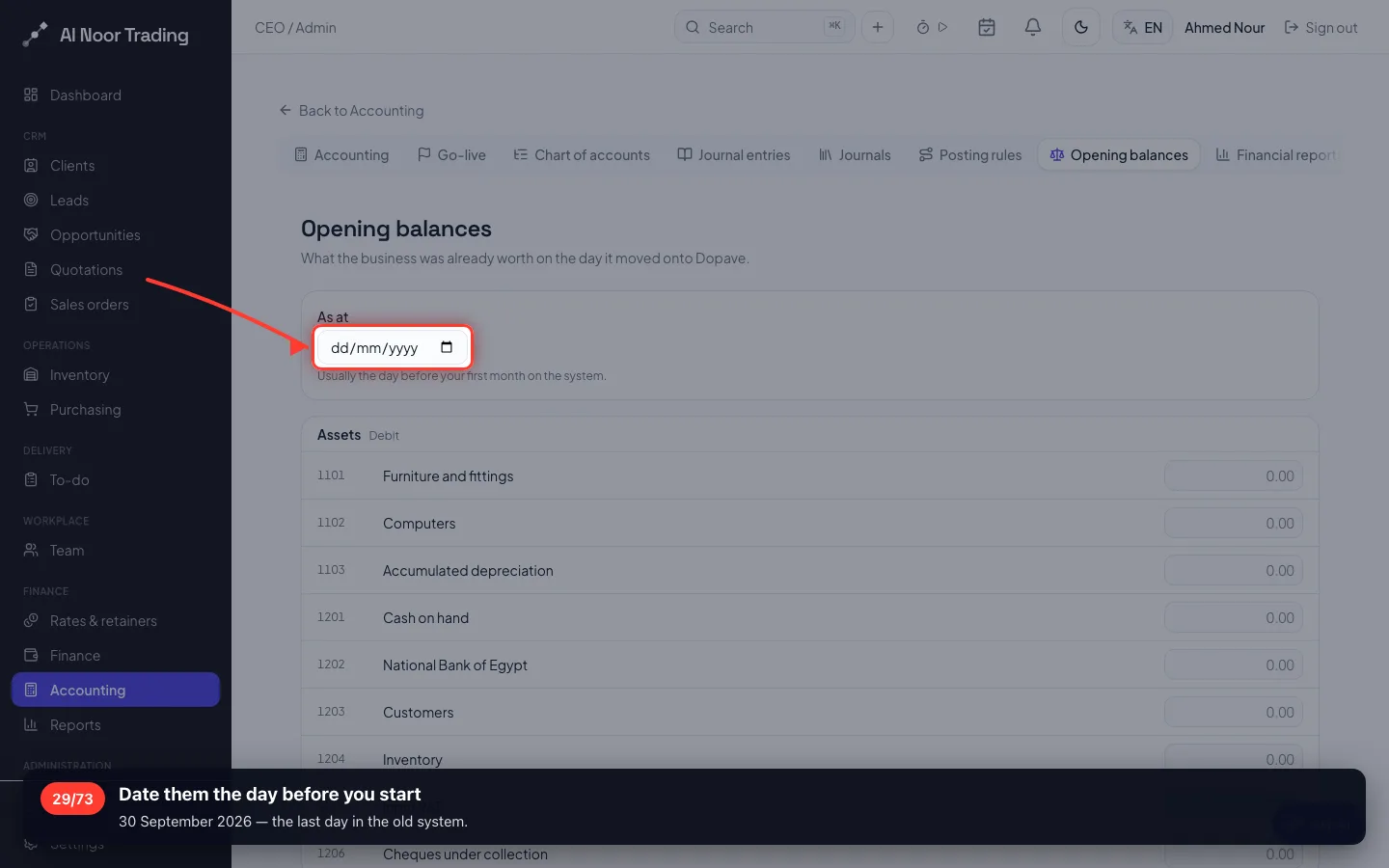
29Date them the day before you start
30 September 2026 — the last day in the old system.
- 30
Type each balance on its account
Debits on the assets, credits on liabilities and equity. Customers and suppliers are better brought in invoice by invoice from the Go-live page, so you can collect each one.
- 31
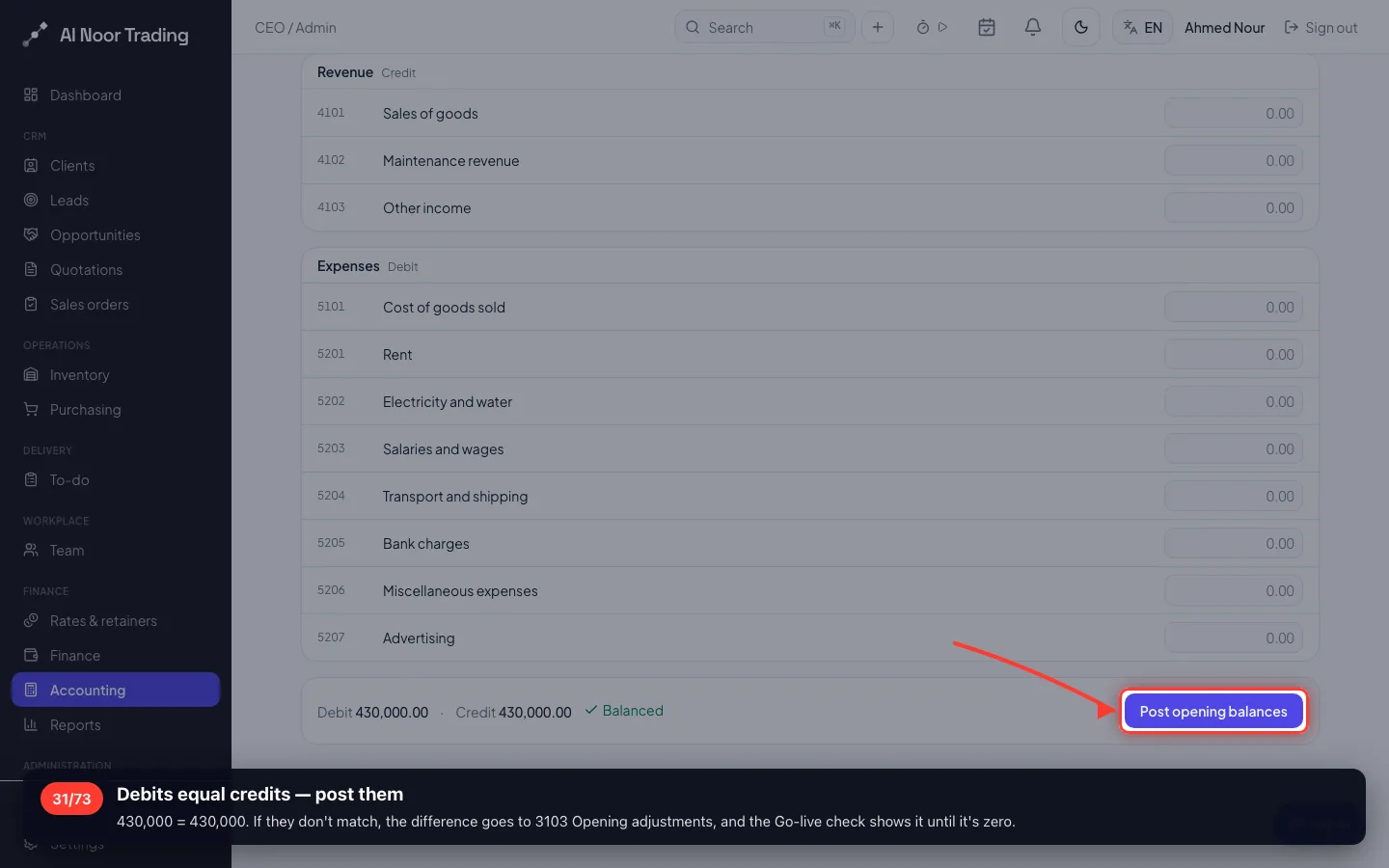
Debits equal credits — post them
430,000 = 430,000. If they don't match, the difference goes to 3103 Opening adjustments, and the Go-live check shows it until it's zero.
7 · A sale: quotation → invoice → collection
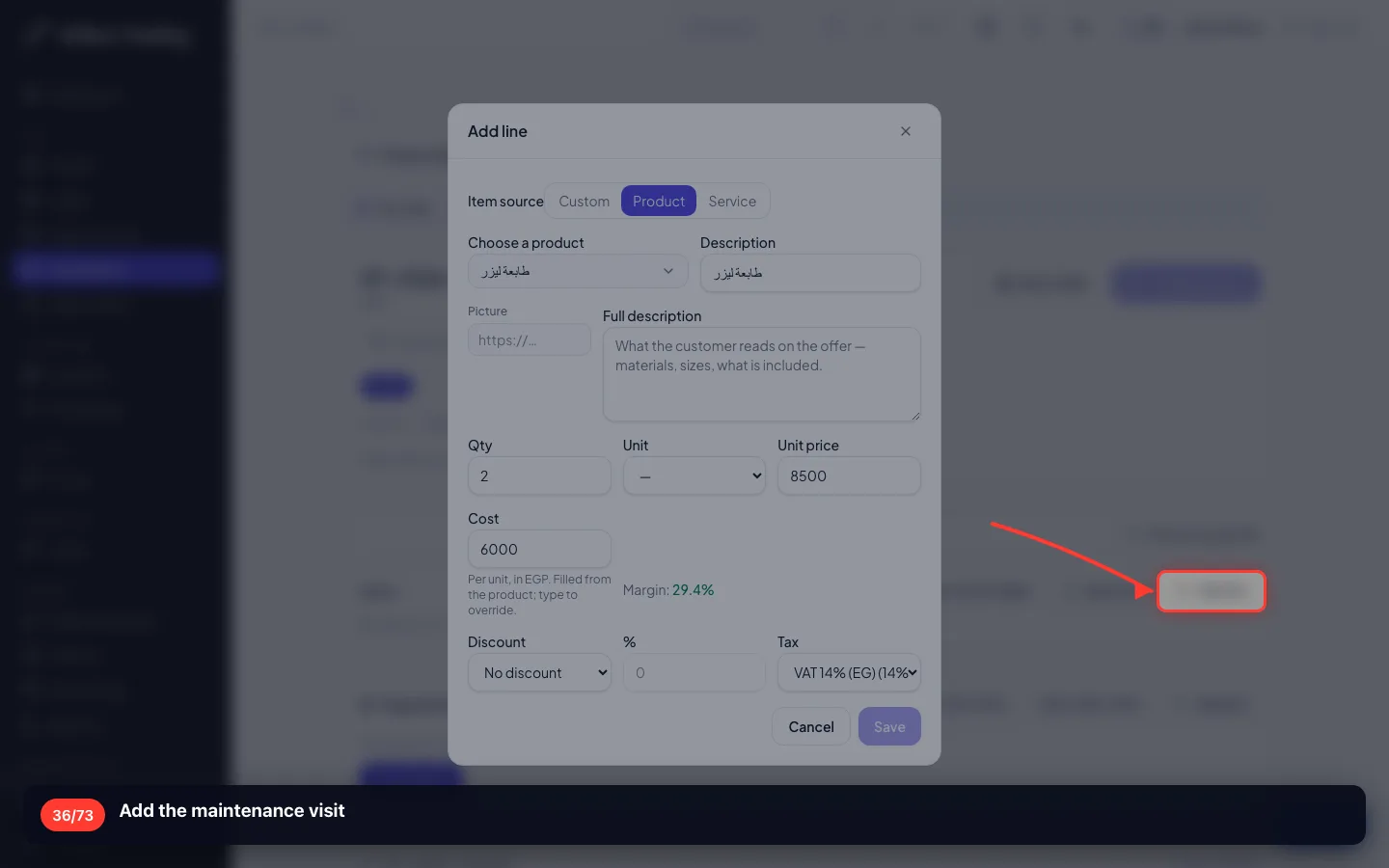
Delta Office Supplies buys two laser printers at 8,500 and a maintenance visit at 1,500, plus 14% VAT: 21,090 EGP — and pays by bank transfer.
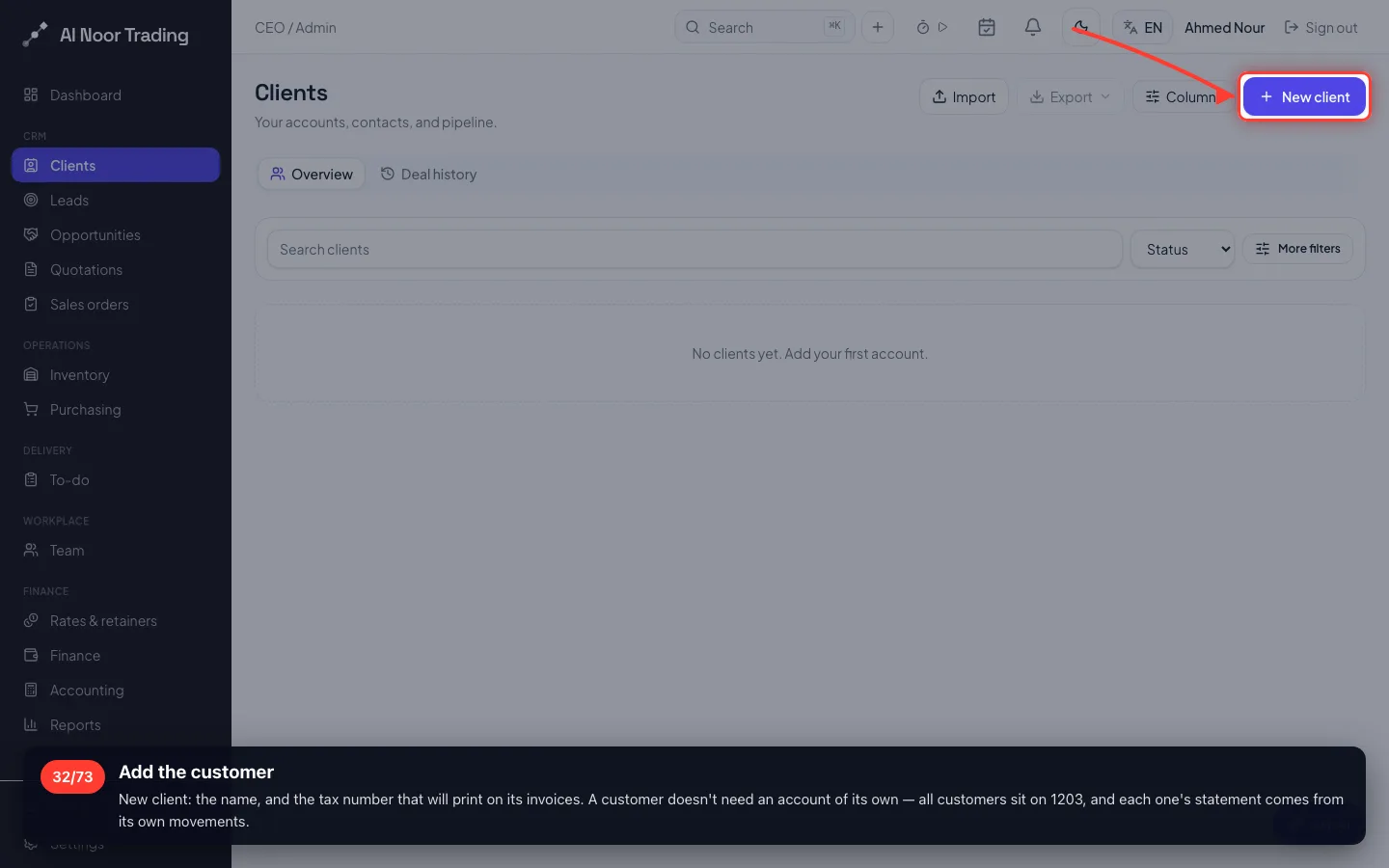
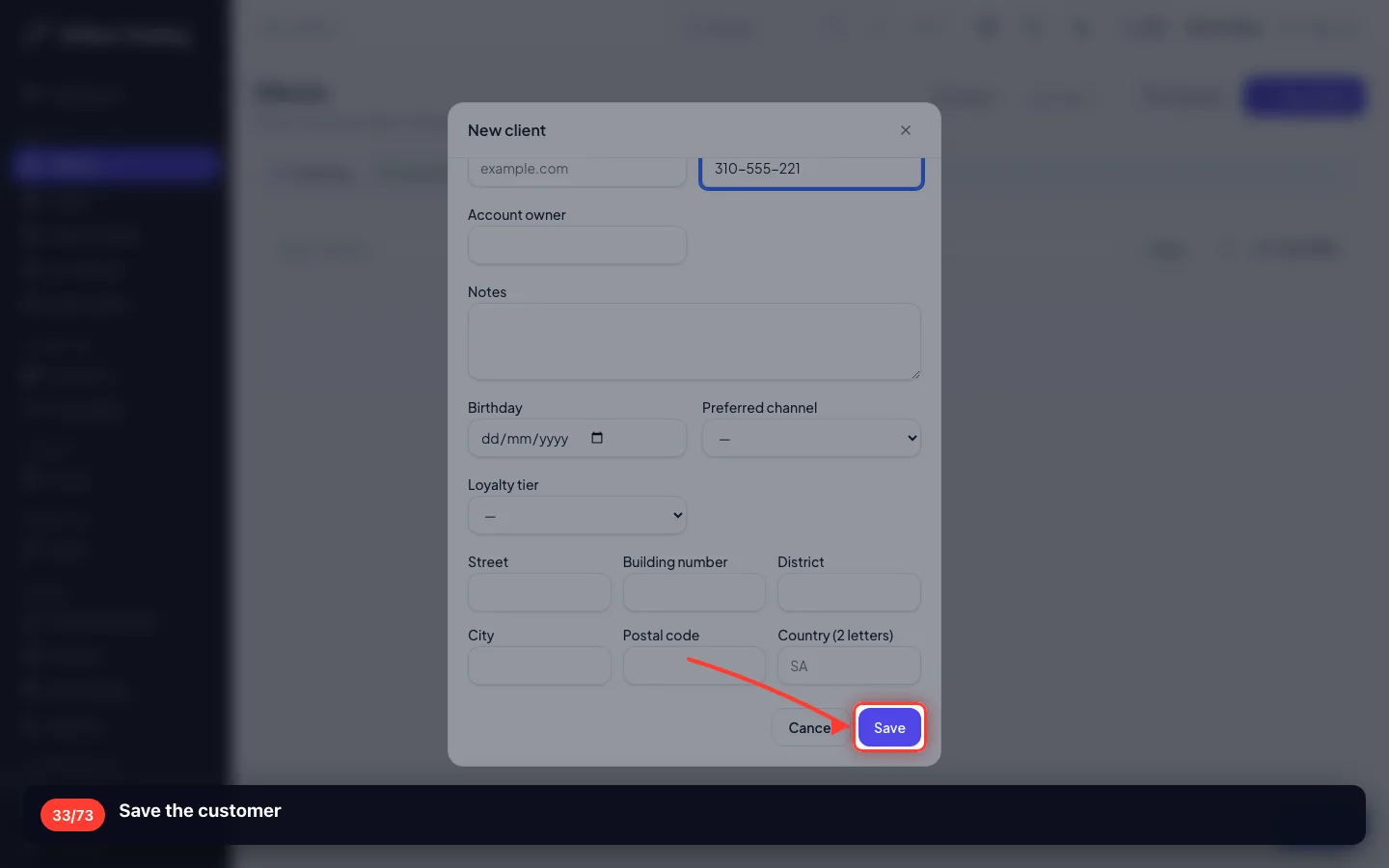
32Add the customer
New client: the name, and the tax number that will print on its invoices. A customer doesn't need an account of its own — all customers sit on 1203, and each one's statement comes from its own movements.
- 33
Save the customer
- 34
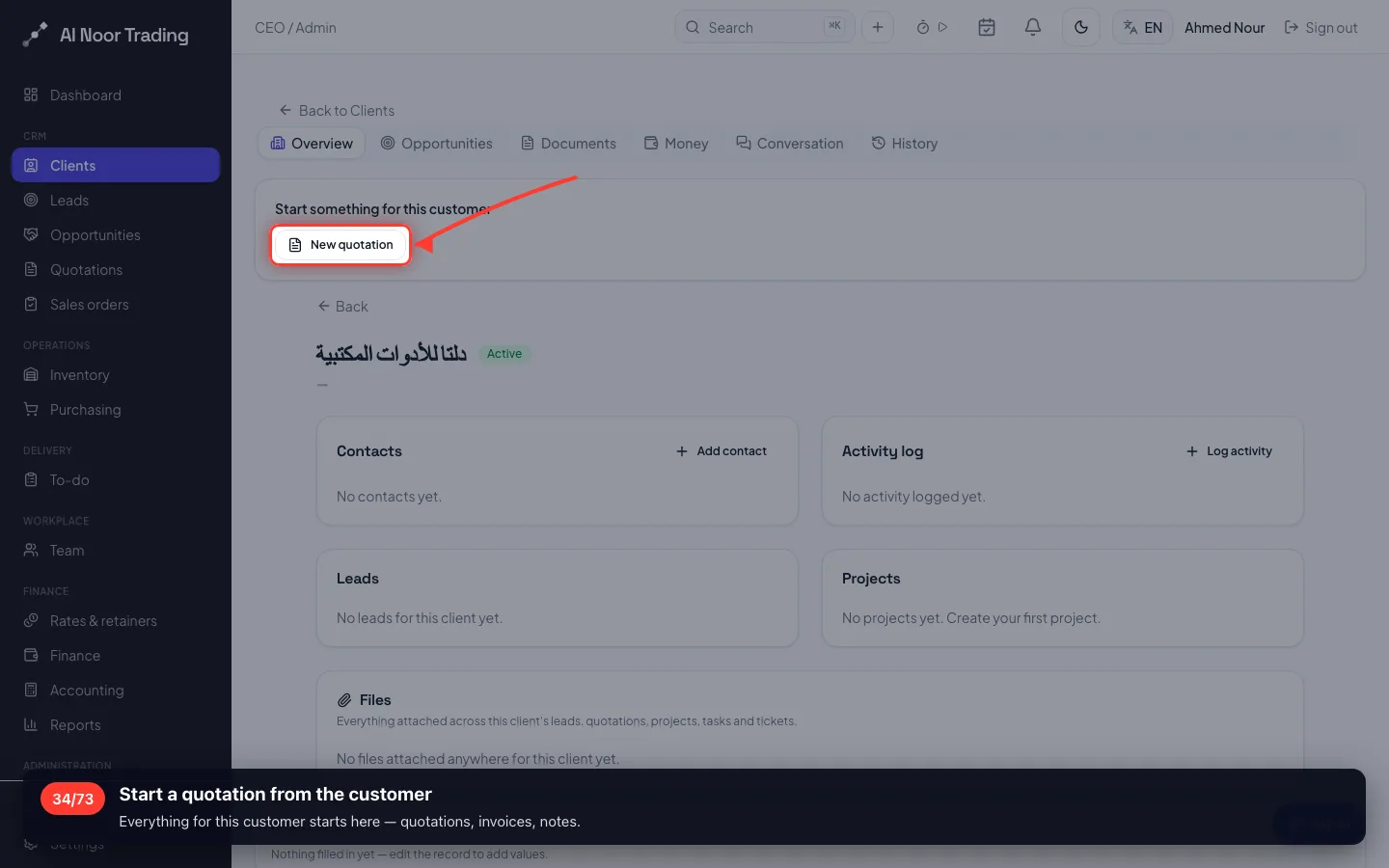
Start a quotation from the customer
Everything for this customer starts here — quotations, invoices, notes.
- 35
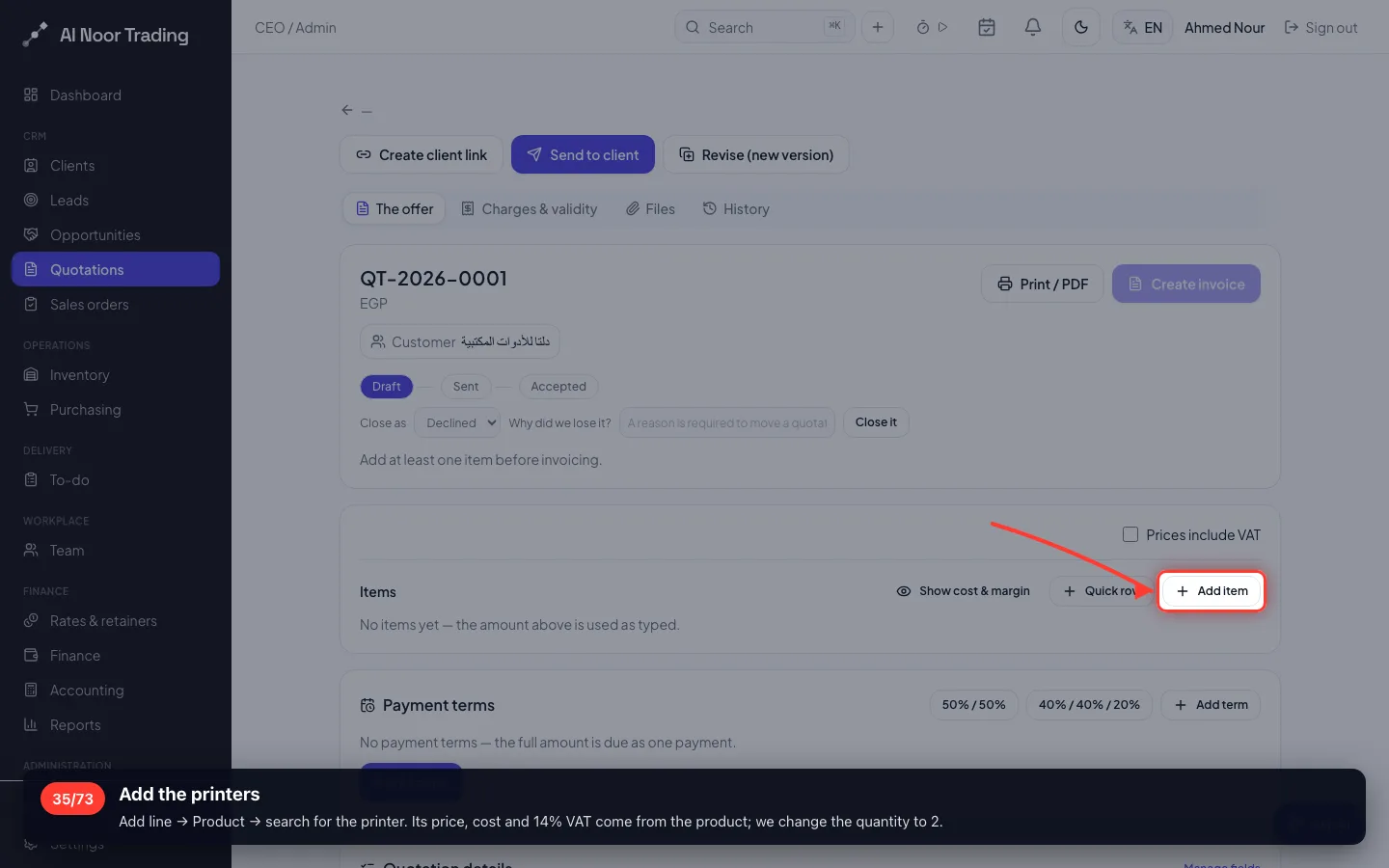
Add the printers
Add line → Product → search for the printer. Its price, cost and 14% VAT come from the product; we change the quantity to 2.
- 36
Add the maintenance visit
- 37
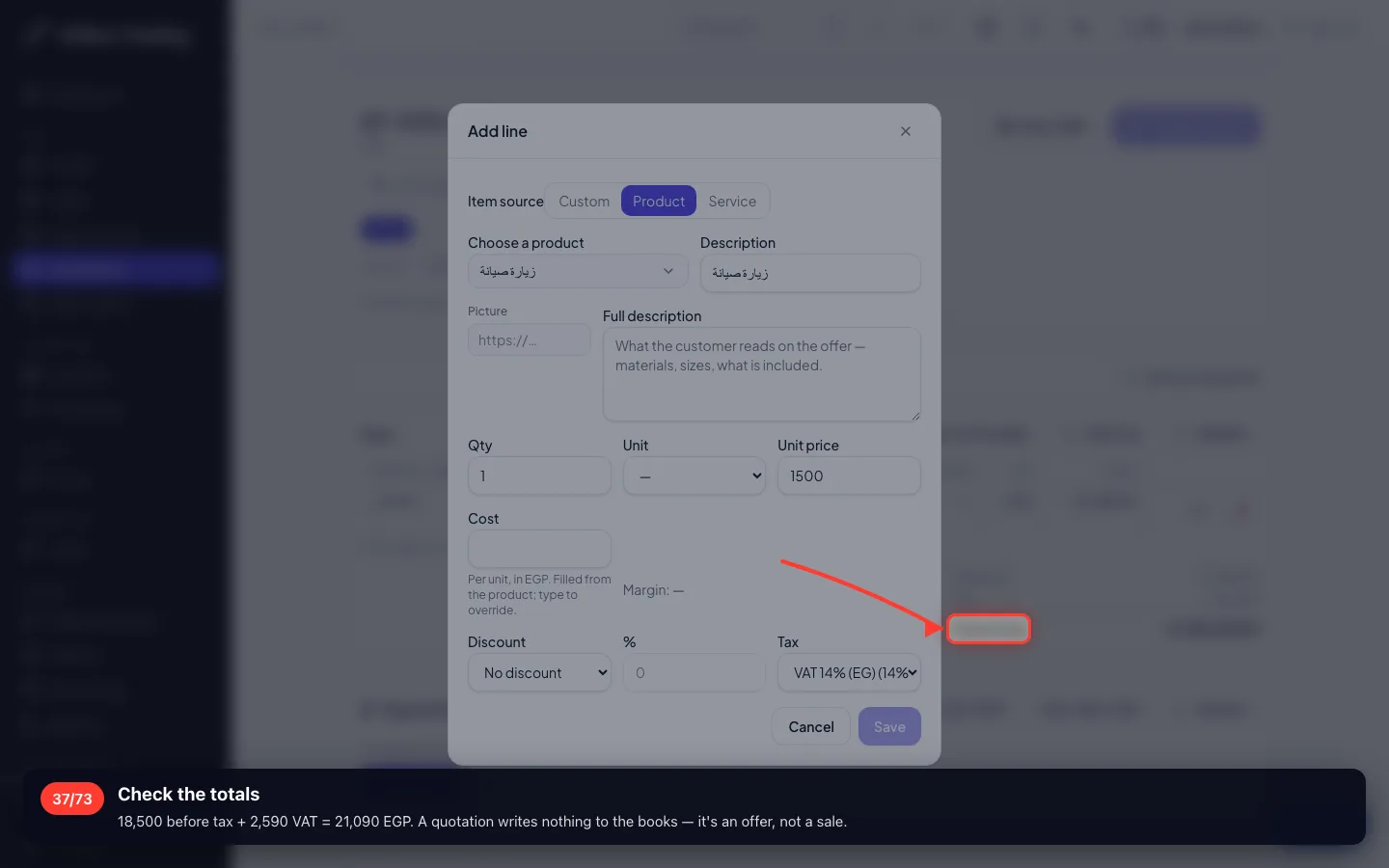
Check the totals
18,500 before tax + 2,590 VAT = 21,090 EGP. A quotation writes nothing to the books — it's an offer, not a sale.
- 38
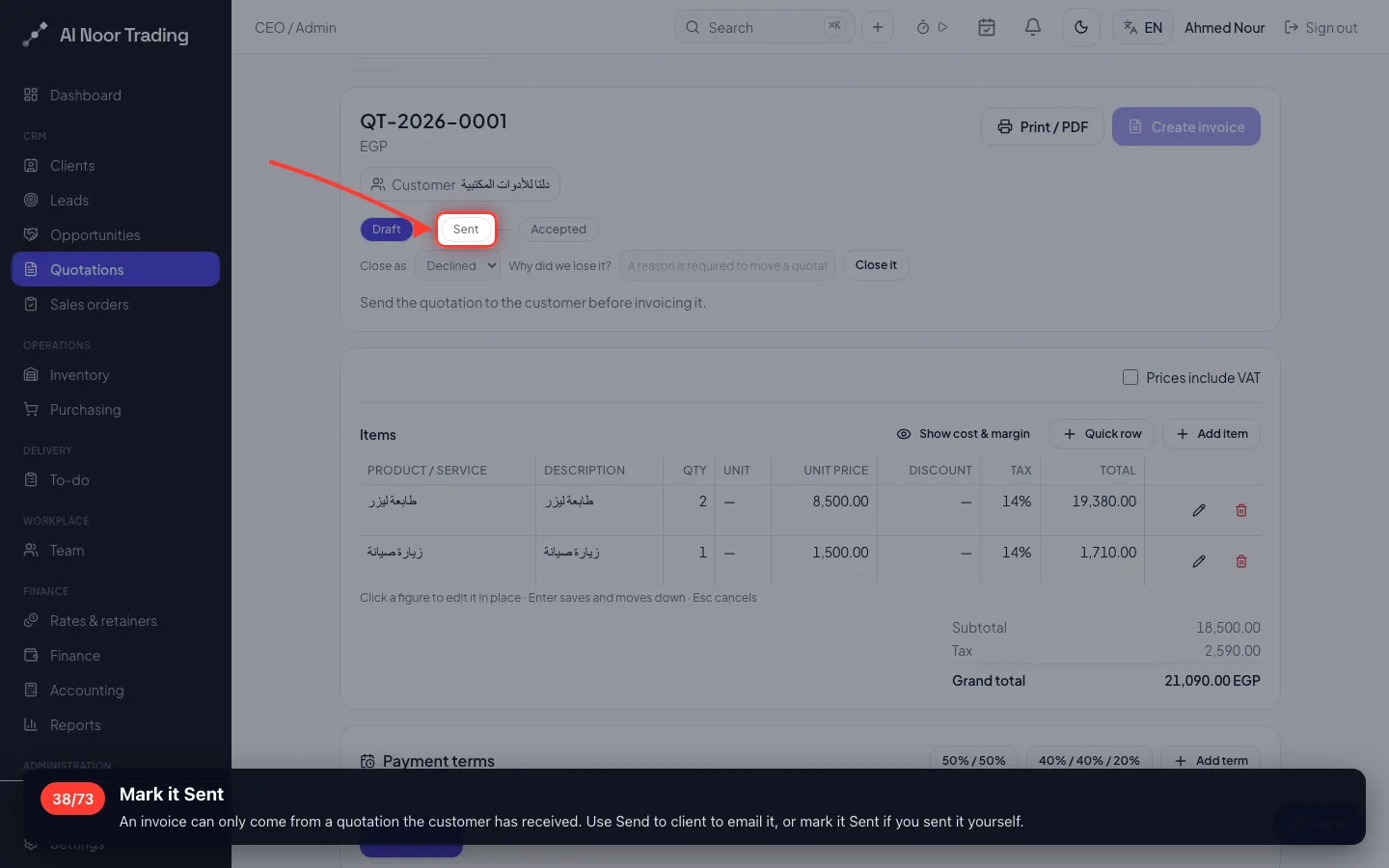
Mark it Sent
An invoice can only come from a quotation the customer has received. Use Send to client to email it, or mark it Sent if you sent it yourself.
- 39
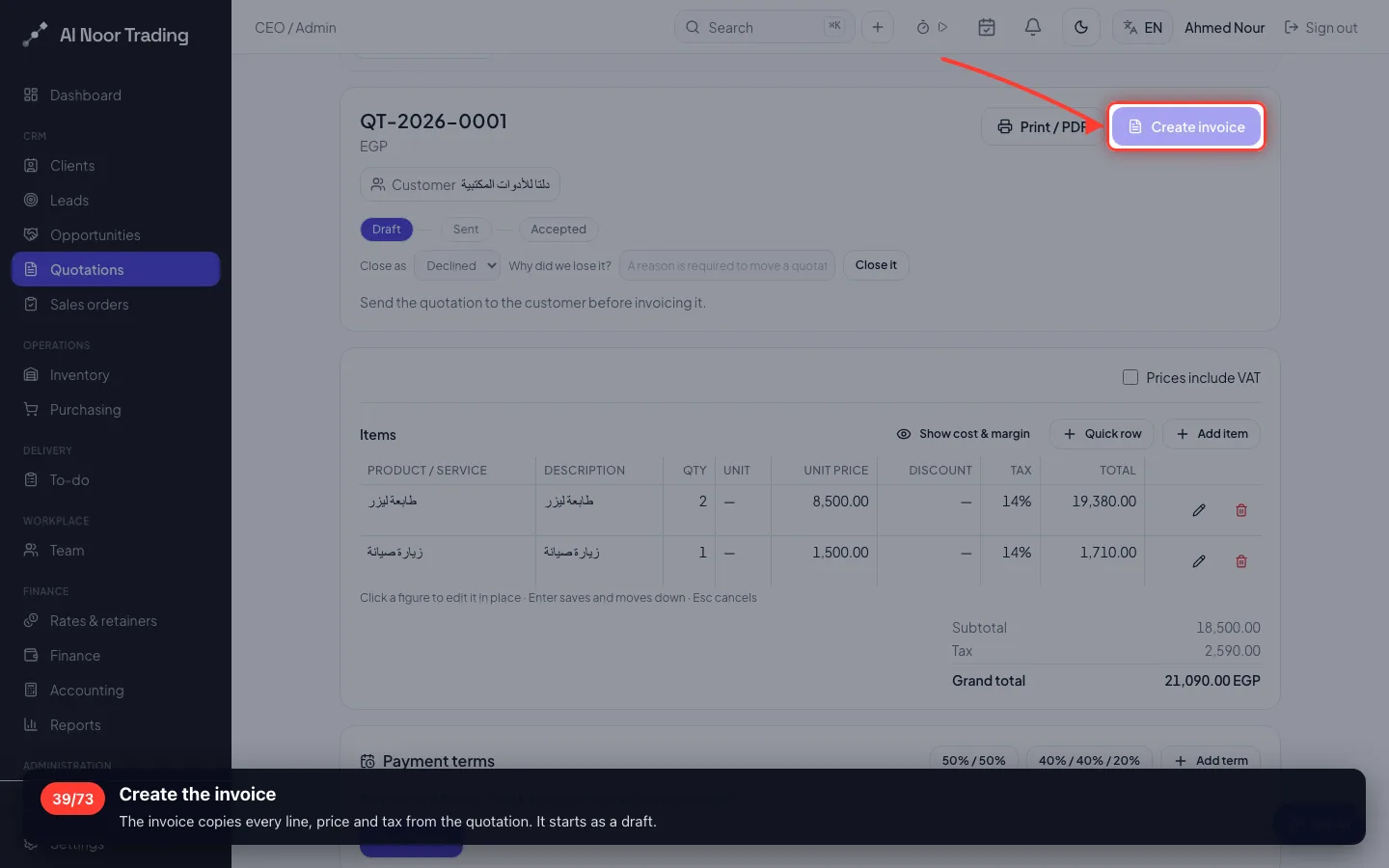
Create the invoice
The invoice copies every line, price and tax from the quotation. It starts as a draft.
- 40
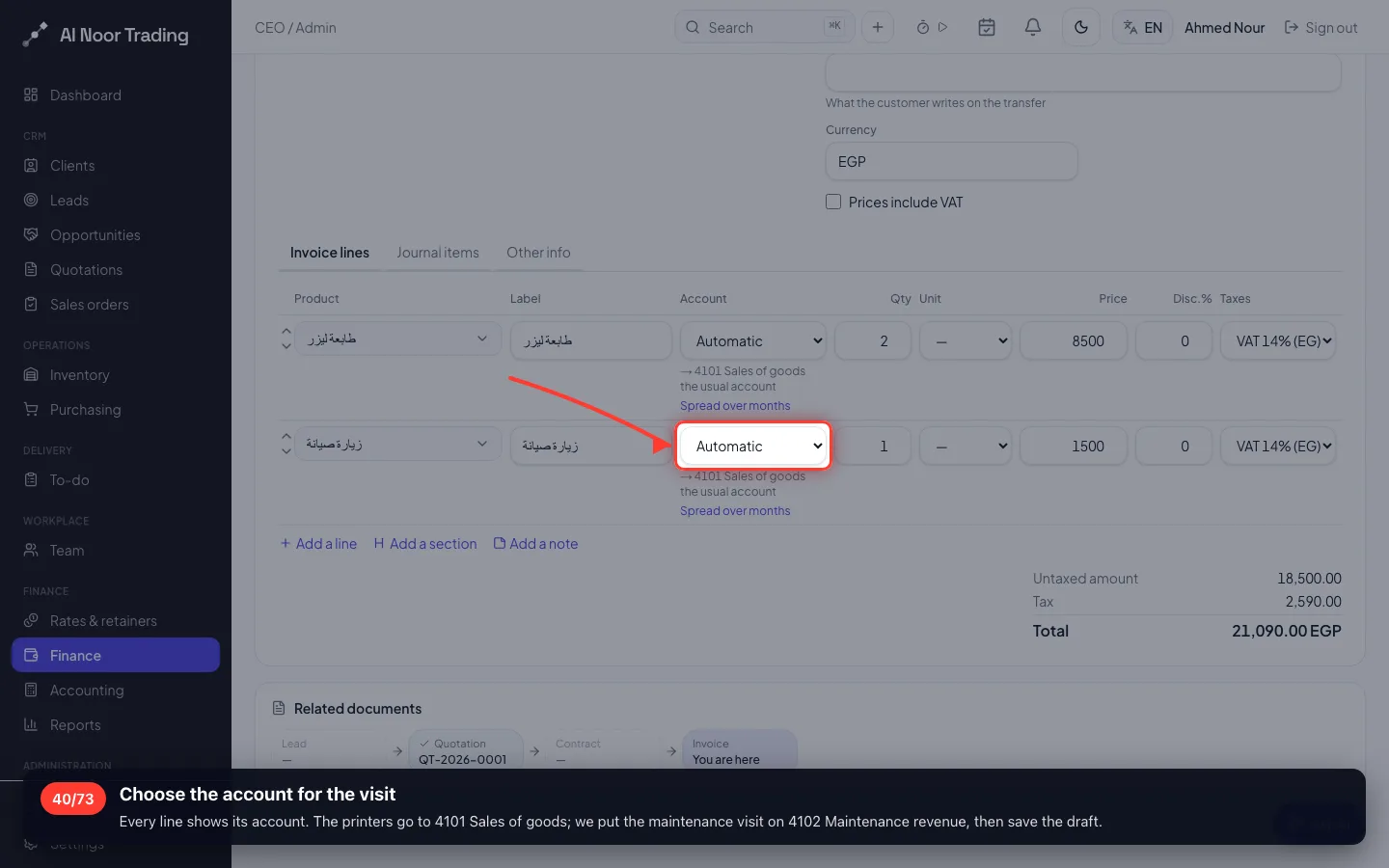
Choose the account for the visit
Every line shows its account. The printers go to 4101 Sales of goods; we put the maintenance visit on 4102 Maintenance revenue, then save the draft.
- 41
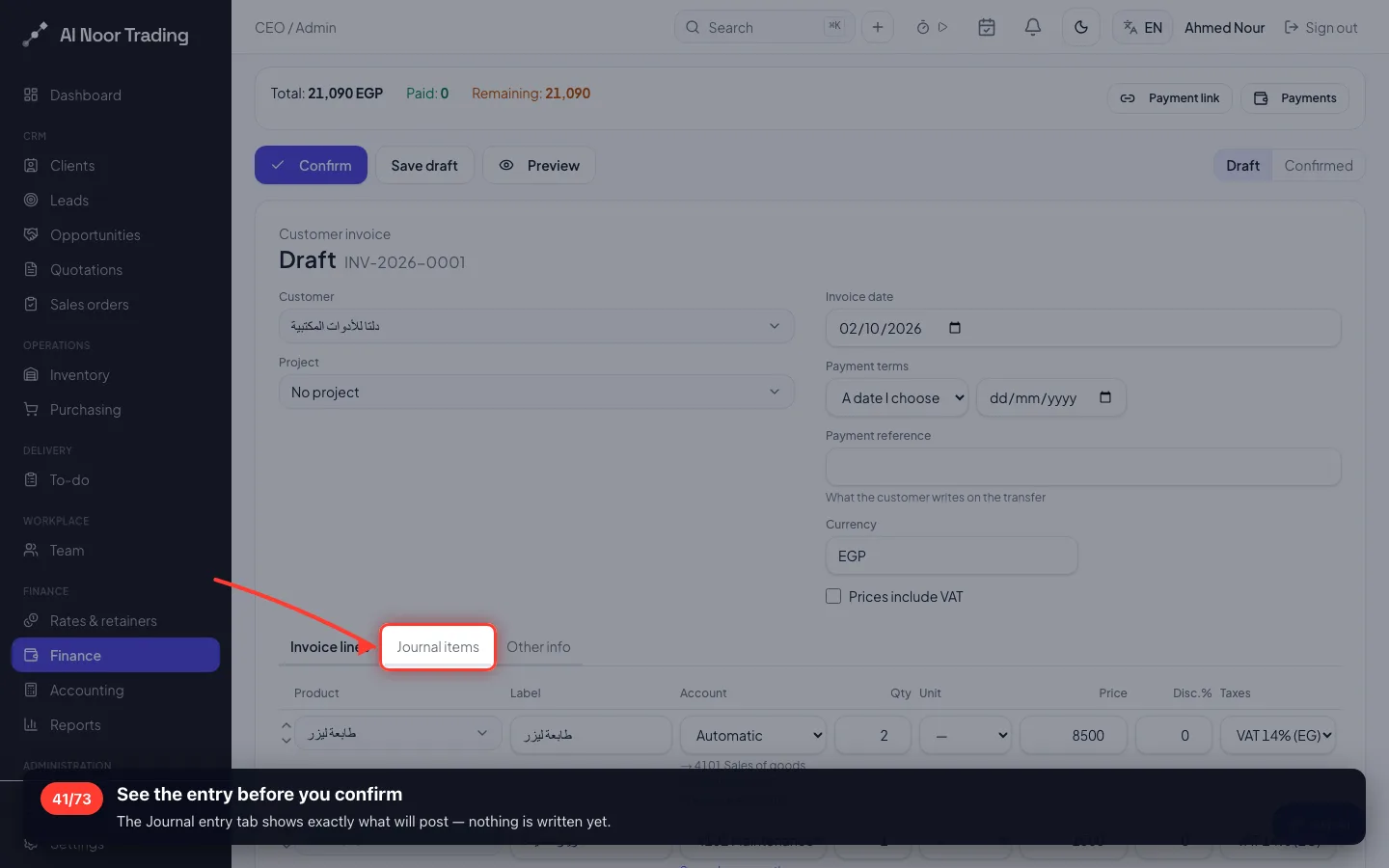
See the entry before you confirm
The Journal entry tab shows exactly what will post — nothing is written yet.
- 42
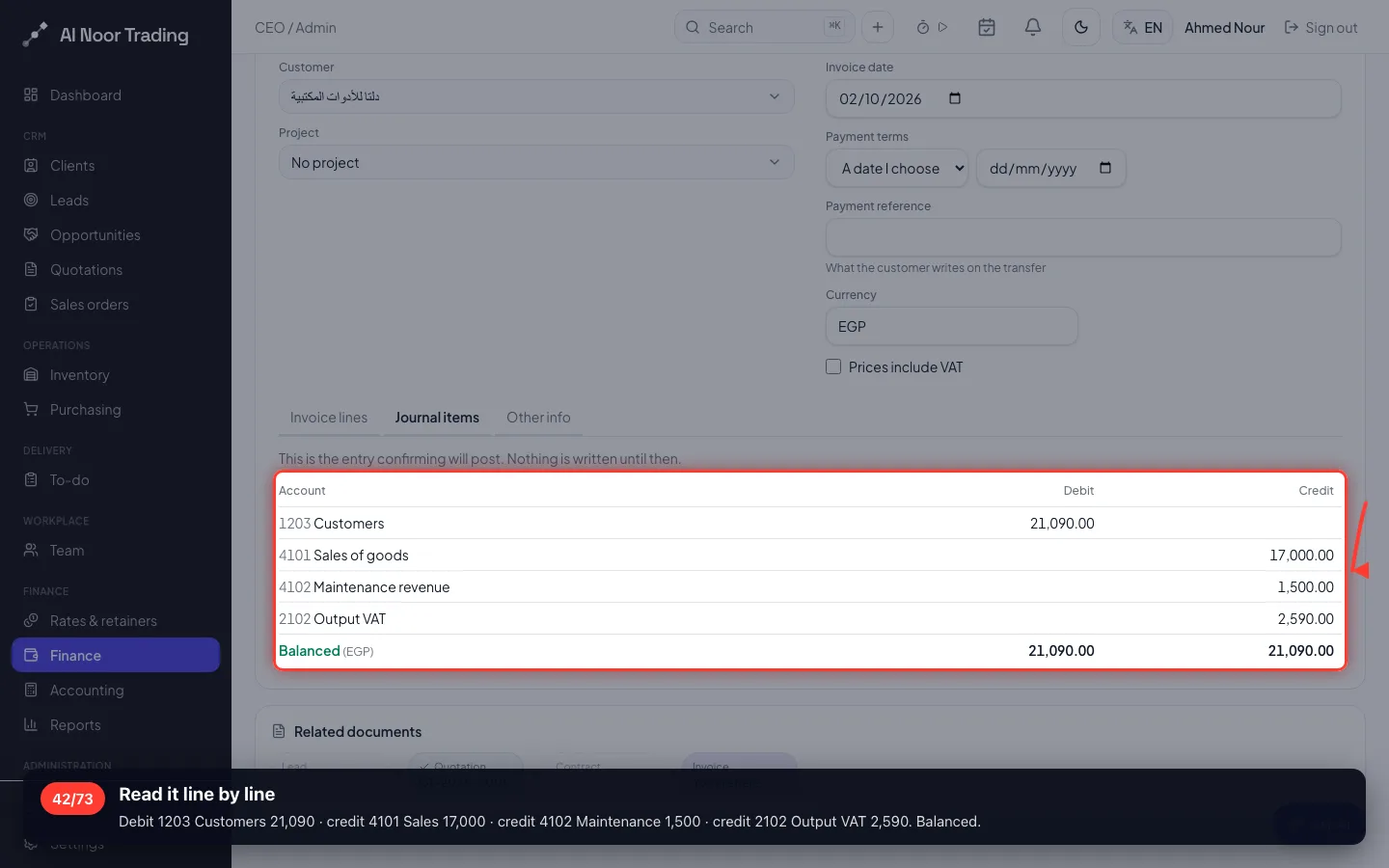
Read it line by line
Debit 1203 Customers 21,090 · credit 4101 Sales 17,000 · credit 4102 Maintenance 1,500 · credit 2102 Output VAT 2,590. Balanced.
- 43
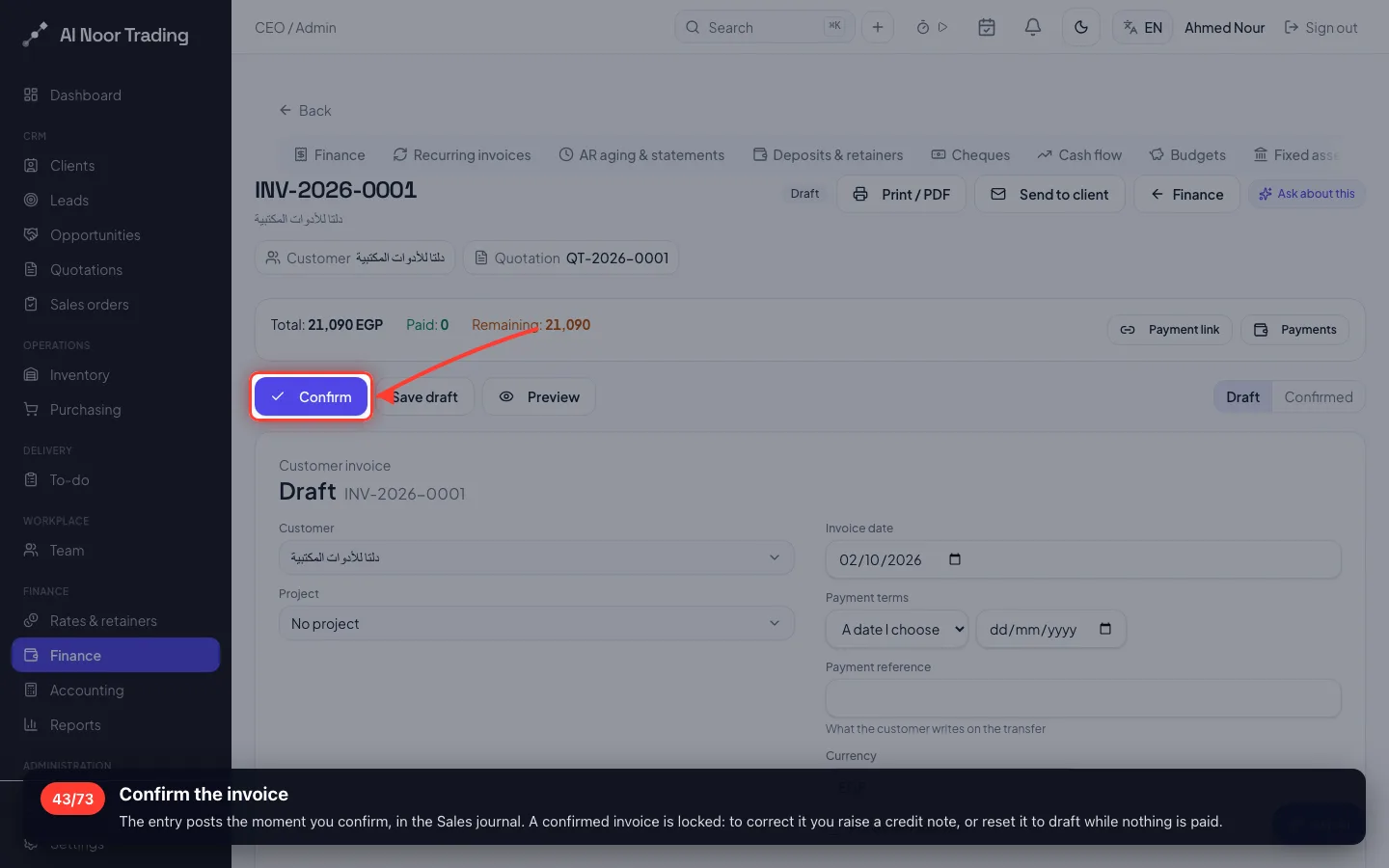
Confirm the invoice
The entry posts the moment you confirm, in the Sales journal. A confirmed invoice is locked: to correct it you raise a credit note, or reset it to draft while nothing is paid.
- 44
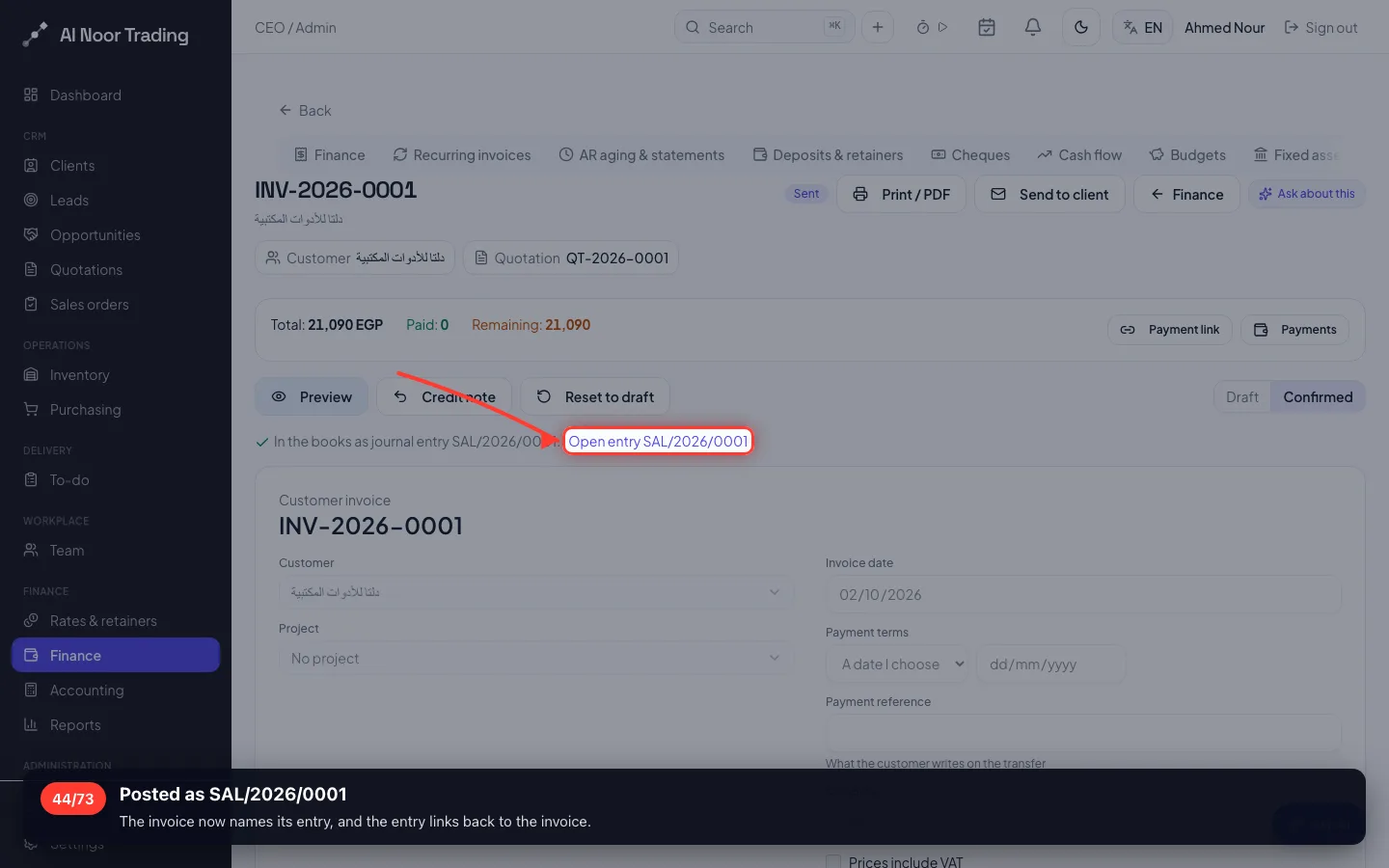
Posted as SAL/2026/0001
The invoice now names its entry, and the entry links back to the invoice.
- 45
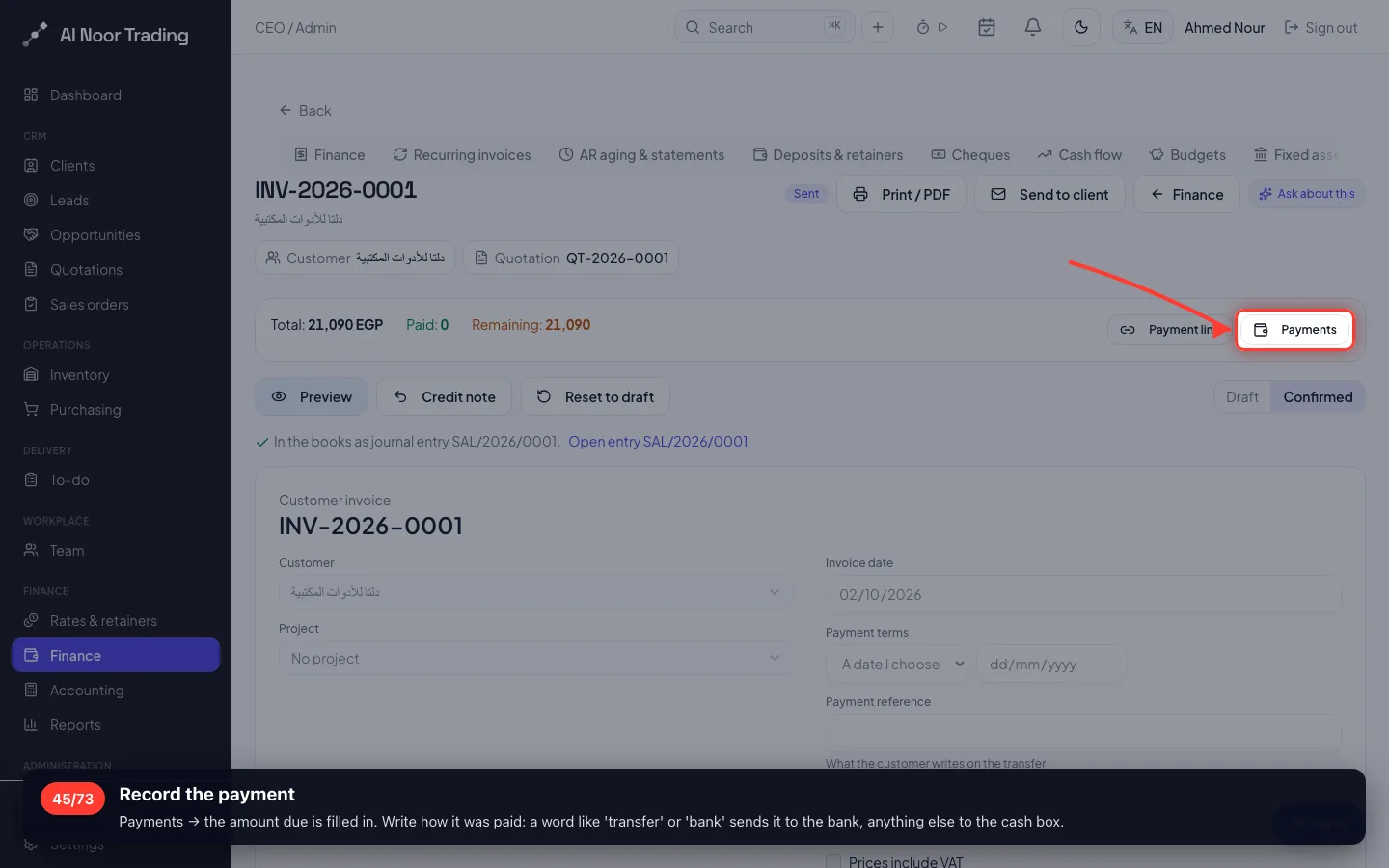
Record the payment
Payments → the amount due is filled in. Write how it was paid: a word like 'transfer' or 'bank' sends it to the bank, anything else to the cash box.
- 46
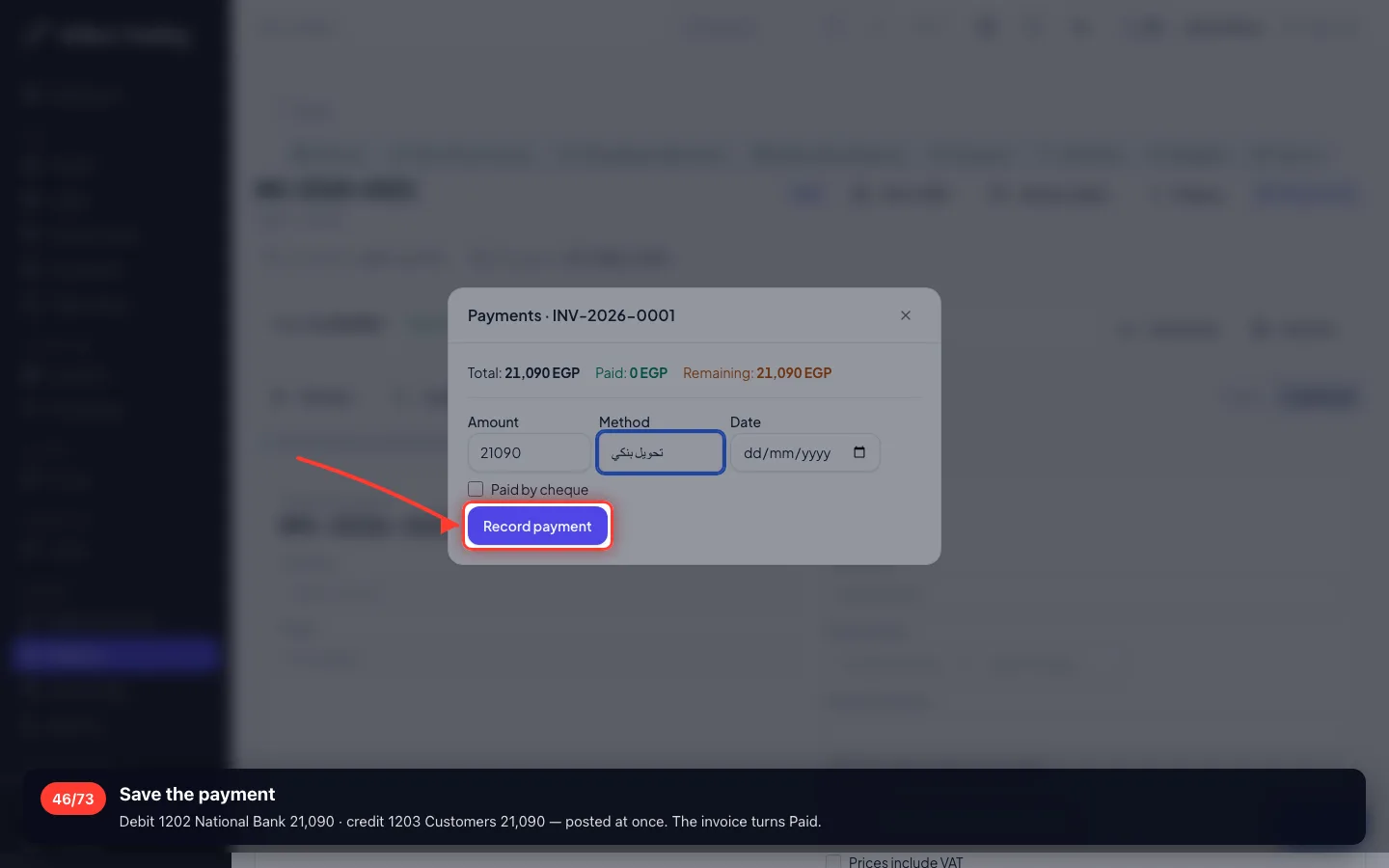
Save the payment
Debit 1202 National Bank 21,090 · credit 1203 Customers 21,090 — posted at once. The invoice turns Paid.
8 · A sale on credit, straight from an invoice
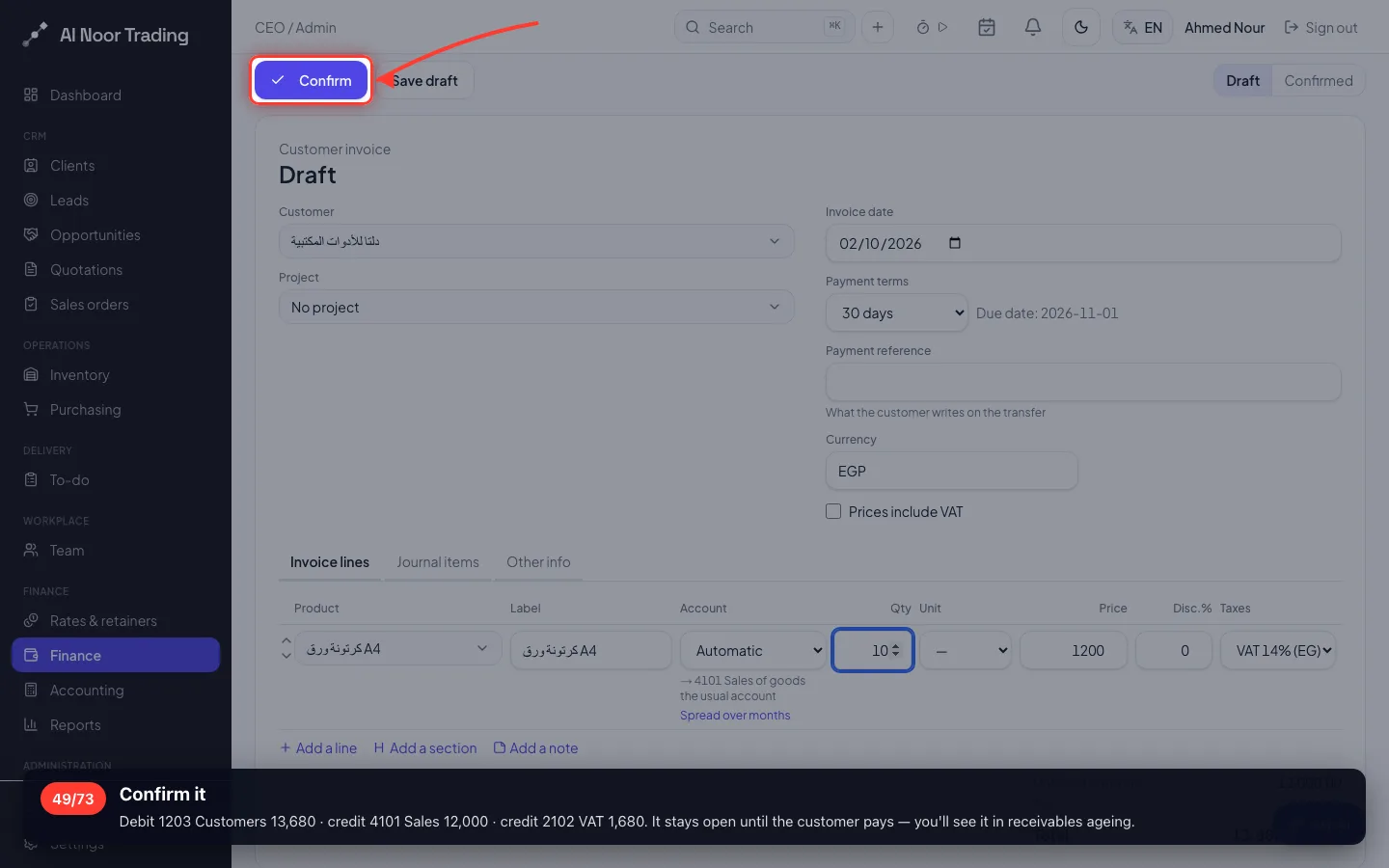
Not every sale needs a quotation. Ten boxes of A4 paper at 1,200 + VAT = 13,680 EGP — and the customer pays later.
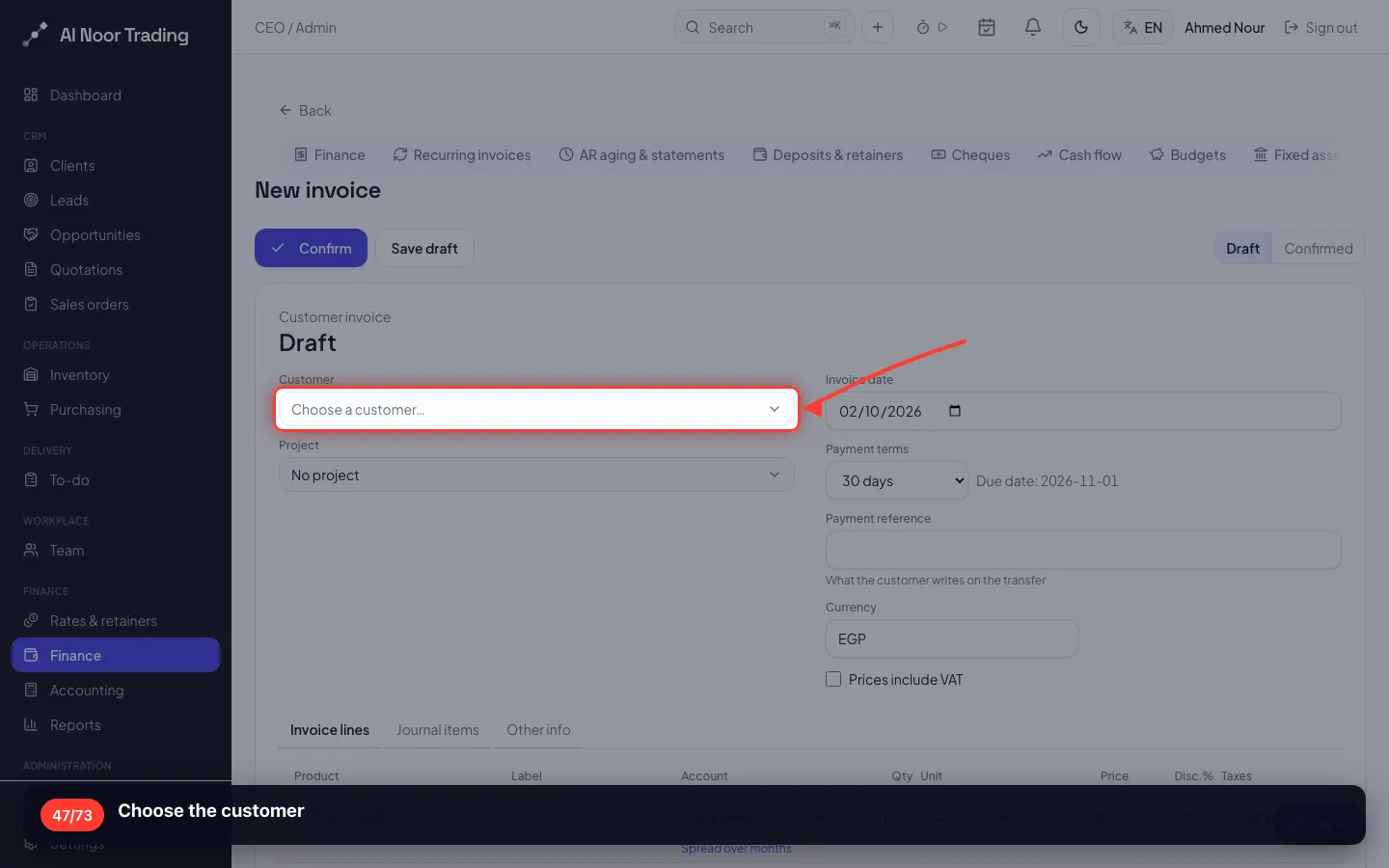
47Choose the customer
- 48
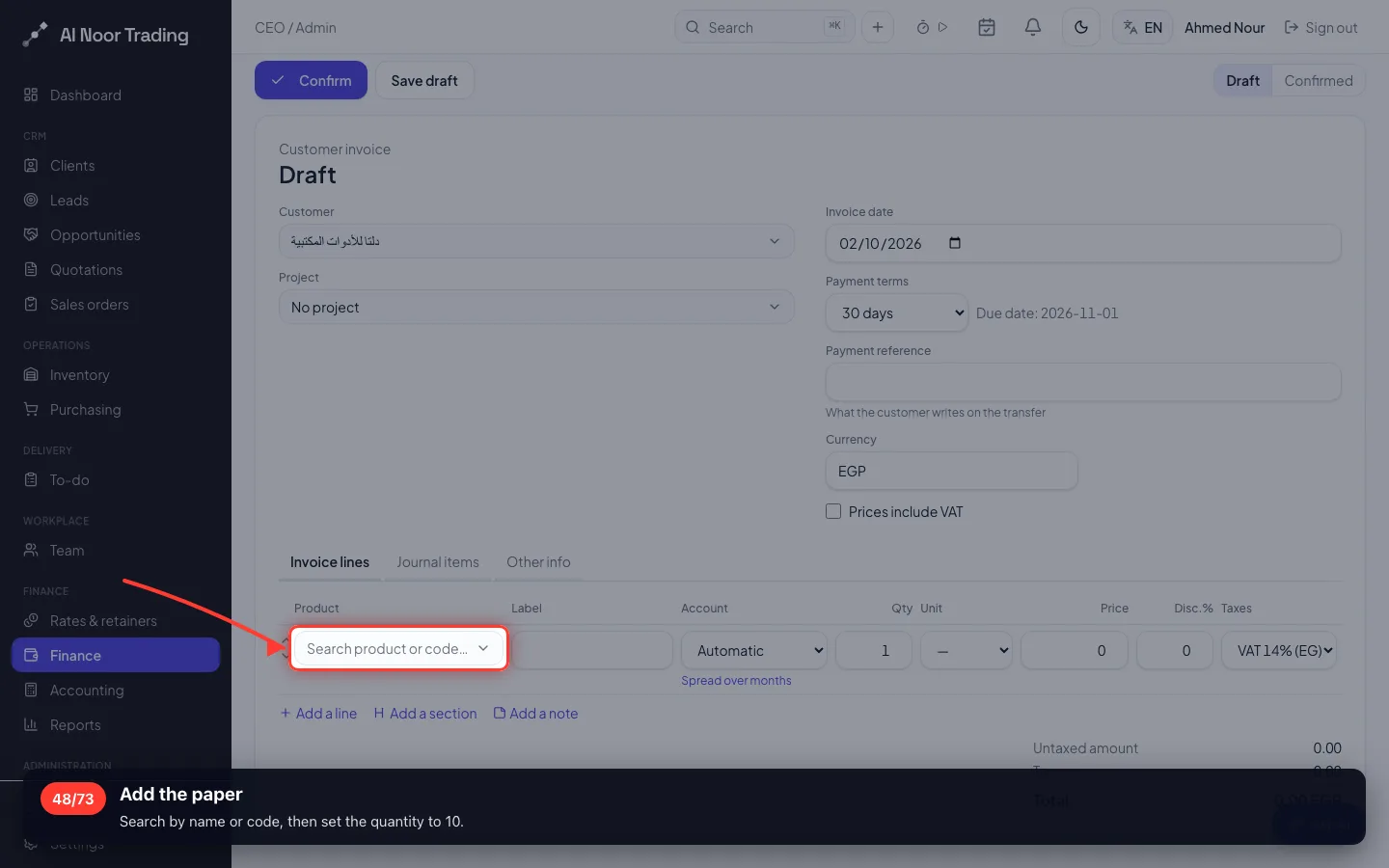
Add the paper
Search by name or code, then set the quantity to 10.
- 49
Confirm it
Debit 1203 Customers 13,680 · credit 4101 Sales 12,000 · credit 2102 VAT 1,680. It stays open until the customer pays — you'll see it in receivables ageing.
9 · A purchase: supplier bill → payment
Al Noor buys five printers at 6,000 from Al Masreya, plus 14% VAT: 34,200 EGP — paid by transfer.
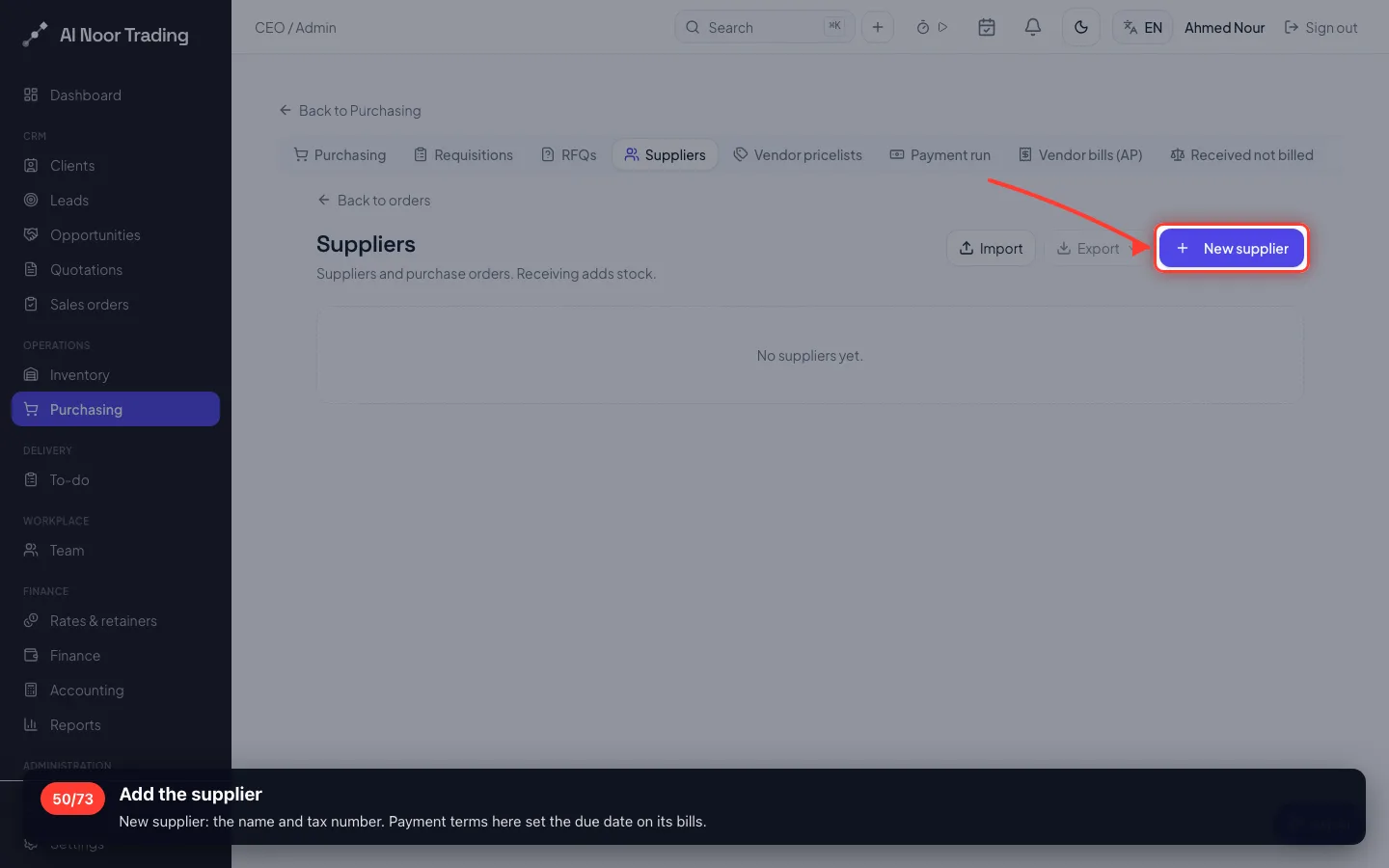
50Add the supplier
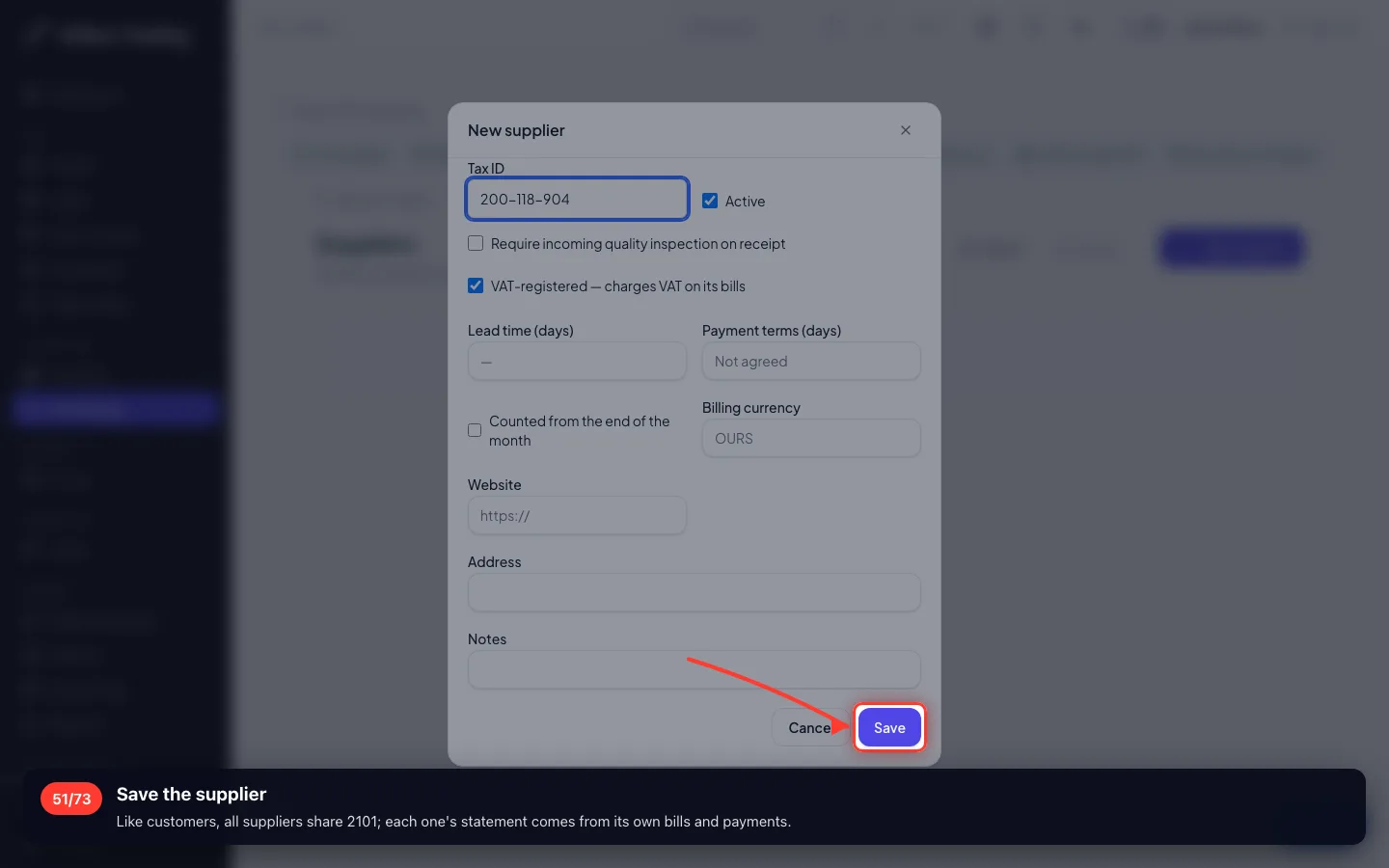
New supplier: the name and tax number. Payment terms here set the due date on its bills.
- 51
Save the supplier
Like customers, all suppliers share 2101; each one's statement comes from its own bills and payments.
- 52
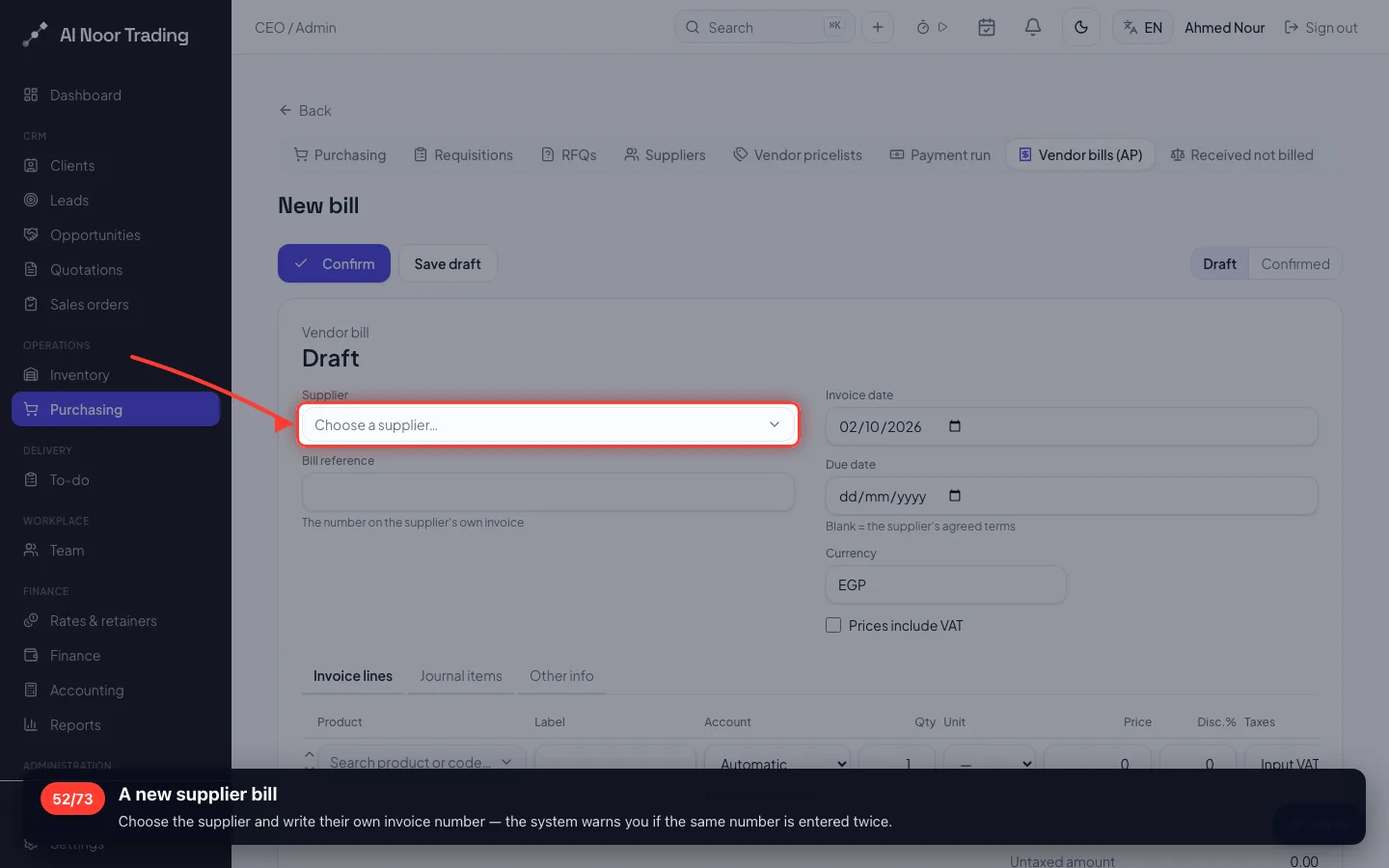
A new supplier bill
Choose the supplier and write their own invoice number — the system warns you if the same number is entered twice.
- 53
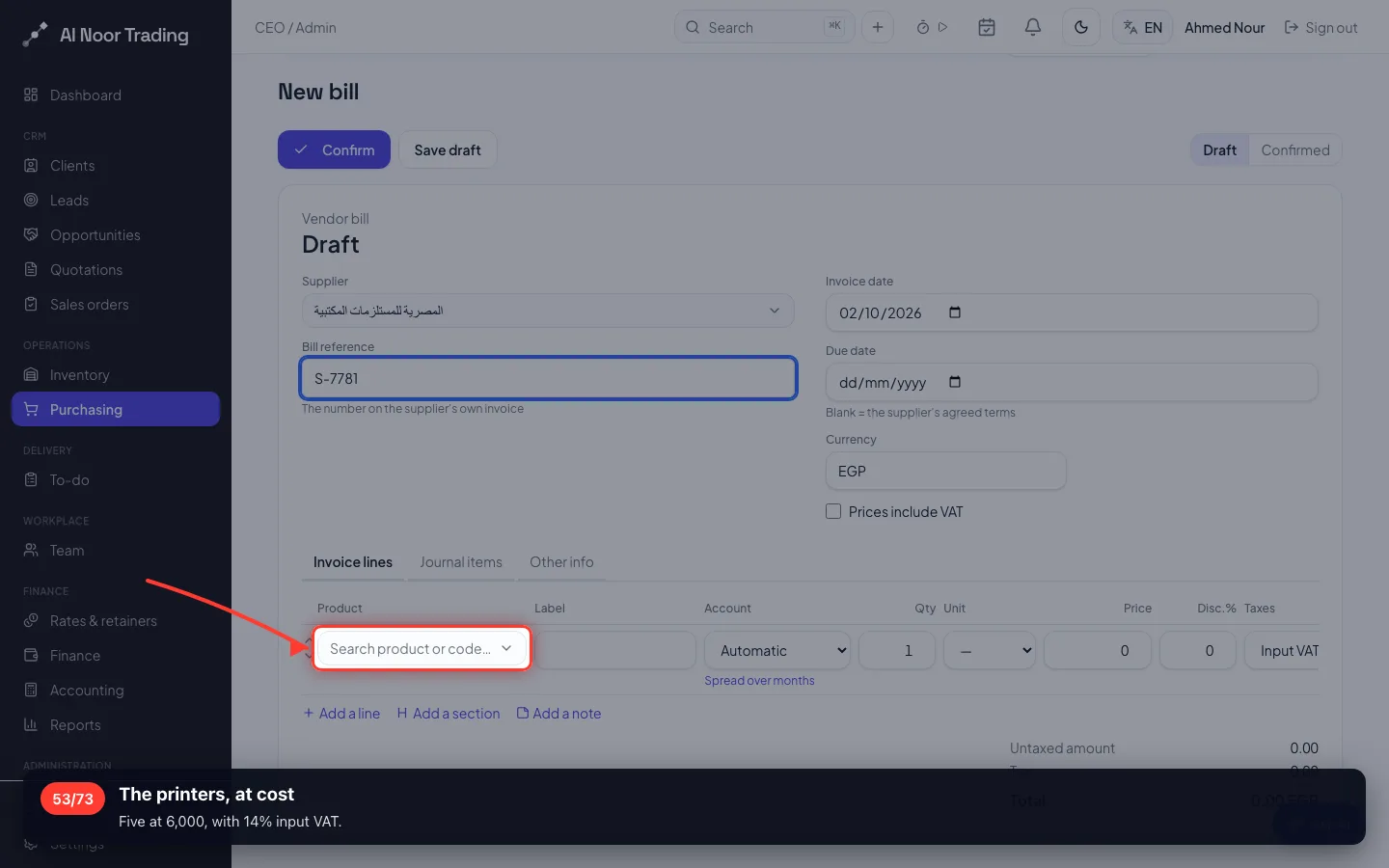
The printers, at cost
Five at 6,000, with 14% input VAT.
- 54
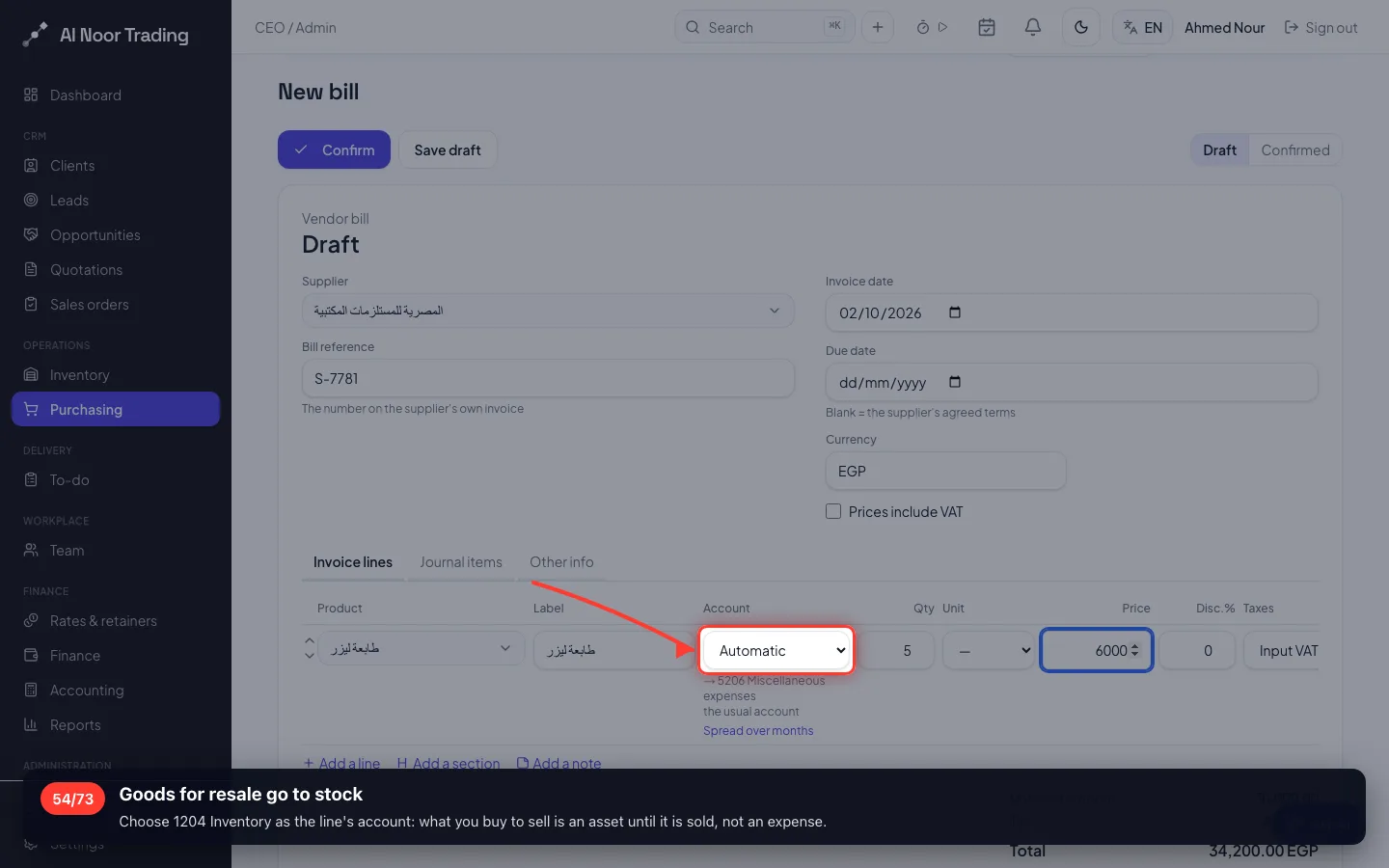
Goods for resale go to stock
Choose 1204 Inventory as the line's account: what you buy to sell is an asset until it is sold, not an expense.
- 55
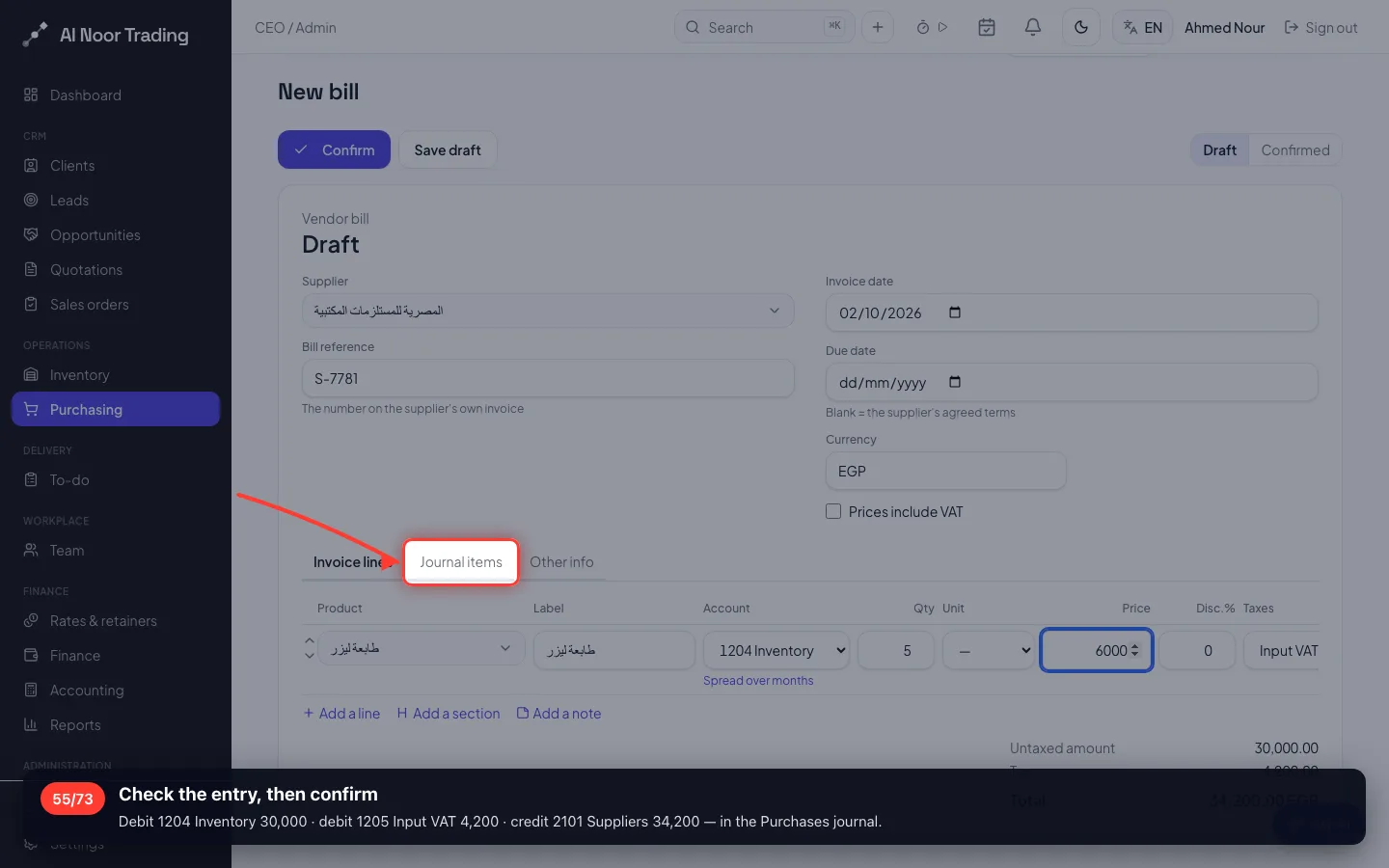
Check the entry, then confirm
Debit 1204 Inventory 30,000 · debit 1205 Input VAT 4,200 · credit 2101 Suppliers 34,200 — in the Purchases journal.
- 56
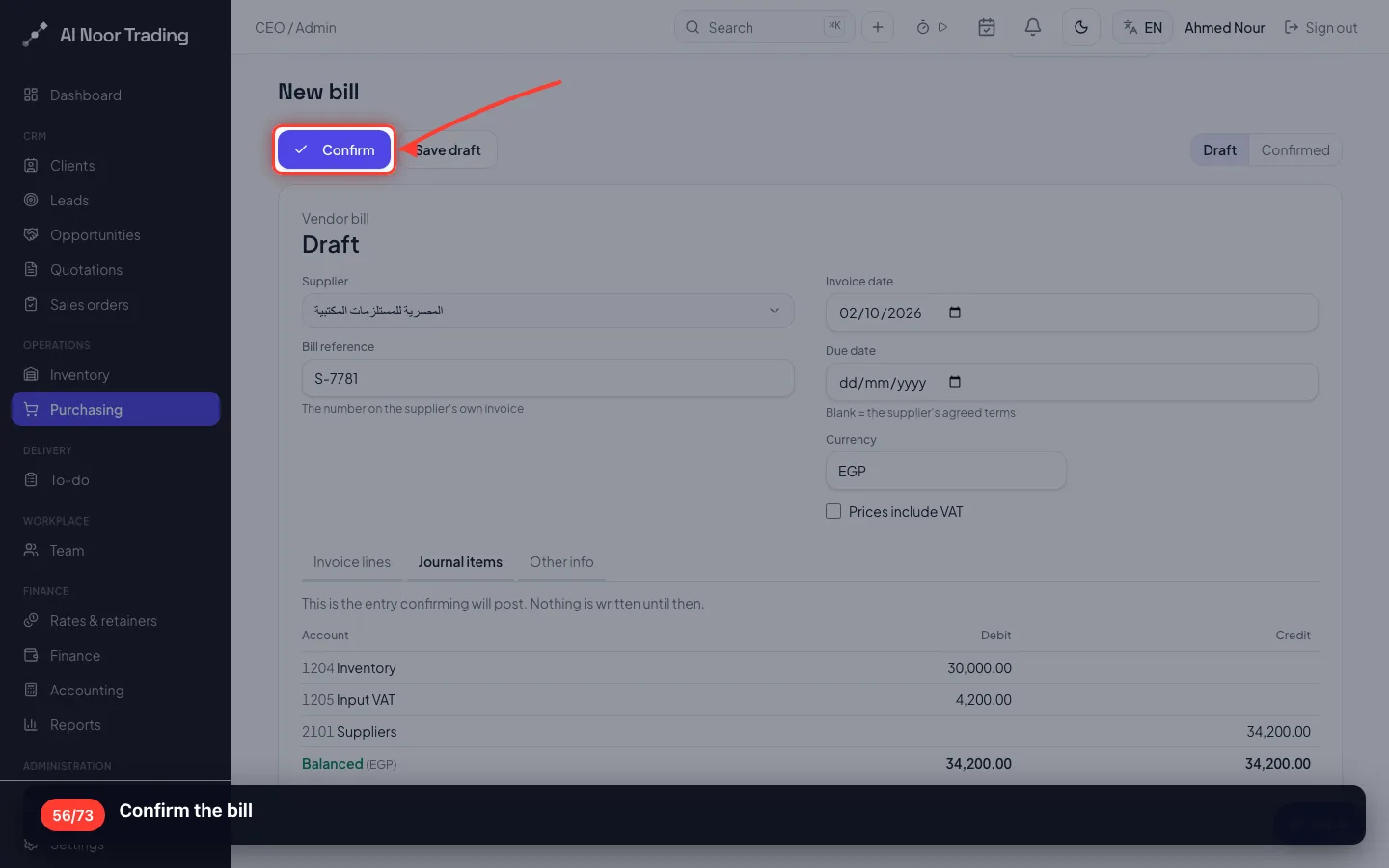
Confirm the bill
- 57
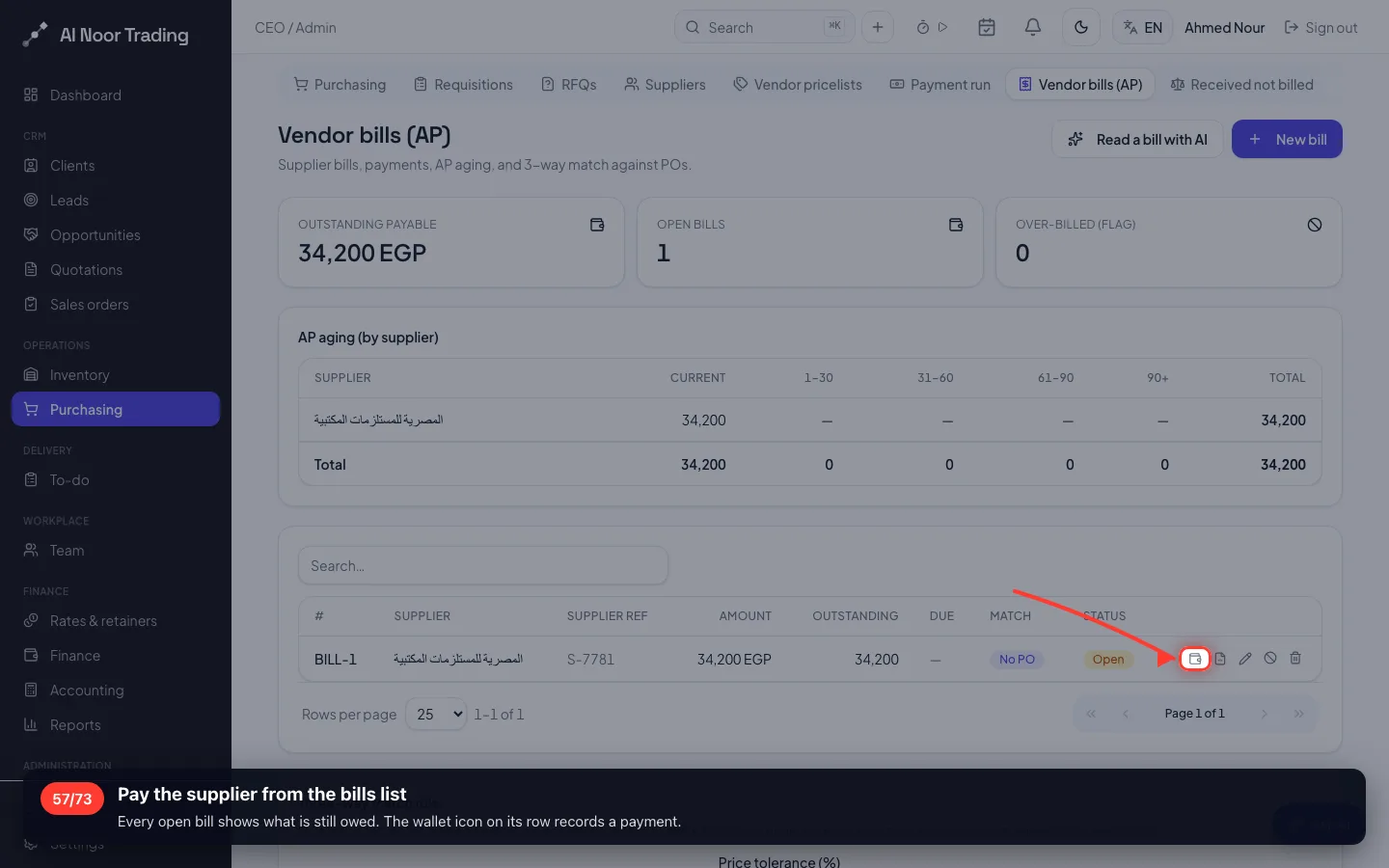
Pay the supplier from the bills list
Every open bill shows what is still owed. The wallet icon on its row records a payment.
- 58
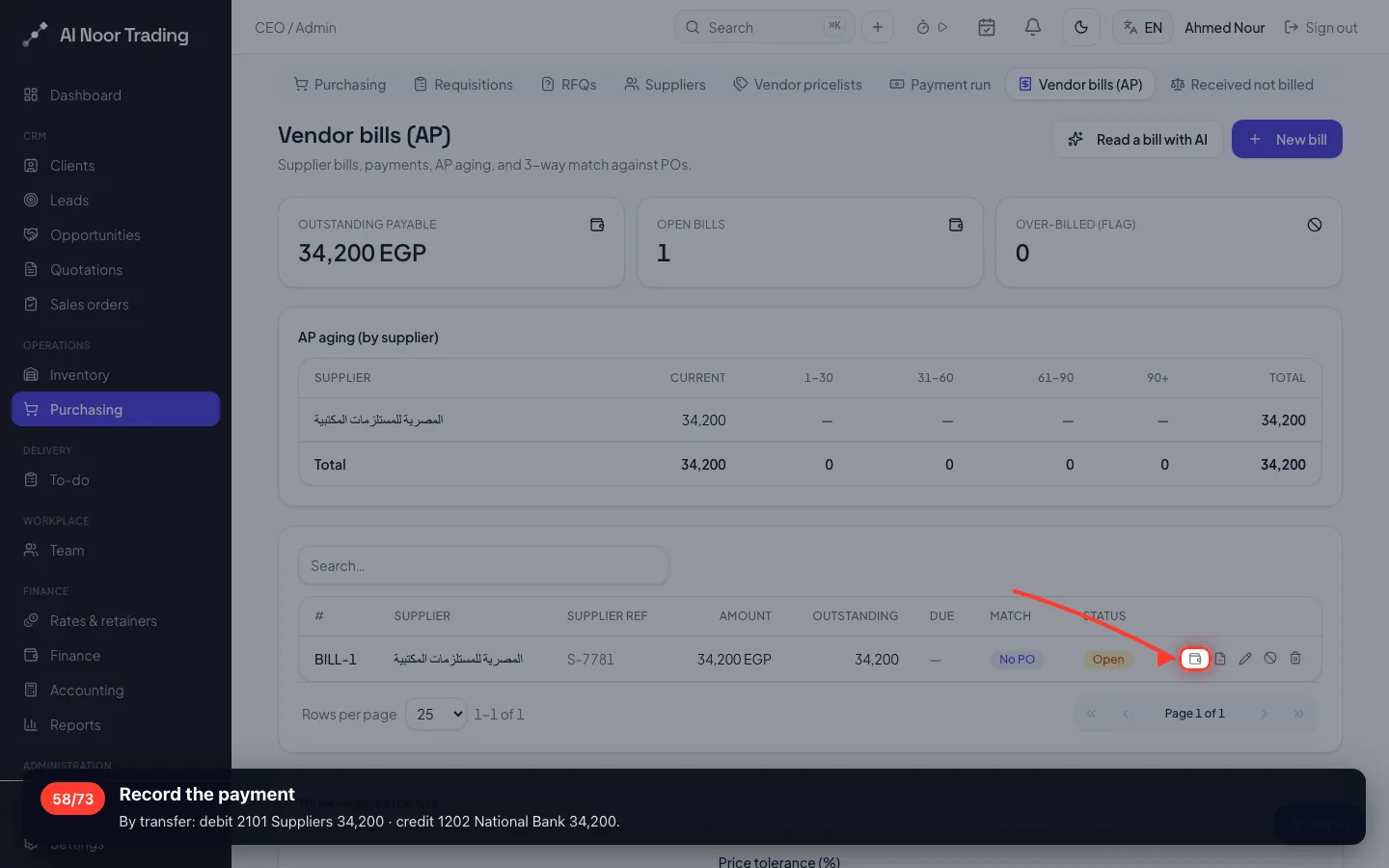
Record the payment
By transfer: debit 2101 Suppliers 34,200 · credit 1202 National Bank 34,200.
10 · An expense
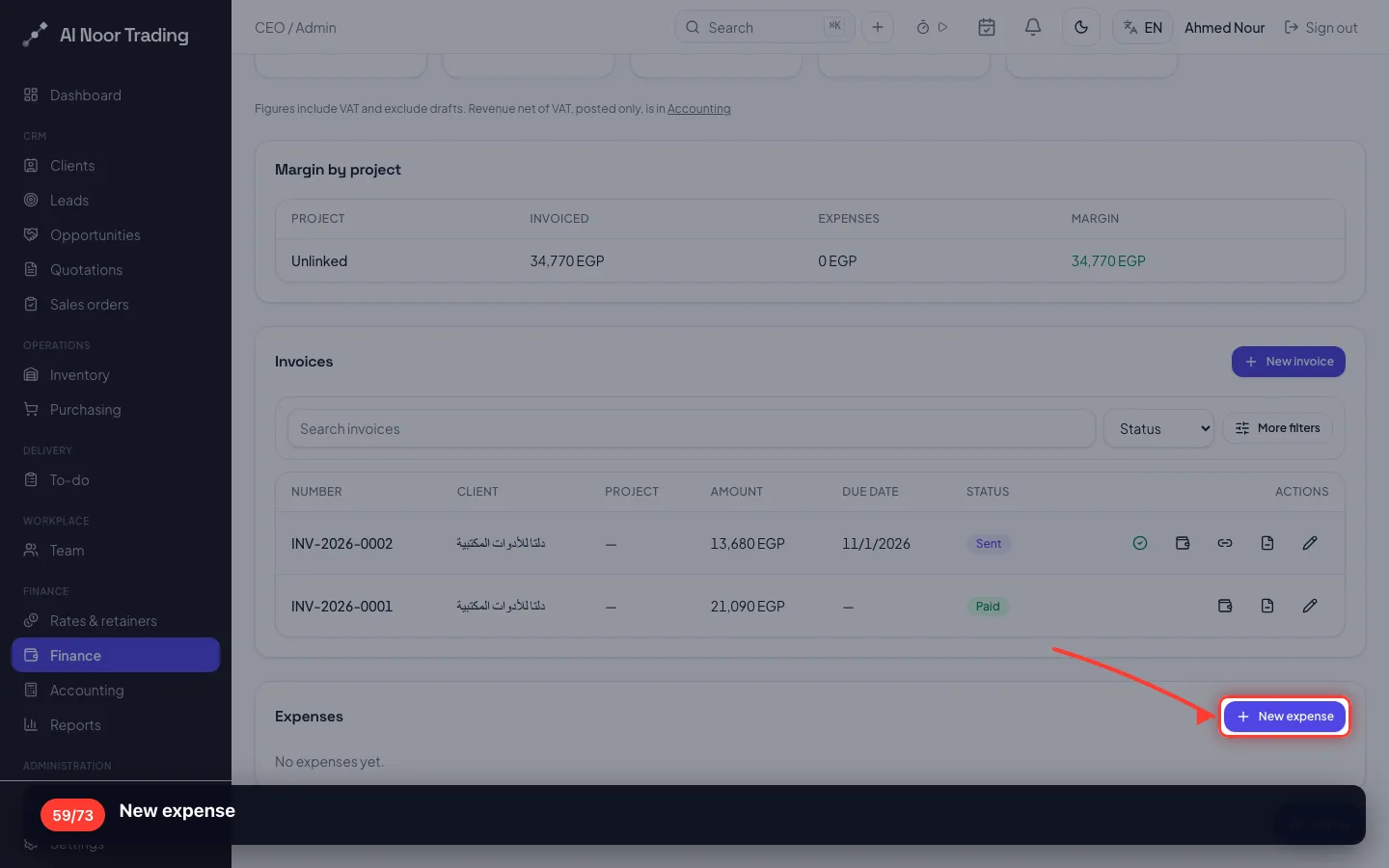
1,710 EGP paid in cash to ship an order, VAT included. The expense type you created decides the account.
59New expense
- 60
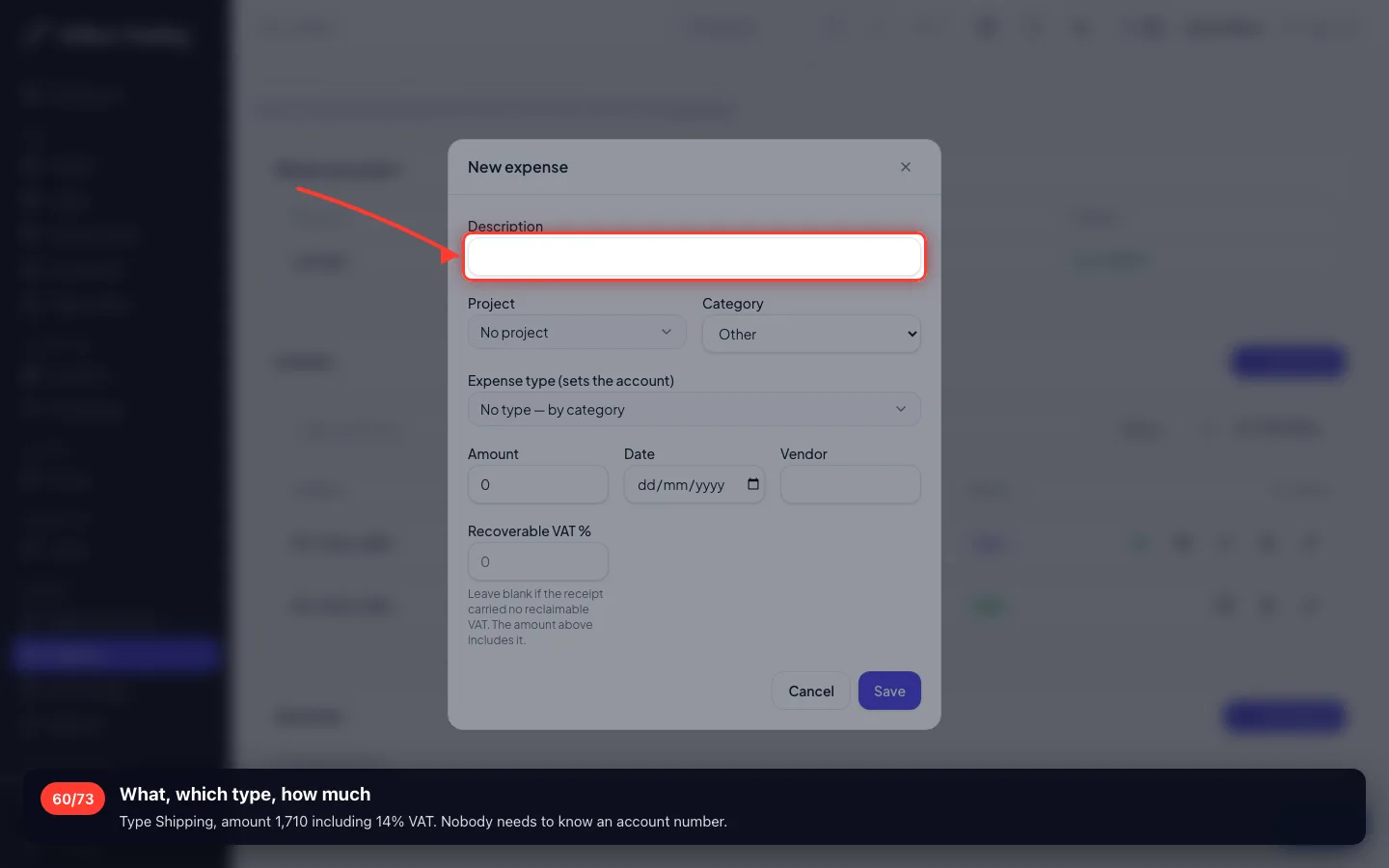
What, which type, how much
Type Shipping, amount 1,710 including 14% VAT. Nobody needs to know an account number.
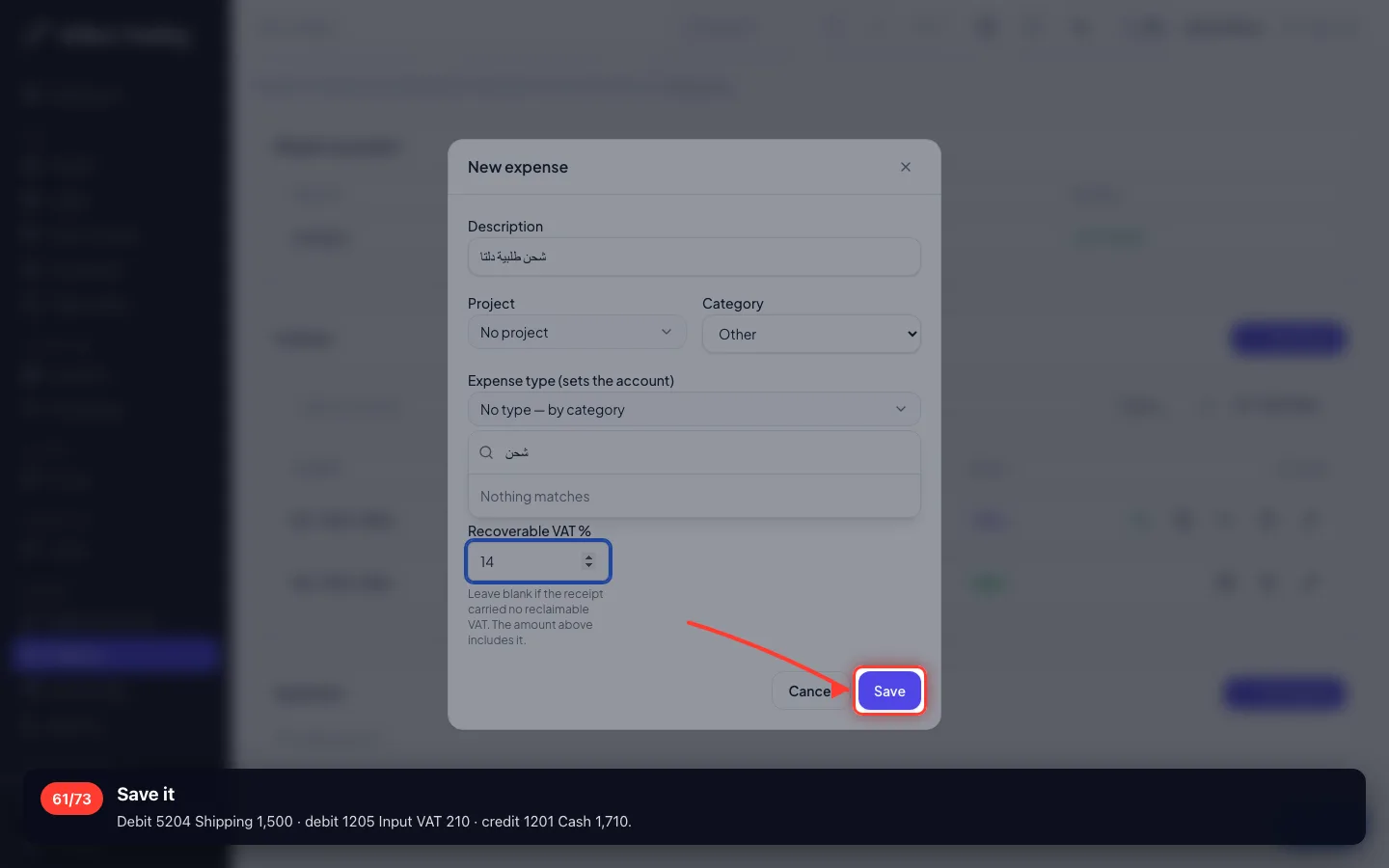
- 61
Save it
Debit 5204 Shipping 1,500 · debit 1205 Input VAT 210 · credit 1201 Cash 1,710.
11 · Check that everything landed right
Five documents, five sets of entries. Here is where you prove the books.
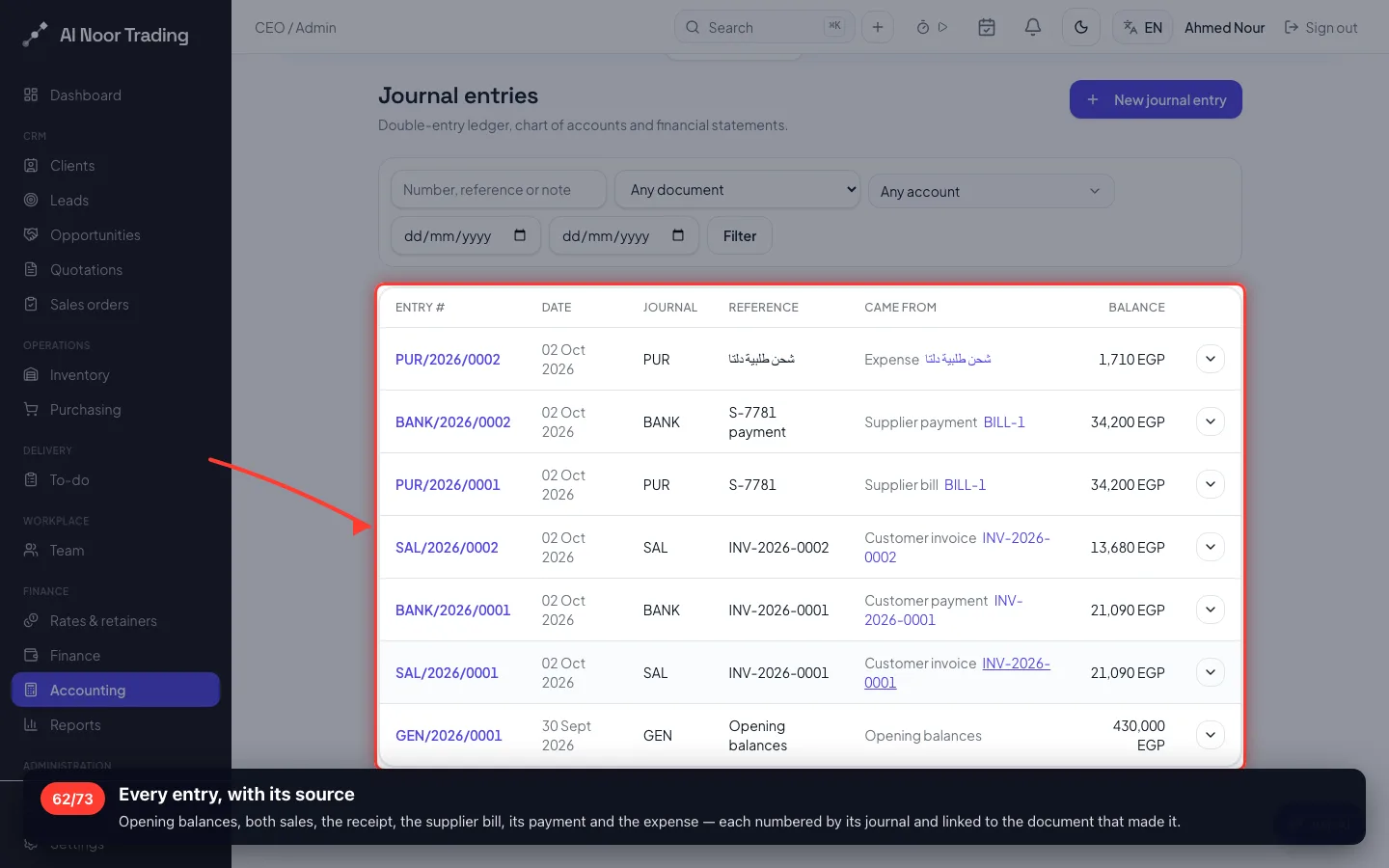
62Every entry, with its source
Opening balances, both sales, the receipt, the supplier bill, its payment and the expense — each numbered by its journal and linked to the document that made it.
- 63
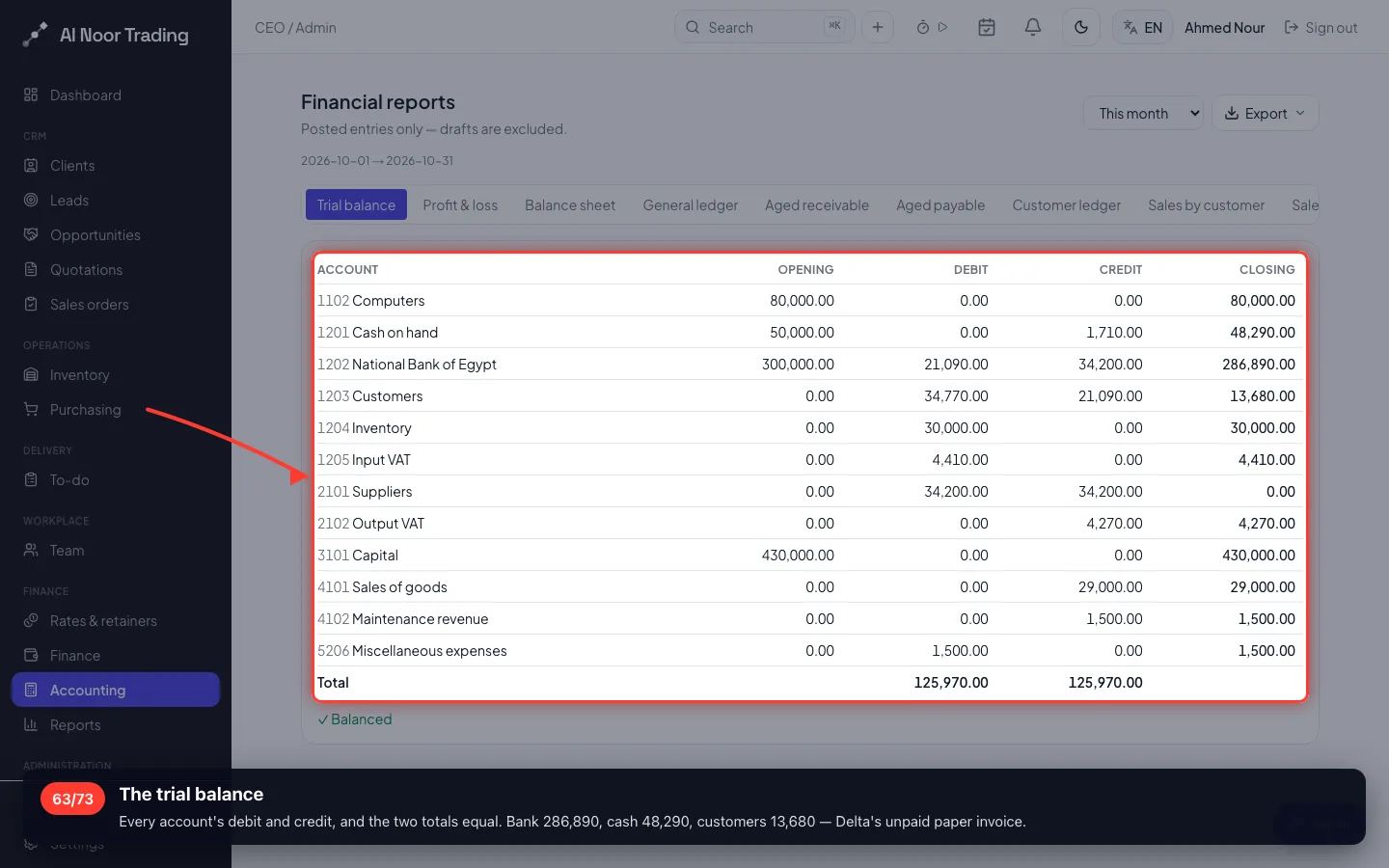
The trial balance
Every account's debit and credit, and the two totals equal. Bank 286,890, cash 48,290, customers 13,680 — Delta's unpaid paper invoice.
- 64
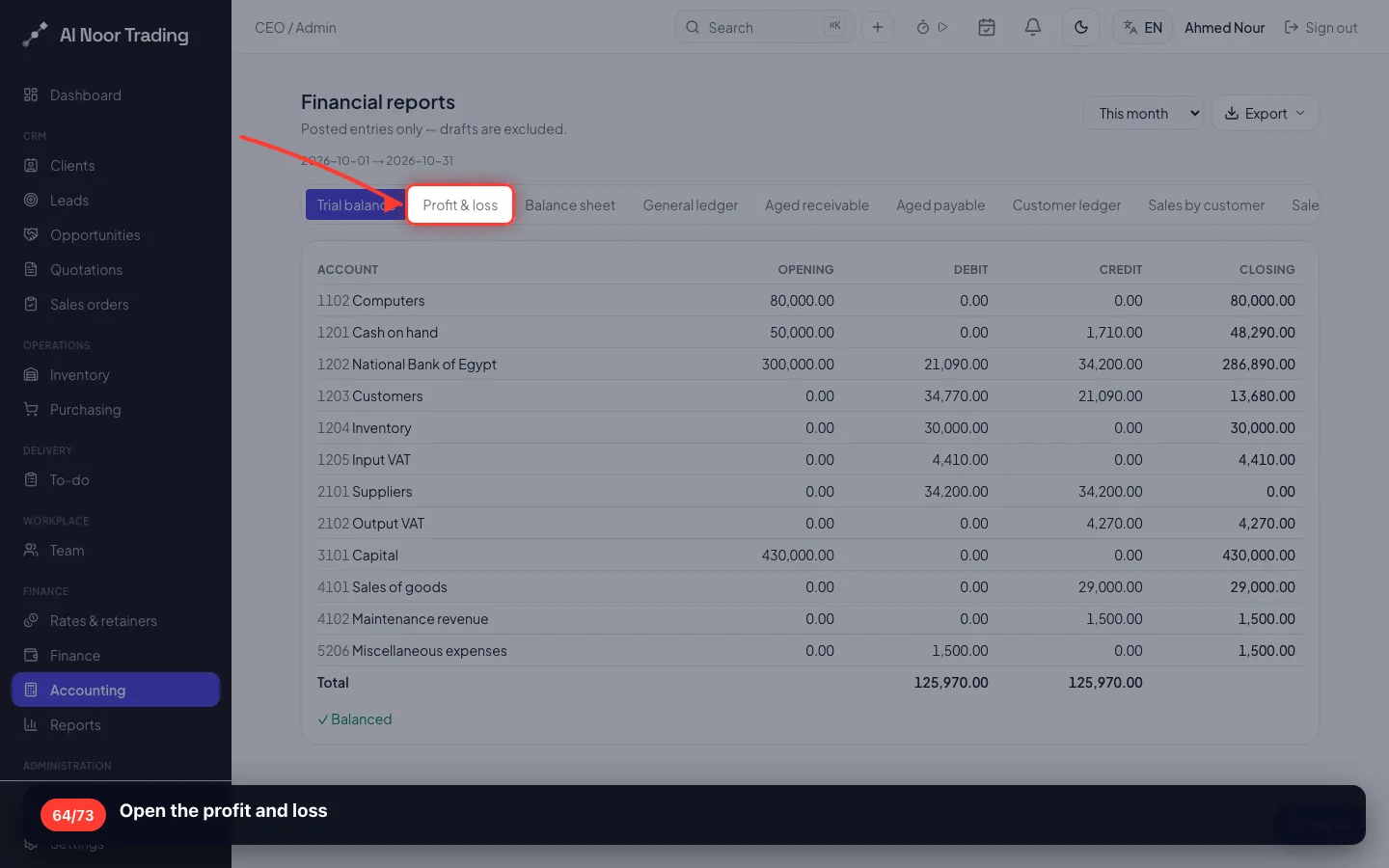
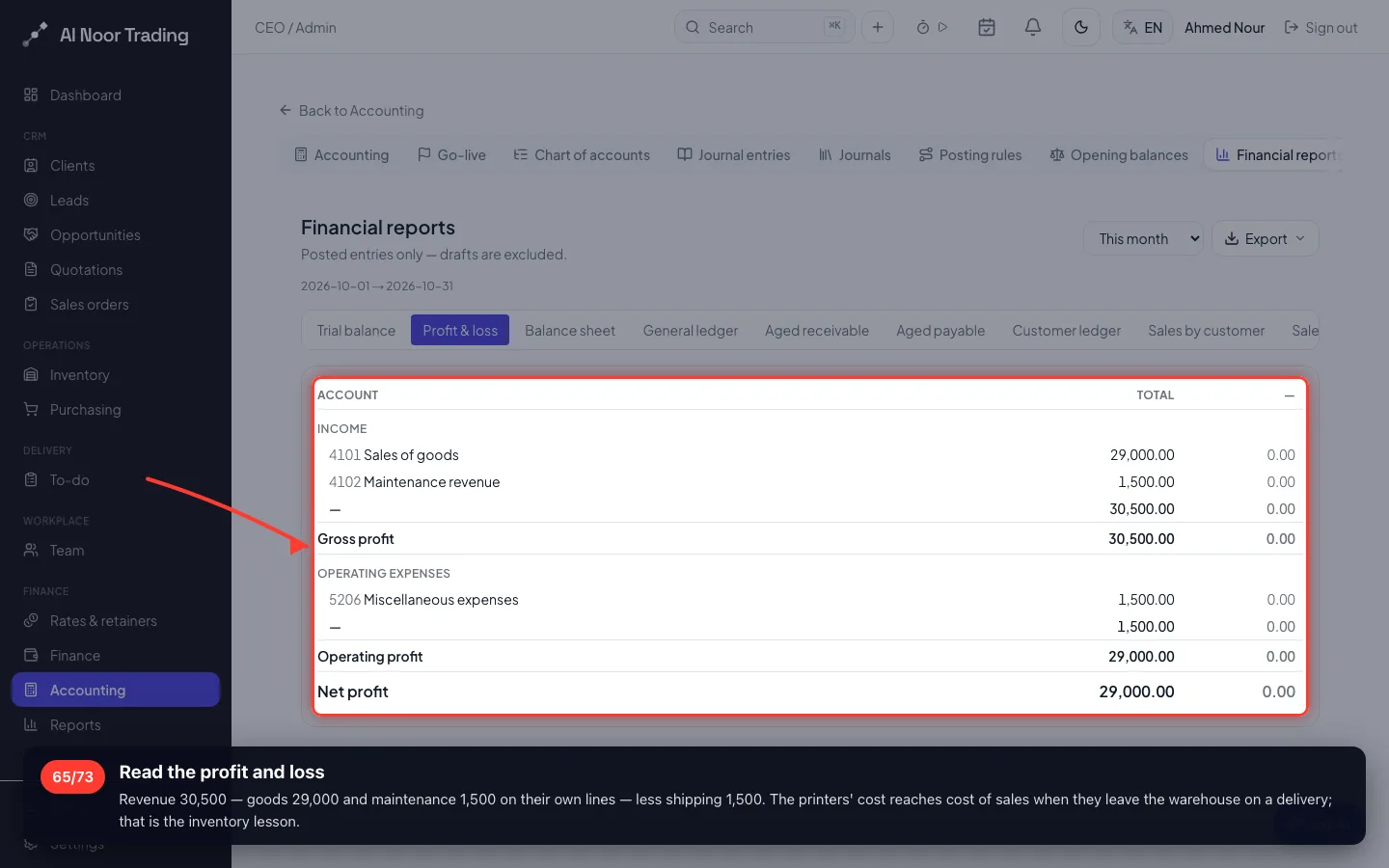
Open the profit and loss
- 65
Read the profit and loss
Revenue 30,500 — goods 29,000 and maintenance 1,500 on their own lines — less shipping 1,500. The printers' cost reaches cost of sales when they leave the warehouse on a delivery; that is the inventory lesson.
- 66
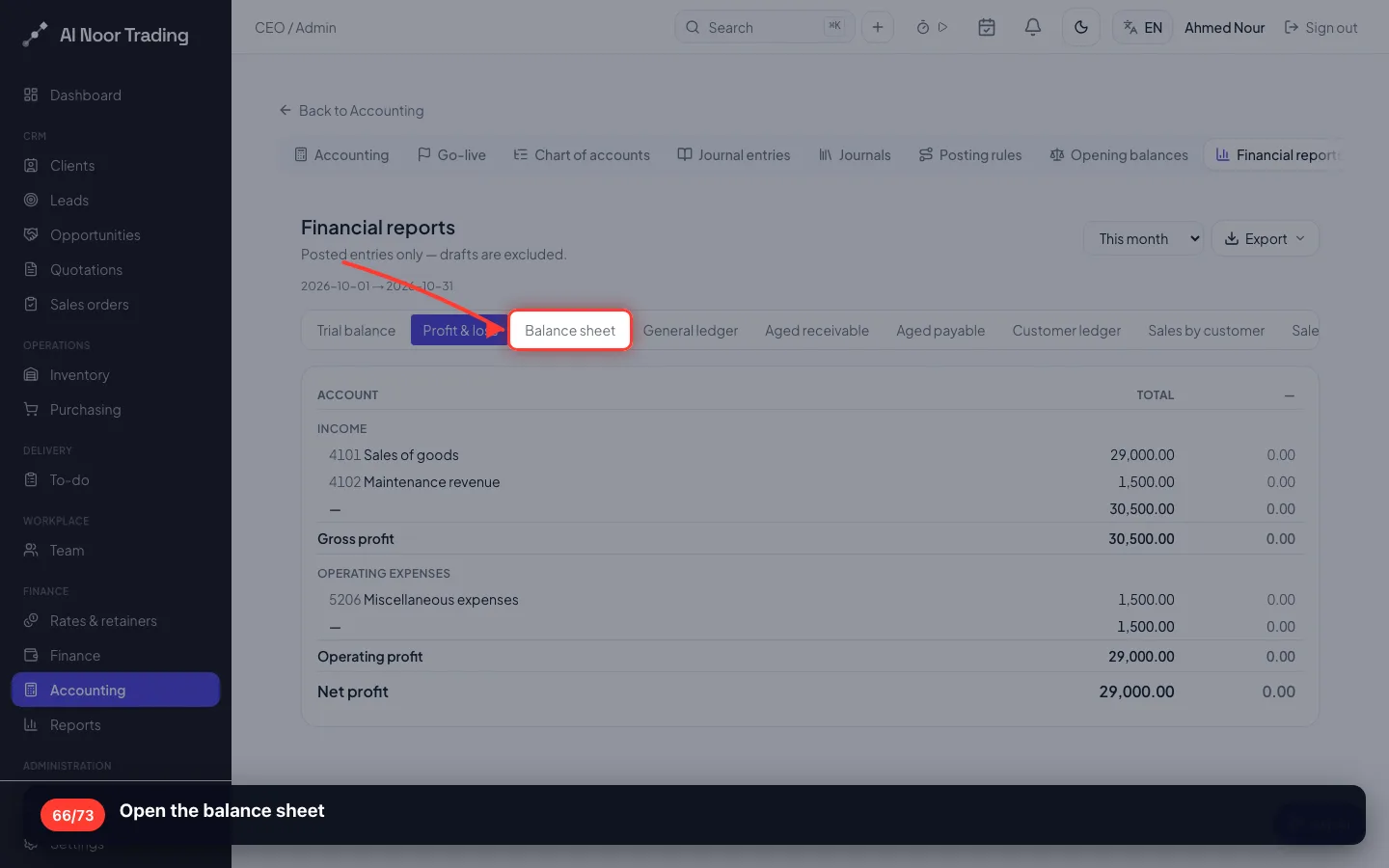
Open the balance sheet
- 67
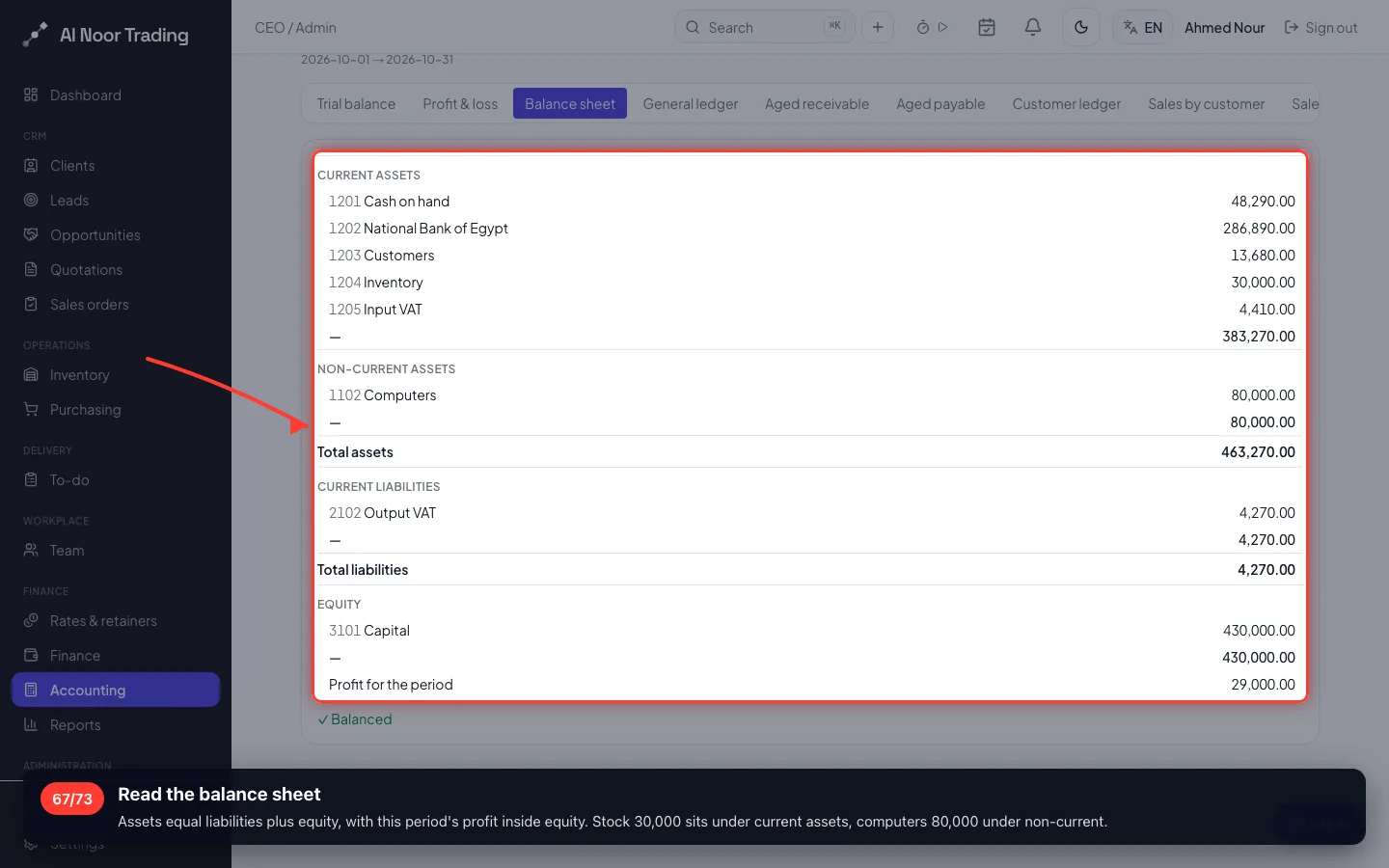
Read the balance sheet
Assets equal liabilities plus equity, with this period's profit inside equity. Stock 30,000 sits under current assets, computers 80,000 under non-current.
- 68
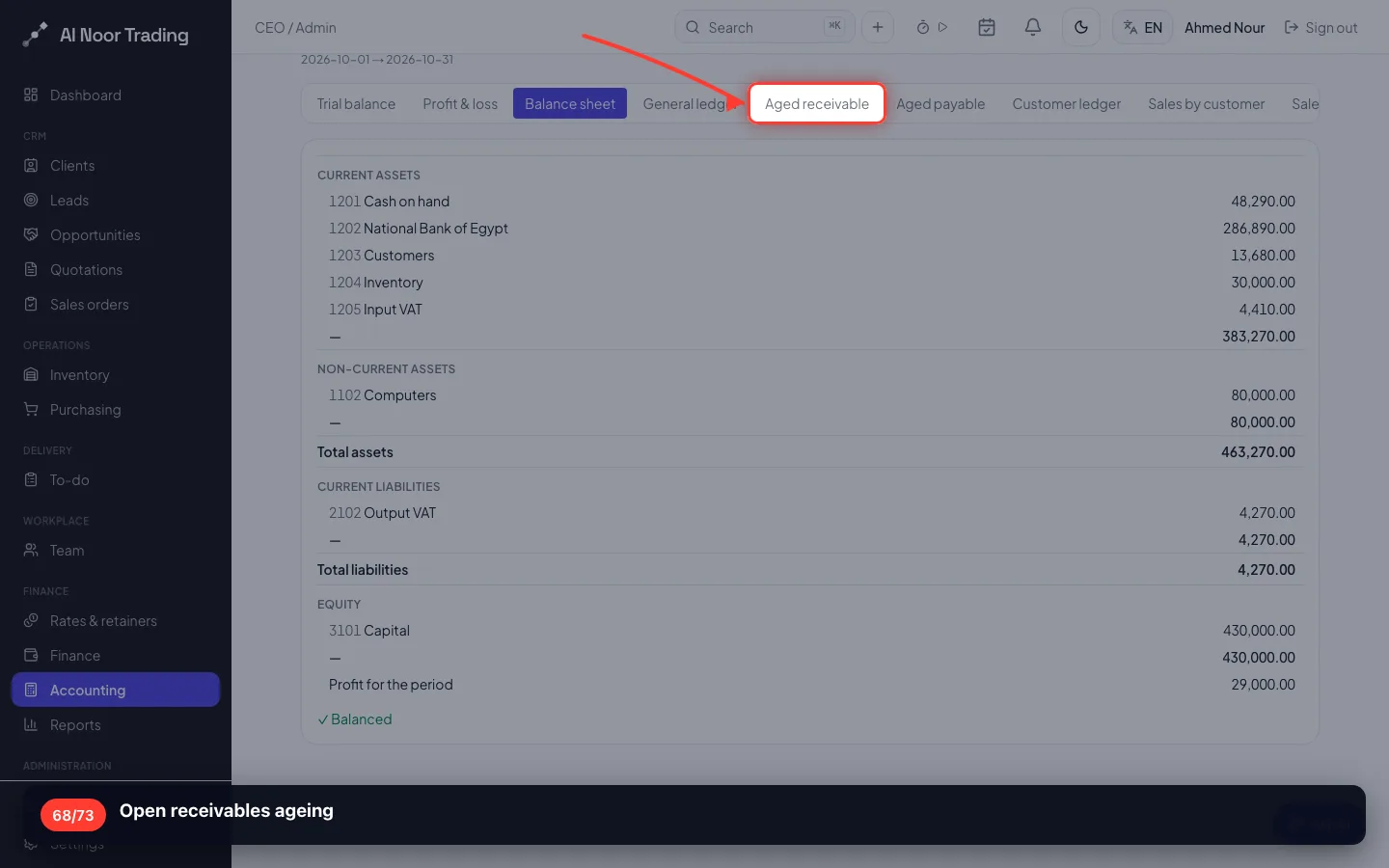
Open receivables ageing
- 69
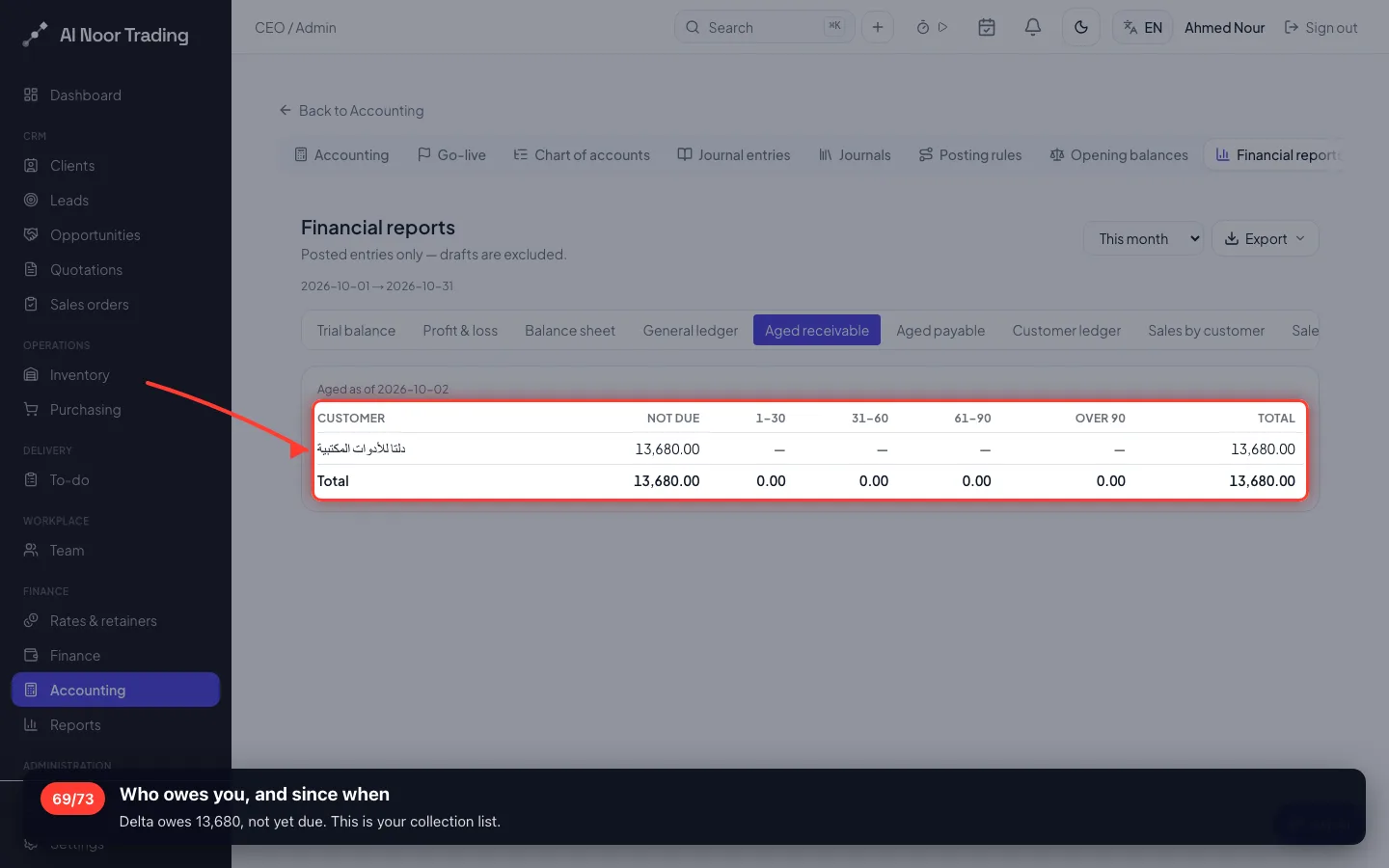
Who owes you, and since when
Delta owes 13,680, not yet due. This is your collection list.
- 70
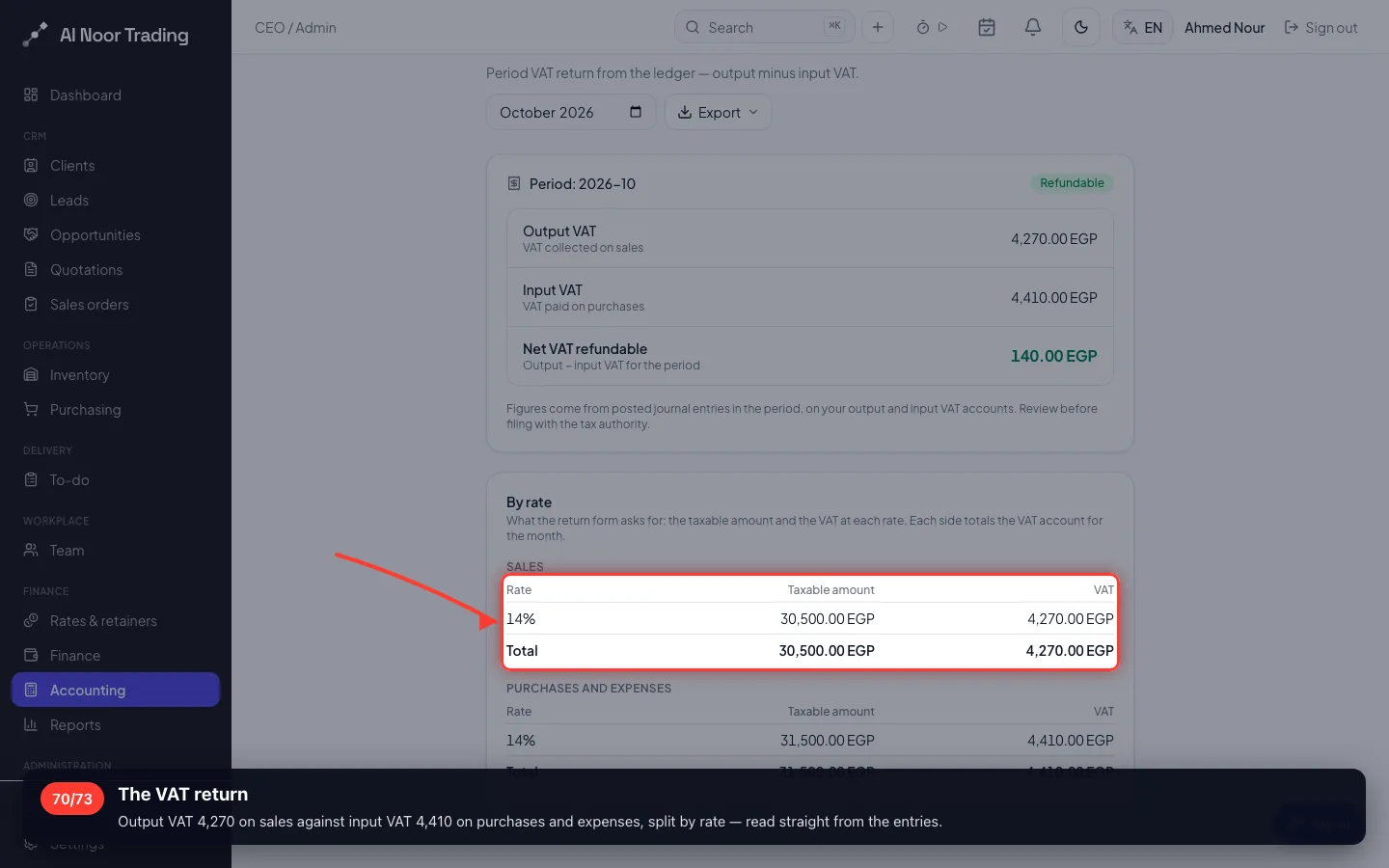
The VAT return
Output VAT 4,270 on sales against input VAT 4,410 on purchases and expenses, split by rate — read straight from the entries.
- 71
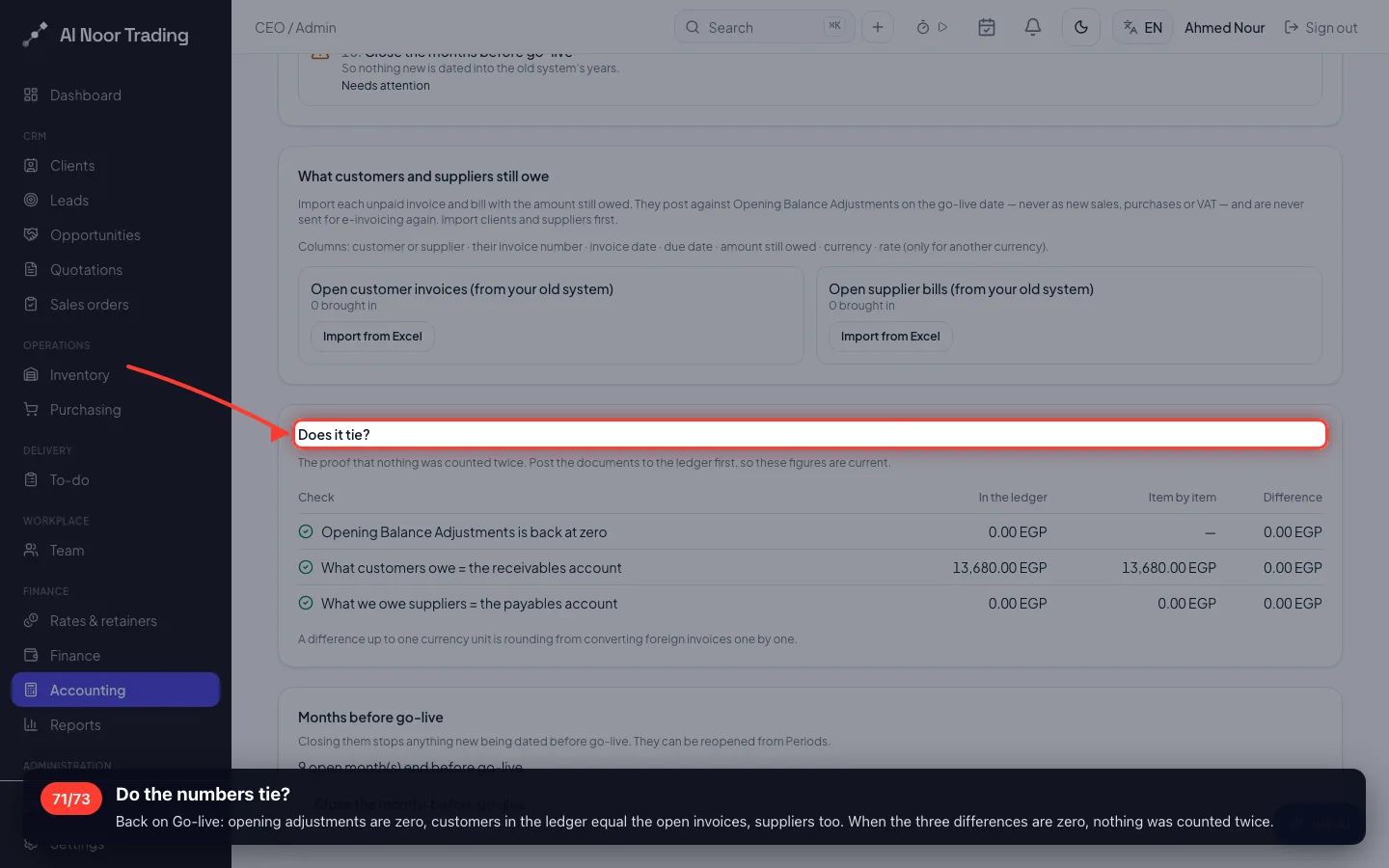
Do the numbers tie?
Back on Go-live: opening adjustments are zero, customers in the ledger equal the open invoices, suppliers too. When the three differences are zero, nothing was counted twice.
- 72
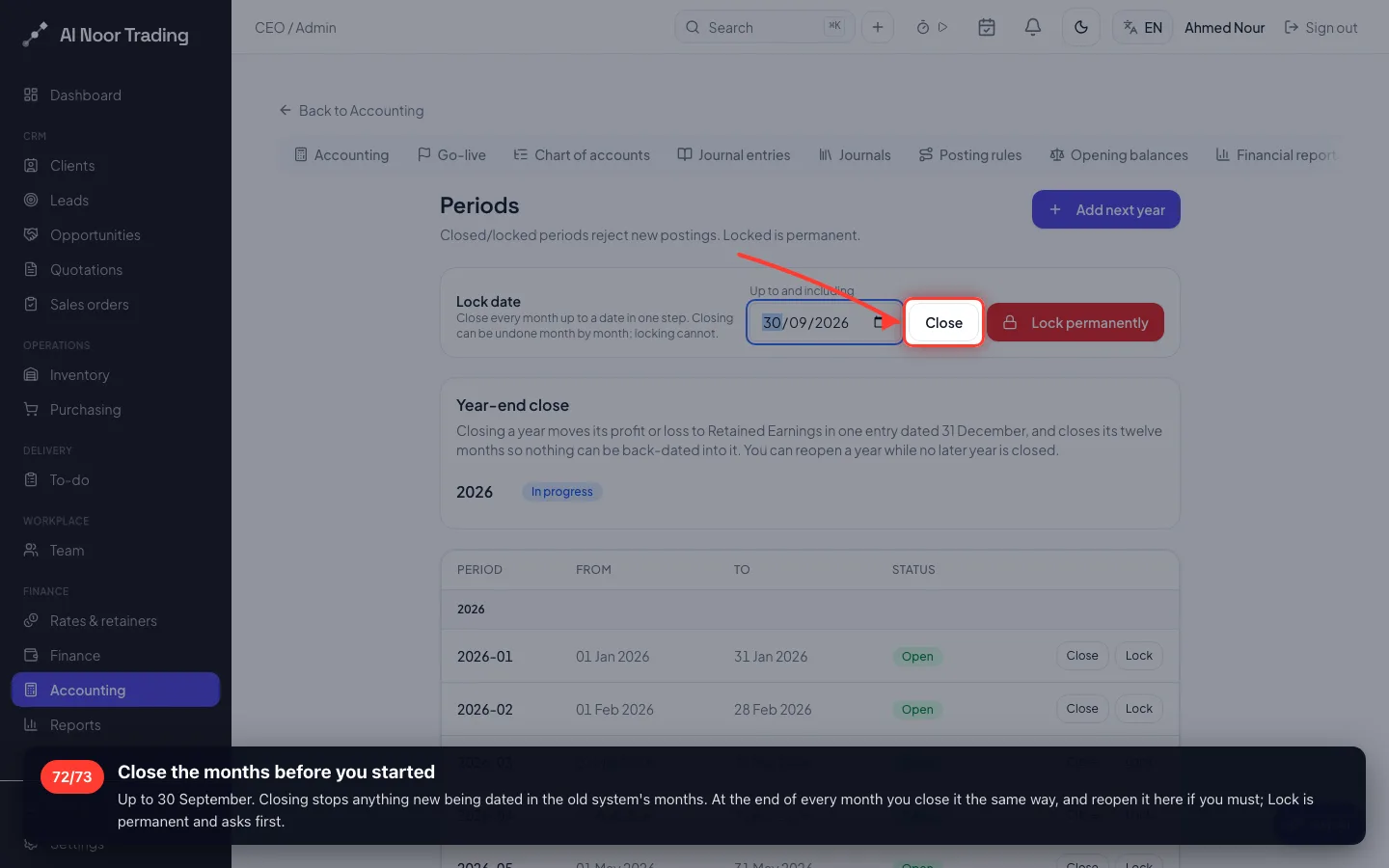
Close the months before you started
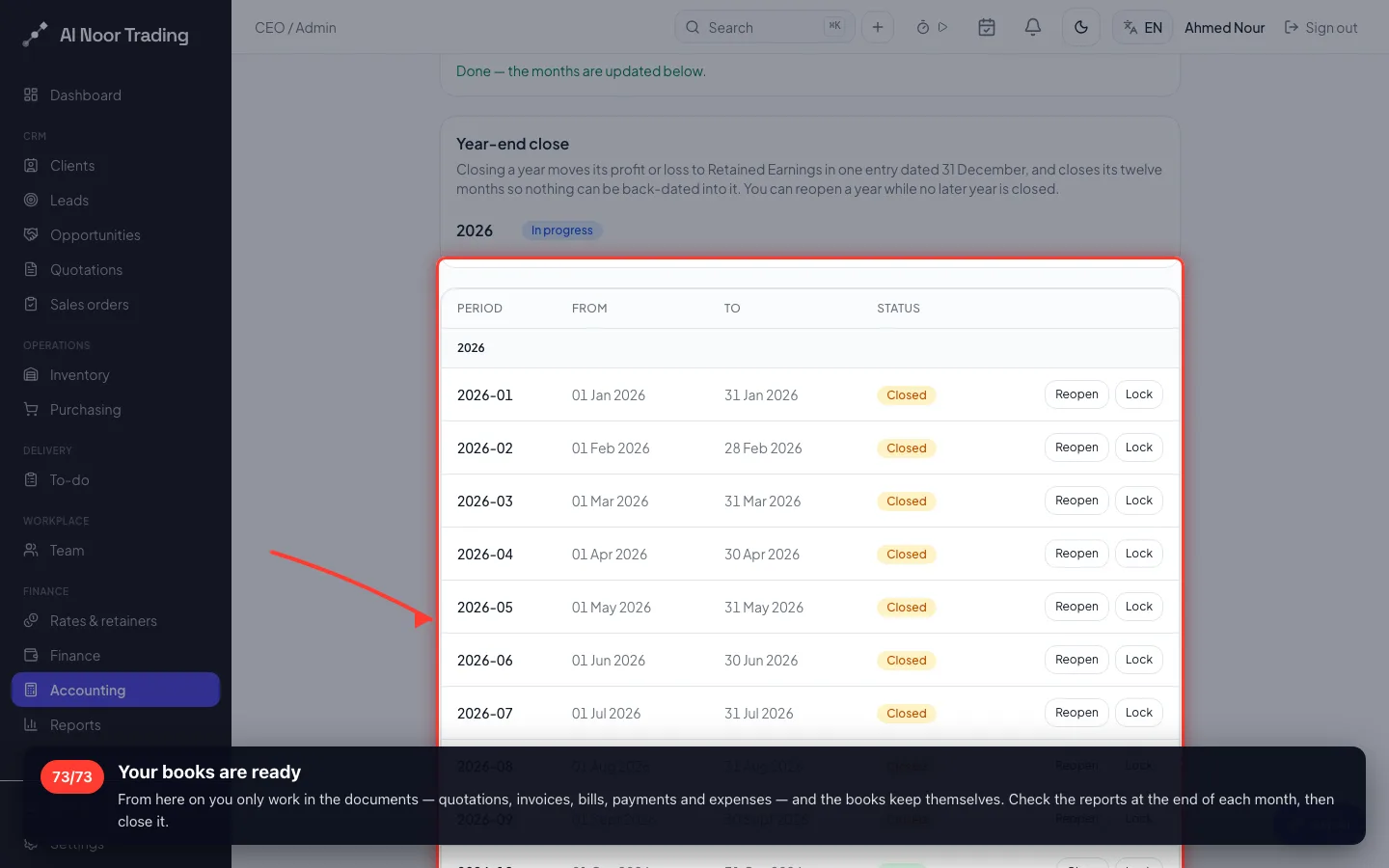
Up to 30 September. Closing stops anything new being dated in the old system's months. At the end of every month you close it the same way, and reopen it here if you must; Lock is permanent and asks first.
- 73
Your books are ready
From here on you only work in the documents — quotations, invoices, bills, payments and expenses — and the books keep themselves. Check the reports at the end of each month, then close it.
Enregistré sur un espace de démonstration. Les chiffres sont fictifs, les écrans sont réels.