The Purchasing module
Suppliers, a requisition from the floor, an RFQ, the order and its two signatures, receiving, the supplier's bill matched against both, and the payment run.
30 steps
The whole walkthrough, no narration — the captions are on the screen.
1 · The supplier record
Before anything is bought, the supplier exists once — with their tax number, their lead time and whether their goods need inspection.
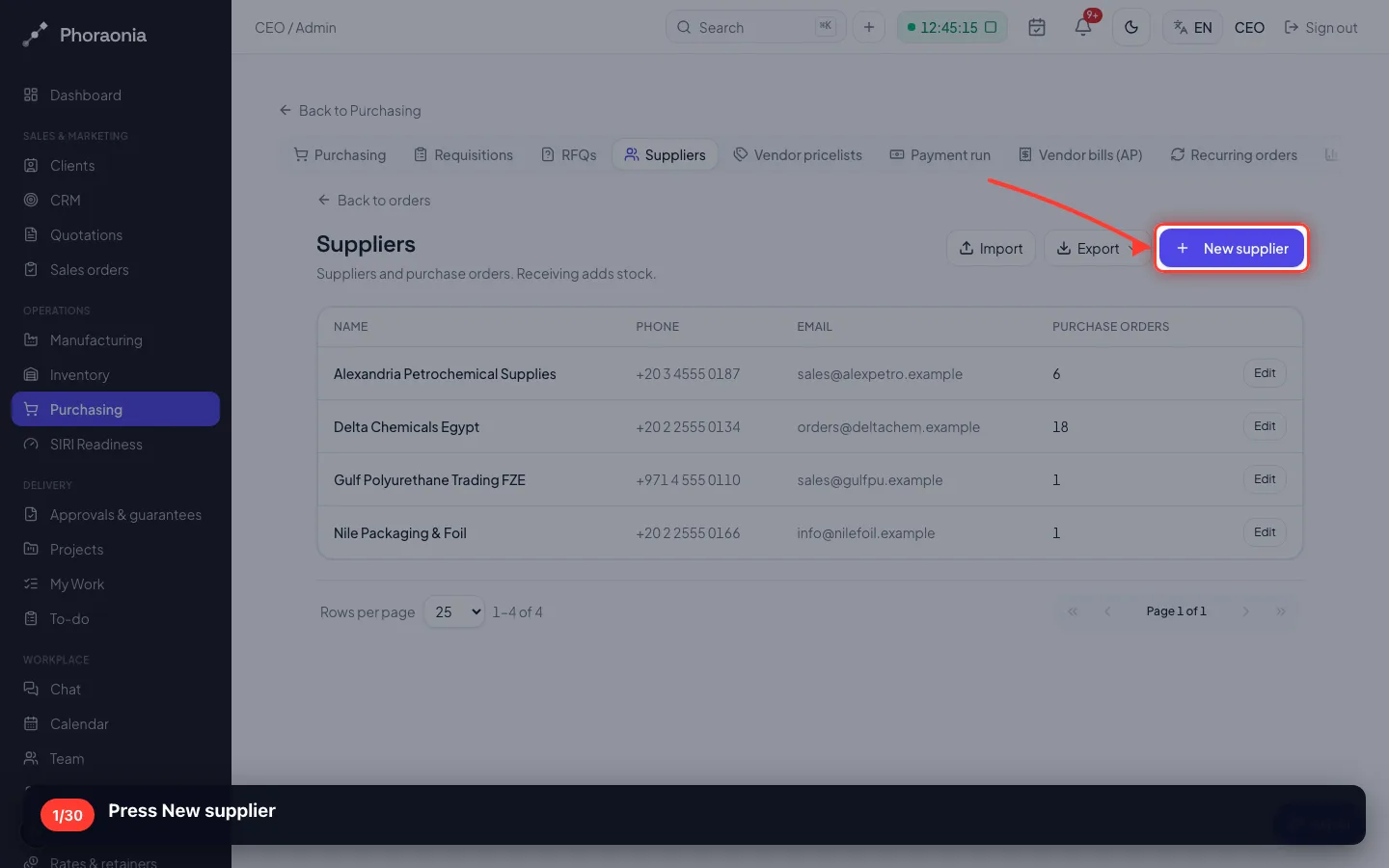
1Press New supplier
- 2
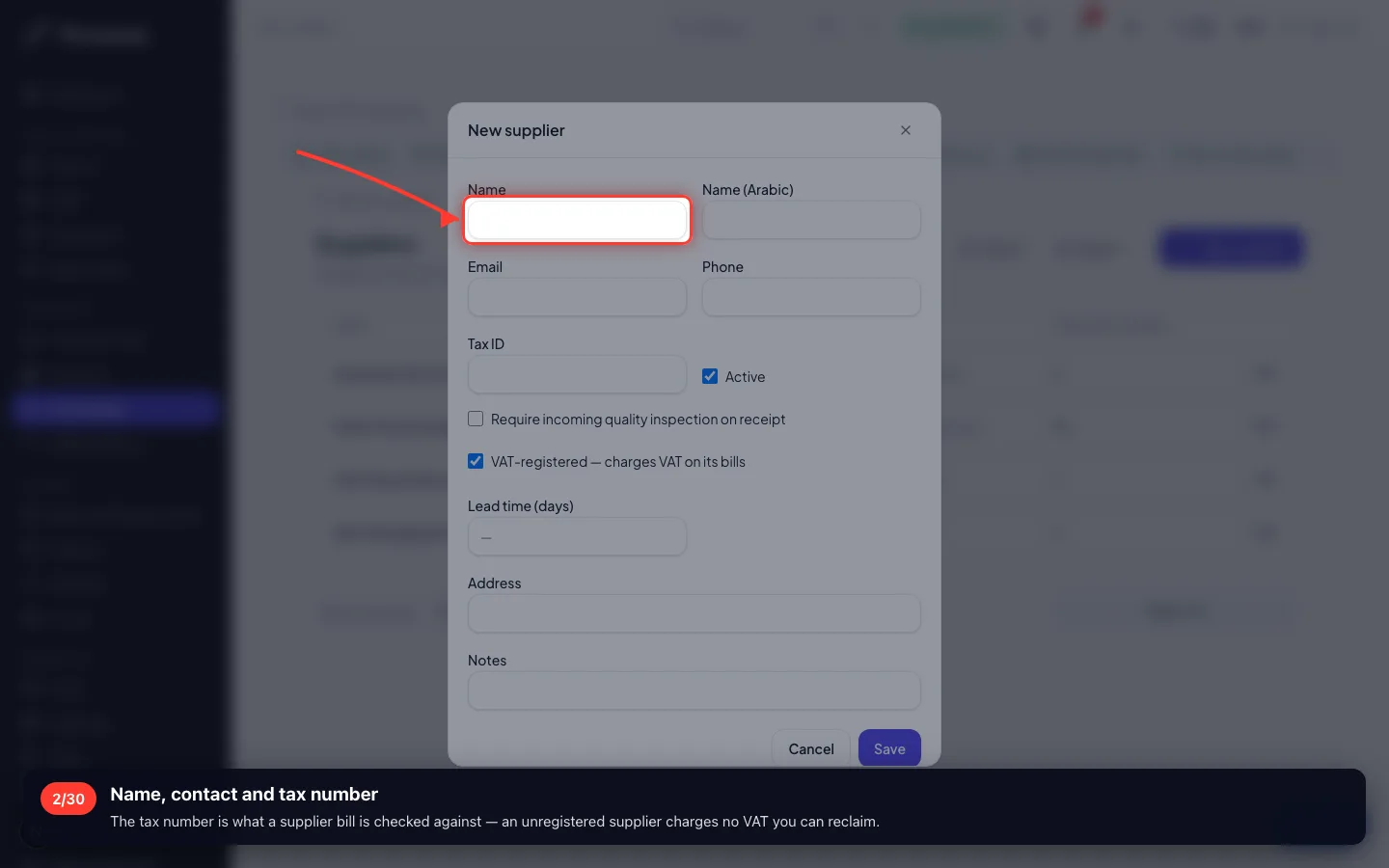
Name, contact and tax number
The tax number is what a supplier bill is checked against — an unregistered supplier charges no VAT you can reclaim.
- 3
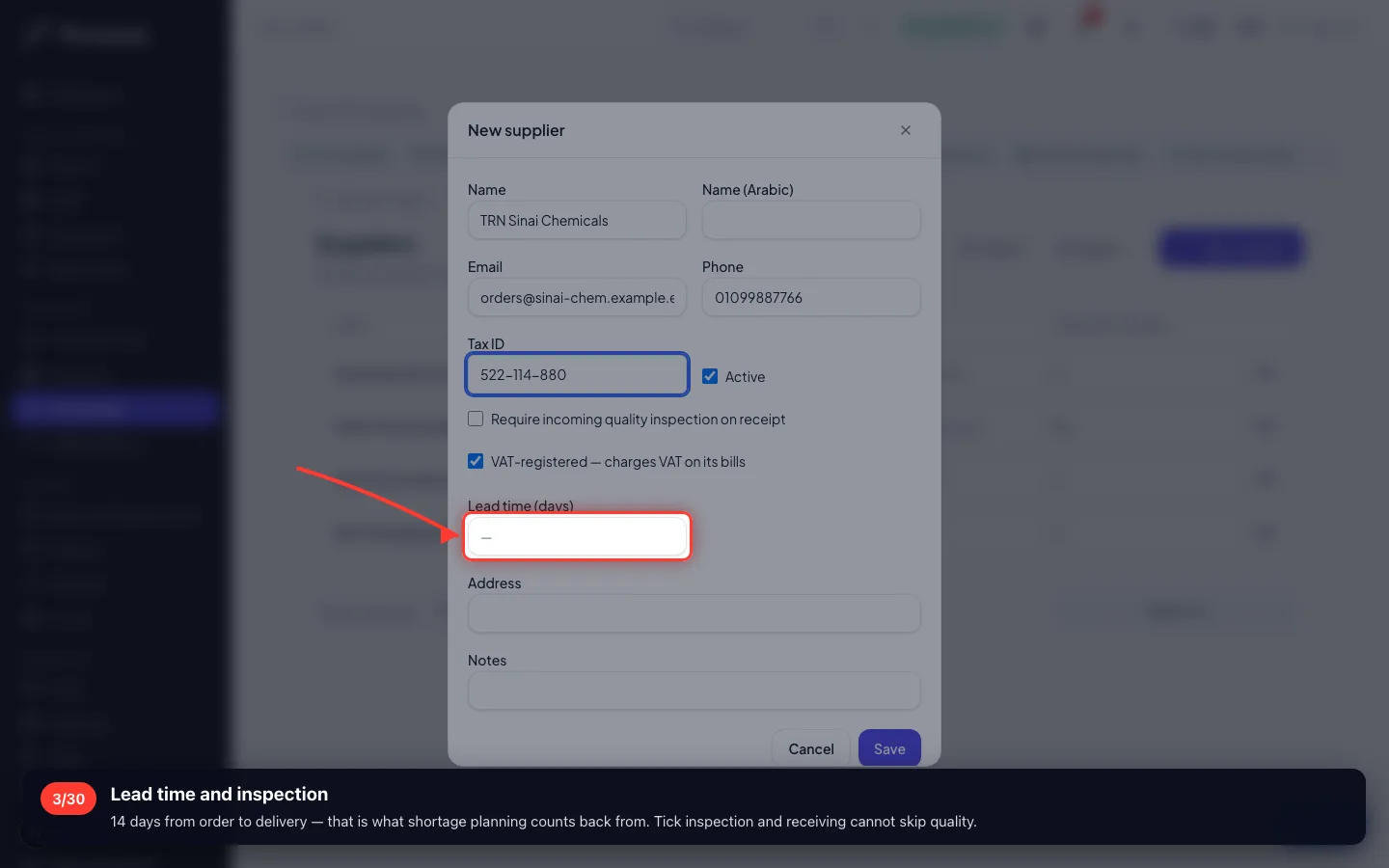
Lead time and inspection
14 days from order to delivery — that is what shortage planning counts back from. Tick inspection and receiving cannot skip quality.
- 4
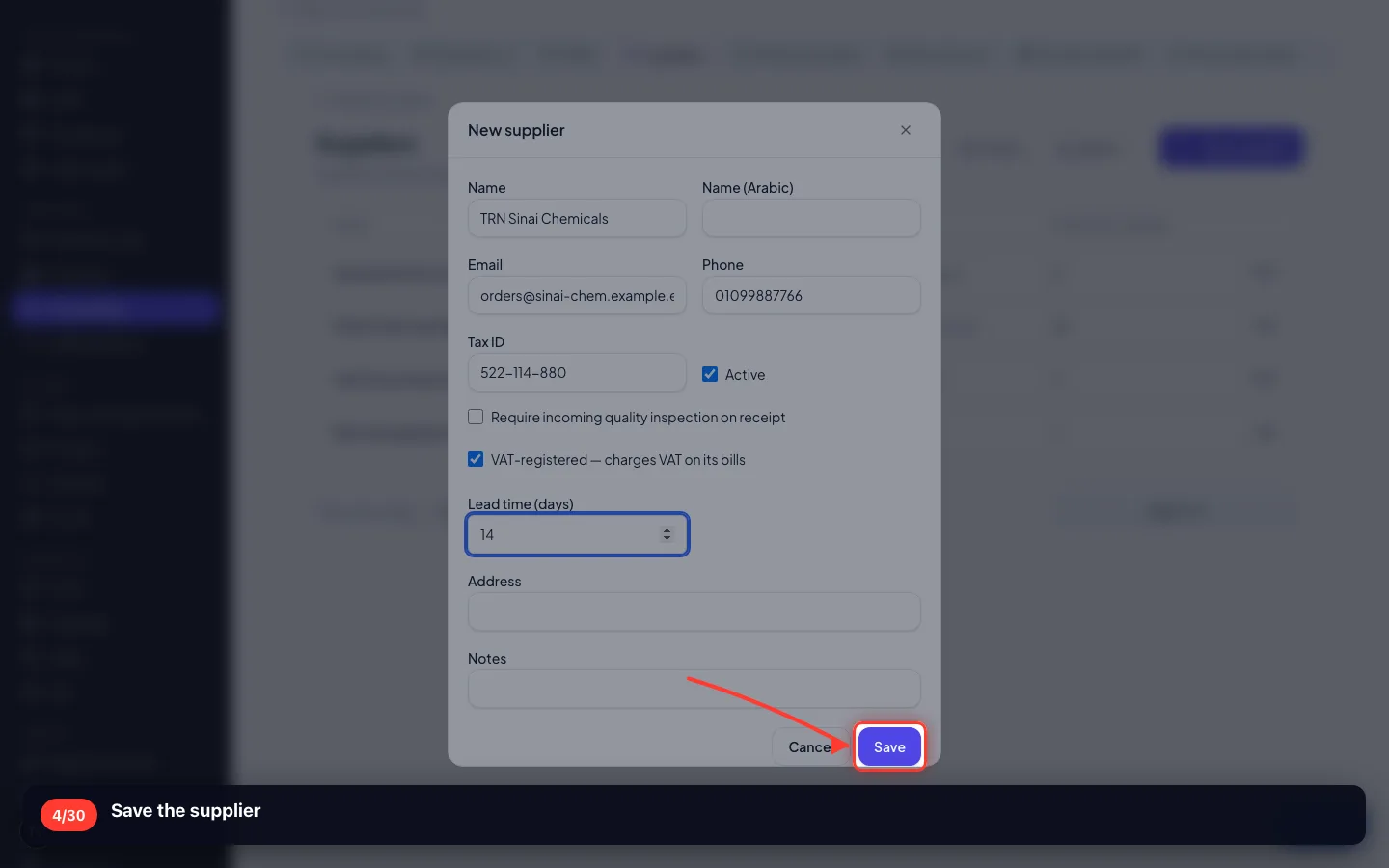
Save the supplier
2 · The floor asks for something
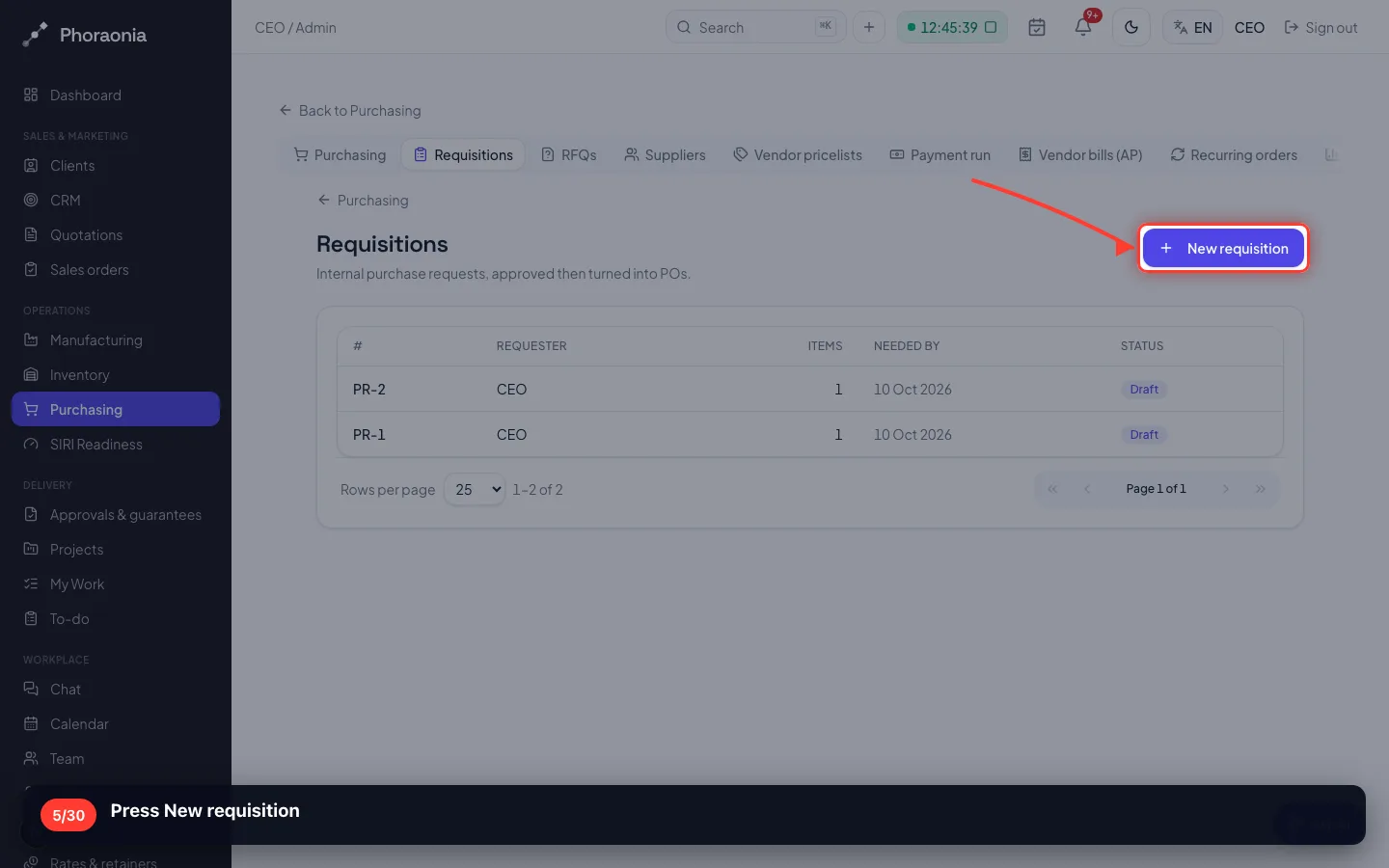
A requisition is a REQUEST, not an order. It commits no money — it tells purchasing what production needs.
5Press New requisition
- 6
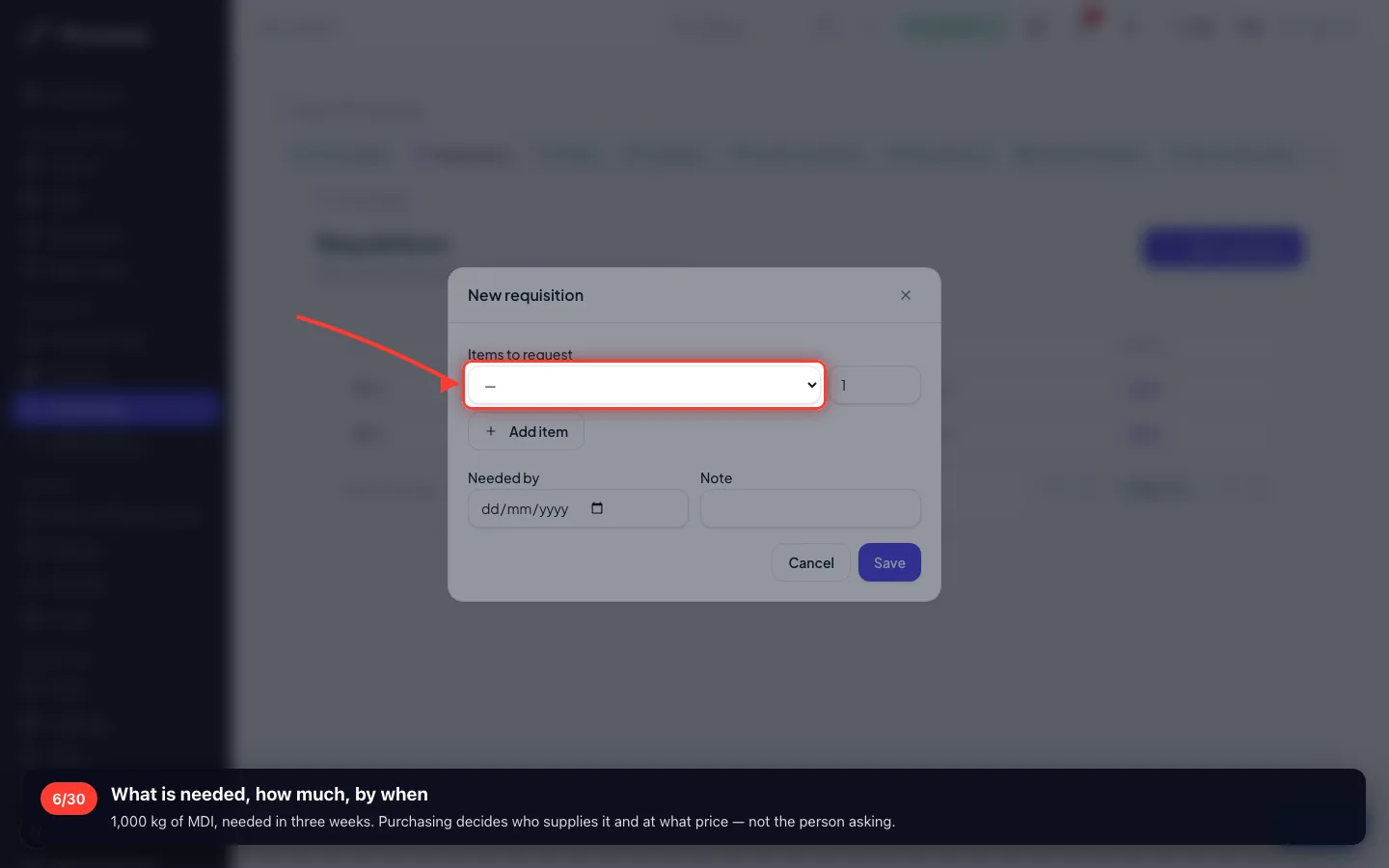
What is needed, how much, by when
1,000 kg of MDI, needed in three weeks. Purchasing decides who supplies it and at what price — not the person asking.
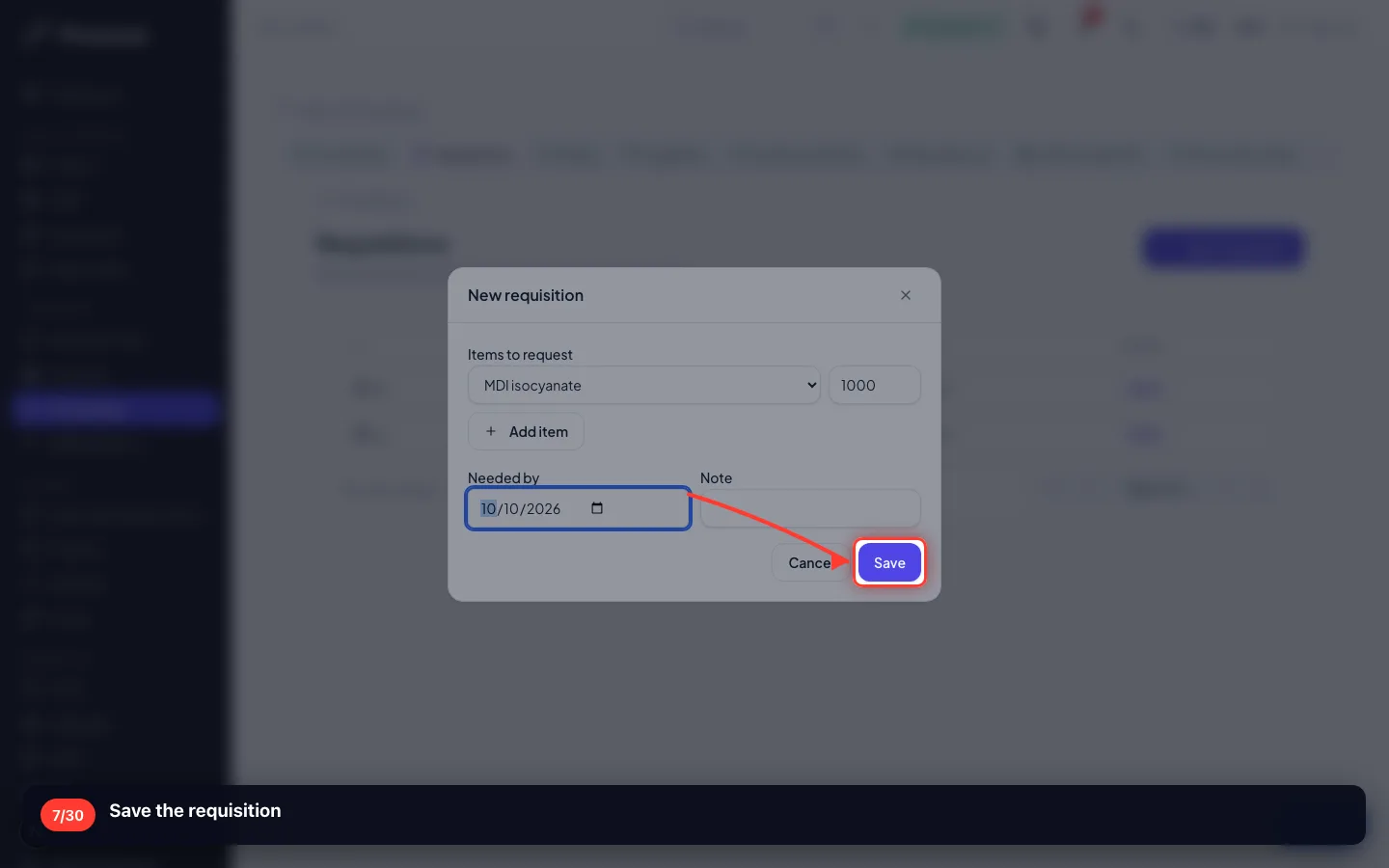
- 7
Save the requisition
3 · Asking suppliers for a price
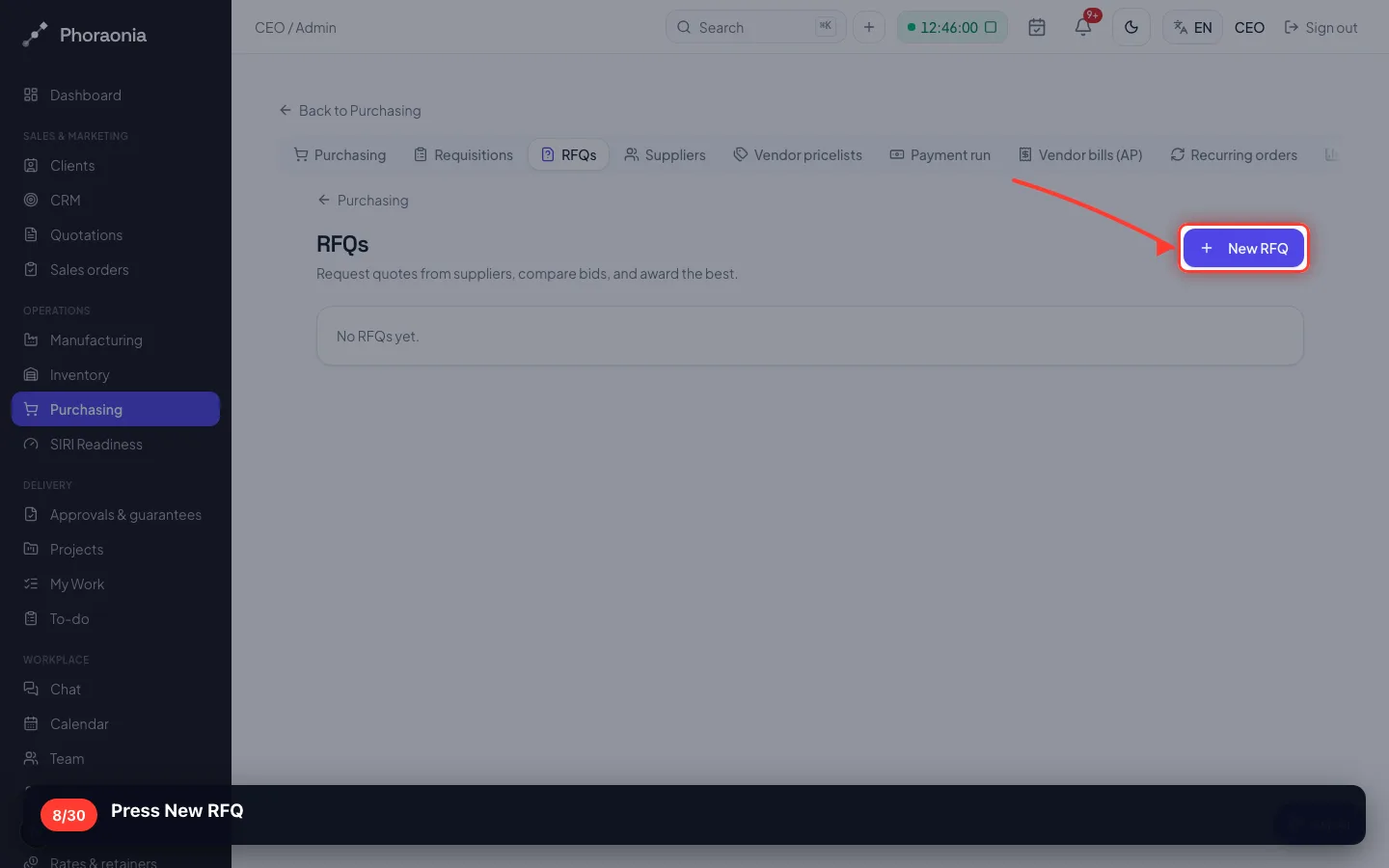
An RFQ goes to several suppliers for the same list, so you compare like with like before you commit.
8Press New RFQ
- 9
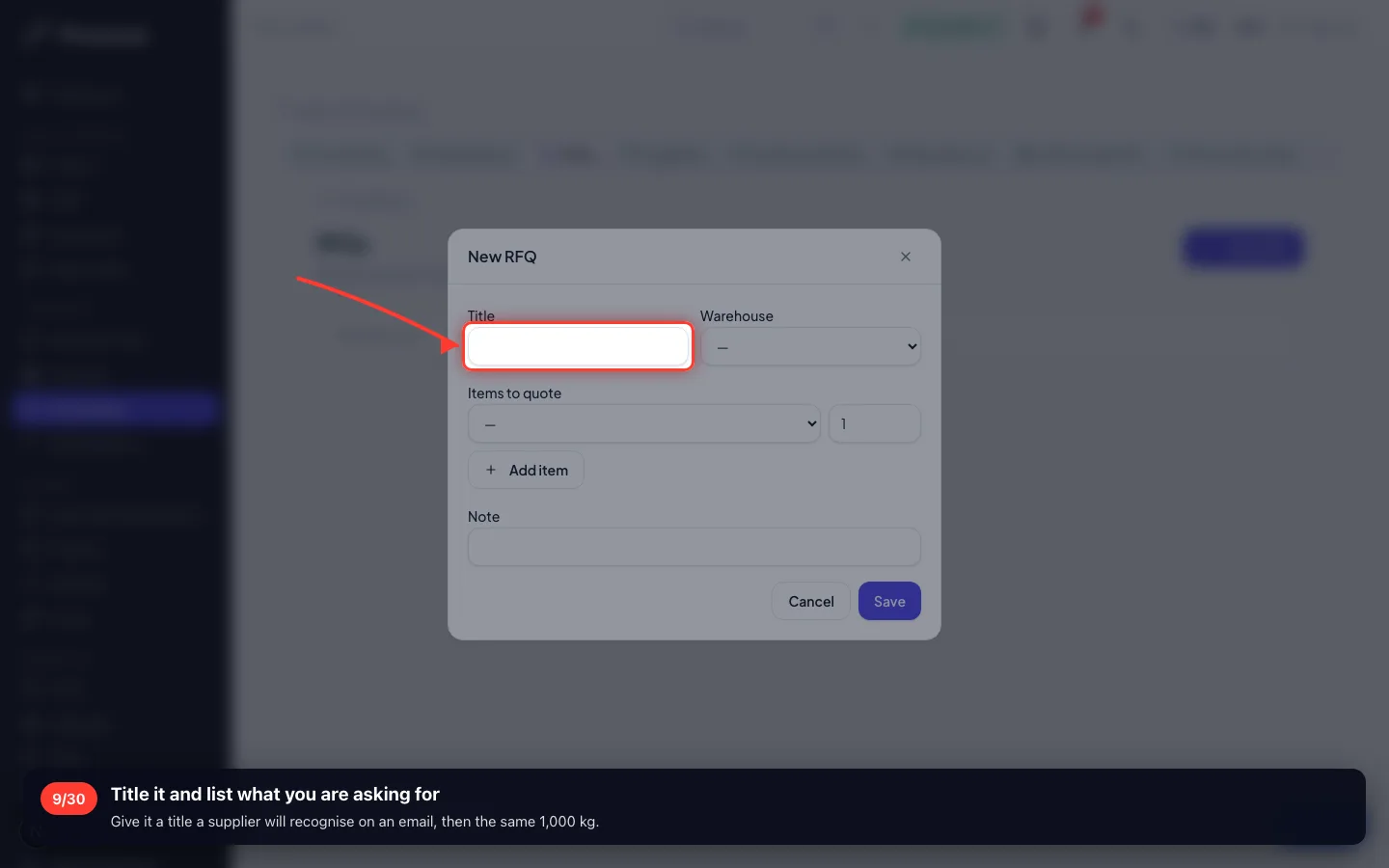
Title it and list what you are asking for
Give it a title a supplier will recognise on an email, then the same 1,000 kg.
- 10
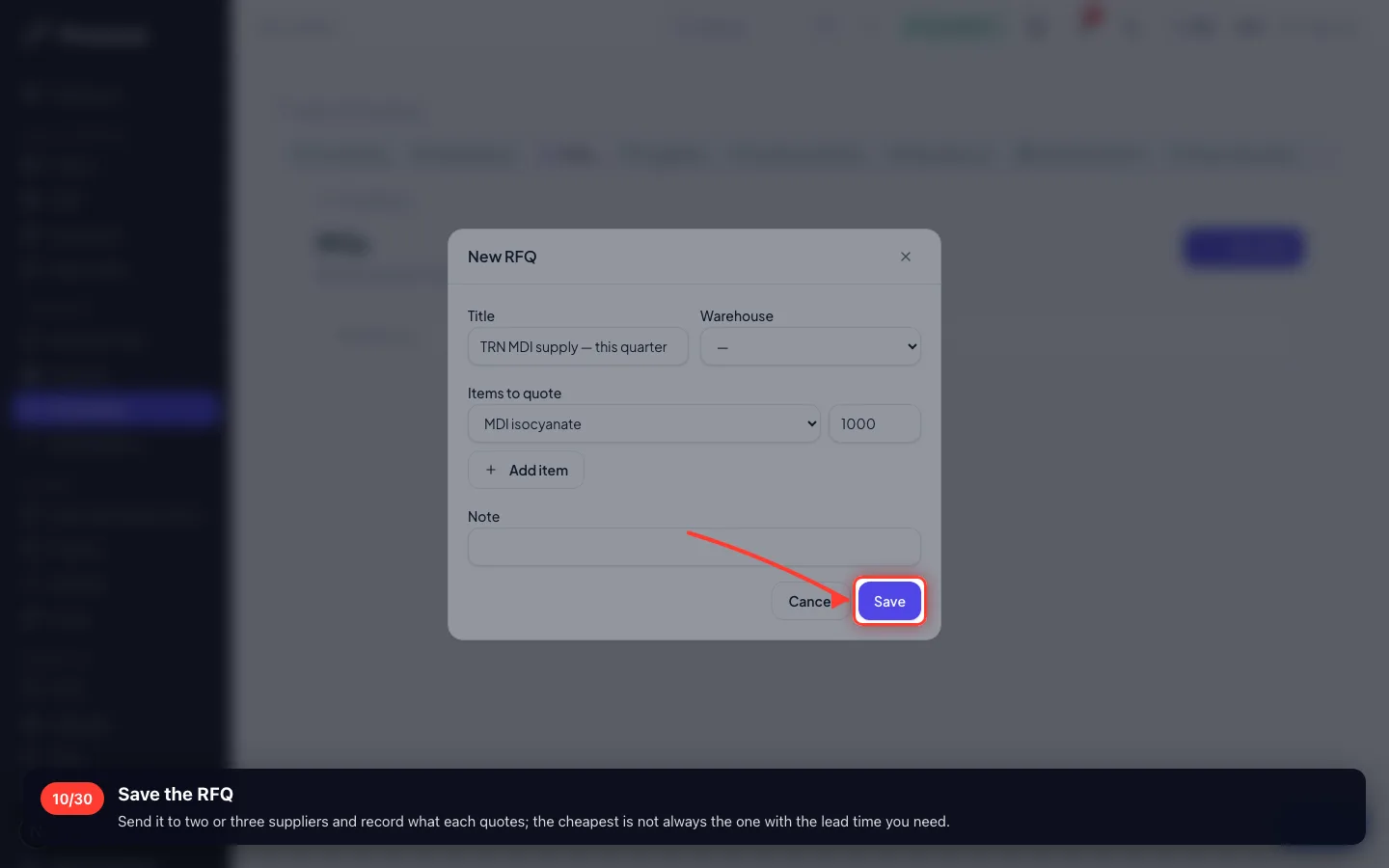
Save the RFQ
Send it to two or three suppliers and record what each quotes; the cheapest is not always the one with the lead time you need.
4 · The purchase order
This is the document that commits the company's money. Everything before it was preparation.
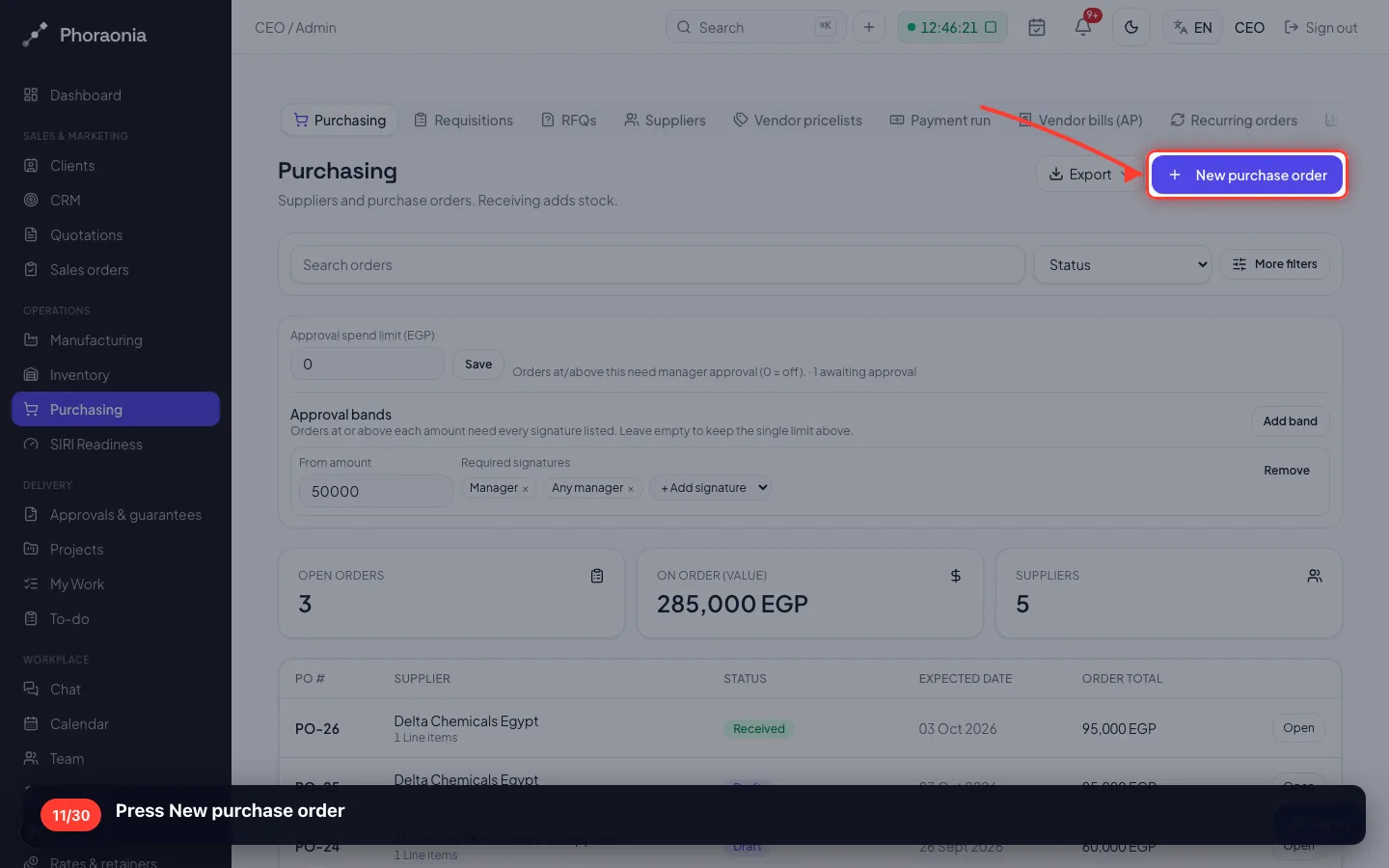
11Press New purchase order
- 12
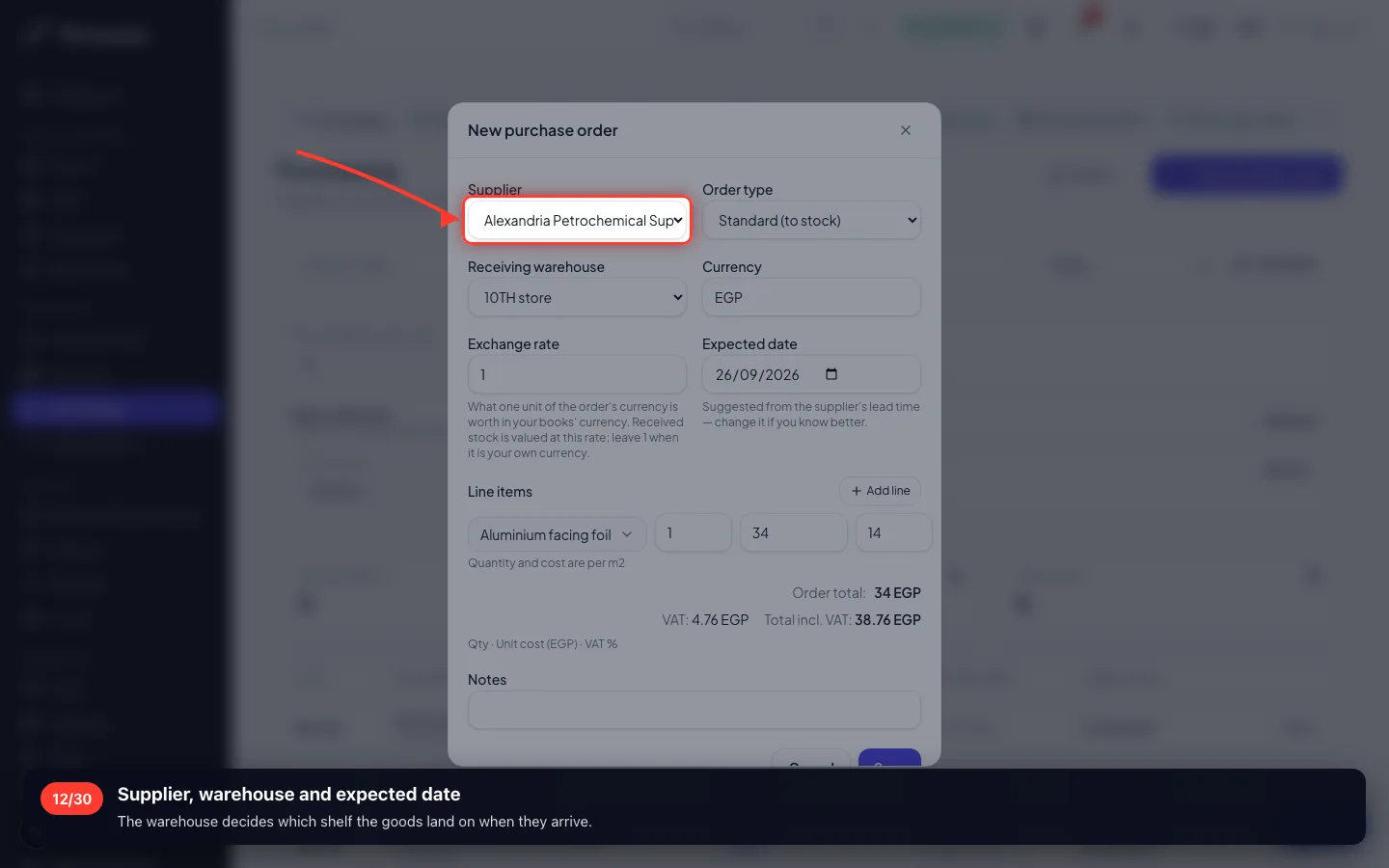
Supplier, warehouse and expected date
The warehouse decides which shelf the goods land on when they arrive.
- 13
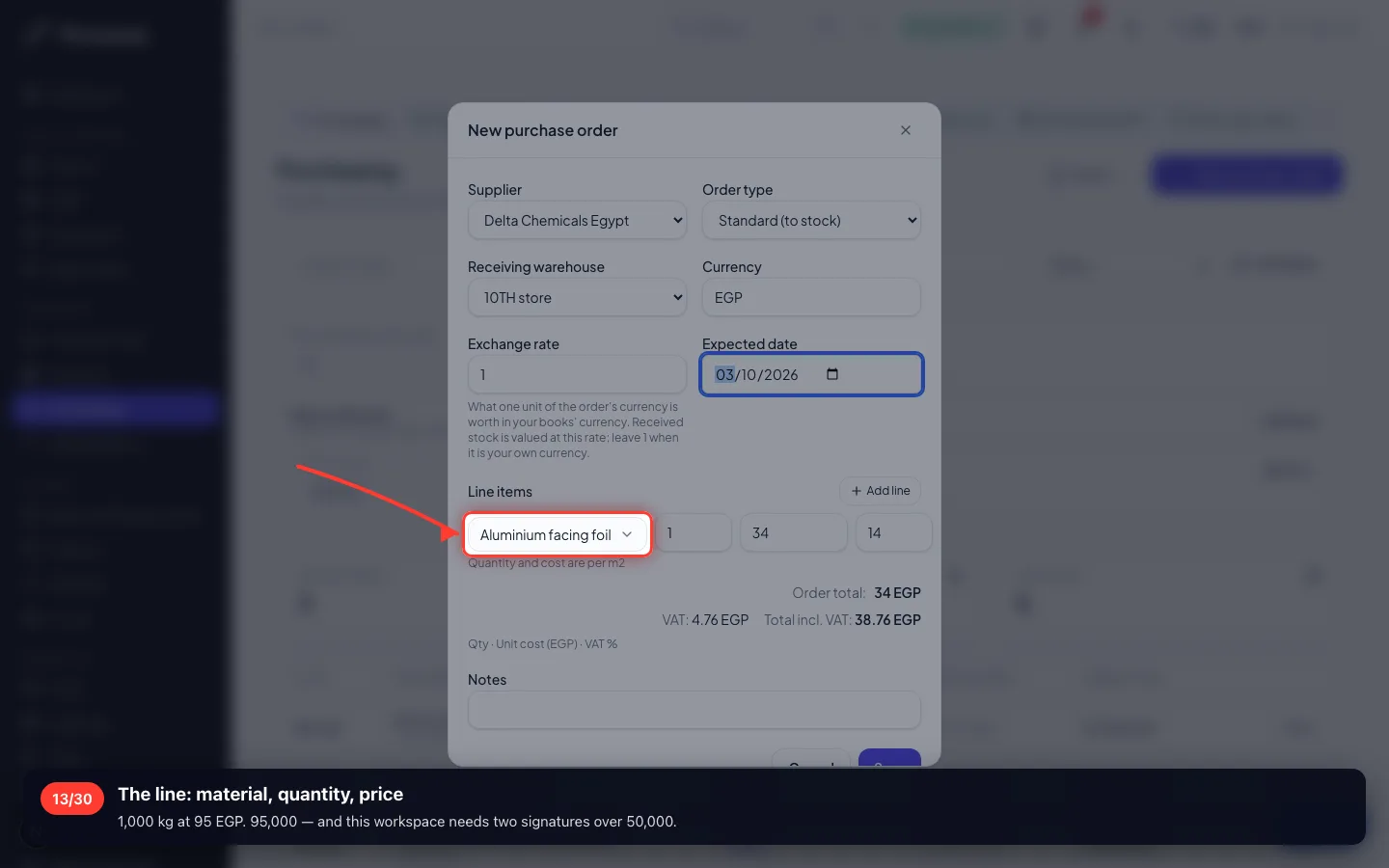
The line: material, quantity, price
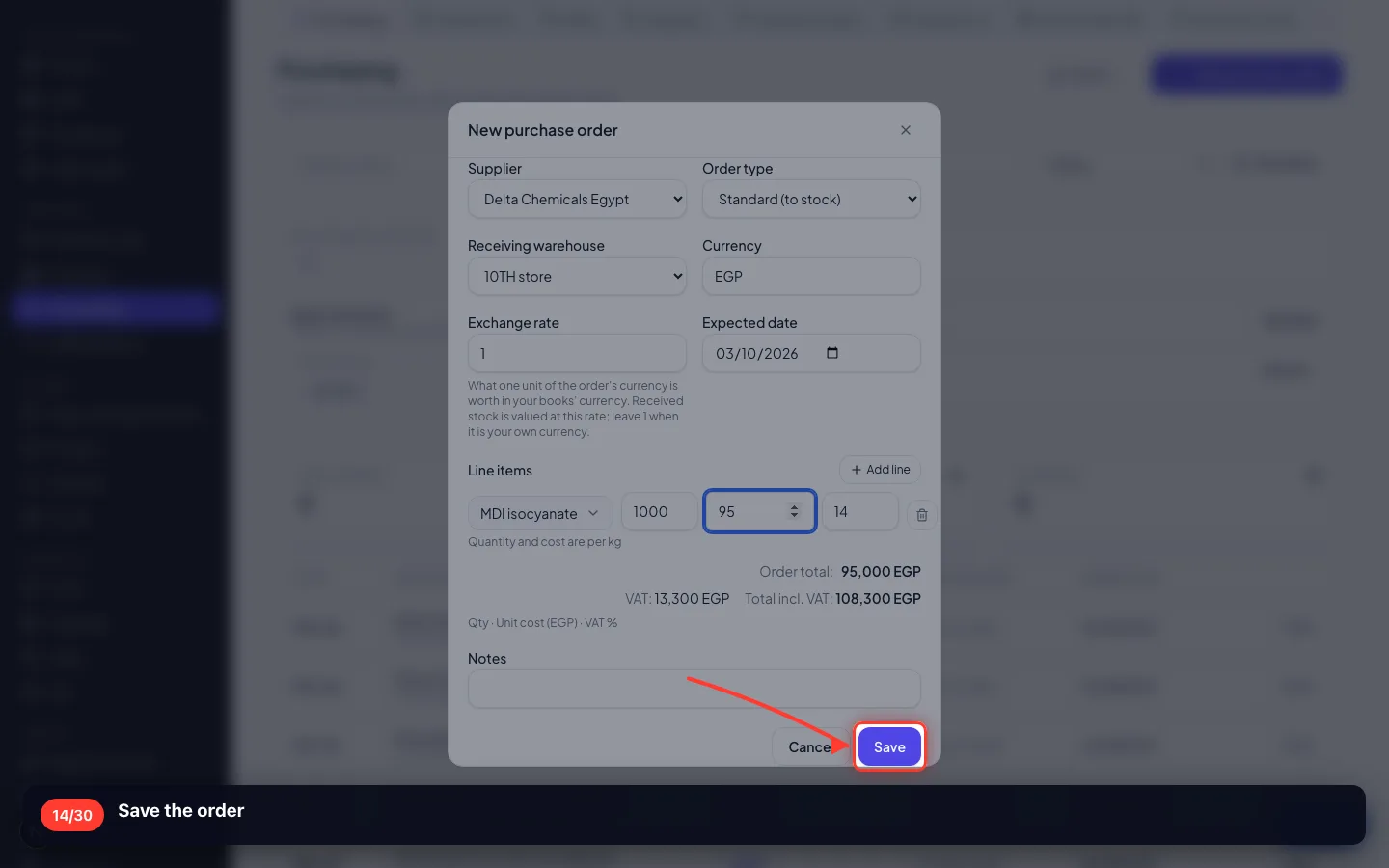
1,000 kg at 95 EGP. 95,000 — and this workspace needs two signatures over 50,000.
- 14
Save the order
- 15
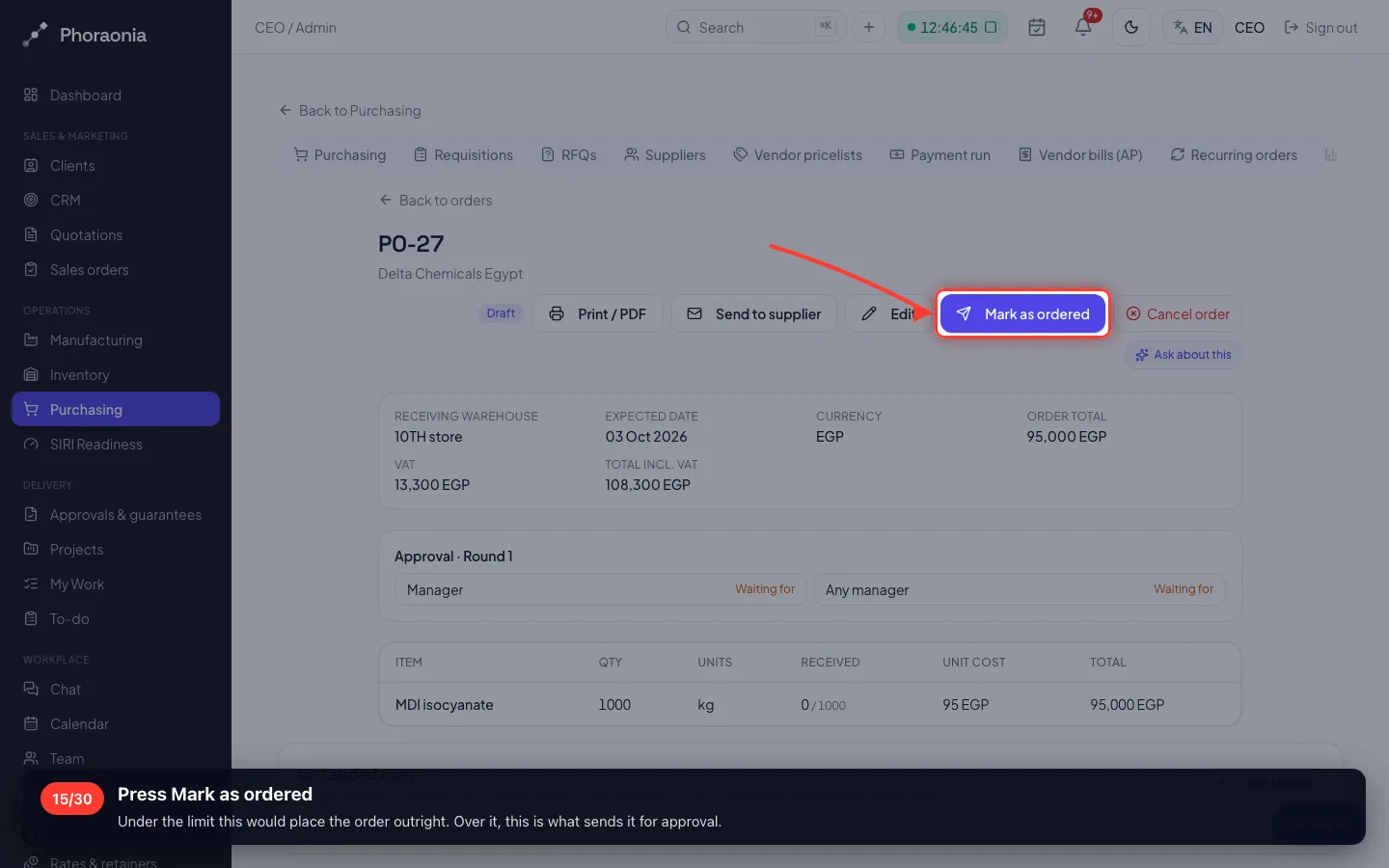
Press Mark as ordered
Under the limit this would place the order outright. Over it, this is what sends it for approval.
- 16
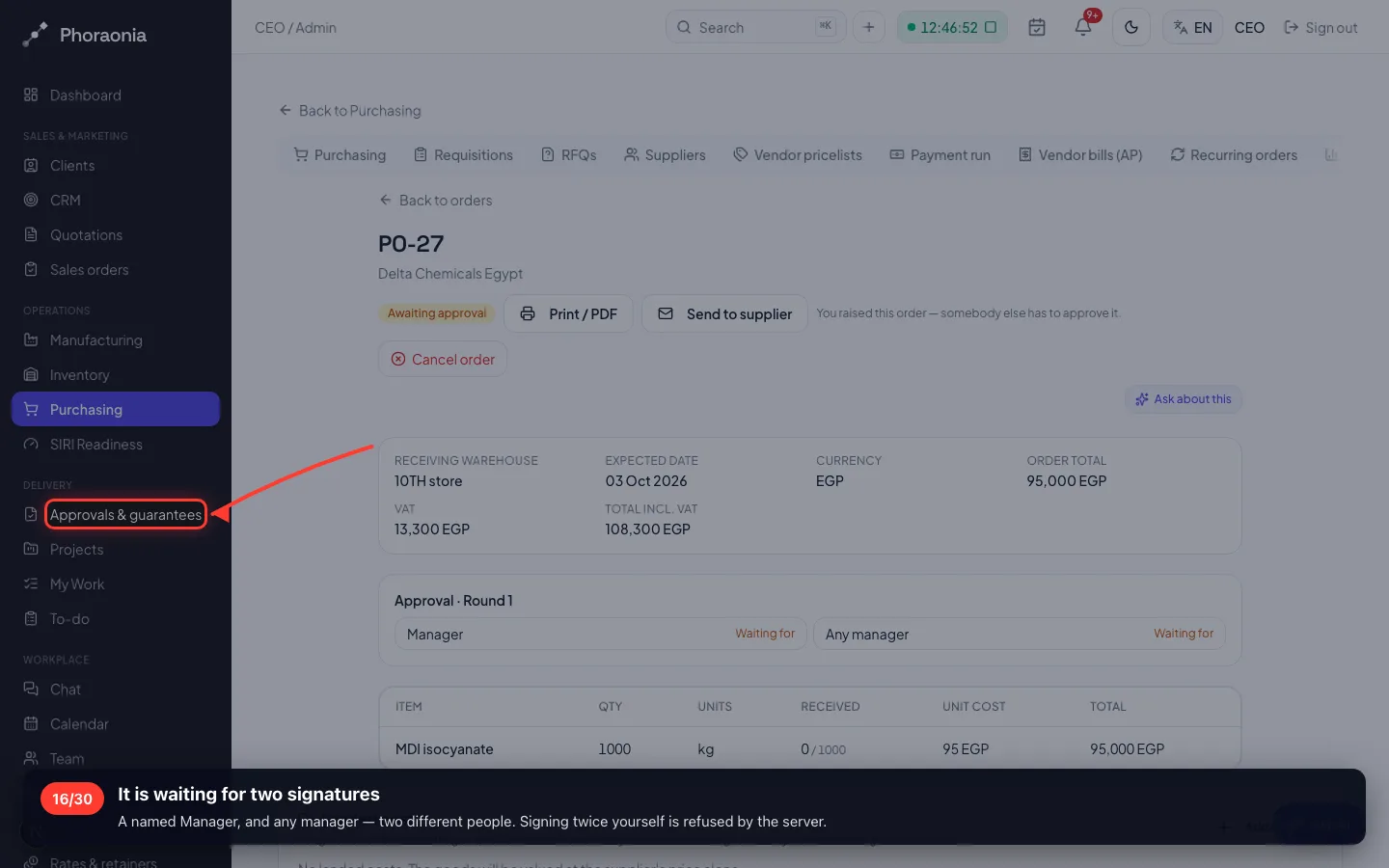
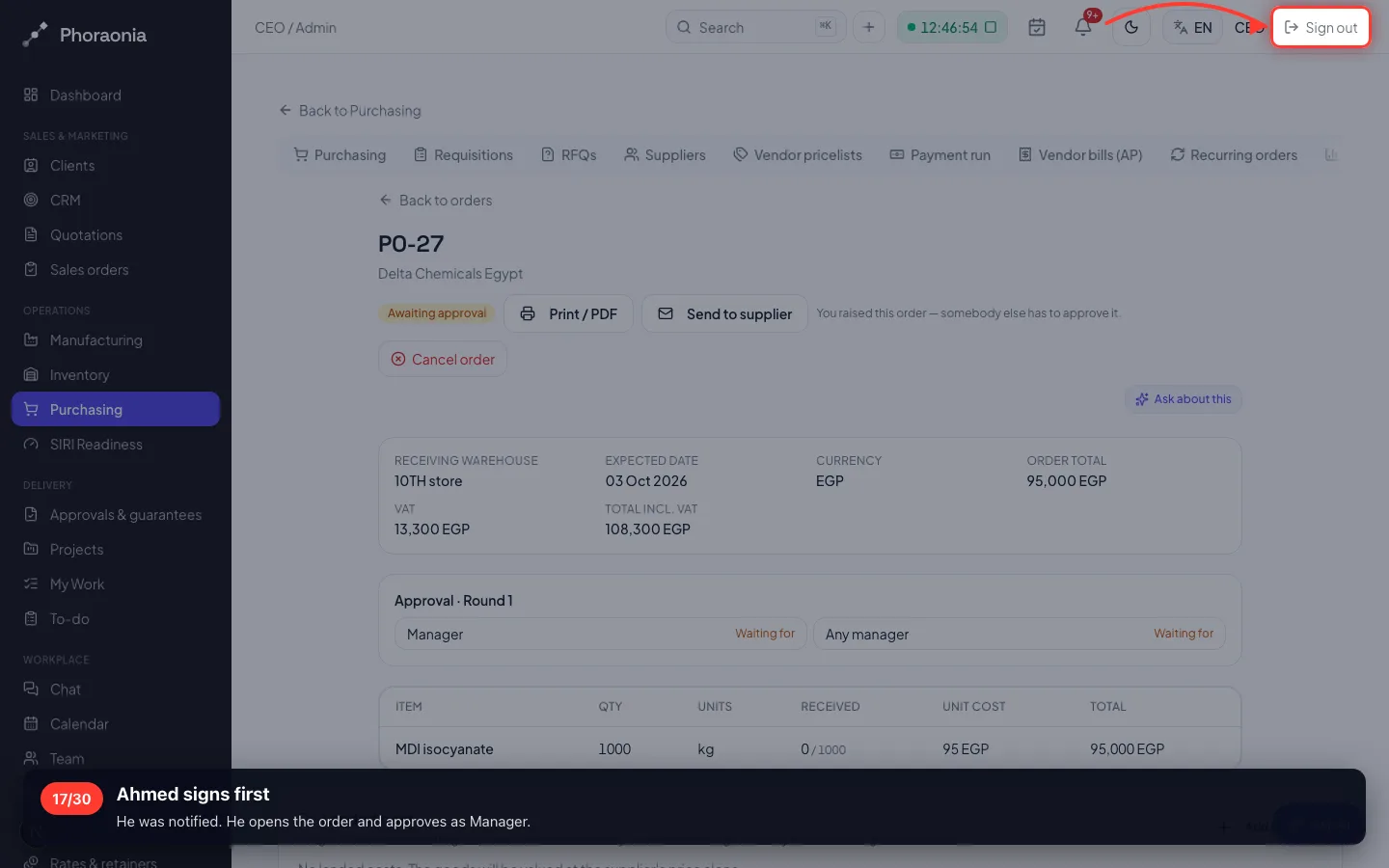
It is waiting for two signatures
A named Manager, and any manager — two different people. Signing twice yourself is refused by the server.
- 17
Ahmed signs first
He was notified. He opens the order and approves as Manager.
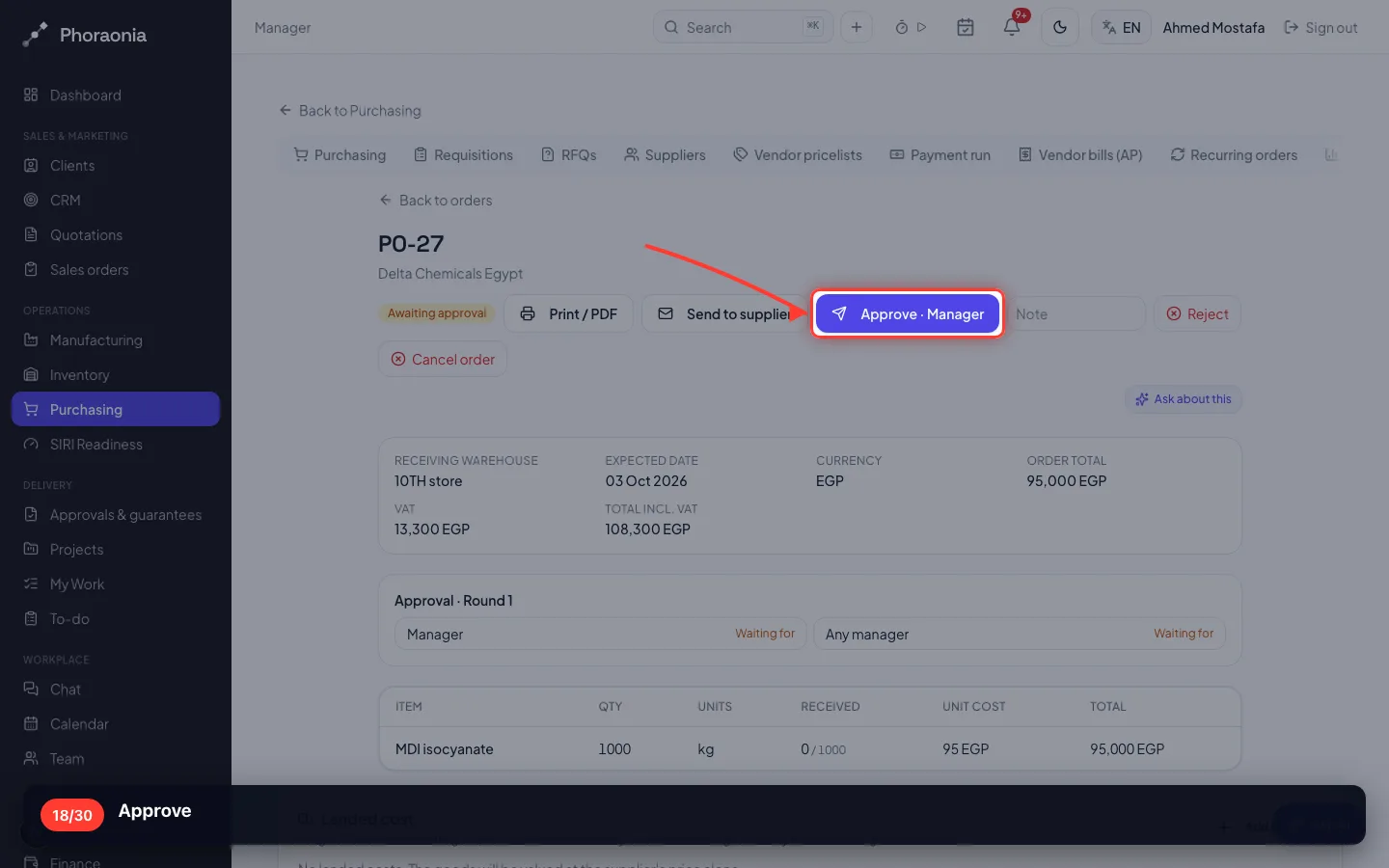
- 18
Approve
- 19
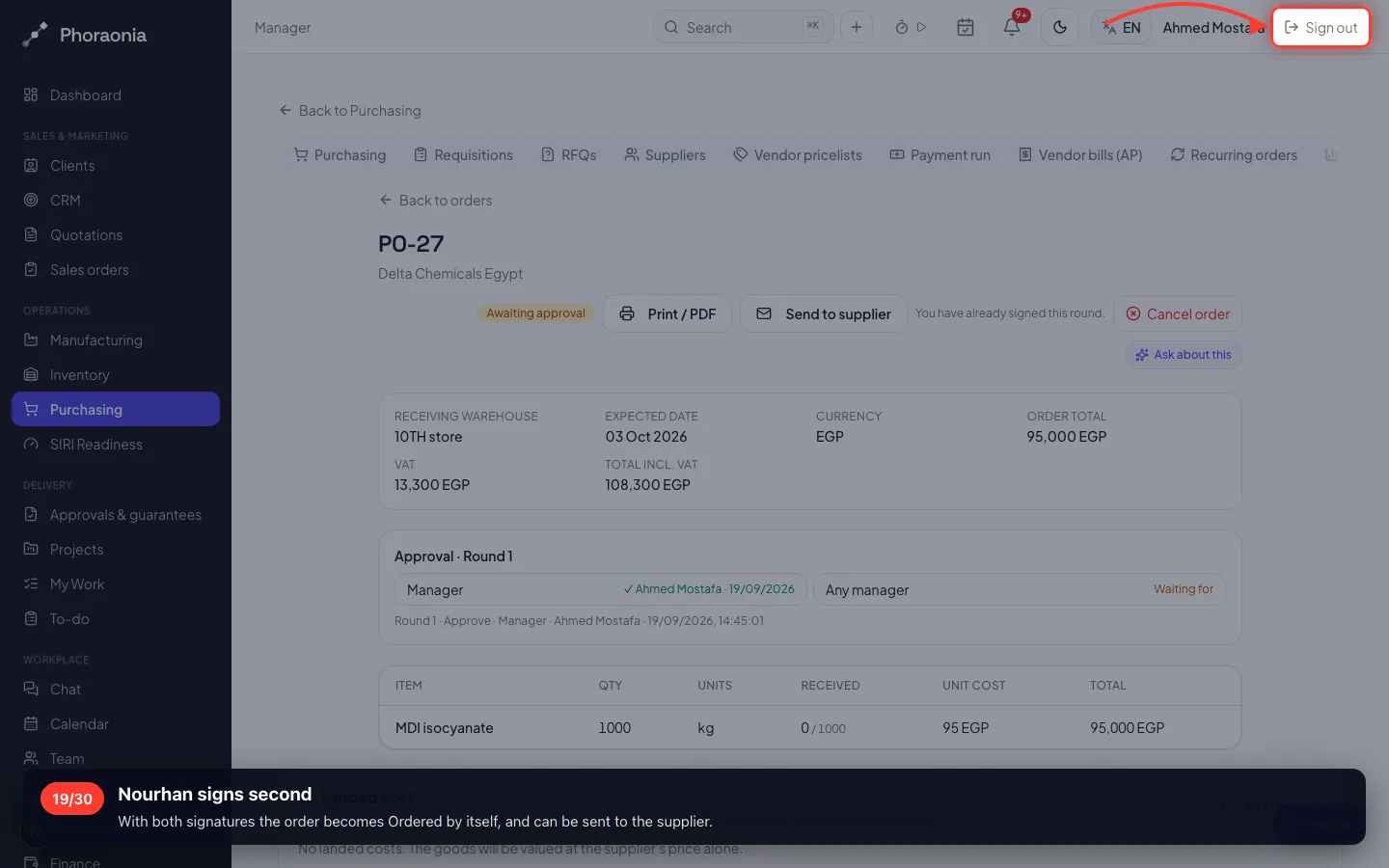
Nourhan signs second
With both signatures the order becomes Ordered by itself, and can be sent to the supplier.
- 20
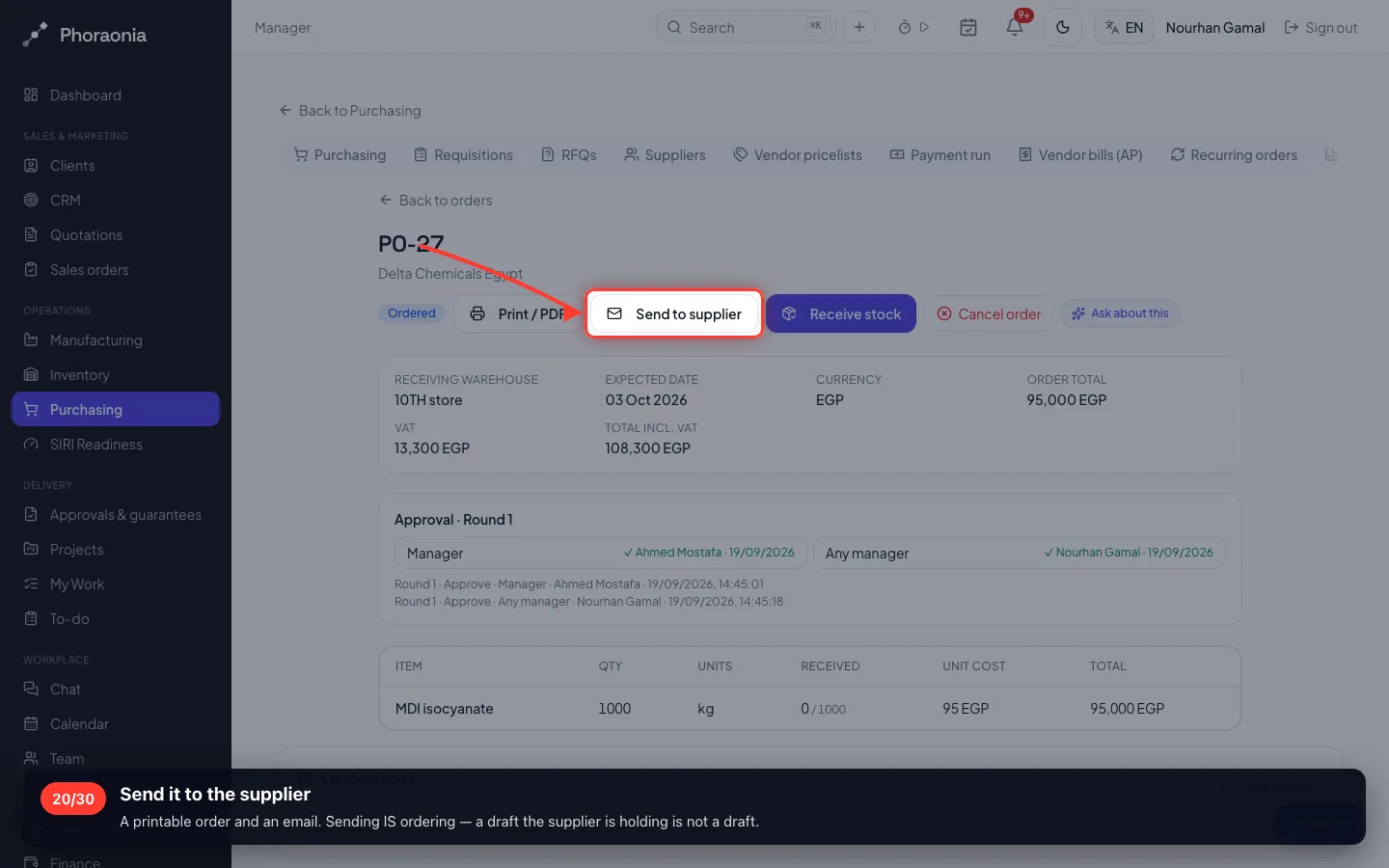
Send it to the supplier
A printable order and an email. Sending IS ordering — a draft the supplier is holding is not a draft.
5 · The goods arrive
Receiving is what raises stock — not the order, and not the supplier's invoice.
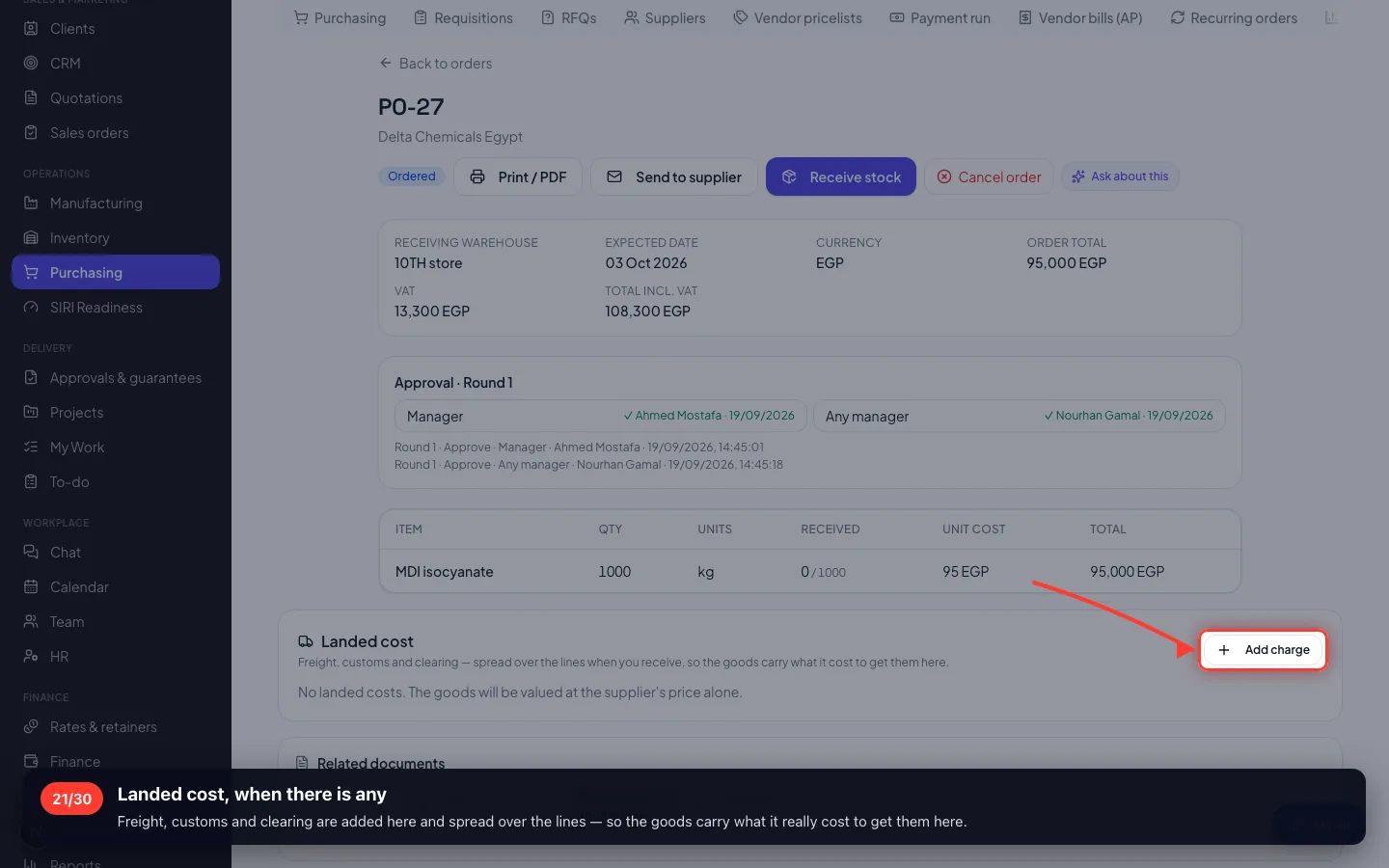
21Landed cost, when there is any
Freight, customs and clearing are added here and spread over the lines — so the goods carry what it really cost to get them here.
- 22
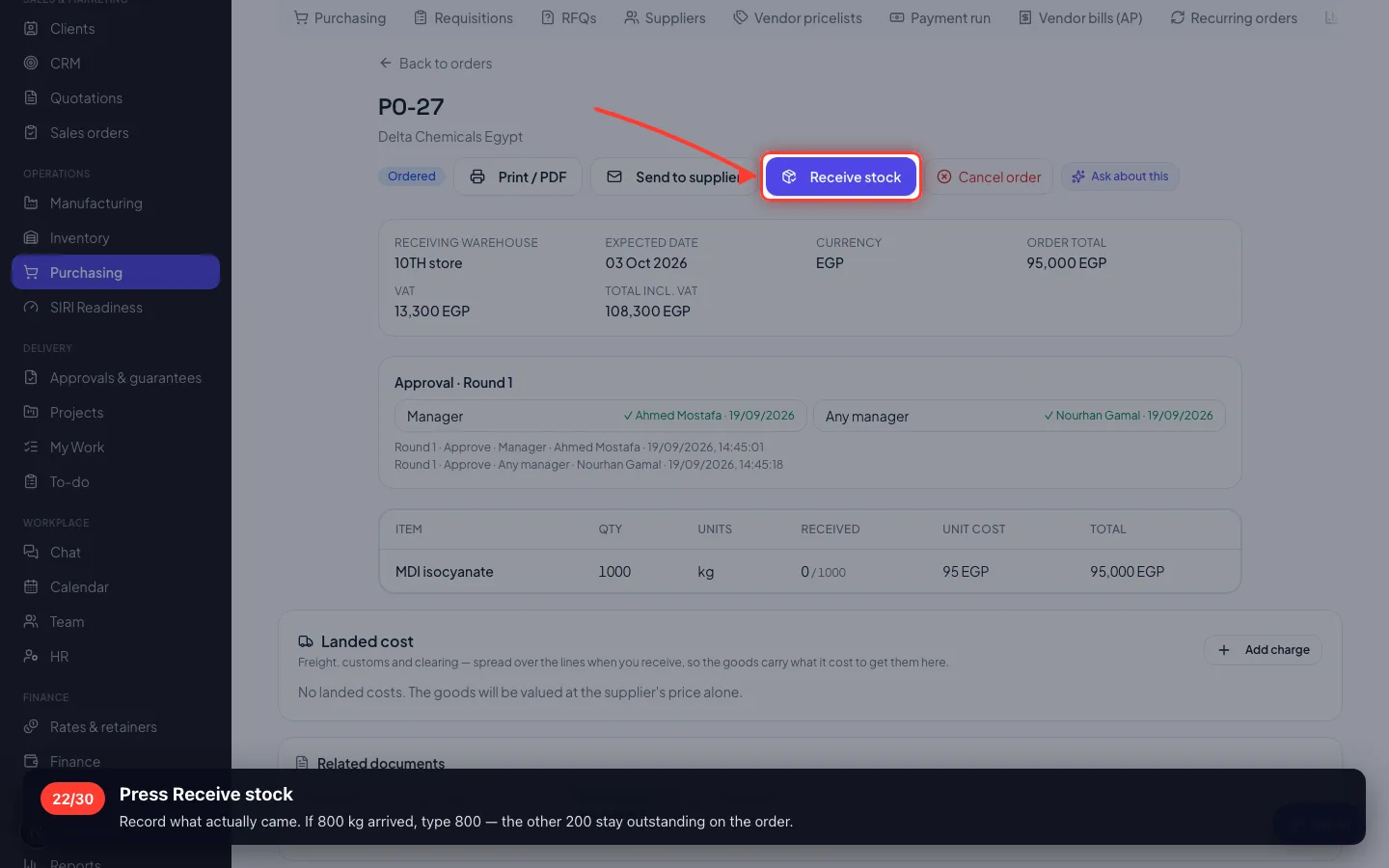
Press Receive stock
Record what actually came. If 800 kg arrived, type 800 — the other 200 stay outstanding on the order.
- 23
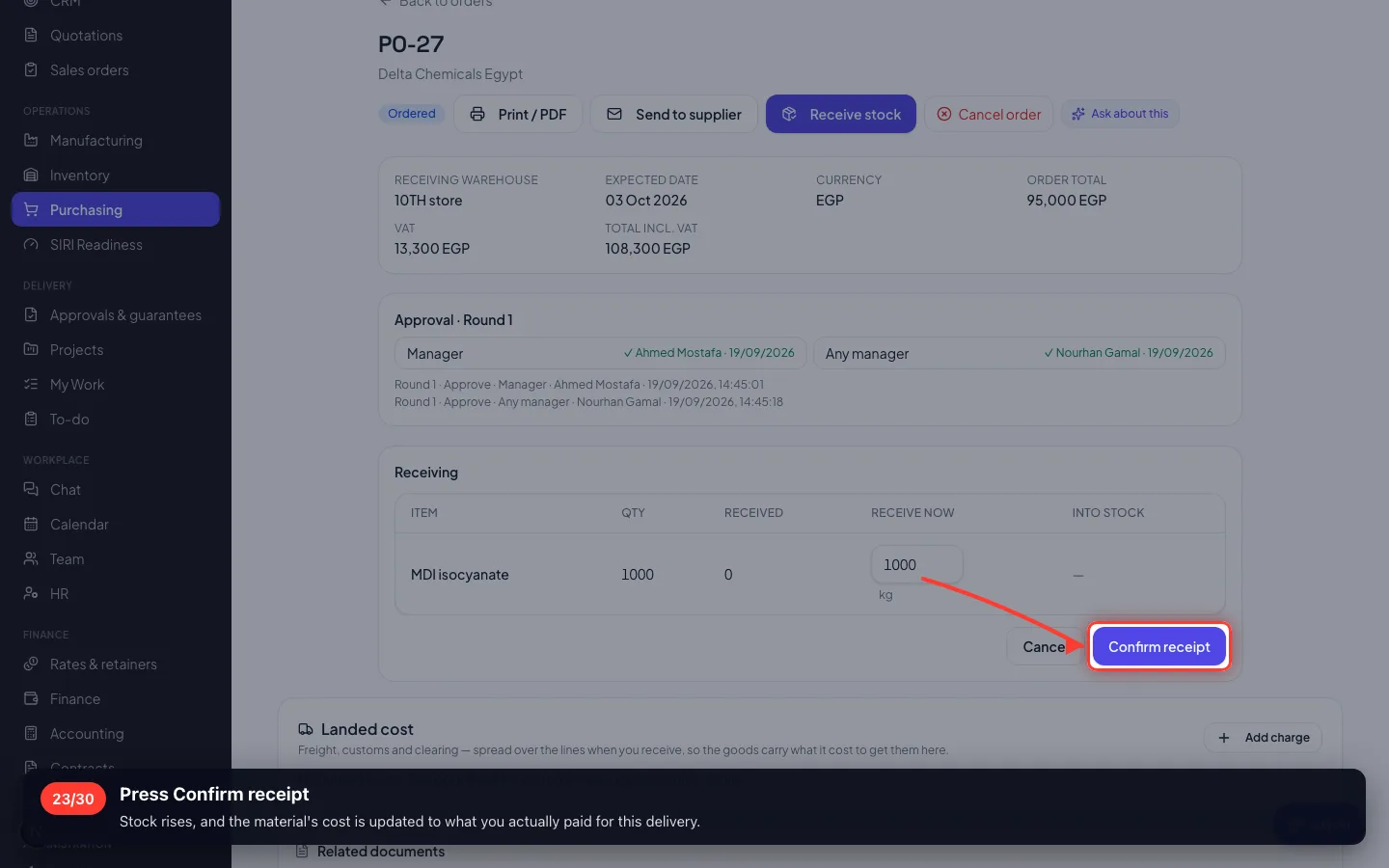
Press Confirm receipt
Stock rises, and the material's cost is updated to what you actually paid for this delivery.
6 · The supplier's bill
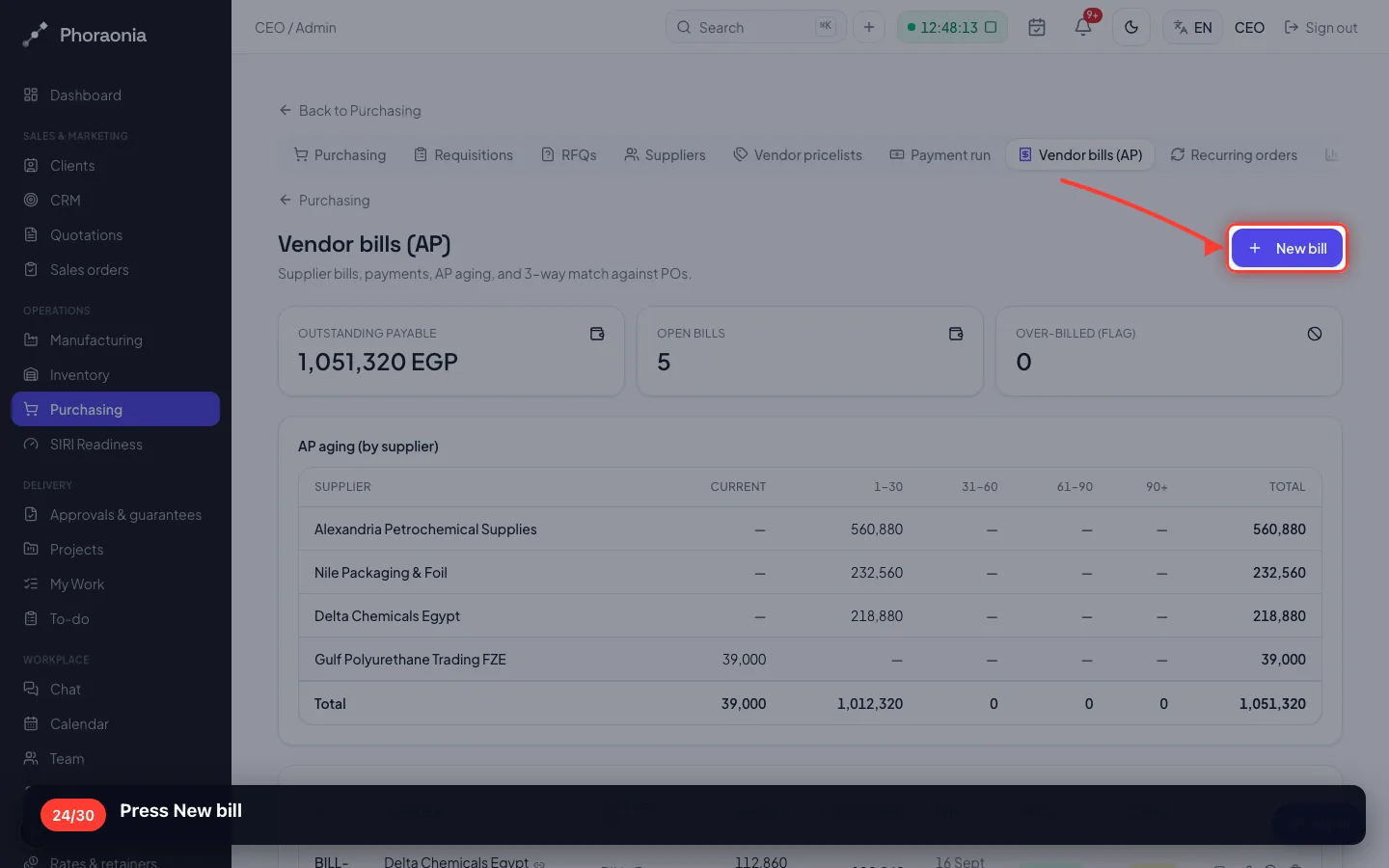
Three documents must agree: what you ordered, what you received, and what they are charging. That is the three-way match.
24Press New bill
- 25
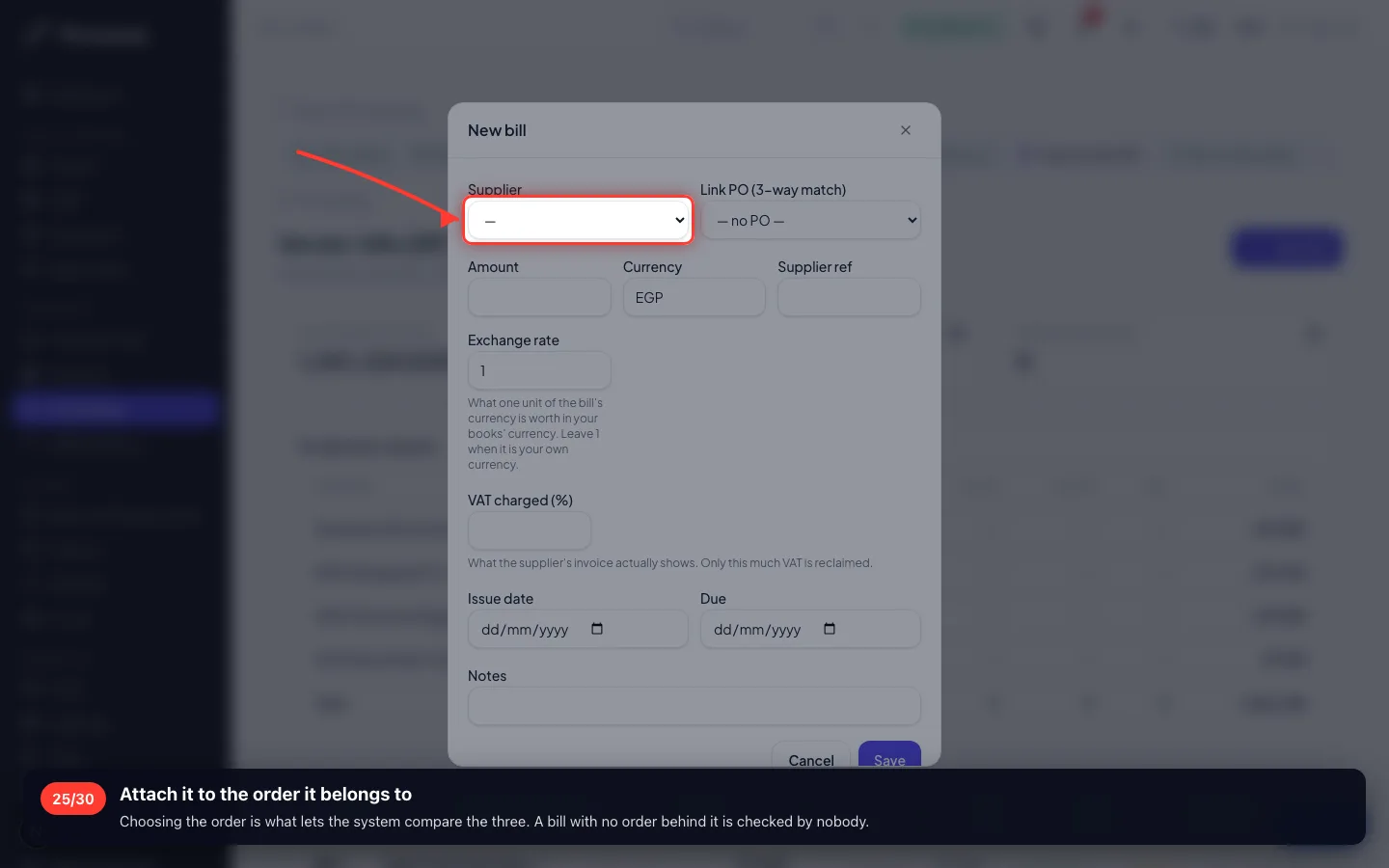
Attach it to the order it belongs to
Choosing the order is what lets the system compare the three. A bill with no order behind it is checked by nobody.
- 26
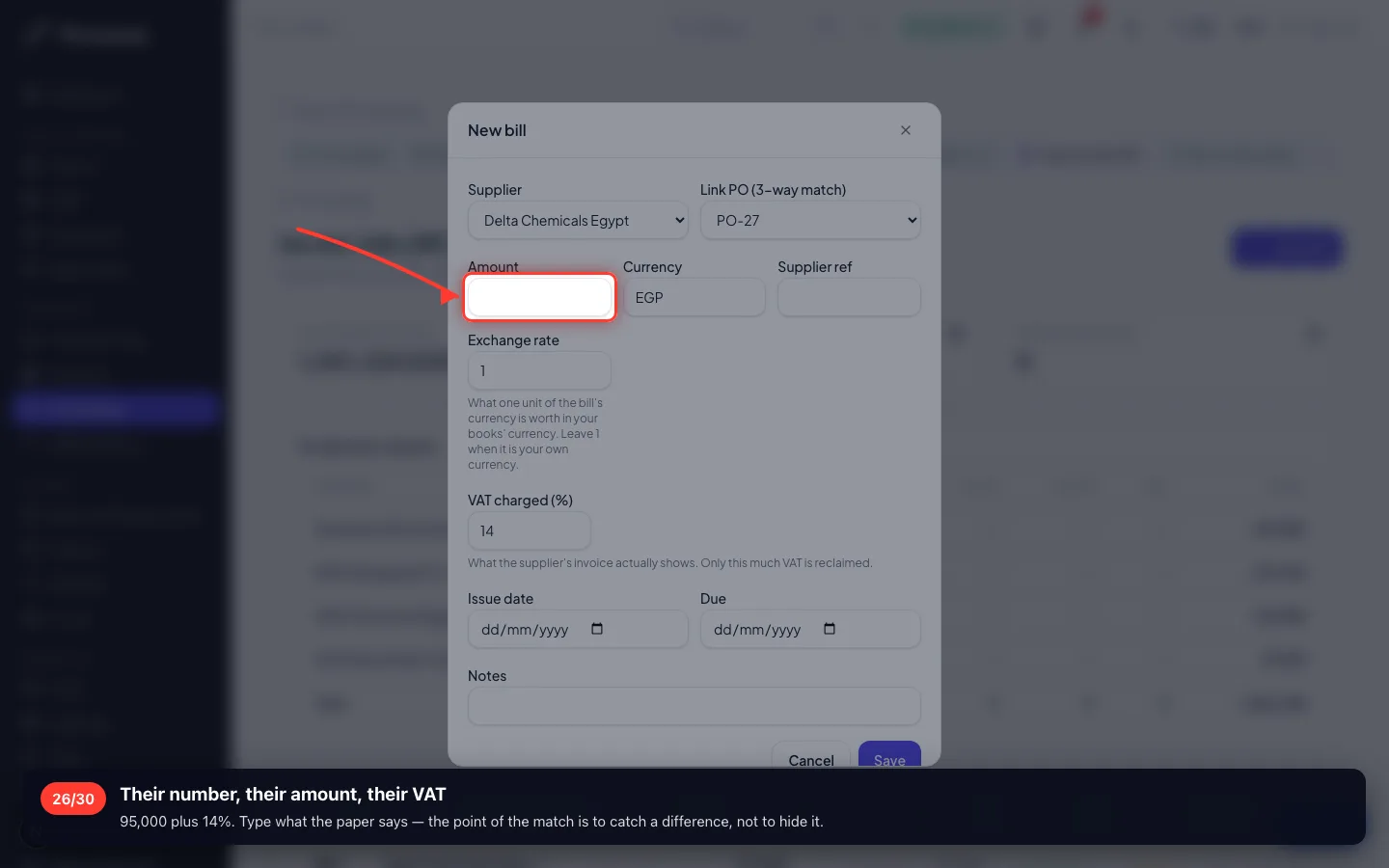
Their number, their amount, their VAT
95,000 plus 14%. Type what the paper says — the point of the match is to catch a difference, not to hide it.
- 27
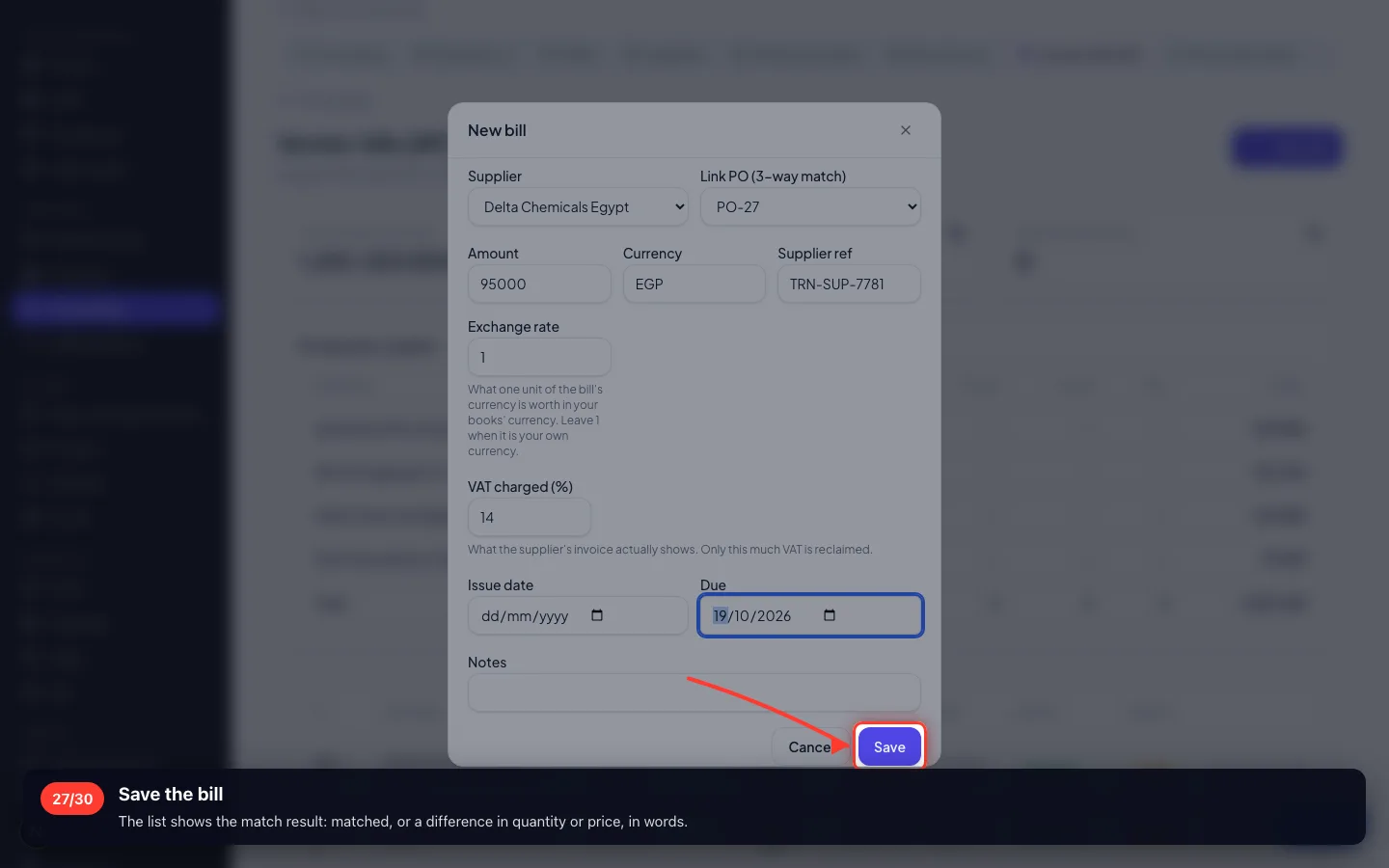
Save the bill
The list shows the match result: matched, or a difference in quantity or price, in words.
7 · Paying suppliers
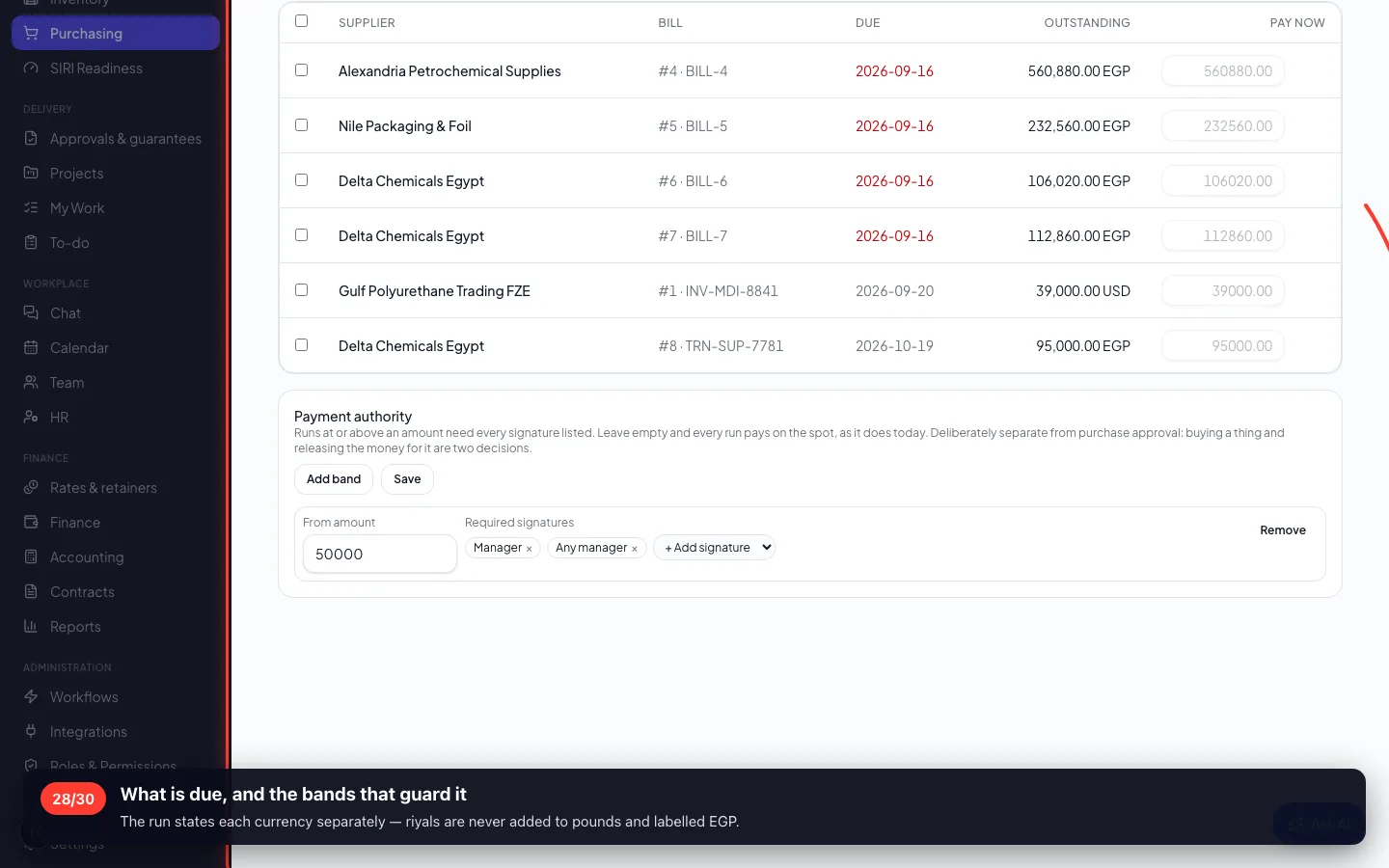
Thirty bills are not thirty payments. A payment run pays them together — and over a limit it waits for two signatures, like the order did.
28What is due, and the bands that guard it
The run states each currency separately — riyals are never added to pounds and labelled EGP.
8 · Two screens worth knowing
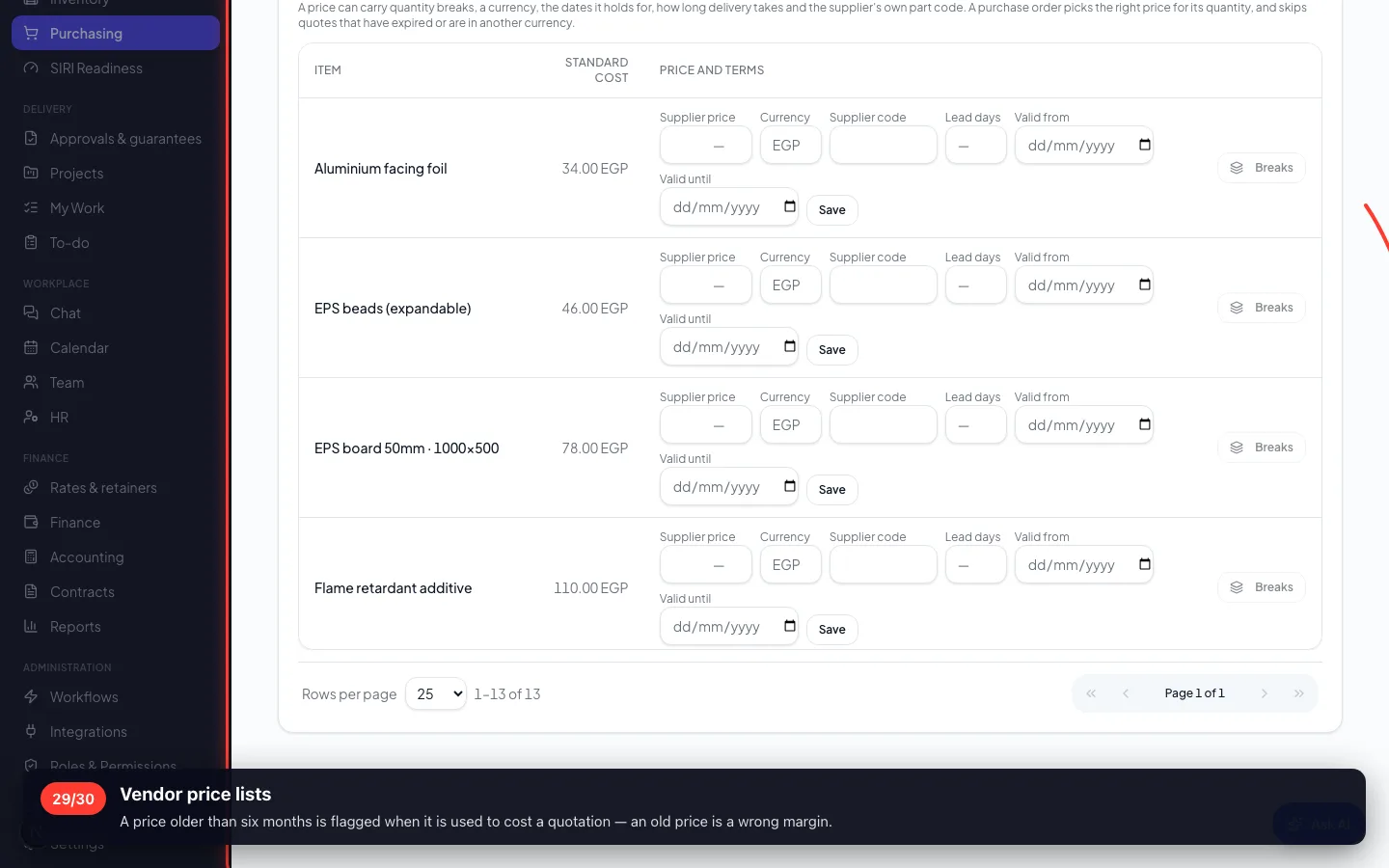
Price lists keep each supplier's agreed prices with the date they were quoted; scorecards show who actually delivers on time.
29Vendor price lists
A price older than six months is flagged when it is used to cost a quotation — an old price is a wrong margin.
- 30
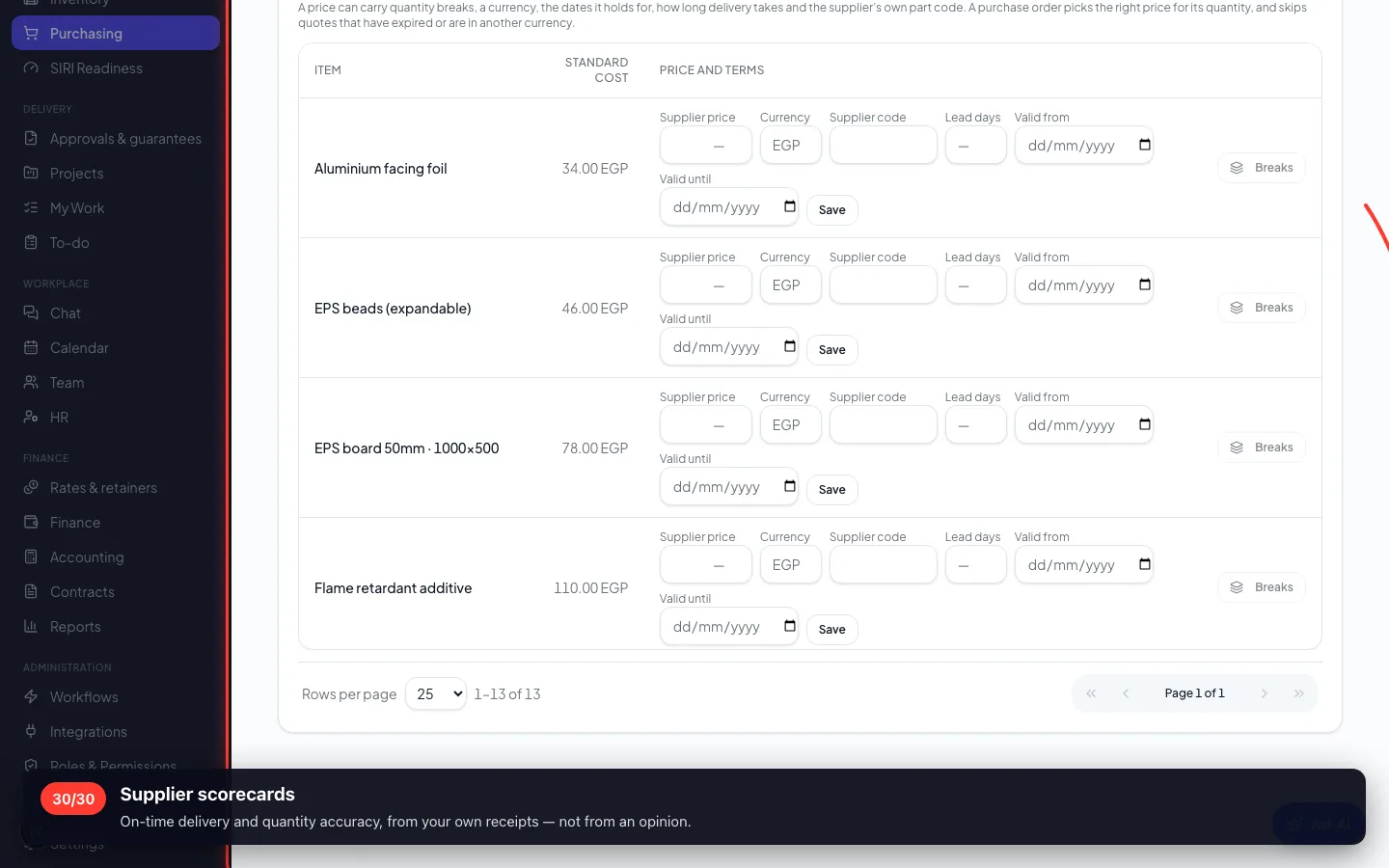
Supplier scorecards
On-time delivery and quantity accuracy, from your own receipts — not from an opinion.
Recorded on a demo workspace. The company and the figures are invented; the screens are the real product.