Projects and tasks
A project with a client and a budget, the board the work moves on, tasks with owners and estimates, logged time, the four views, and what the job actually cost.
15 steps
The whole walkthrough, no narration — the captions are on the screen.
1 · What a project is here
A container for delivery: the client it is for, the money agreed, the people on it, and everything that happens.
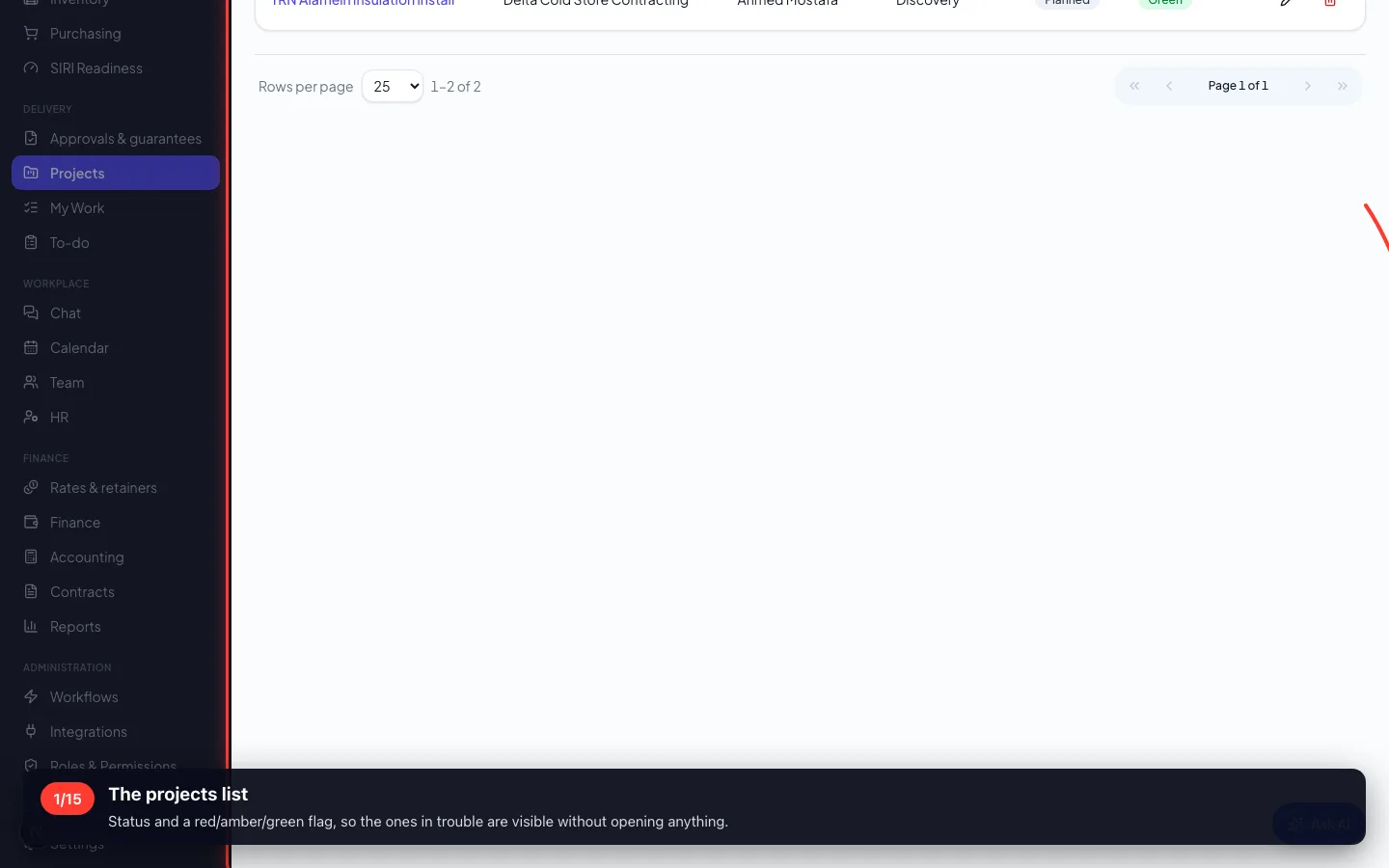
1The projects list
Status and a red/amber/green flag, so the ones in trouble are visible without opening anything.
- 2
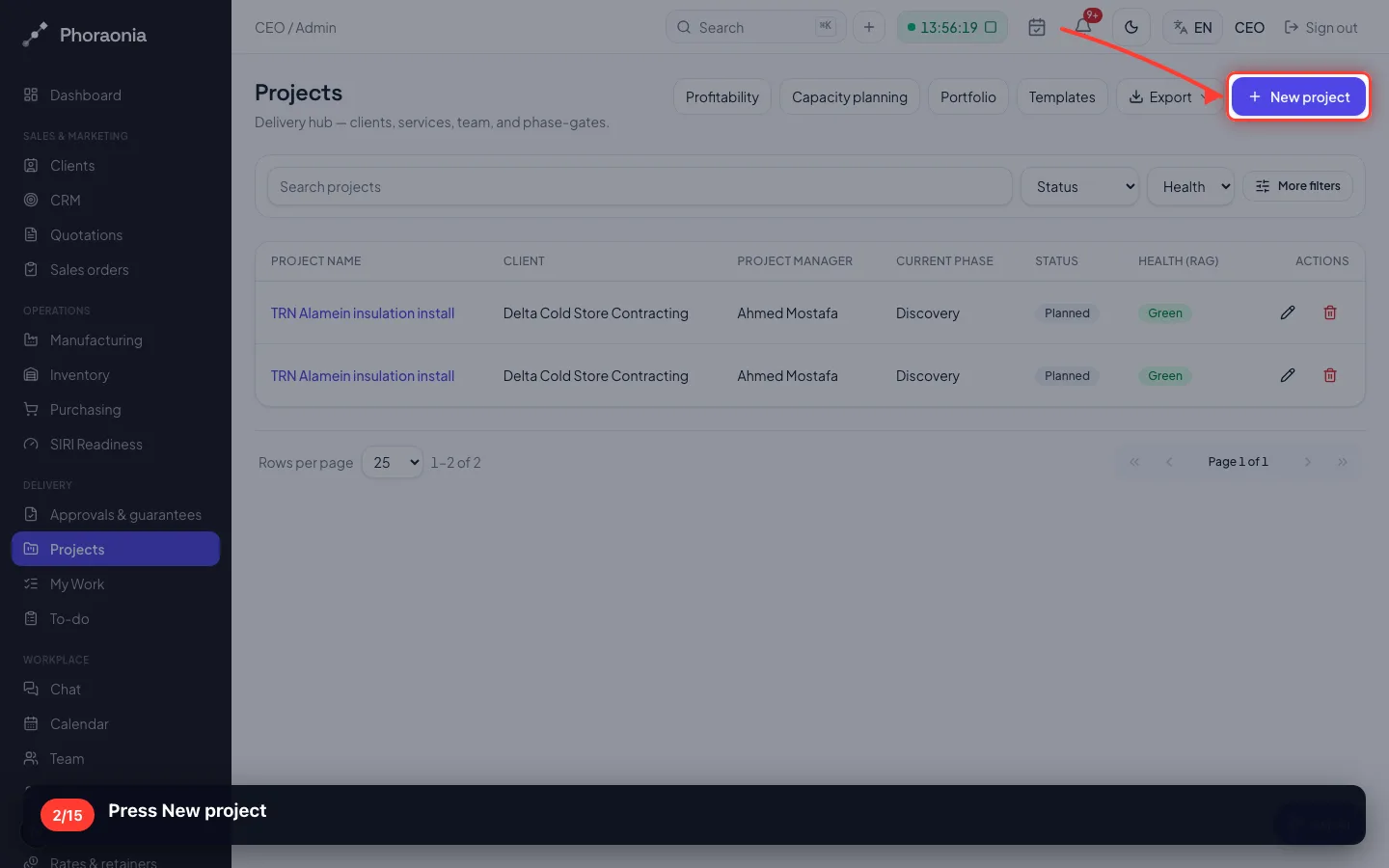
Press New project
- 3
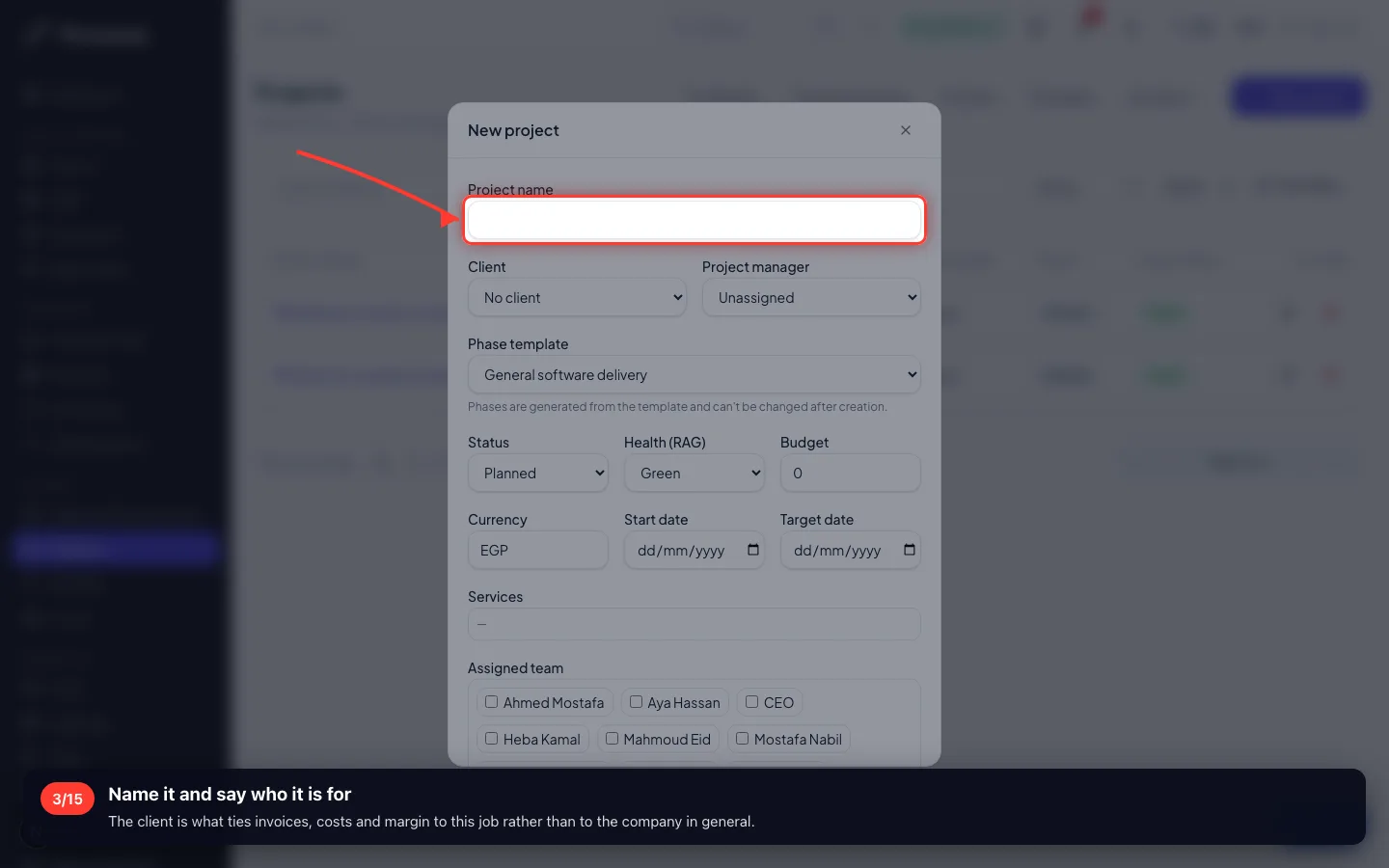
Name it and say who it is for
The client is what ties invoices, costs and margin to this job rather than to the company in general.
- 4
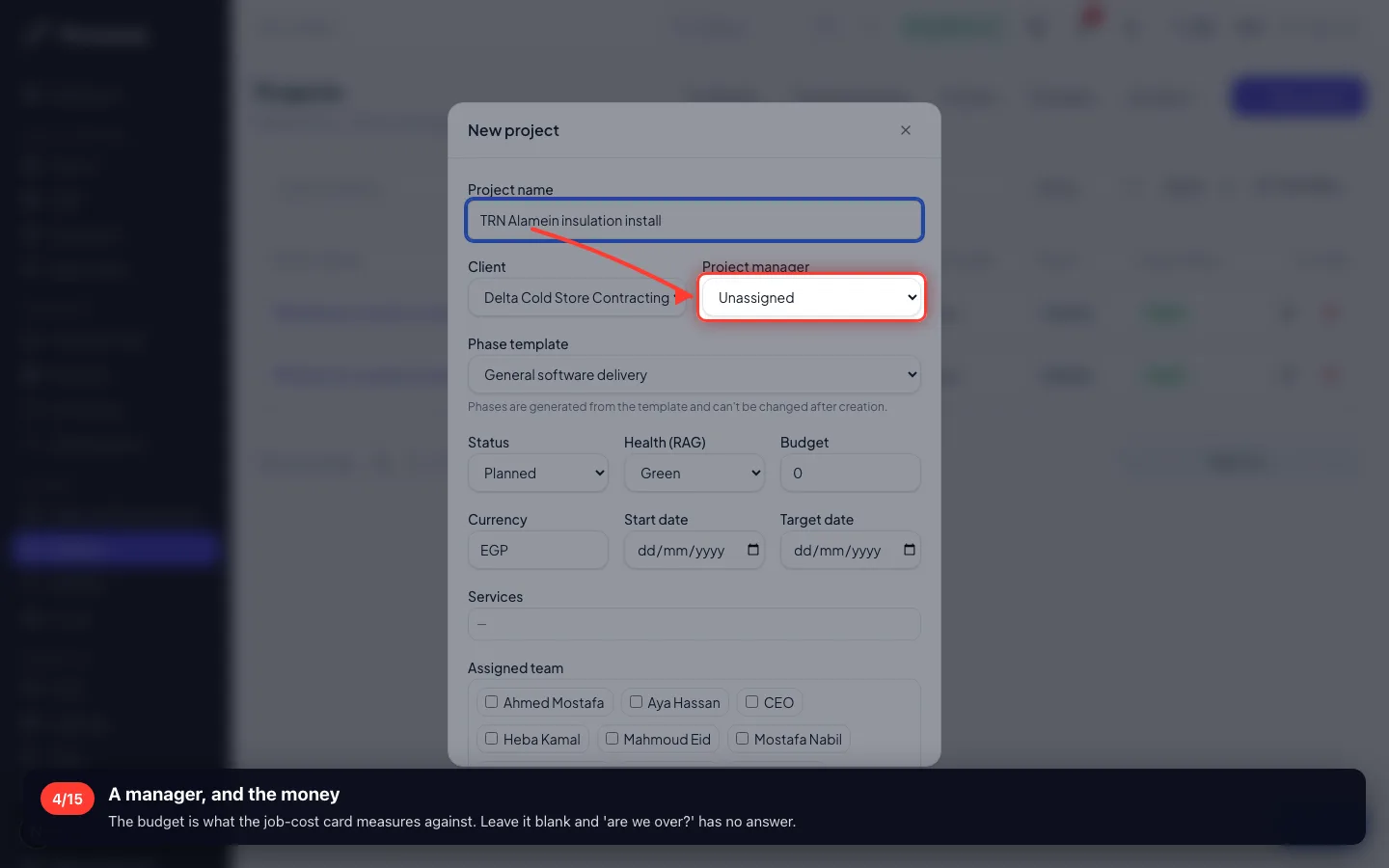
A manager, and the money
The budget is what the job-cost card measures against. Leave it blank and 'are we over?' has no answer.
- 5
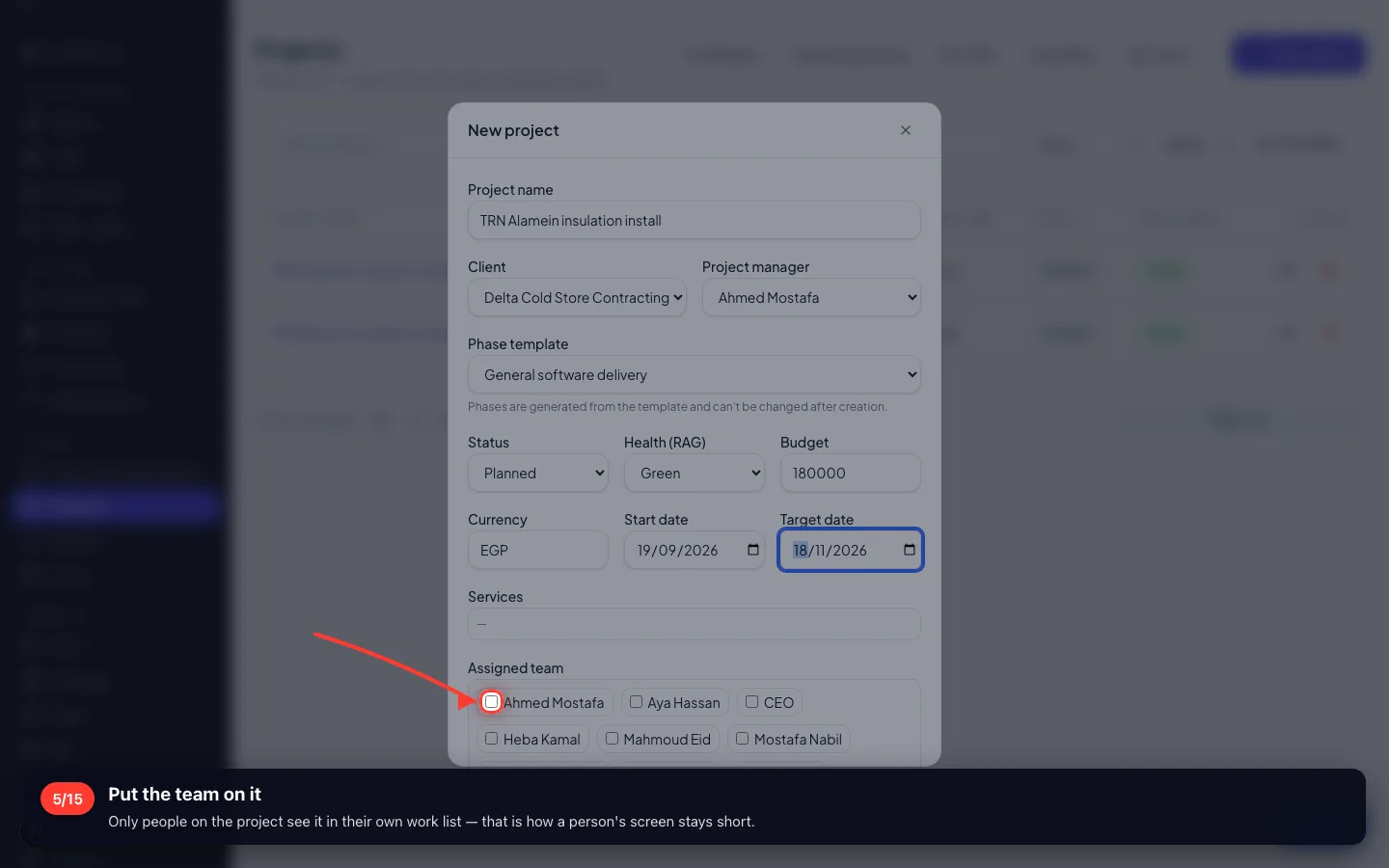
Put the team on it
Only people on the project see it in their own work list — that is how a person's screen stays short.
- 6
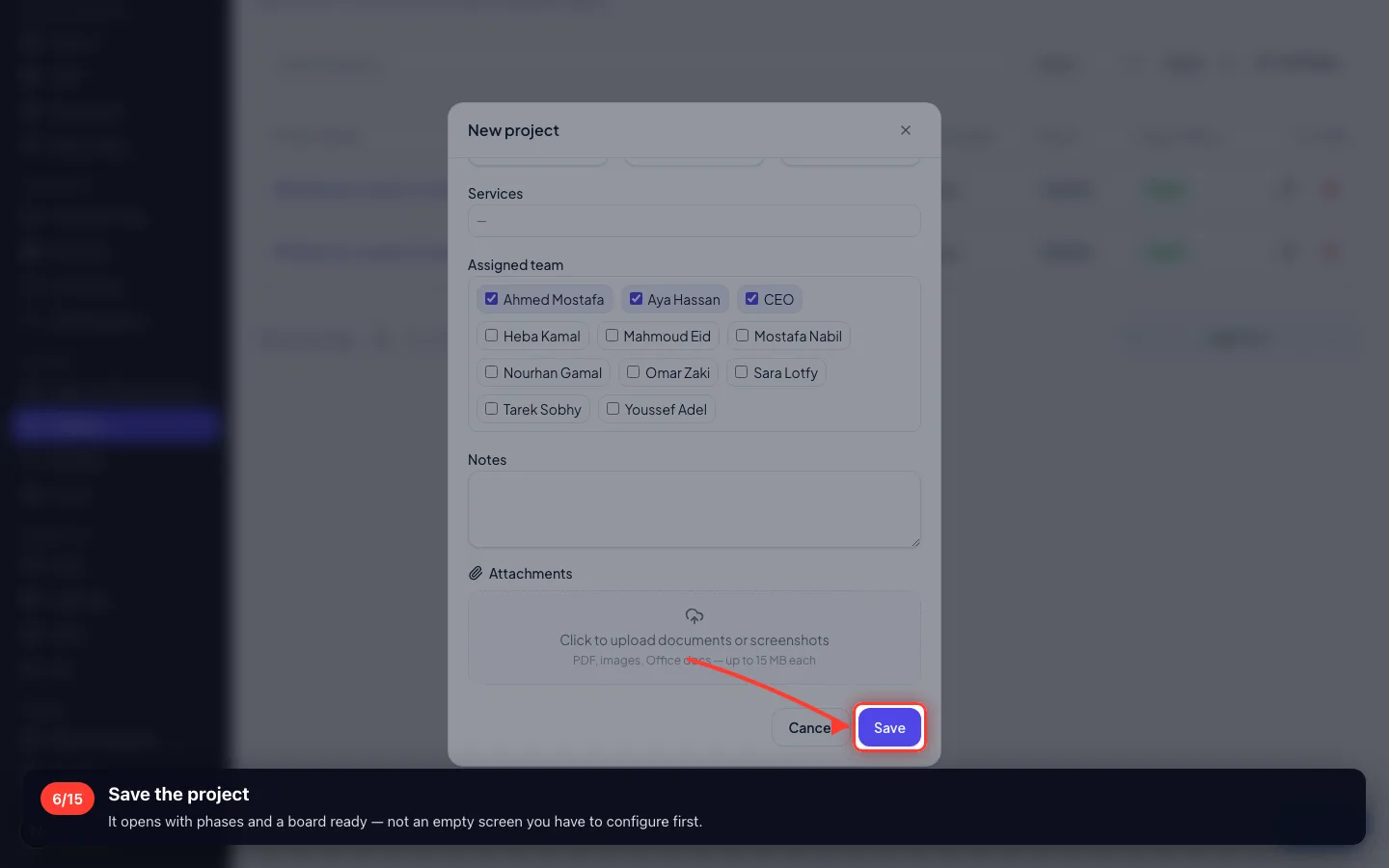
Save the project
It opens with phases and a board ready — not an empty screen you have to configure first.
2 · The board
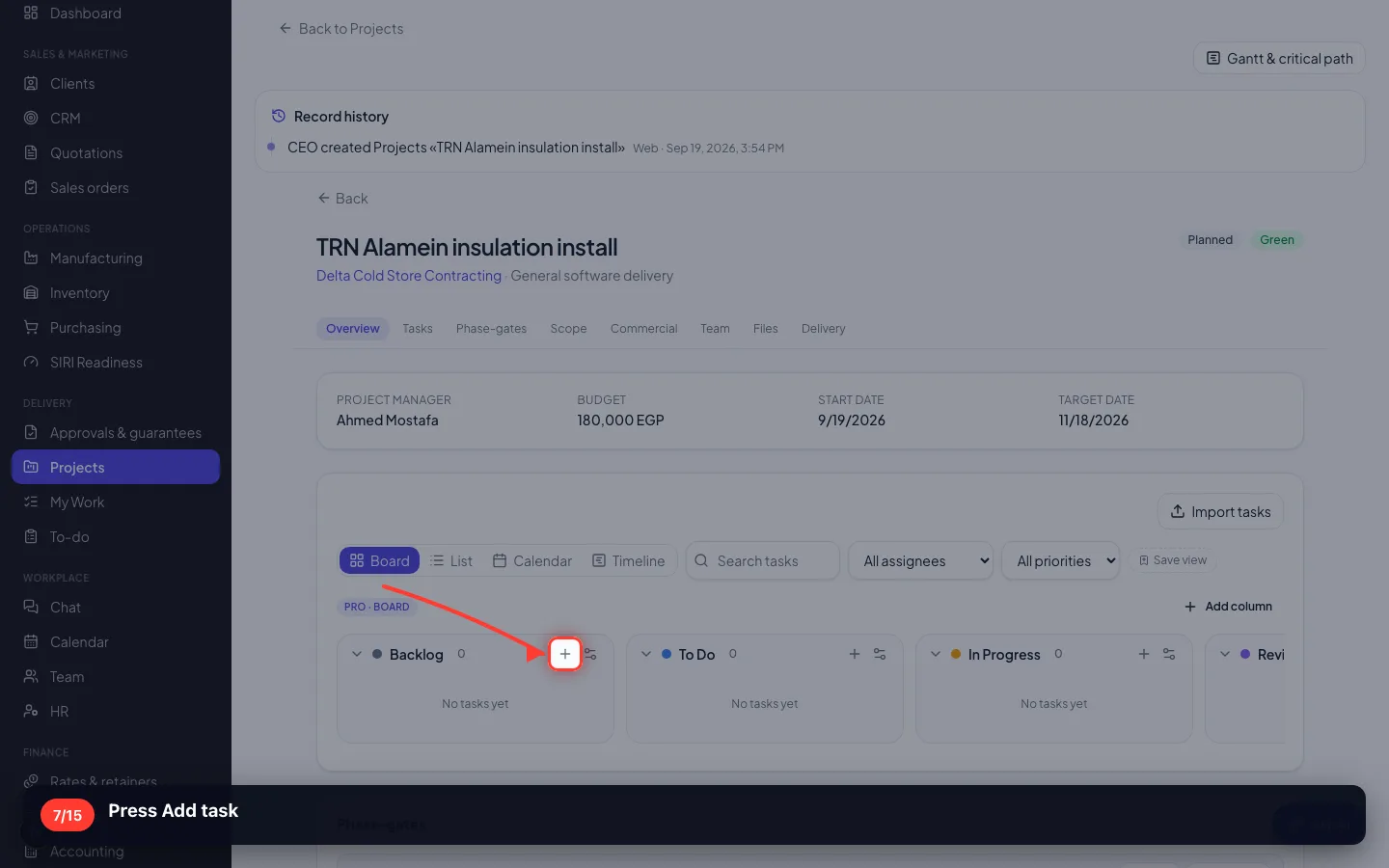
Columns are stages of work — your stages, not ours. A card moves left to right as it progresses.
7Press Add task
- 8
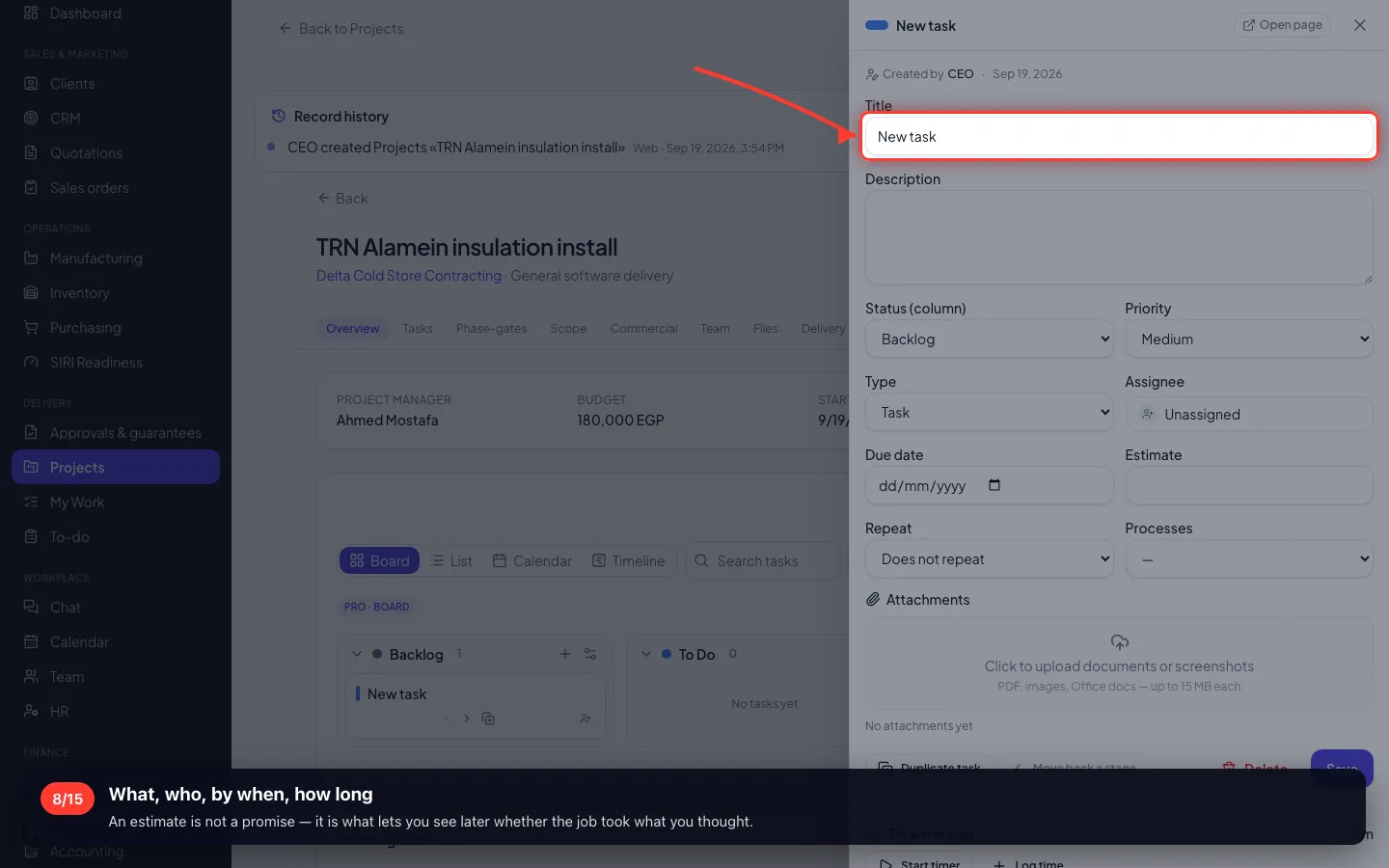
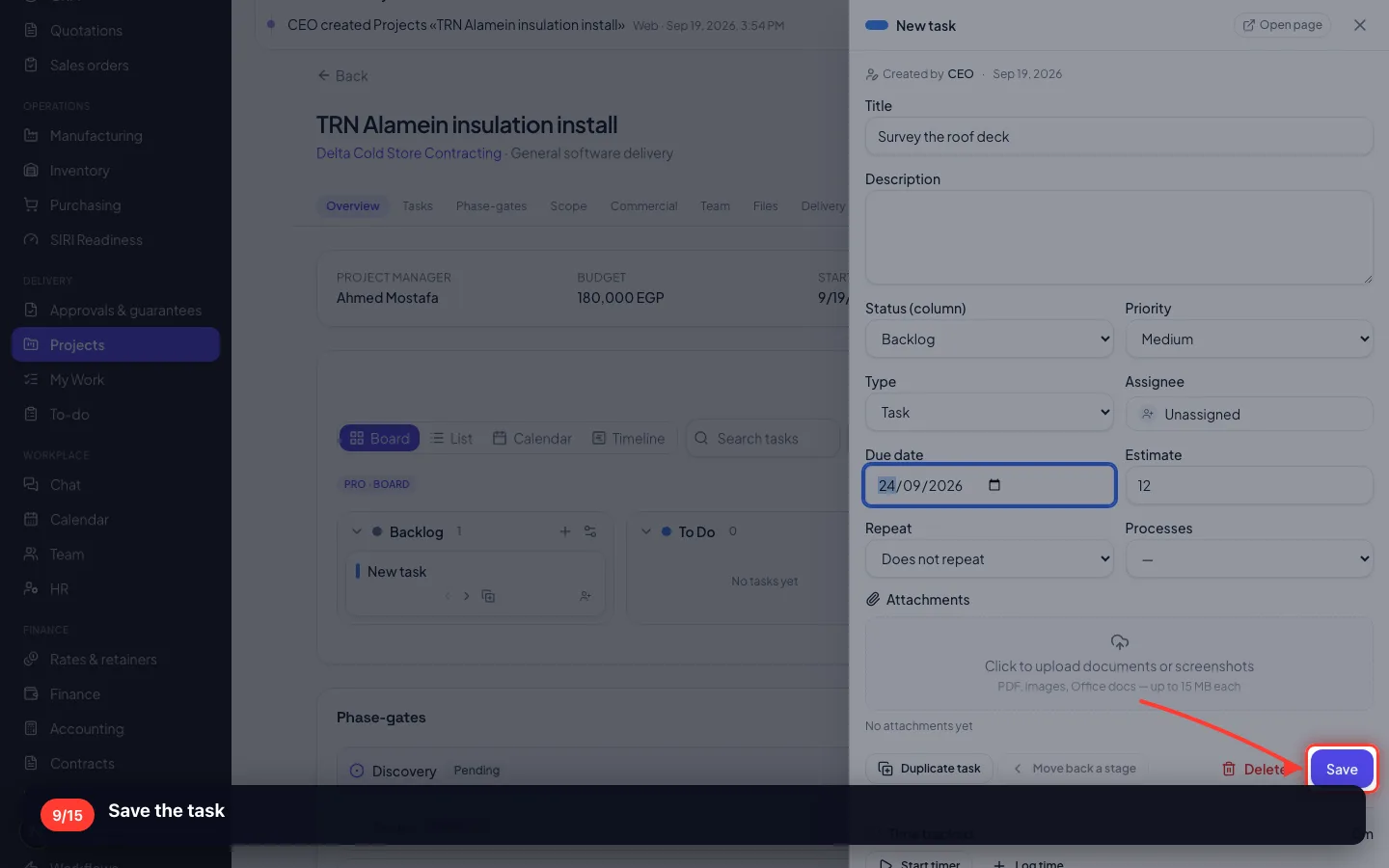
What, who, by when, how long
An estimate is not a promise — it is what lets you see later whether the job took what you thought.
- 9
Save the task
- 10
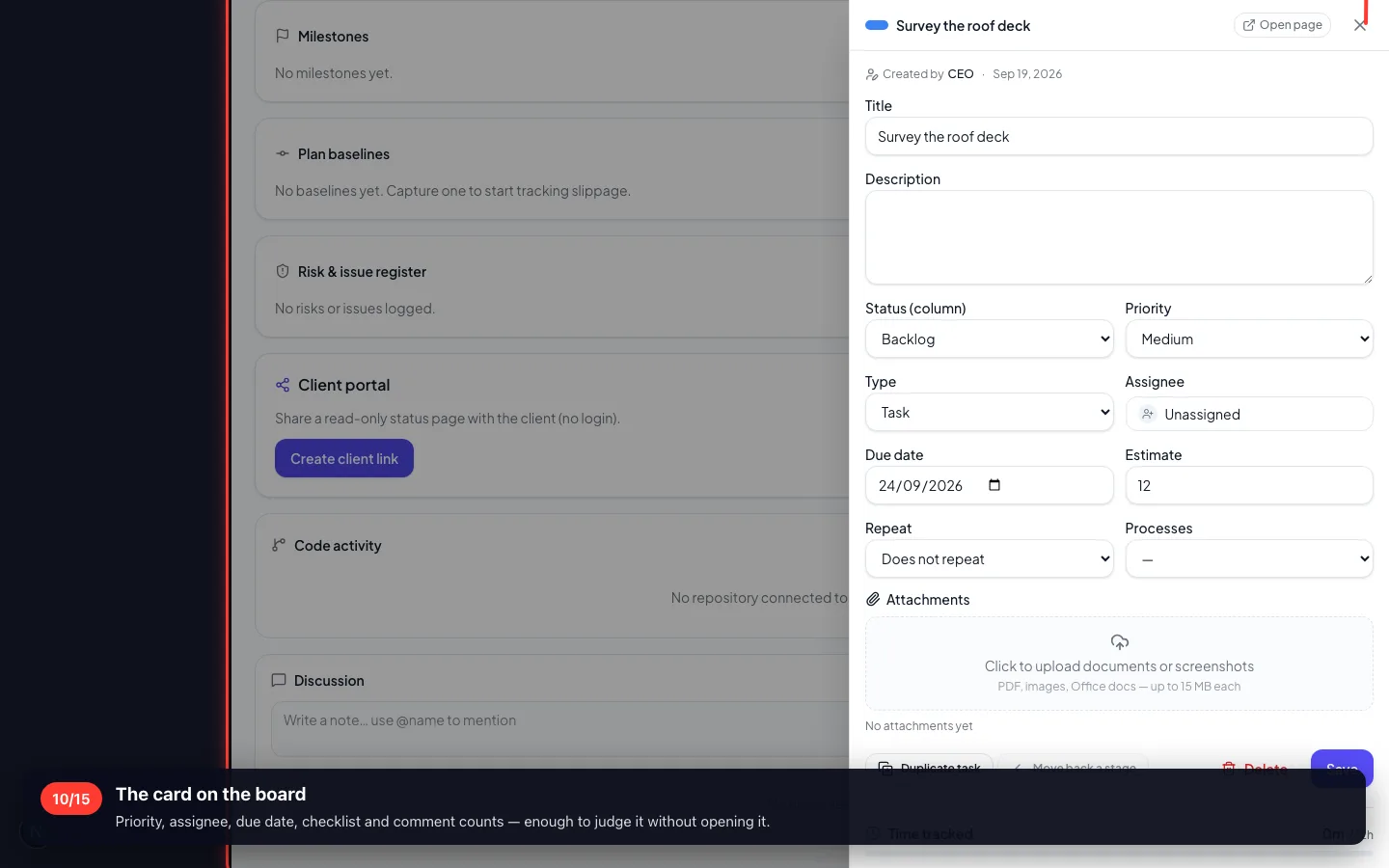
The card on the board
Priority, assignee, due date, checklist and comment counts — enough to judge it without opening it.
3 · Inside a task
Open a card and everything about that piece of work is in one panel: description, subtasks, files, comments and time.
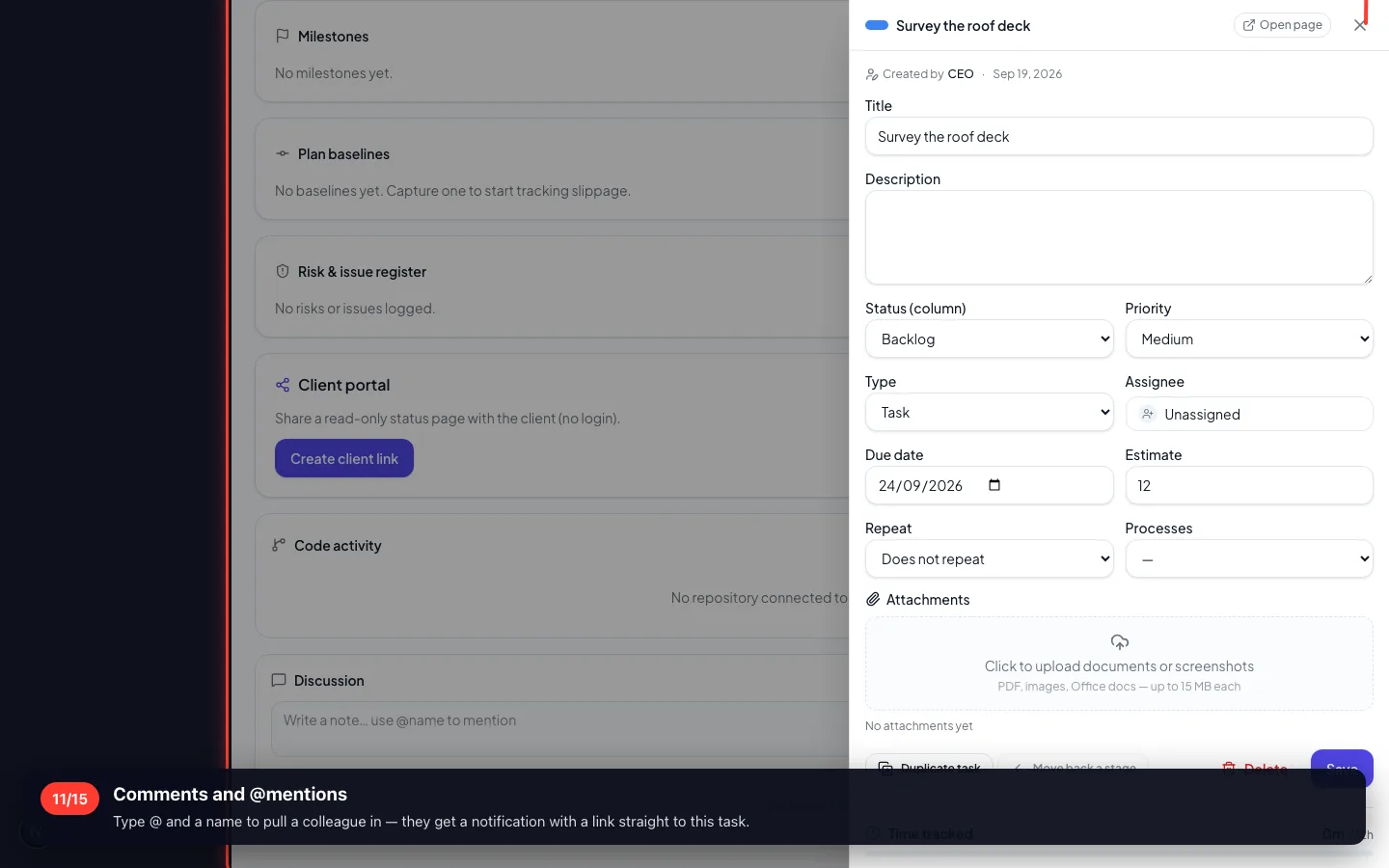
11Comments and @mentions
Type @ and a name to pull a colleague in — they get a notification with a link straight to this task.
- 12
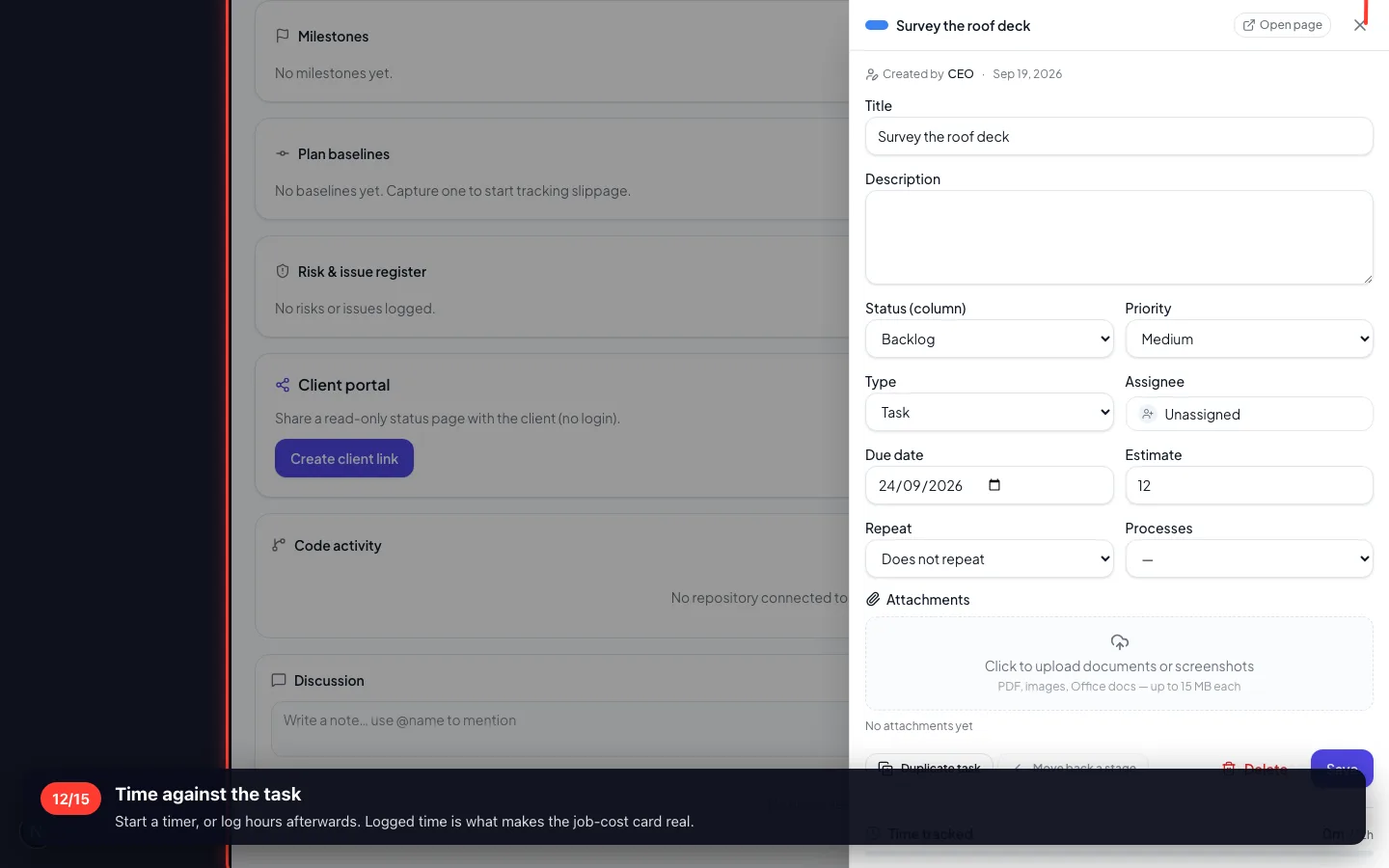
Time against the task
Start a timer, or log hours afterwards. Logged time is what makes the job-cost card real.
4 · Four ways to read the same work
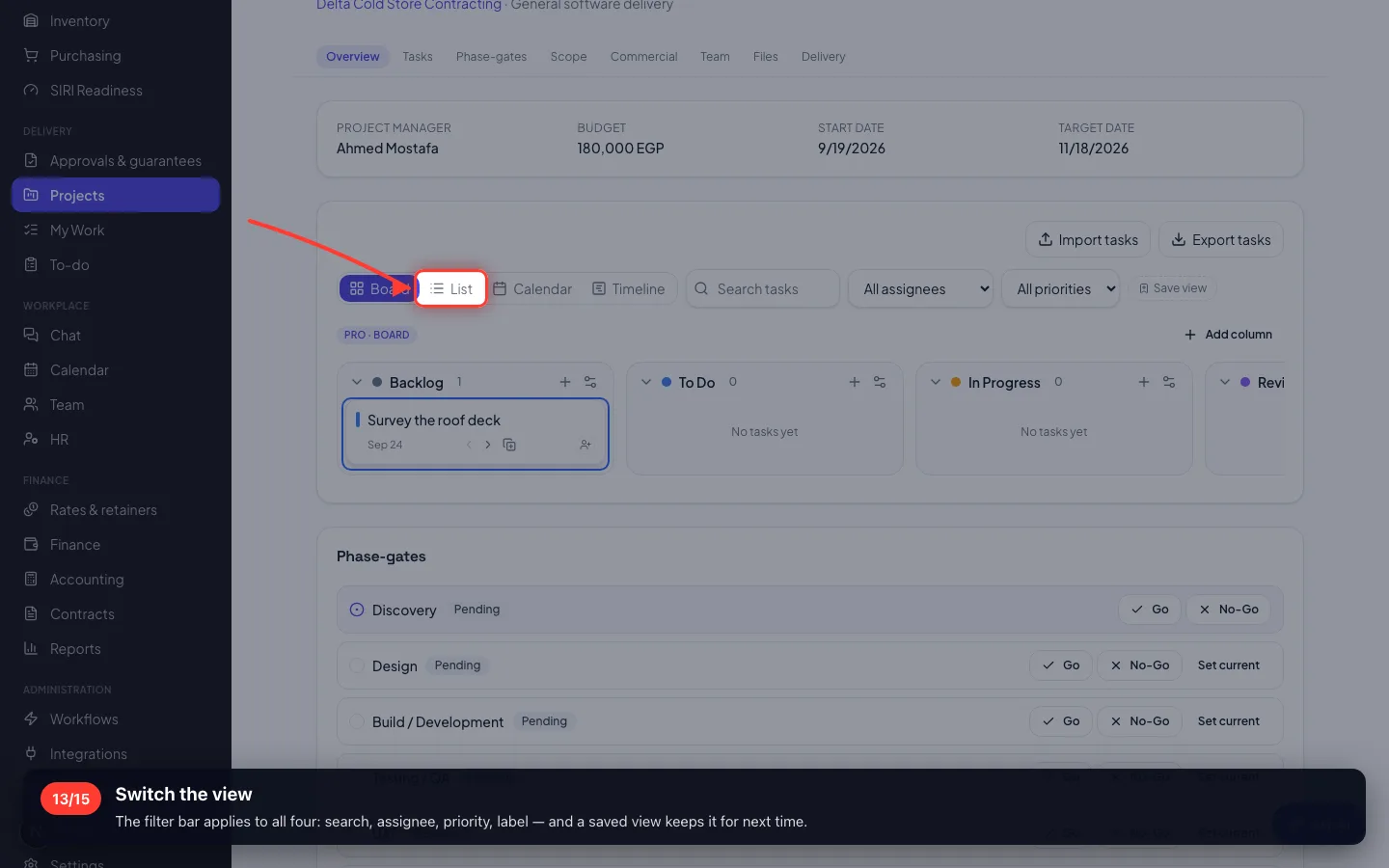
Board for moving it, List for scanning it, Calendar for when it is due, Timeline for whether it will land.
13Switch the view
The filter bar applies to all four: search, assignee, priority, label — and a saved view keeps it for next time.
5 · My Work and To-do
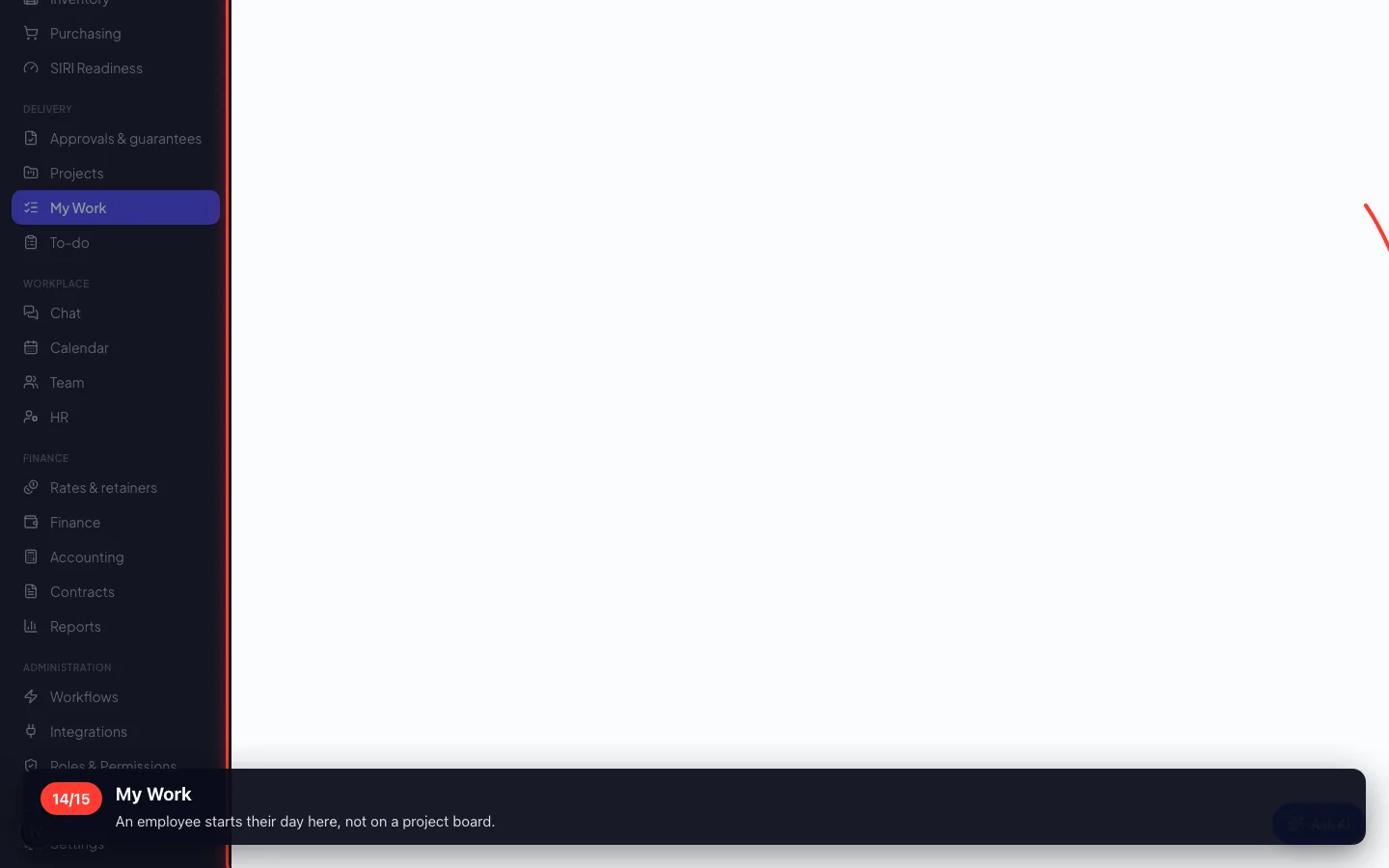
My Work is every task assigned to you across every project. To-do is your own private list.
14My Work
An employee starts their day here, not on a project board.
6 · What the job cost
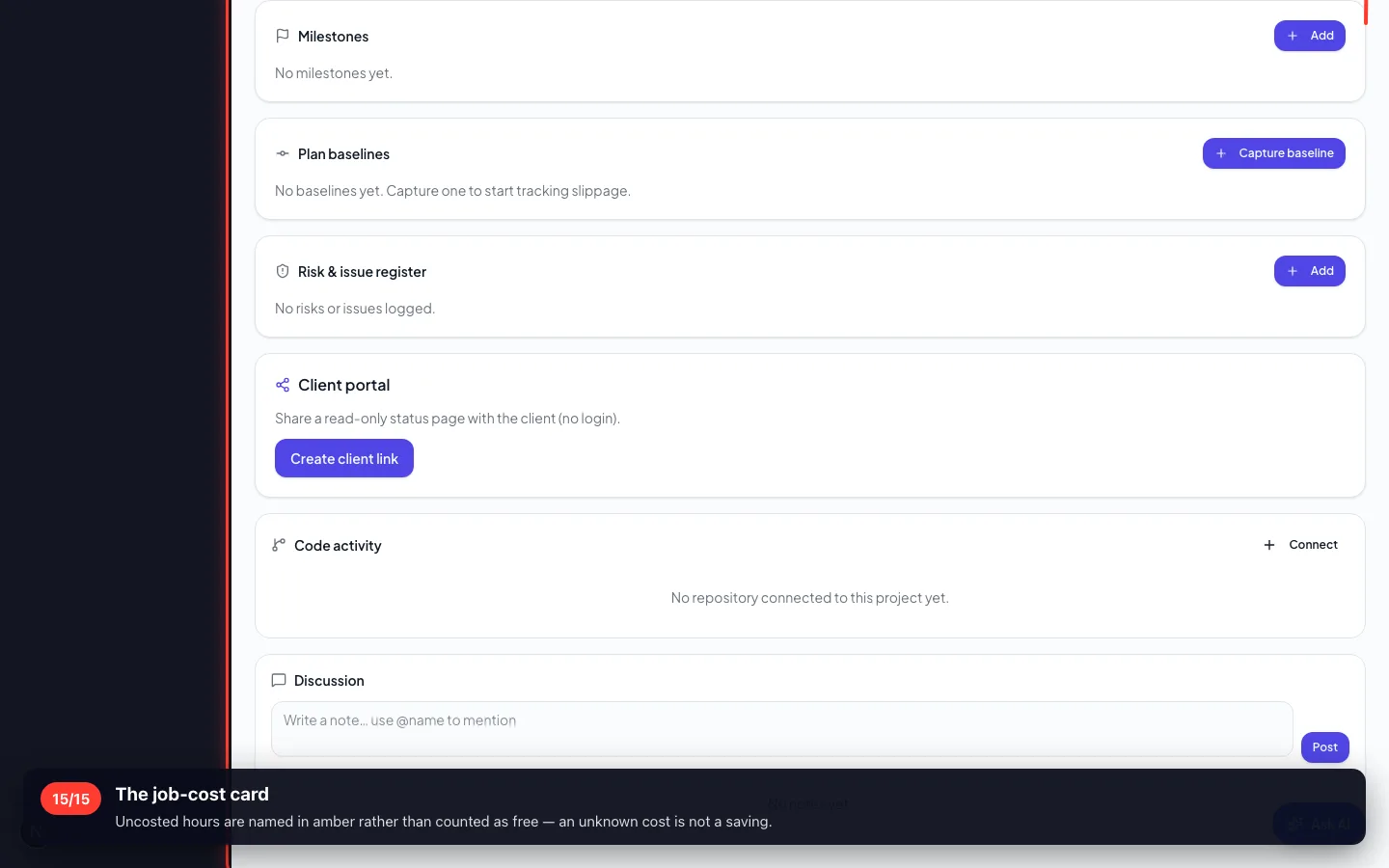
Materials taken, staff hours at salary cost, purchases booked to the job, and expenses — against the budget and the revenue.
15The job-cost card
Uncosted hours are named in amber rather than counted as free — an unknown cost is not a saving.
Recorded on a demo workspace. The company and the figures are invented; the screens are the real product.