Website, store and counter sales
A public site built from sections, a storefront selling the same catalogue, contact forms that land in the CRM, and a till that lowers stock and posts to the books.
10 steps
The whole walkthrough, no narration — the captions are on the screen.
1 · The website builder
Pages are built from sections — hero, services, prices, gallery, FAQ, contact — not from code, and not by a designer you have to wait for.
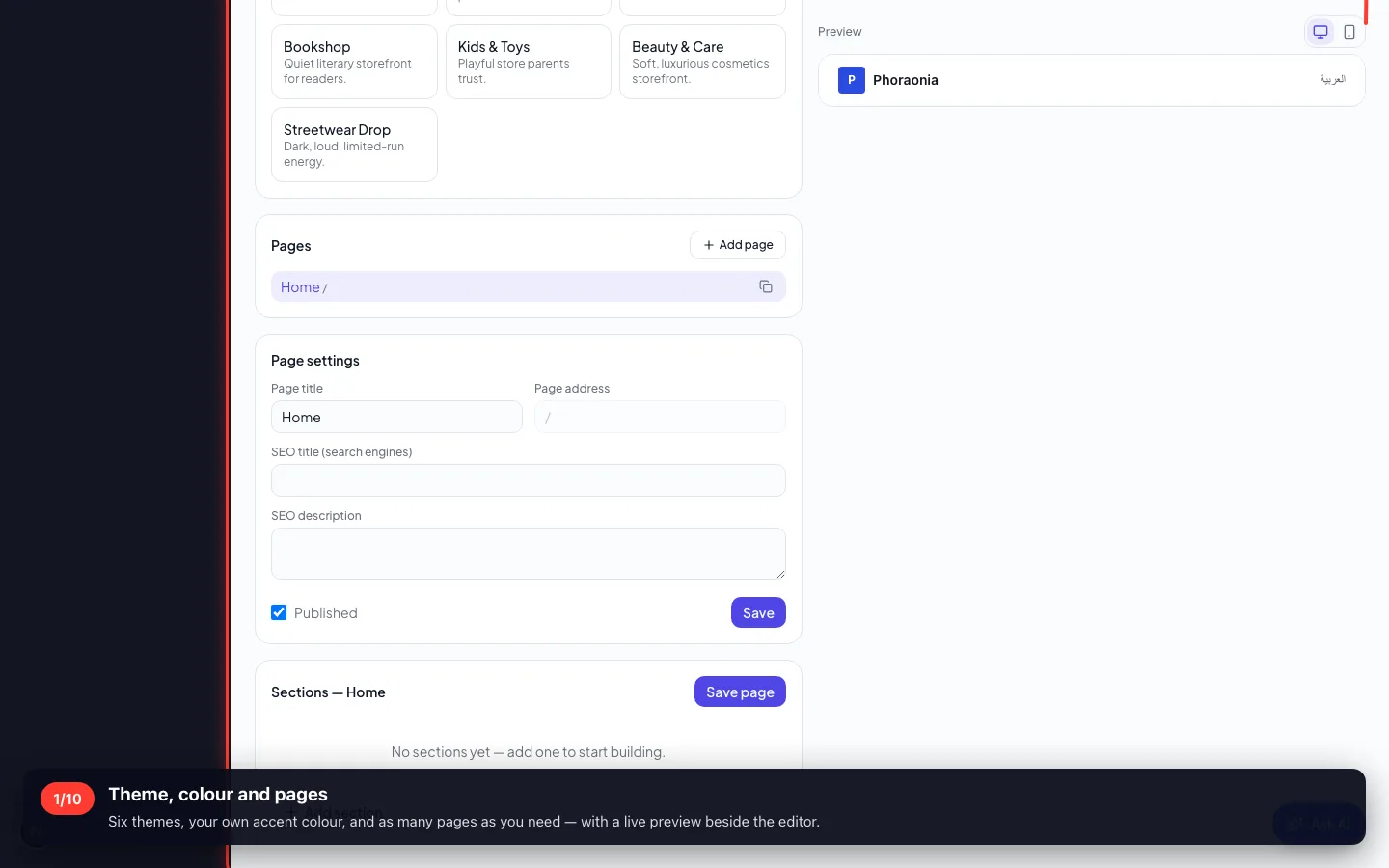
1Theme, colour and pages
Six themes, your own accent colour, and as many pages as you need — with a live preview beside the editor.
- 2
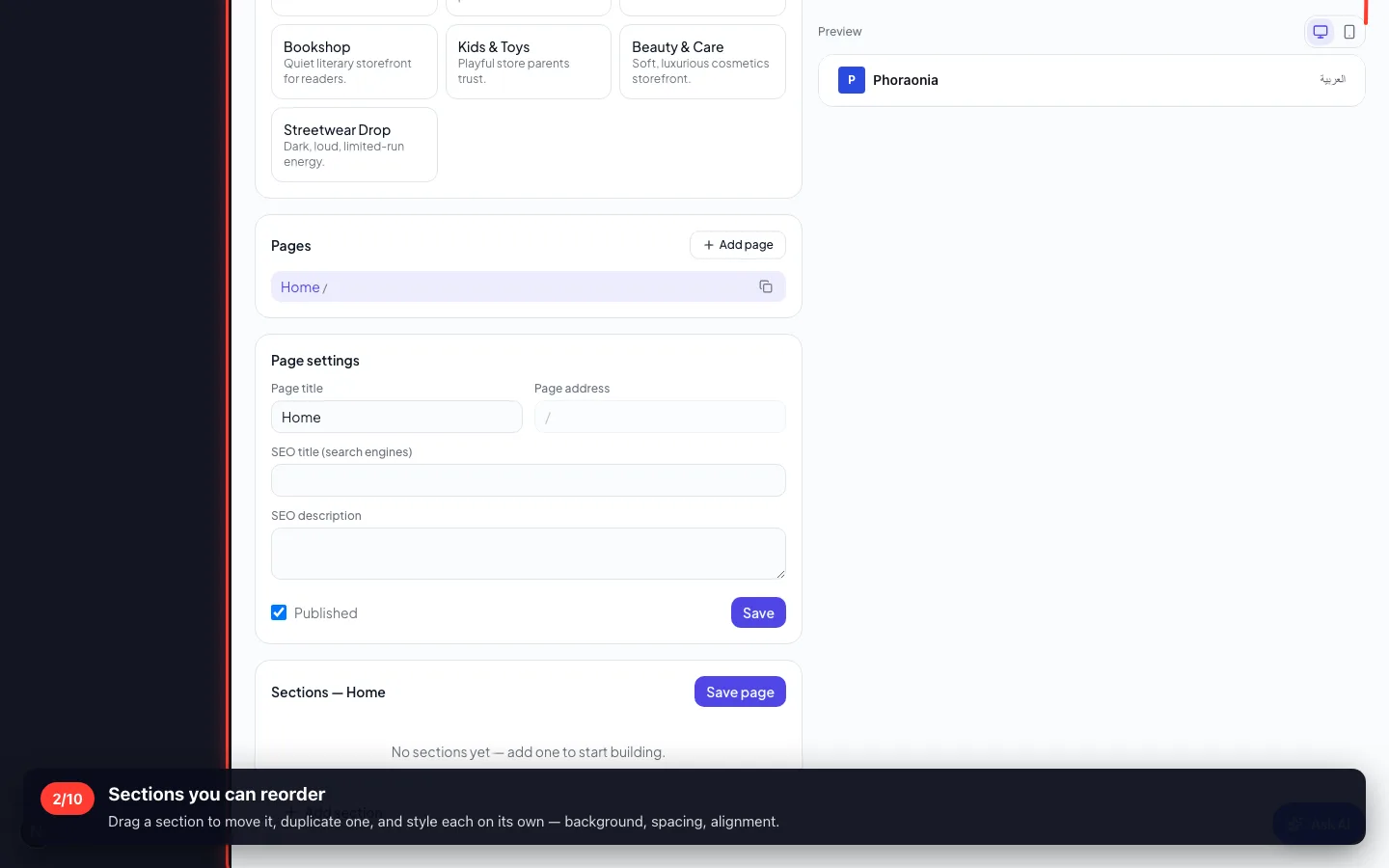
Sections you can reorder
Drag a section to move it, duplicate one, and style each on its own — background, spacing, alignment.
- 3
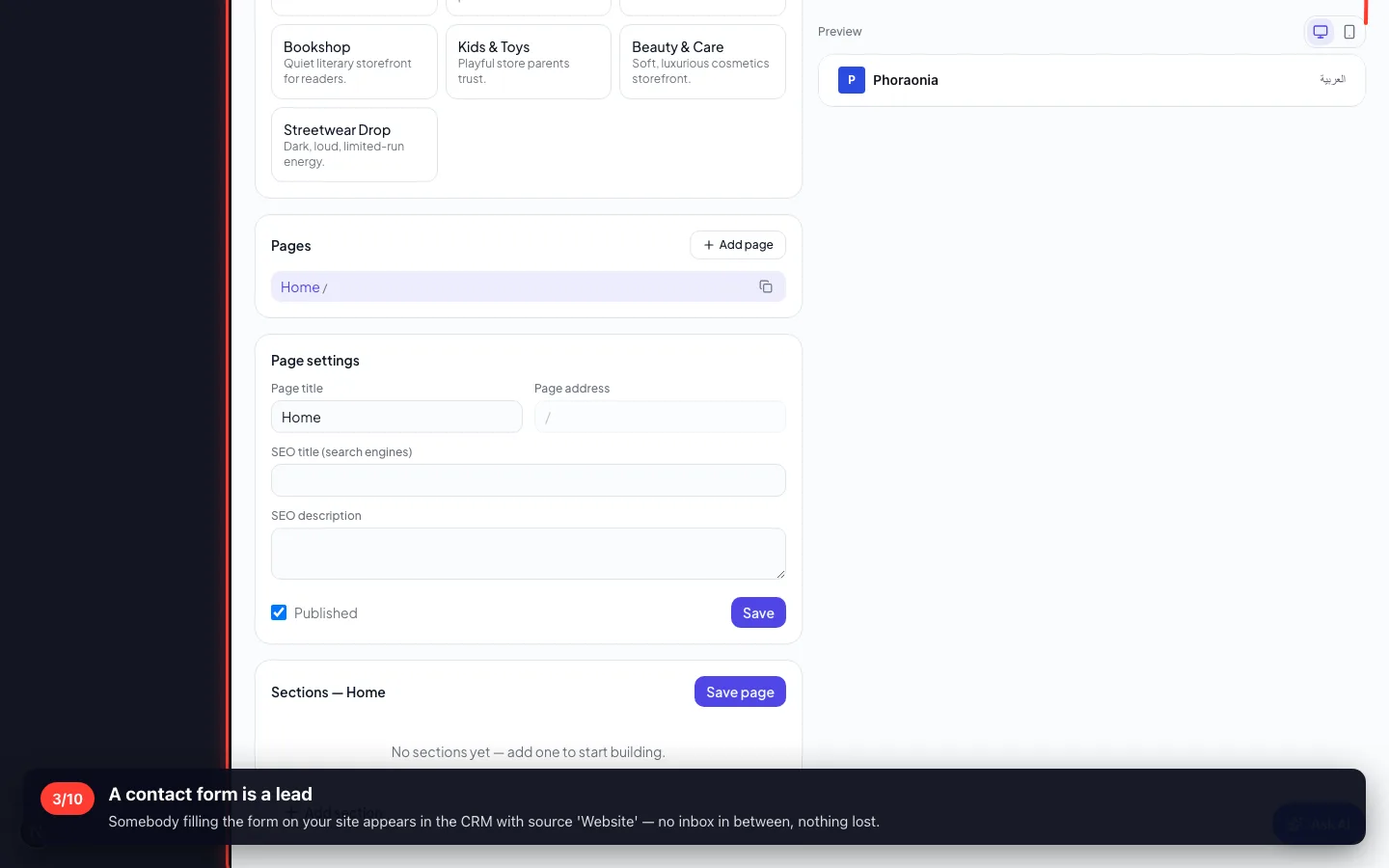
A contact form is a lead
Somebody filling the form on your site appears in the CRM with source 'Website' — no inbox in between, nothing lost.
2 · The online store
The store sells the SAME items as the warehouse. A sale online lowers the same stock a sale on the counter does.
4Products, prices and stock
Out of stock is shown as out of stock. 'Only 3 left' is the truth from the warehouse, not a marketing line.
- 5
Orders from the storefront
A paid order creates the client, a PAID invoice in Finance, and the stock movement — the same three a counter sale creates.

- 6
Discounts, shipping and tax
Set them once in store settings: a discount code, a shipping fee with a free-over threshold, and the tax rate.

3 · The counter
A till that works like a till: open a shift with a float, sell, close with the cash counted — and the variance is stated, not hidden.
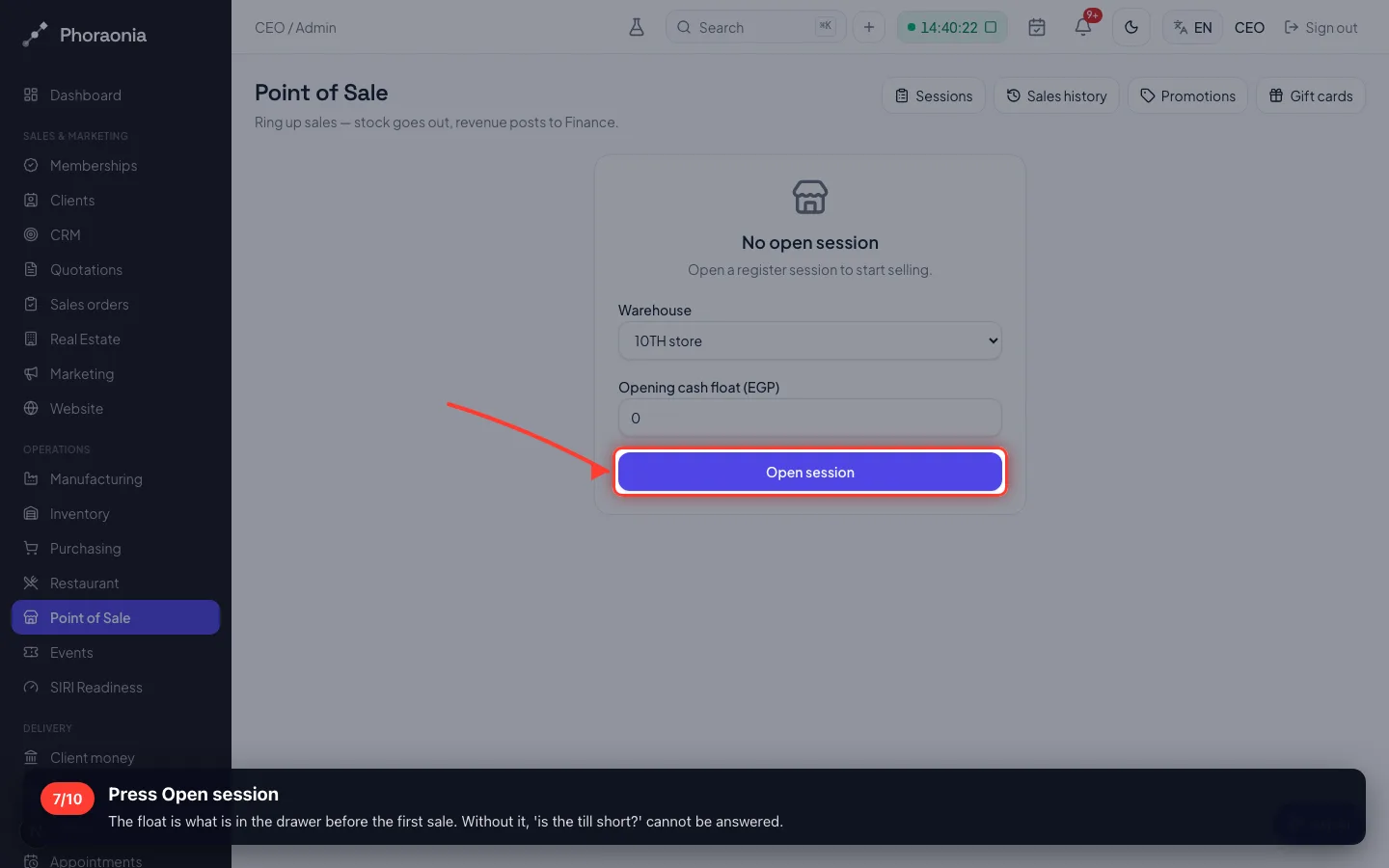
7Press Open session
The float is what is in the drawer before the first sale. Without it, 'is the till short?' cannot be answered.
- 8
The register
Tap an item or scan a barcode; the cart totals as you go. It refuses to sell more than the shelf holds.
- 9
Cash, card, or a payment link
Cash shows the change due. A link or QR is for a customer paying by phone. Either way the sale posts to the books.
- 10
Closing the shift
Count the drawer and type what is there. Expected, counted and the difference are all recorded against the cashier.
Recorded on a demo workspace. The company and the figures are invented; the screens are the real product.